App Gateway Backup and Restore Guide
This KB contain steps for Backup and Restore Application Gateway
1. Backup Application Gateway
Backup Important Directories and Items
Perform the following backups to ensure important data is preserved.
- Backup /etc/cyolo Directory
tar -zcvf cyolo\_backup.tar.gz /etc/cyolo
- Backup /etc/safous Directory
tar -zcvf safous\_backup.tar.gz /etc/safous
- Backup /blobs Directory
tar -zcvf blobs\_backup.tar.gz /blobs
This completes the backup procedure for the App Gateway system. Ensure that the files have been successfully backed up before proceeding to the next step.
- If the purpose is only for backup, this is the final step—no further action is required.
- If there are more than 1 App Gateway, the process must be executed separately for each instance from the start.
- If you want make more than 1 backup file, you need to change the file name
2. Restore Application Gateway
- This step is required if the customer wants to restore the system.
- If you have multiple App Gateways, the step to shut down the container (a. Stop App Gateway) must be applied to all instances simultaneously before proceeding to the next step.
LLL
Stop App Gateway
Stopping the Application Gateway will result in downtime
To ensure that the App Gateway system is properly stopped before restoring, execute the following commands:
-
Stop the App Gateway Services
docker-compose -f /etc/cyolo/config/docker-compose.yml down -
Verify That No Containers are Running
docker ps -a -
Before Stop App Gateway Container

-
After Stop App Gateway Container

-
Confirm Web Access Shutdown
To verify that the user portal has been successfully stopped, attempt to access your tenant's URL:
https://login.tenant.ztna.safous.com
if the portal is unreachable, the shutdown was successful.
Ensure that all containers from repo.safous.com doesn't appear in the container list
Restore Backup Files:
Uncompress all backup files and place them in the intended directory path.
- /etc/cyolo:
tar -zxvf <BACKUP\_FILE\_NAME>.tar.gz -C /etc/cyolo
- /etc/safous:
tar -zxvf <BACKUP\_FILE\_NAME>.tar.gz -C /etc/safous
- /blobs:
tar -zxvf <BACKUP\_FILE\_NAME>.tar.gz -C /
Start App Gateway System
Run the following commands to start the App Gateway system, also check that App Gateway container is running properly:
docker-compose -f /etc/cyolo/config/docker-compose.yml up -d

docker ps -a
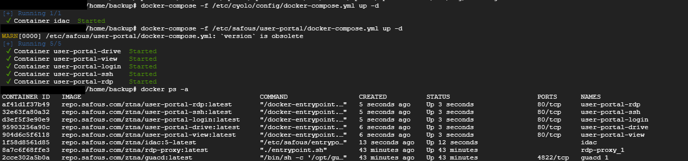
-
Verify Web Access:
Wait for up to 5 minutes, then check the web access to the user portal by opening your tenant URL
https://login.tenant.ztna.safous.comYou should be able to access the user portal and log in normally.