How to upgrade App Gateway version 4 or 5 to 6
This article provides information to upgrade the App Gateway from version 4 or 5 to the latest version available
For upgrade
- App Gateway will be restarted for the upgrade.
- If there are multiple App Gateways,
- This process is required for all App Gateways.
- Stop all App Gateways before upgrade. (If not stopped, rollback may be impossible)
How to stop App Gateway
If you have multiple App Gateways, please stop all App Gateways. If you have only one App Gateway, you can proceed "Upgrade Procedure".
- Login to an App Gateway's server
- Stop App Gateway
sudo docker-compose -f /etc/cyolo/config/docker-compose.yml down
Upgrade Procedure
Please check the following video for a step-by-step guide on how to upgrade the App Gateway to version 6:
- Login to an App Gateway's server
- Start Safous CLI Menu
sudo safous - The following is Safous CLI Menu. Perform "[5] Upgrade version 4 to 6" or "[5] Upgrade version 5 to 6".
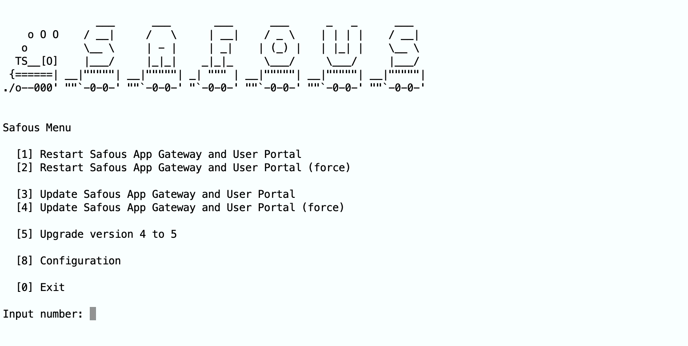
Input "5" and enter key. - Safous CLI Menu displays confirmation as the following

Input "Y" and enter key. - Once the upgrade to version 6 is complete, Safous CLI Menu will display the following.

Input enter key. - Backed to Main Menu. Input "0" and finish Safous CLI Menu.
How to rollback (In case of upgrade failure)
Please check the following video for step-by-step guide on how to downgrade the App Gateway back to the previous version (4 or 5) in case of upgrade failure:
- Stop the App Gateway before rollback. If there are multiple App Gateways, stop all App Gateways.
- Start Safous CLI Menu
sudo safous - The following is Safous CLI Menu. Perform "[5] Rollback version to 4" or "[5] Rollback version to 5".
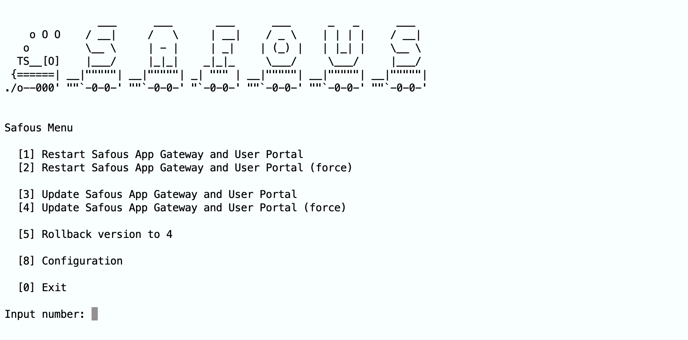
Input "5" and enter key. - Safous CLI Menu displays confirmation as the following

Input "Y" and enter key. - Once the rollback to the previous version (4 or 5) is complete, Safous CLI Menu will display the following.
Input enter key. - Backed to Main Menu. Input "0" and finish Safous CLI Menu.