How to use a Japanese physical keyboard in web RDP access?
New AppGW version (version 5 onwards)
-
In the Admin Portal, navigate to Settings > Applications.
-
Go to the RDP apps, click the expand button ("-"), then click Edit.
-
Change the Keyboard Layout to
ja-jp-qwerty, then click Save.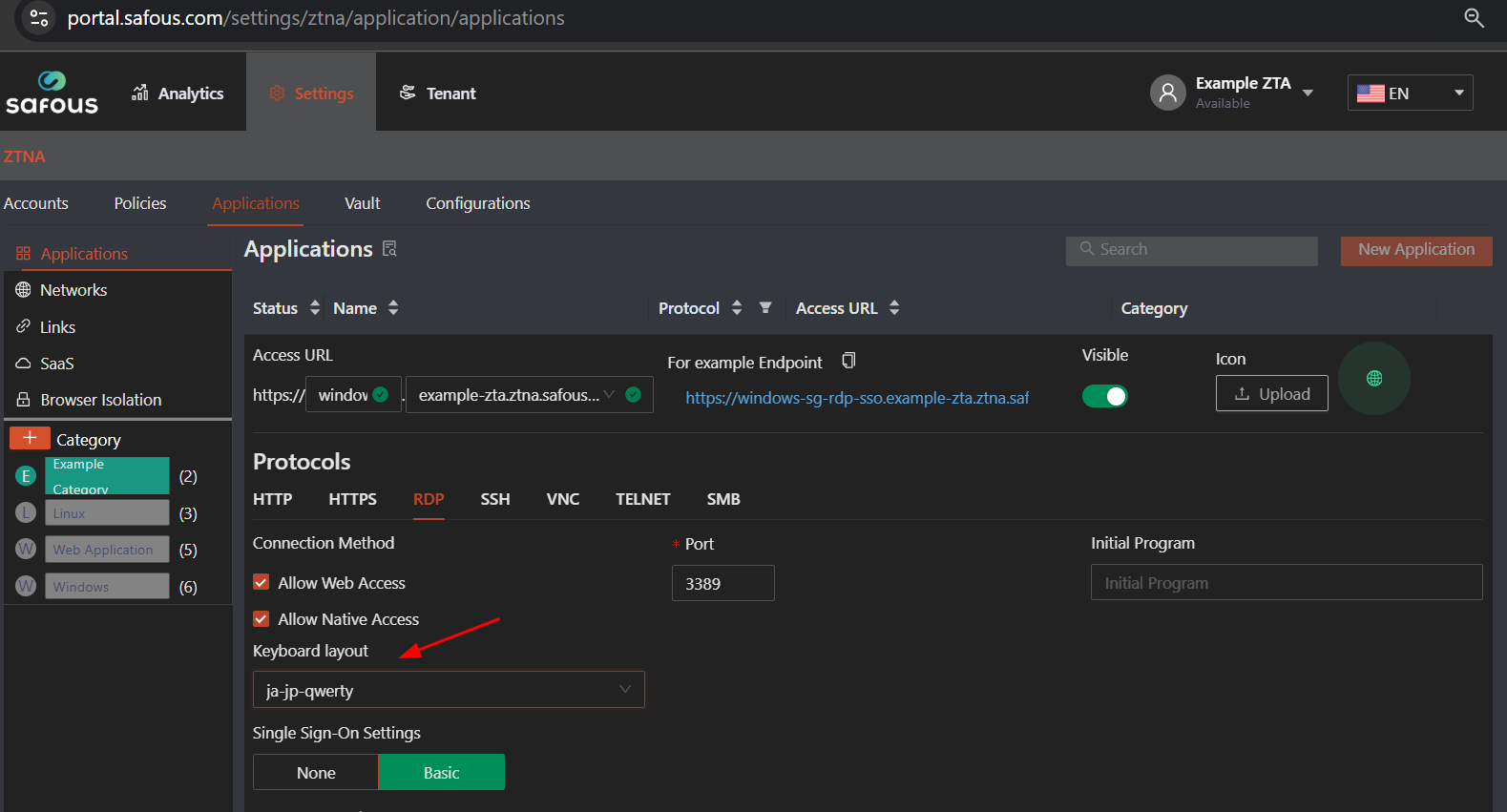
Old AppGW version (earlier than version 5)
Normally when using a physical Japanese keyboard during web RDP access, some of the keys will not present correctly.
Several adjustments in the App Gateway will be needed to make it work as follows:
-
Access to the configuration file of App Gateway
vi /etc/cyolo/config/docker-compose.yml -
Add bellow statement under environment variable
RDP_KEYBOARD_LAYOUT=ja-jp-qwerty(please make sure the indentation is the same as another statement in the environment variable)
-
Re-build the application
docker-compose -f /etc/cyolo/config/docker-compose.yml up -d
Example:
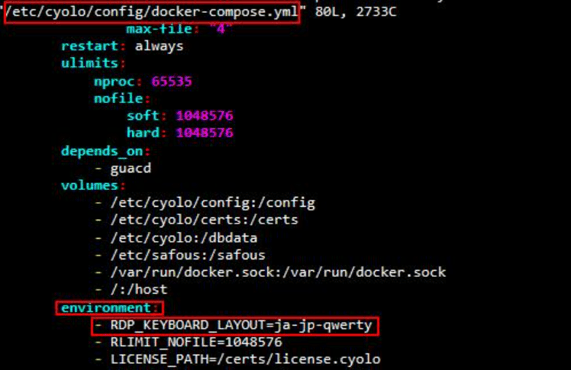
During this parameter is enabled, another language-based keyboard will not work correctly.
To use another language-based keyboard, you need to disable it first.