Converting Guac Session Recordings to MP4
This article serves as a guide to convert Guac session recordings to MP4 using two steps:
- Convert from Guac format to M4V,
- Convert From M4V to MP4 using FFmpeg.
This method works across Linux, Windows, and macOS environments using Docker
Prerequisites
- Docker: Ensure that Docker is installed and running on your machine.
- Guacamole Session Recordings: You should have Guacamole session recordings that need to be converted.
Setup Docker Container
-
Create a Dockerfile
The following Dockerfile sets up an environment with all the required dependencies to convert Guac recordings. It installs necessary libraries, downloads, and installs the Guacamole server, and includes FFmpeg for further video conversion.
DockerfileFROM ubuntu:24.04ENV LD_LIBRARY_PATH=/usr/local/lib# Install dependenciesRUN apt update && apt install -y libcairo2-dev libjpeg-turbo8-dev libpng-dev libtool-bin libossp-uuid-dev libavcodec-dev libavformat-dev libavutil-dev libswscale-dev wget ffmpeg make# Download and install guacamole-serverRUN wget -O guacamole-server-1.5.5.tar.gz "http://apache.org/dyn/closer.cgi?action=download&filename=guacamole/1.5.5/source/guacamole-server-1.5.5.tar.gz"RUN tar -xzf guacamole-server-1.5.5.tar.gzWORKDIR /guacamole-server-1.5.5RUN ./configure --with-init-dir=/etc/init.d --disable-dependency-trackingRUN makeRUN make install# Set the default commandENTRYPOINT ["/bin/bash"] -
Build the Docker Image
Once you have the Dockerfile created, build the Docker image by running the following command in the directory where the Dockerfile is located:
sudo docker build . -t guacdenc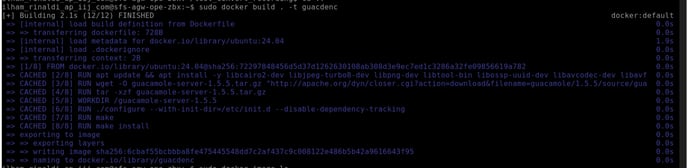
This will create a Docker image named guacdenc.
To check whether you have successfully built the image you can check by running the follow command
sudo docker image ls | grep "guacenc" -
Run the Docker Container
After building the Docker image, run the container and mount the local folder containing Guacamole session recordings to /recordings inside the container.
sudo docker run -v "(local_path_of_your_recordings):/recordings" --rm -d -it --name guacenc guacdenc:latestReplace (local_path_of_your_recordings) with the actual path of the folder containing the recordings on your local machine.
The steps above is just for first time setup
Convert Guac Session Recording to MP4
-
Download recording file
Download the recording file from user portal
noteEnsure the status is available


-
Upload the downloaded record file to directory
After the download is complete, upload the recording file to (local_path_of_your_recordings) directory (Refer to Setup Docker Container part step 3).
-
Convert to m4v format using guacenc utility
To convert a recording to the M4V format, use the guacenc utility inside the running container. Run the following command:
sudo docker exec -it guacenc guacenc -f /recordings/(recording_filename)Replace (recording_filename) with the name of the Guacamole session recording (without file extension).

-
Convert M4V to MP4 Format using ffmpeg
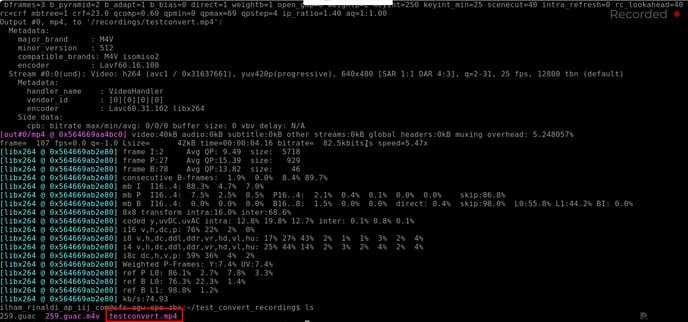
To convert the M4V file to MP4 using FFmpeg inside the container. Run the following command:
sudo docker exec -it guacenc ffmpeg -i /recordings/(recording_filename).m4v /recordings/(recording\_filename).mp4Replace (recording_filename) with the actual name of your M4V recording.
Once done, you can find the converted MP4 file in your local recordings folder.
Troubleshooting
- Error with guacenc command: Ensure that the Guacamole recording file exists in the /recordings folder and has the correct file extension.
- FFmpeg conversion issues: Ensure that FFmpeg is installed properly inside the container. You can check the FFmpeg version by running ffmpeg -version.
If you want to convert multiple videos, you need to repeat the step for each video.