Device Posture
Overview
What is Device Posture?
Zero Trust security emphasizes the authentication of both users and the devices they use to connect to your systems. In order to secure your entire environment, every device should be validated, to avoid breaches.
Device posture is the ability to configure policies with minimum requirements that ensure the device’s compliance before it connects to a session.
By monitoring and enforcing device posture before users connect to applications, organizations can prevent corrupt or non-compliant devices from accessing sensitive information and critical applications.
The Safous platform’s Device Posture feature reduces the risk of exposure to vulnerabilities by allowing Administrators to configure device compliance requirements for laptops and desktops before users connect to digital assets.
Once Device Posture Profiles are created, they can be linked to specific Policies.
Device Posture Profiles
Device posture profiles define security requirements that users' devices must meet to access organizational resources. Each profile contains one or more check conditions that verify device compliance before granting access. Administrators can configure check conditions to verify that devices meet specific security standards, such as:
- Running the latest operating system version
- Having current antivirus software installed and updated
- Meeting other security requirements defined by the organization
Administrators can create multiple device posture profiles and link them to access policies. Users can only access resources when their devices satisfy all check conditions in the applicable profiles.
Device Posture Conditions
Device posture conditions are the criteria that return a true or false response. For example, a Device Posture Profile might require Windows greater than v10, with the condition set to “True.” If the condition is returned as “false,” the device will not be allowed and the user will not be able to connect to digital assets.
Prerequisites
-
Please note that internet connectivity is a prerequisite for the Device Posture feature. At this time, Device Posture is not supported if you are running Safous in an isolated environment.
-
The Device Posture feature is functional only when the Safous Agent is installed.
-
If users have managed devices with Safous Agent previously installed, the device posture feature will work. Users will know that the Safous Agent is running if they see the Safous icon in their toolbar.
-
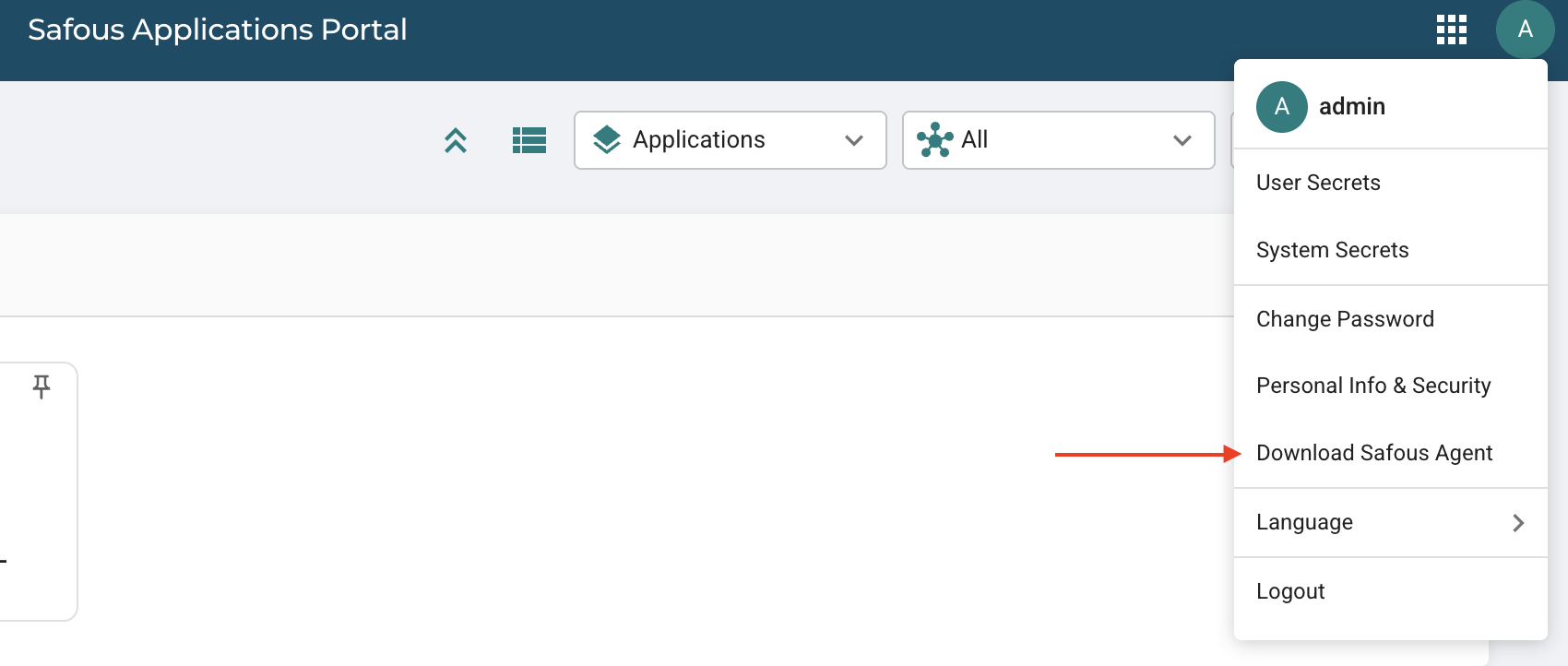
If the user is configured as an Administrator on their laptop, they can download the Safous Agent from the account menu in the Application portal.
-
When clicking on the Safous Agent icon above, the user is prompted by a screen to download the appropriate version for their operating system, e.g., Windows, Linux, or macOS.
Basic Flow
- Enable the Device Posture feature.
- Create a Device Posture Profile.
- Apply a Device Posture Profile to a Policy Condition.
Enable Device Posture
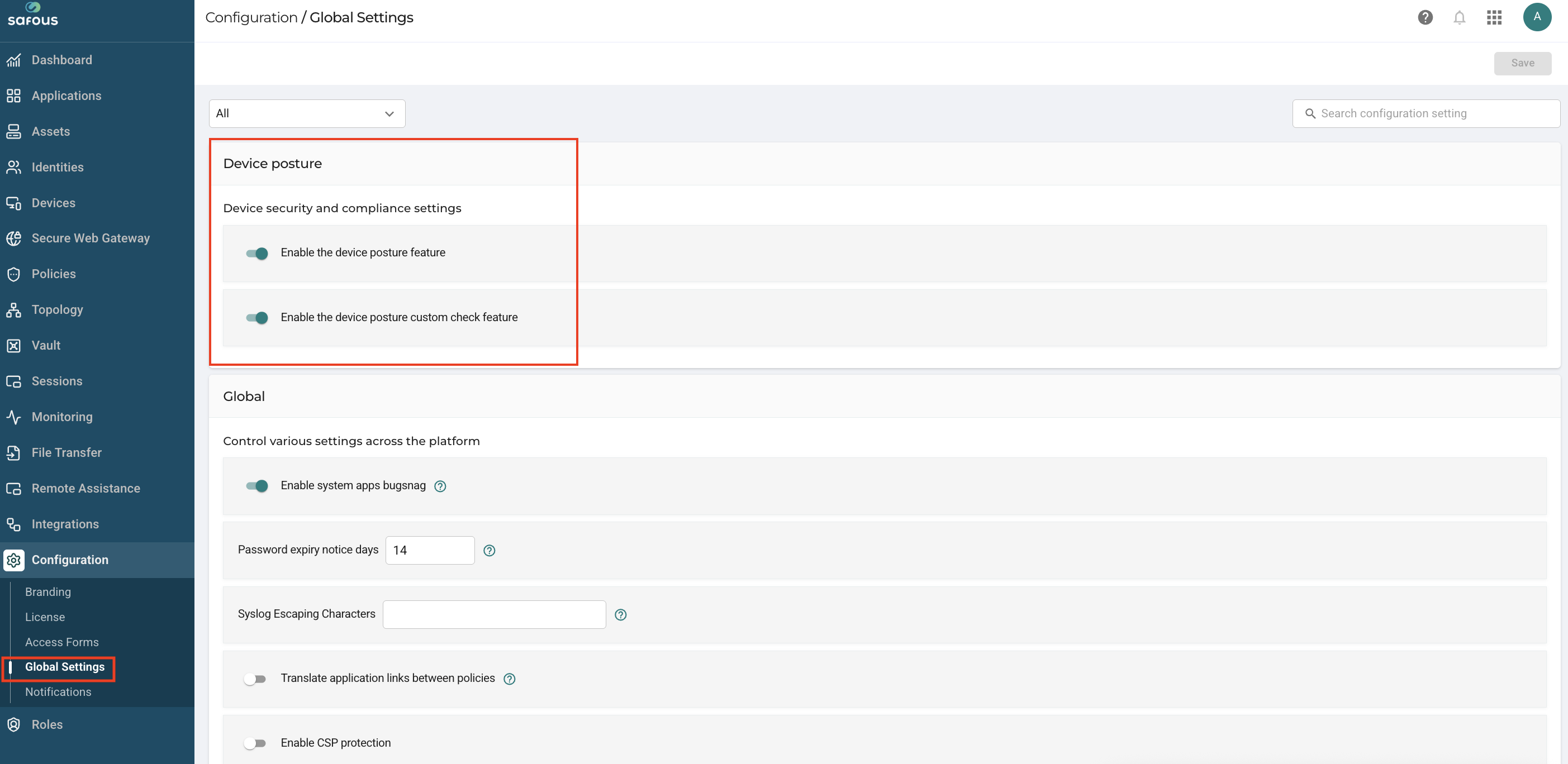
- Navigate toConfiguration > Global Settings > Device Posture.
- Enable the device posture feature - the Osquery package is automatically downloaded.
- Enable the device posture custom check feature - This allows
Administrators to create any SQL query to osquery and add it as a custom check when configuring Conditions later on.
Create a Device Posture Profile
-
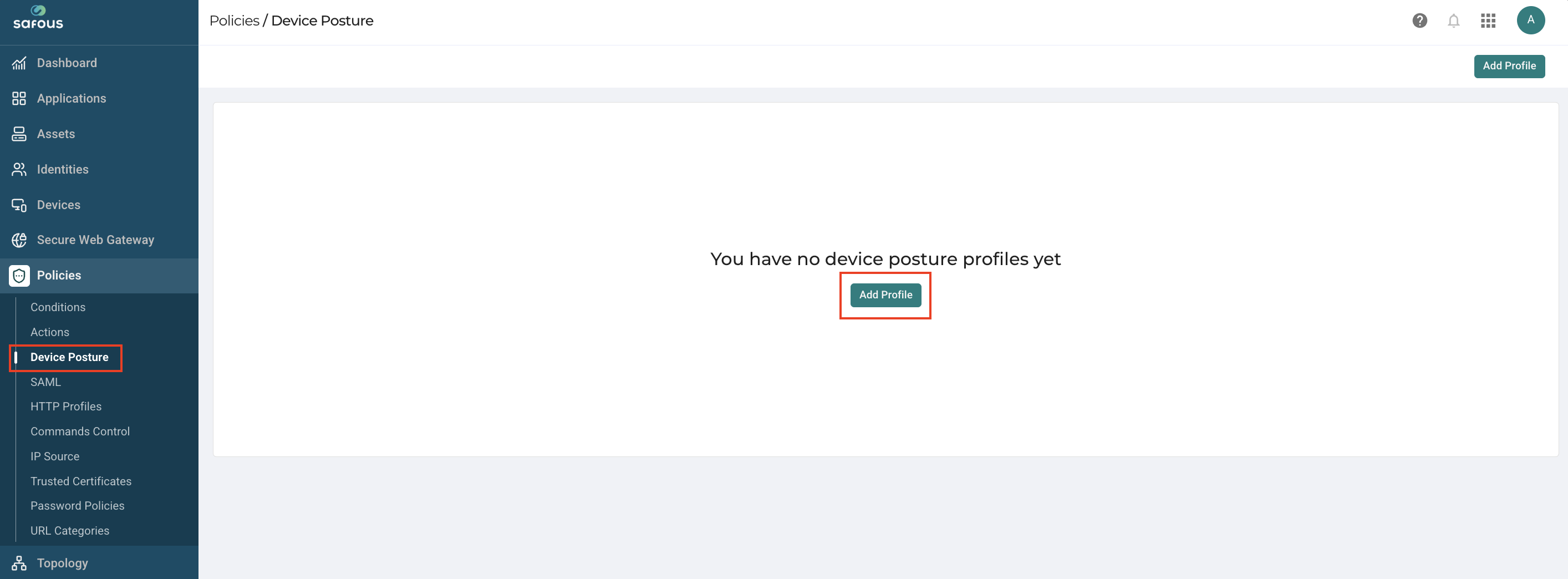
Navigate to Policies > Device Posture and Add Profile.
-
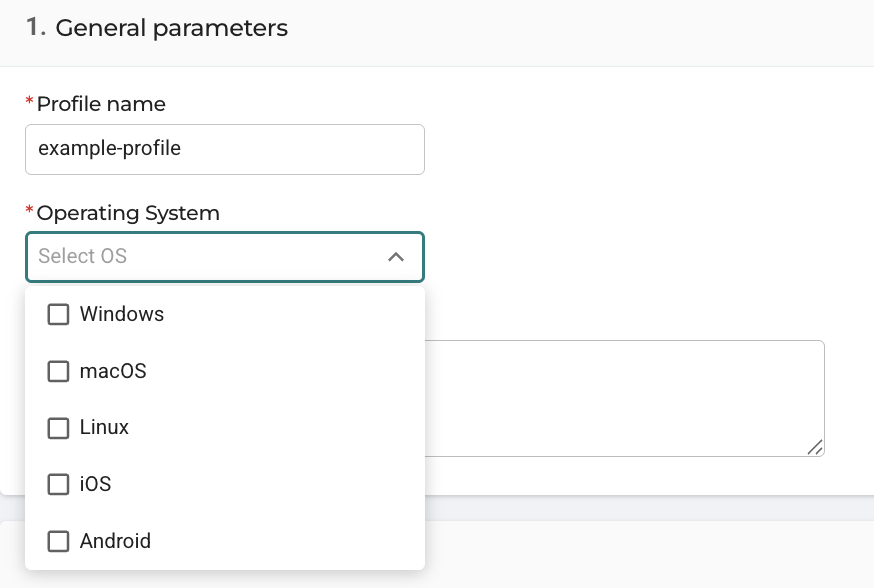
Enter the basic parameters.
We recommend that you make the profile name as specific as possible for ease of searchability and editing later on. We also recommend that you give the profile a description in the Description field as well. This is particularly helpful when you have a number of profiles that need to be attached to multiple policies.
-
Select the Operating Systems (Windows, macOS, or Linux) for which you are creating the device posture. A single profile can be configured for one or multiple operating systems.
-
Configure Conditions - Message Type.
-
Configure Condition type. You can add multiple condition types.See full list below.
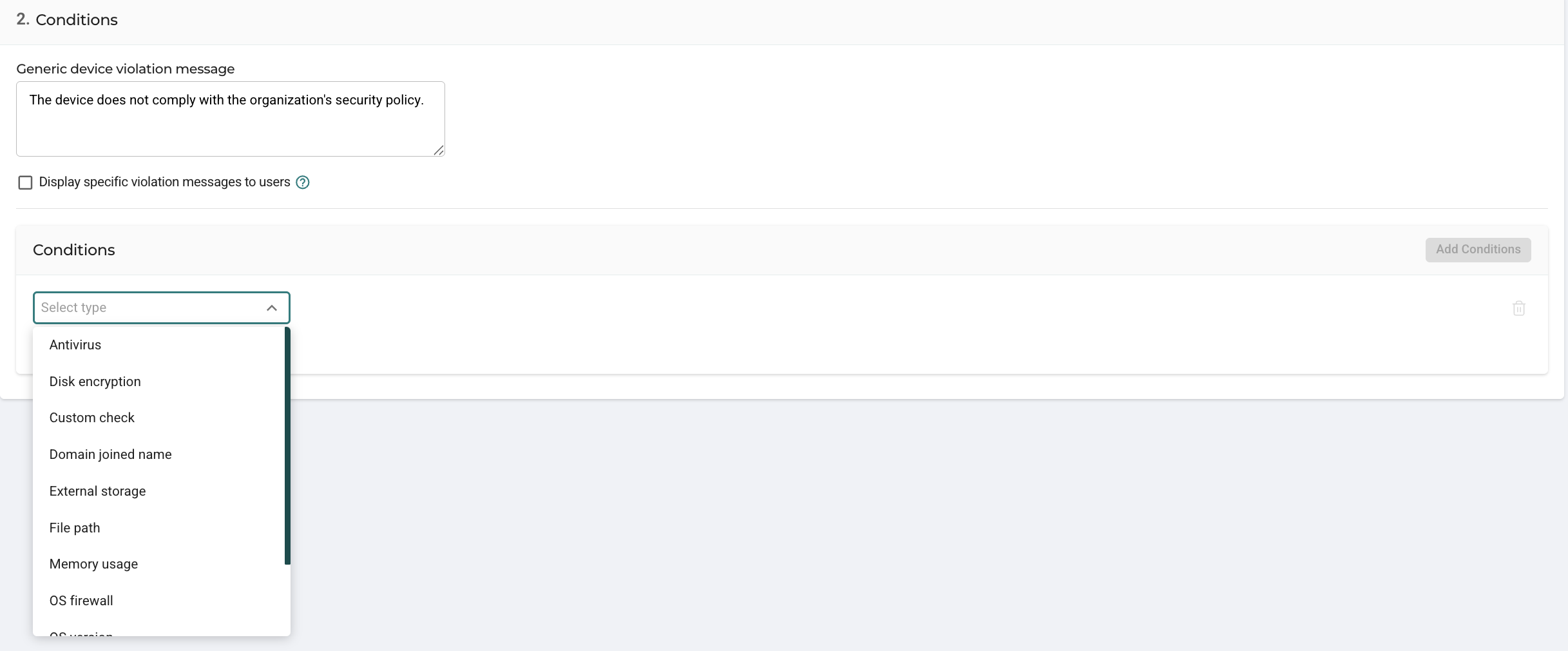
The current version of the Device Posture feature allows for adding a condition type only once.
For example, if one File Path condition is used for the profile, a second File Path condition cannot be added. If a second device posture condition of the same type is needed (i.e., two File Paths or two Custom Checks), another device posture profile needs to be created and attached to a policy.
-
Depending upon the Condition Type selected, there are other parameters to configure. See details below.
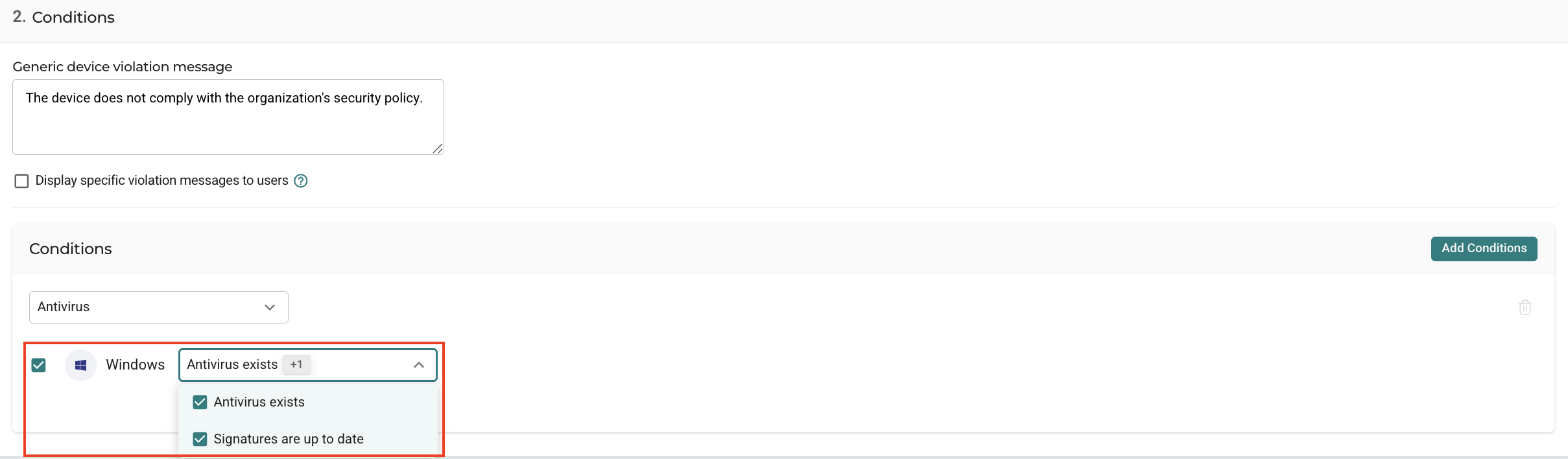
-
Once the Device Posture Profiles and Conditions are saved they can be connected to a Policy.
Apply a Device Posture Profile
-
Navigate to Policies > Conditions and Add New.
-
Enter the basic parameters,
-
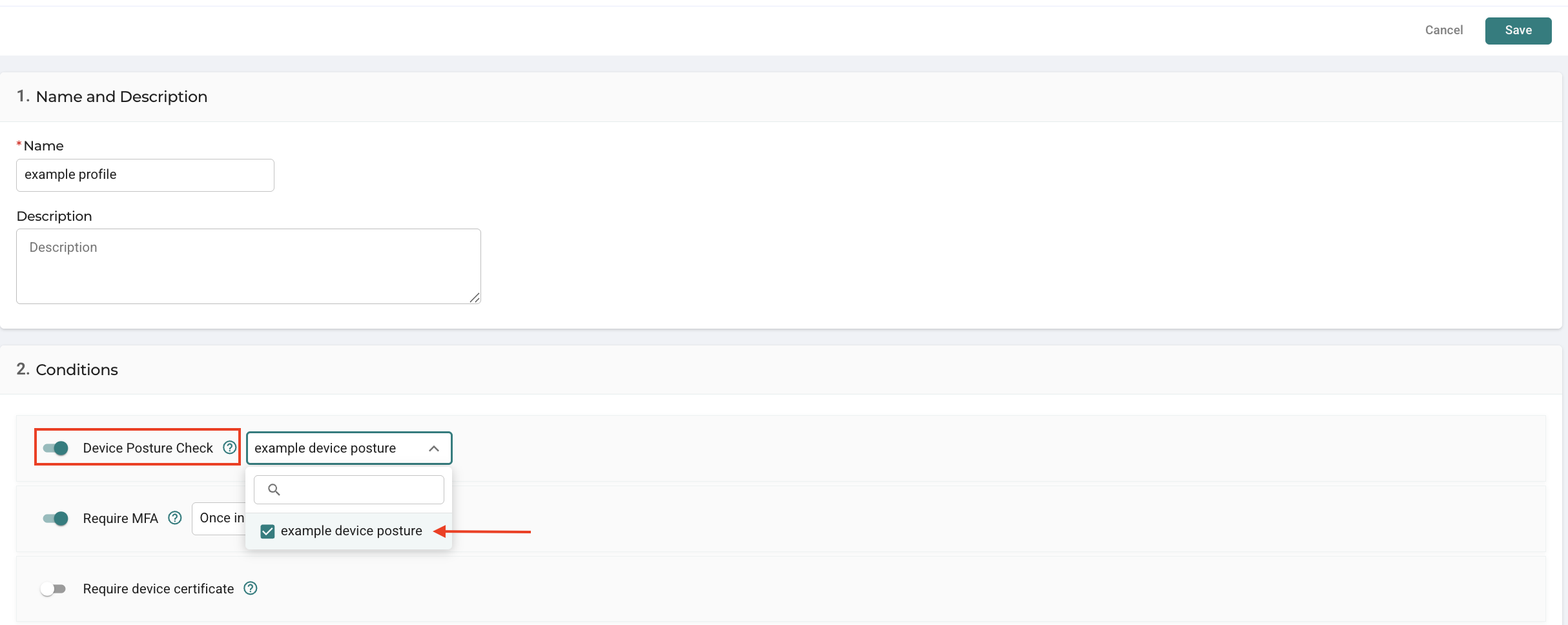
Under Conditions enable Device Posture Check and select a Device Posture profile.
Reference
Condition Types
- Antivirus
- Disk encryption
- Custom check
- Domain joined name
- External storage
- File path
- Memory usage
- OS firewall
- OS version
- Process
- Registry key
Condition Parameters
-
Antivirus: Use the dropdown and select if you want devices checked for "Antivirus Exists," or whether "Antivirus Signature Exists" on the connected device, or both.
-
Disk Encryption: If Disk Encryption is selected as a condition, the field will say "Active" for the operating systems selected and it will check whether the device has boot disk encryption enabled or disabled. To pass this posture validation check, full disk encryption must be enabled. Please consider a Windows disk as encrypted only if the encryption percentage is 100%.
-
Custom check: Enter a snippet name. This will allow you to create any SQL query and validate it with the device. The query should be based on osquery version 5.4.0.
-
Domain Joined Name: This condition checks whether a Windows device is domain-joined to an Active Directory domain. To pass this posture validation check, the device's server domain must be joined to the Active Directory domain that was configured in the Device Posture.
-
External Storage: When this condition is selected, use the dropdown to select whether the condition allows USB storage, Bluetooth file sharing, or both. Please note that Bluetooth file sharing only applies to macOS.
-
File Path: When the File Path Condition is selected, enter the required file path, for example, C:\Program Files(x86)\Example\AV.txt. The check will search for the specific file path to see if it is found on the a user's device. Under Global Action, determine whether you want this condition to Exist or Not Exist by clicking on the relevant button.
-
Process: If this condition is selected, a check is run to determine whether a specific process is running, for example, C:\Program Files\Common Files\McAfee\AVSolution\Mcshield.exe. Under Global Action, determine whether you want this condition to Exist or Not Exist by clicking on the relevant button.
-
Memory Usage: When this condition is selected, enter the percent of total memory usage allowed from the connected device.
-
Operating System: When the OS Version condition is selected, additional configuration options appear - Select Expression, Enter Version, and Enter Build. Select Expression triggers the OS level sought (e.g., select Equal to, Not Equal to, Equal or Greater Than, or Equal or Less Than). Selection Version refers to a particular OS. When choosing more than 1 version of the OS and when selecting "Equal To" or "Not Equal To," there is no need to select a build. For example, selecting "Equal To" 7, 8, 9, does not require selection of builds. However, when selecting only 1 version of the OS (e.g., "Equal To" 7), selection of build is required, e.g., 7.1, 7.2, 7.3. In Windows, if you are not sure which OS you are using, use the "ver" command in CMD like this:
C:\Users\safous-admin> verThe version you are using will appear and will show you which version you are using (e.g., Microsoft Windows [Version 10.0.17763.1879])
-
OS Firewall: When this condition is selected, the firewall is inspected for at least one of the firewall profiles (public, private, or domain). To pass the posture validation check, at least one must be active.
-
Registry Key: If this condition is selected, one can choose either a registry key or value. When selecting Key, enter the registration key. When selecting Value, the Administrator is triggered to enter the value name. In either case, select whether the registry key should exist or not as part of the validation check.
-
Custom Check: In general, Device Posture offers out-of-the box conditions for osquery.
However, this custom condition is available when the Administrator enabled it in the general settings as noted above. This condition supports custom check, using osquery to audit the OS and all its configurations as an SQL-based relational database. Administrators can write SQL queries to explore the osquery and add it as a custom check. The query should be based on osquery version 5.4.0. When this is selected, a text box appears. Start by entering the snippet name, for example:- Validating a file's hash: select 'true' from hash where path='/etc/hosts' and sha256='7aeefe1afd90f413f6e4ec9bc715c9be6d2535422bf62a91784be5148c0cb7c7' ;
- Checking the number of Chrome extensions (negative check): Result > 0 means 'true', so the Administrator should define this check as a negative one: select count(*) from chrome_extensions;
- Checking the number of Chrome extensions (positive check): select 'true' where (select count(*) from chrome_extensions) = 0;
Troubleshooting
-
Session Access Denied: Users may be denied access to a session for the following reasons:
- The Safous Agent was not installed on the user's device and therefore the device check was not able to execute.
- The device does not meet the posture criteria set by the Administrator.
- There are connectivity issues, hardware issues, or user unauthorized actions impacting access.
- When access is denied based on a Device Posture failure, the user will receive an Access Denied screen with information about which element of the Device Posture check failed.
noteUsers denied access should contact their Administrator for assistance. Administrators can check the monitoring logs for the potential error.
-
Device Posture Profile Policies Not Enforced: If the "Enabling device posture" field in the Global Configuration screen is disabled, the Device Posture Profile will not be enforced. It will remain connected to the policy, but will not be enforced.
Logs
- When users meet the device posture requirements and successfully connect, the event is
recorded in the Activity Logs. - If users are denied access because the device does not meet the configured device posture
requirements, the event is also logged in Activity Logs, indicating that the user could not connect because the connected device did not meet the configured condition. - If a device fails multiple Device Posture Profiles, the access denial logs will list all failed profiles.