Commands Control
Commands control allows users to add a list of allowed or denied commands.
note
Please note that Commands Control feature currently only support on linux amd architecture and not yet implemented in arm architecture.
- To create a new policy with allowed rules and denied commands, go to the Policies > Commands Control page of the Safous admin portal.
- Create a Name and Description for the policy.
- Choose from the list of available allowed and denied commands at the bottom of the screen. Note that by default, commands not listed will be treated as the opposite.
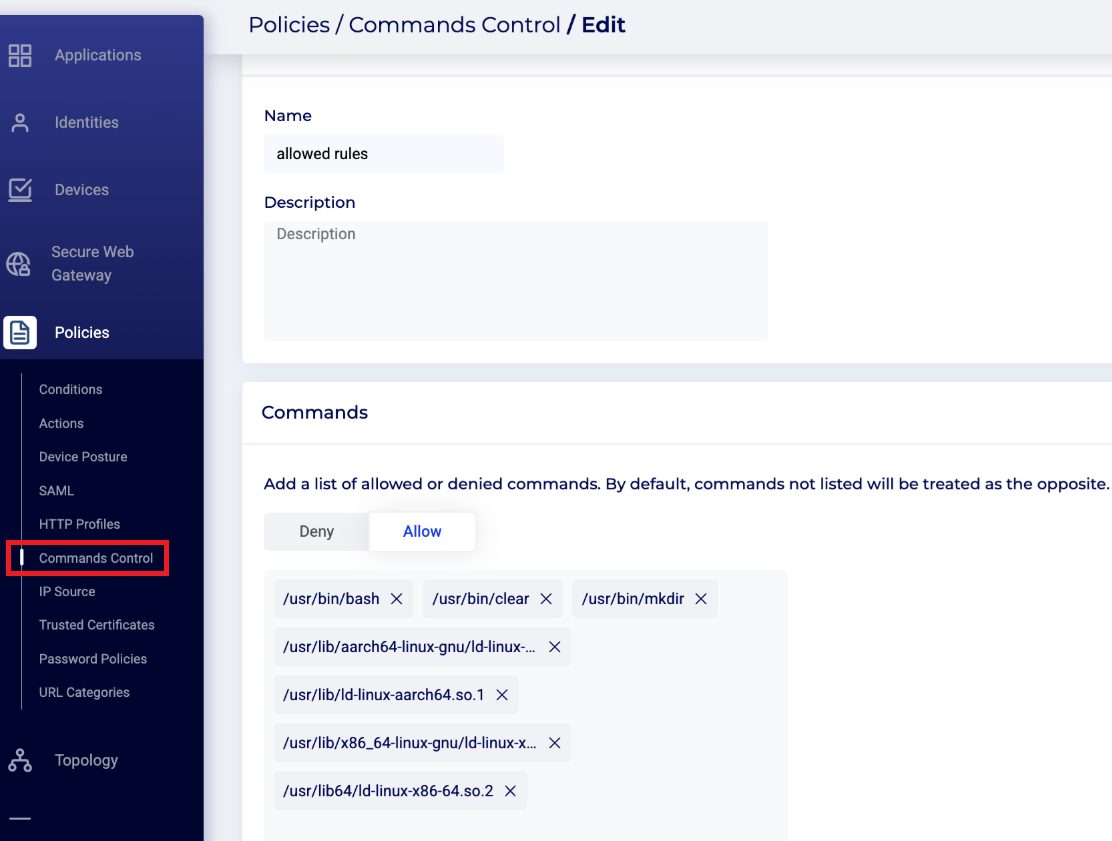
- Once the policy is set, go to the Policies > Actions page, and select the relevant policy there.
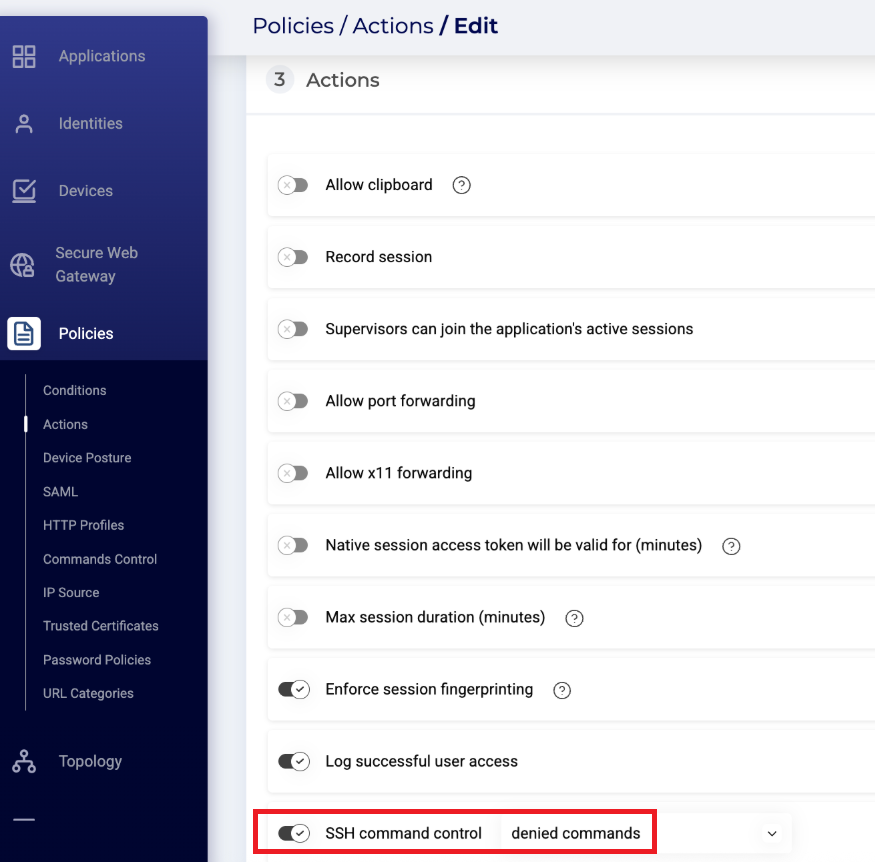
- See the SSH section of the Actions page for additional information.
- (Optional) Configure systemd on destination server with this code
sudo sed -i '/^\[Service\]/a RuntimeDirectory=cycommandcontrol' /etc/systemd/system/cycommandcontrol.service
note
This systemd configuration ensures the socket is recreated under /var/run after a server reboot.
Example Deny Command use for SSH application
- Go to the Policies > Commands Control page and create new policy, then enter a Name and Description for the policy.
- In the Command section, click Deny and enter the full path of the command to block. For example, to deny
rm, enter/usr/bin/rm(not justrm). Then save the policy.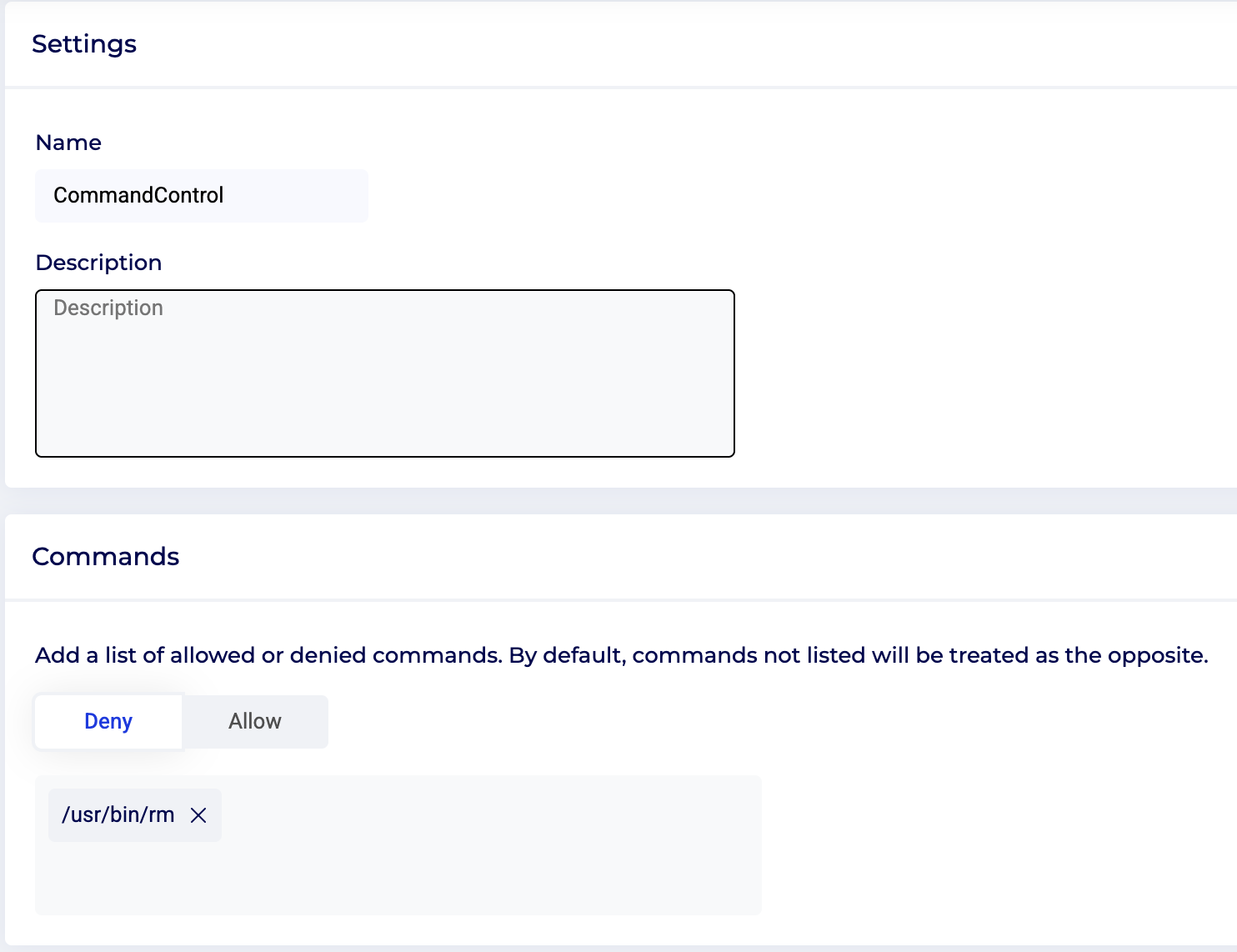
- Go to the Policies > Actions page then create new or edit existing action policy, then enter a Name and Description for the policy.
- Next on Protocol section. Ensure that it have Protocol > Server and Type > SSH.
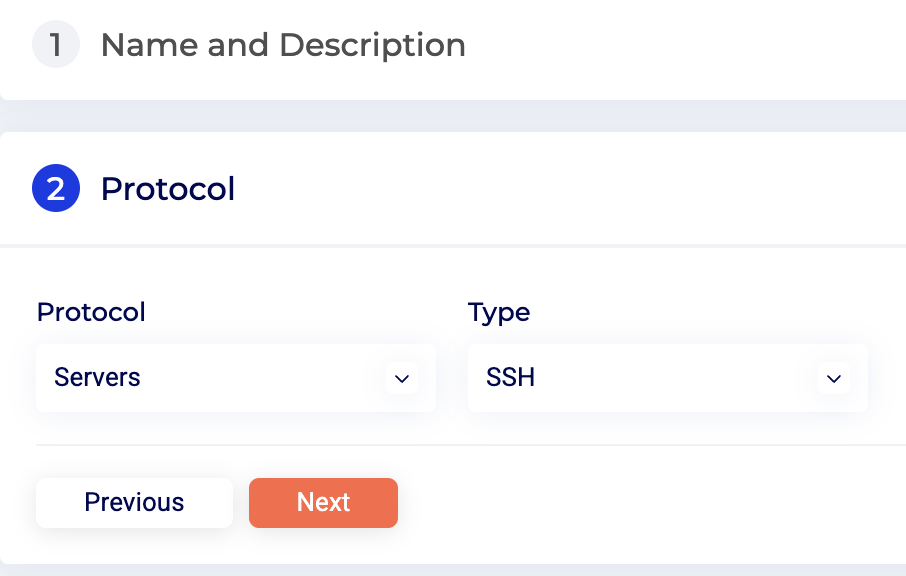
- Next on Action section. Toggle on SSH command control then select Commands control have been created in step 1-2.
- You can also add other option in this Action profile. See the SSH section of the Actions page for additional information. Then save the policy.
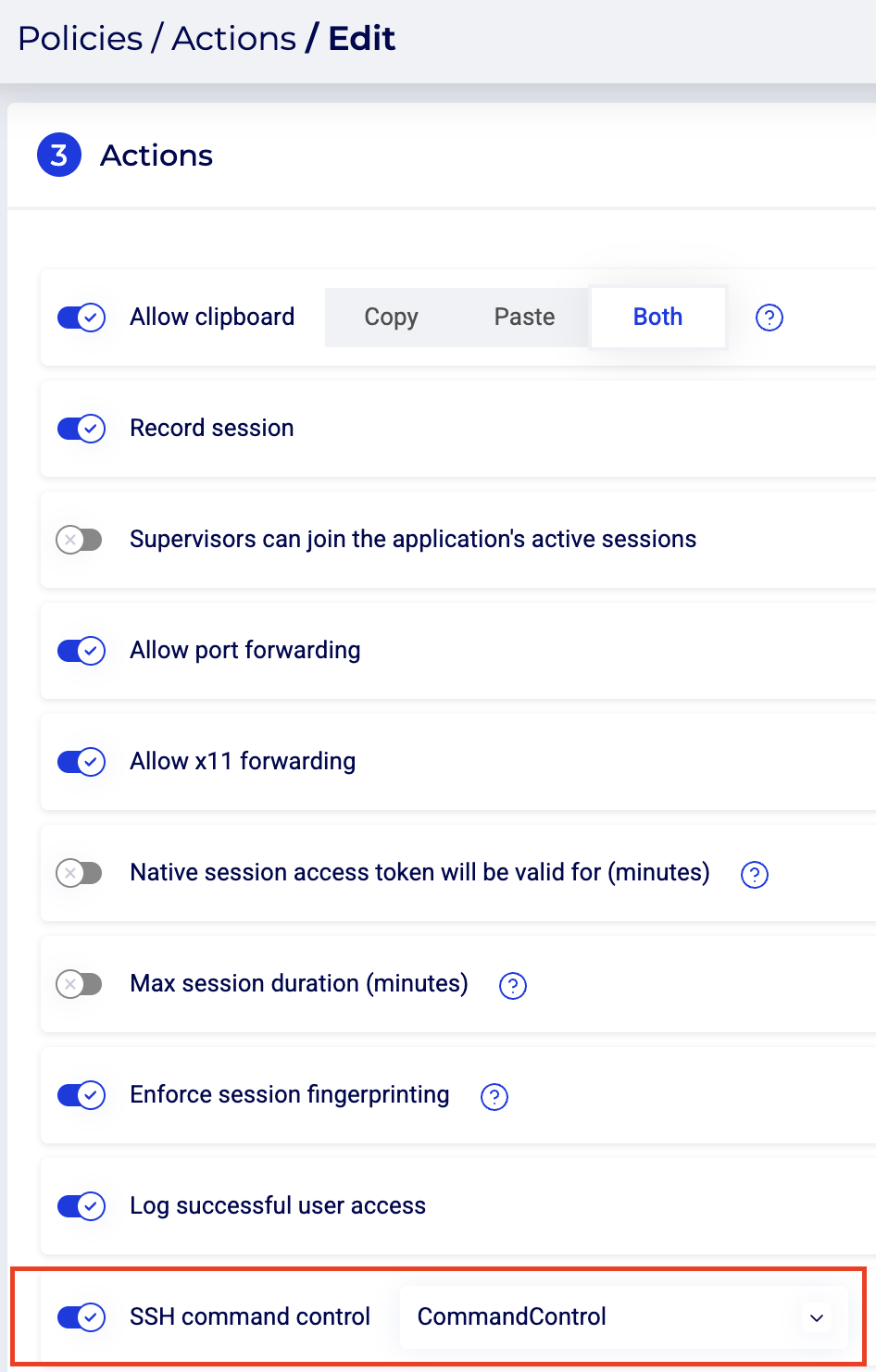
- Go to the Applications > Applications page then create new or edit existing ssh applications. see Create SSH Application for more detail about ssh application.
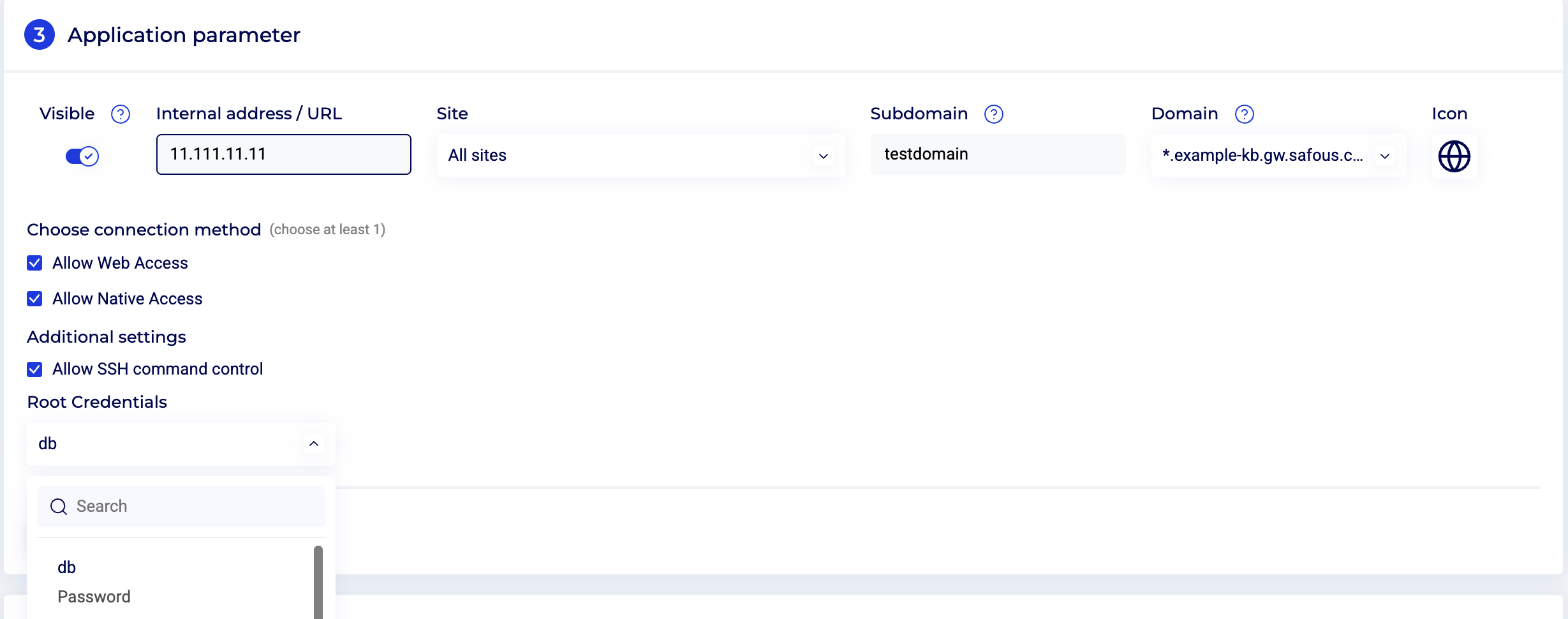
- Before saving the application, on Application Parameter section ensure that Allow SSH command control is checked then input root credential. Root credentials must be provided to perform an apt install.
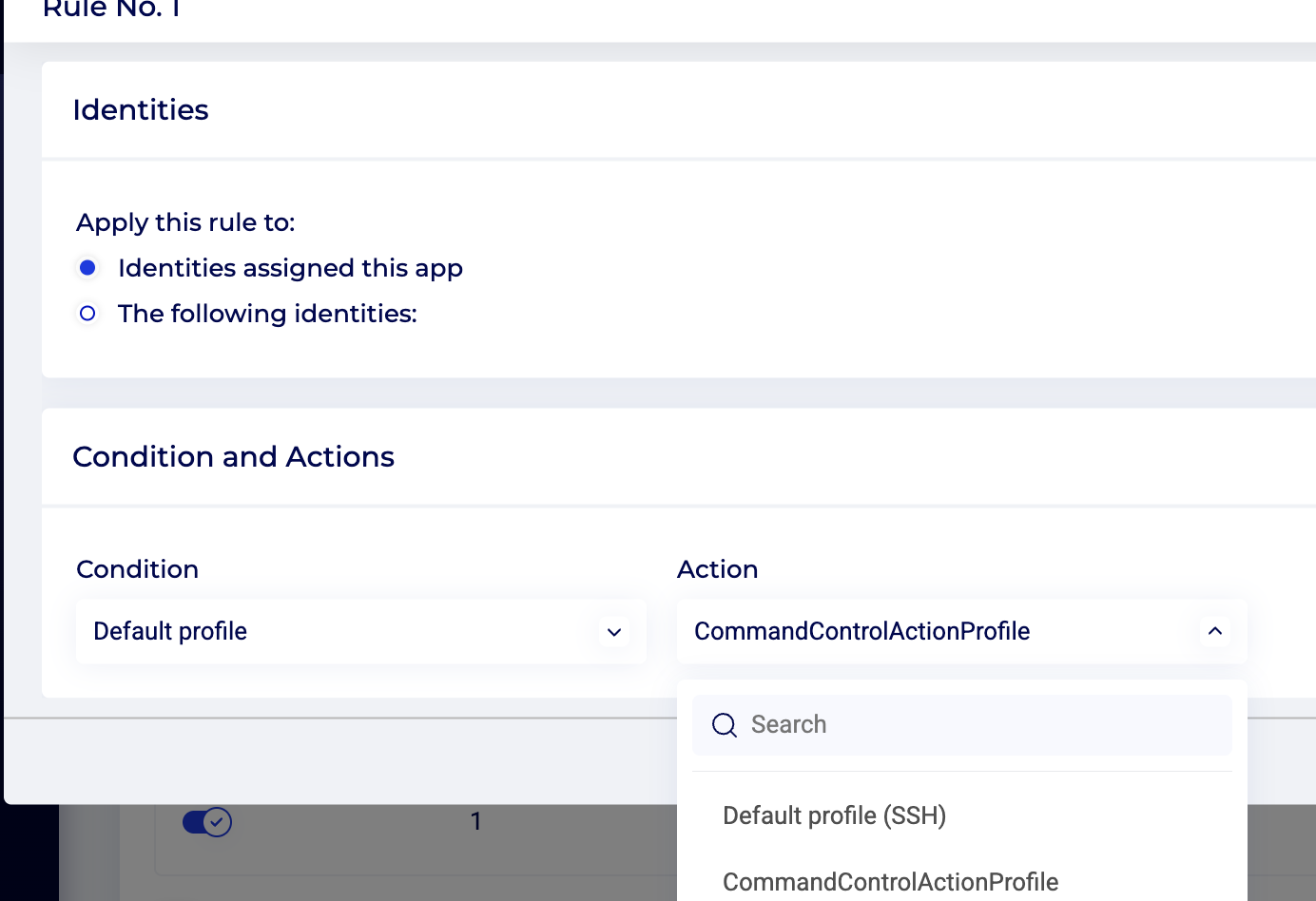
- Next on Rules section. ensure that you select action profile that you created in step 3-6 then save the application.
- You can test command control is working by using the ssh application on Application Portal then try running the blocked command then it will result like this :
