Accessing SSH App
This article serves to guide you on how to access an SSH application through Safous user portal.
To access SSH application that admin has created, a user need to be:
- Already enrolled the MFA and can login properly
- Authorized by policies to access the app
Once the user login, they will be shown all the application that they could access
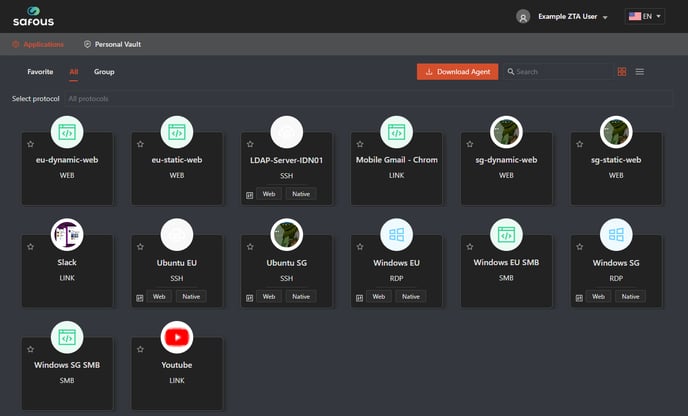
Choose the access method you want to use for the SSH app

Web SSH
The SSH session will be open in new tab of your browser

Native SSH
A new tab will be open to give you information on how to connect to the SSH session

- Putty: Use Putty to connect to the remote machine via SSH. Copy and paste the generated link to the "Host Name (or IP address)" field and click enter.
- OpenSSH: Use OpenSSH to connect to the remote machine. Copy and paste the generated link to your terminal/shell and click enter.
- Git: Clone a private Git repository hosted in the remote machine. Copy the generated link and specify the repository name in the remote machine.
- SCP: Choose your desired action between copying a file from the local machine to the remote machine or the opposite. Copy the generated link for the corresponding action and specify the path for both local and remote machine.