Edit group
This article serves to guide you on how to edit an existing Group.
-
Navigate to Settings > ZTNA > Accounts > Groups.
-
Click the expand button ("+" sign) to modify existing account group. You will see this page:

Explanation of the page:- Expand and Collapse button.
- Edit button.
- Delete button.
- Group Name.
- Group Status (enabled or disabled)
- Button to enable or disable access to recording data. Default is disabled.
- List of users in the group.
- Field to search users.
-
Click the Edit button. You will see this page.
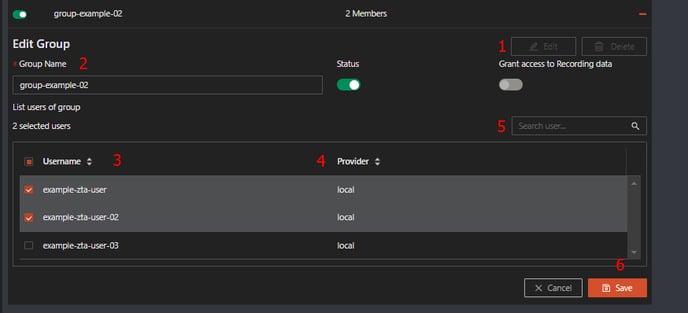
Explanation of the page:
- Edit button.
- Group Name field: Edit the group name here.
- List of Users in the group**:** Tick to add a user, untick to remove a user.
- Provider: "Local" means the user database is in the AppGW. If the user database comes from an external IdP (e.g., AD, LDAP, IIJ ID, Okta), then the provider value will be IdP.
- Field to search users.
- Save button.
-
Click Save button