Assigning Approvers and Supervisors
Assigning a Supervisor at the User Level
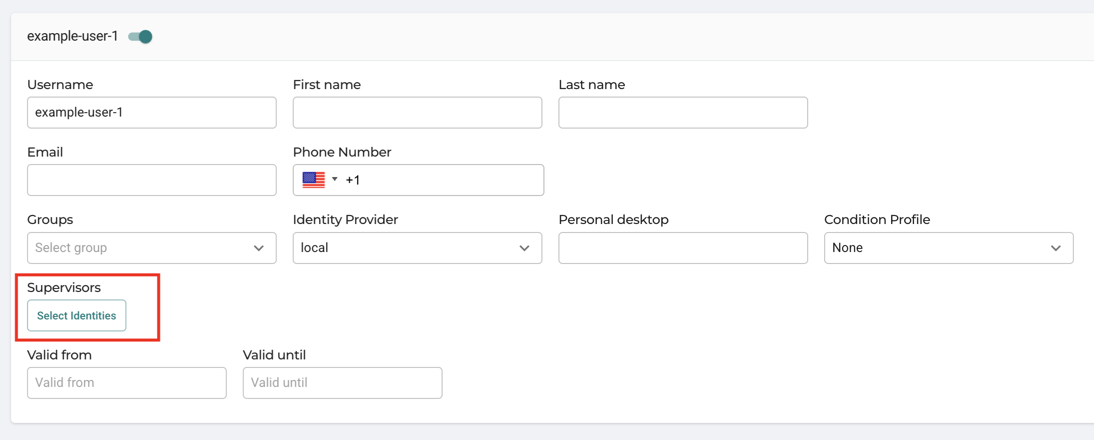
In addition to designating global supervisors, supervisors can be assigned at the user level. Setting a supervisor at the user level forces the user to require supervisor permission to access the Application Portal. Note that assigning a supervisor at the user level only applies to the user login.
- Navigate to the Identities > Users page.
- Click Edit on the user to be assigned a supervisor.
- In the Supervisor field, select the user you want to assign as the supervisor for this user.
Assigning an Approver or Supervisor at the Application and Access Group Level
In addition to setting supervision at the global and user levels, the portal admin can assign supervision at the application and access group level. When creating an application, the Supervision and Auditing Roles section is set to Same as defined in Roles by default. This can be changed to a user or user group.
-
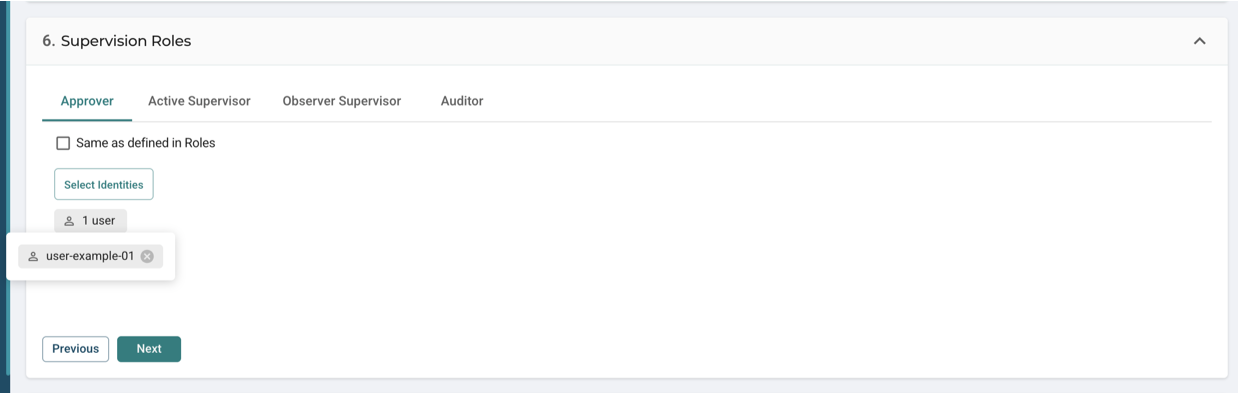
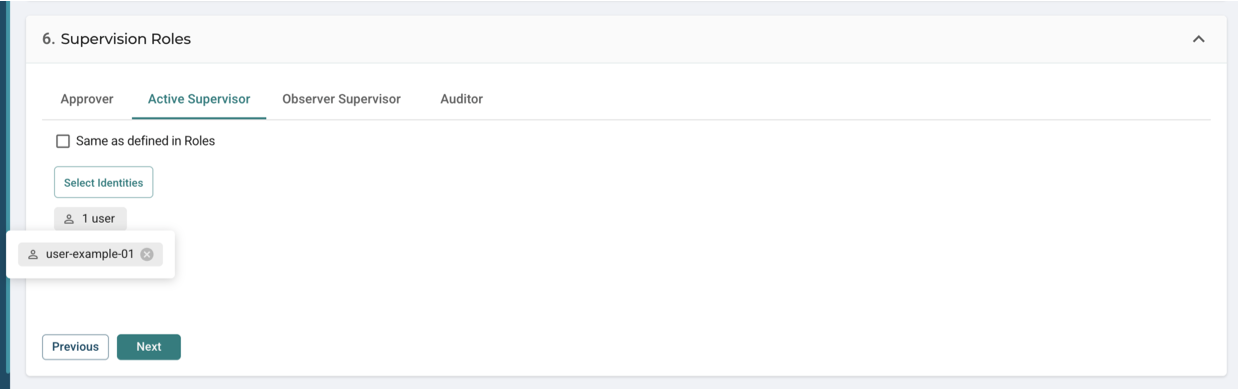
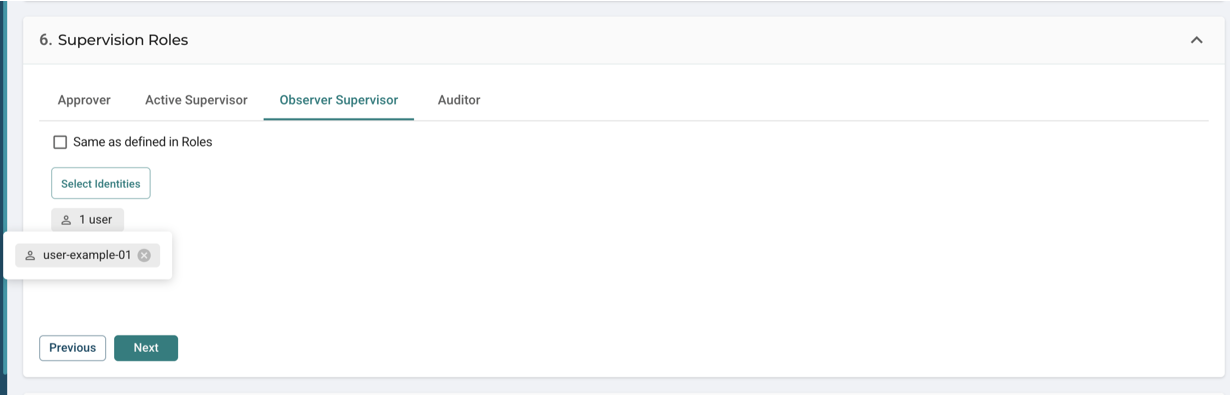
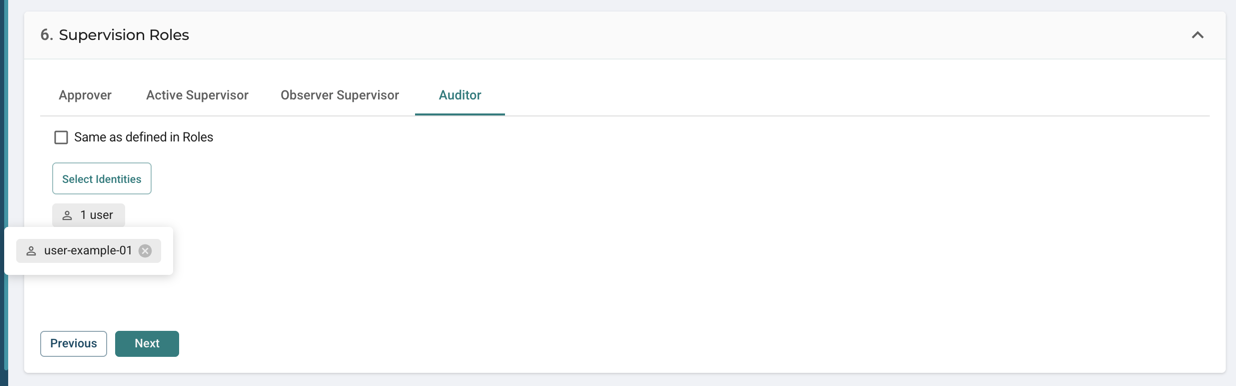
In the Supervision and Auditing Roles section, when creating applications, disable the Same as defined in Roles checkboxes under the Approver, Active Supervisor, Observer Supervisor, or Auditor tabs.
-
Click the Select Identities and select the user group or user to be the supervisor for the application.
-
Approver – This application can only be accessed after the approver selected here approves the request.
-
Active Supervisor – This supervisor will be able to interact with the session while the application is being used. To be able to interact with the session, the Supervisors can join the application's active sessions option must be enabled in the action profiles on the Policies > Actions page.
-
Observer Supervisor – Unlike Active Supervisor, the observer supervisor cannot interact with the ongoing session. This supervisor can only be a silent spectator to observe and monitor the session.
-
Auditor – The auditor has access to playback recordings of application sessions.
-
Multiple Approvers and Approval Sequences
In addition to assigning an individual Approver, you can define multiple Approvers, define the number of approvals required, and/or a sequence of multiple Approvers.
Approver sequences may include up to 5 levels. Each Approver must approve access before the request is sent to the next Approver. Access is enabled only when the sequence is successfully completed.
To define multiple Approvers, follow the same procedure detailed above (Assigning an Approver or Supervisor at the Application and Category Level) and then:
-
Select and assign identities as Approvers. In the example below, 3 identities are assigned to the Approval entry.
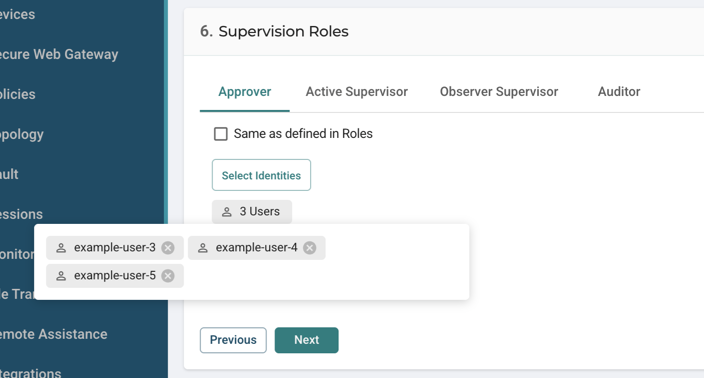
-
Enter the number of Required Approvals.
To define the number of required approvals, go to Rules, click Edit button on the right side of the relevant rule, under Approver in the Supervision Roles section, uncheck the Roles assigned to this application options, and then click the Edit button on the right side of the relevant rule.
This can be any number from 1 to the total number of assigned identities.
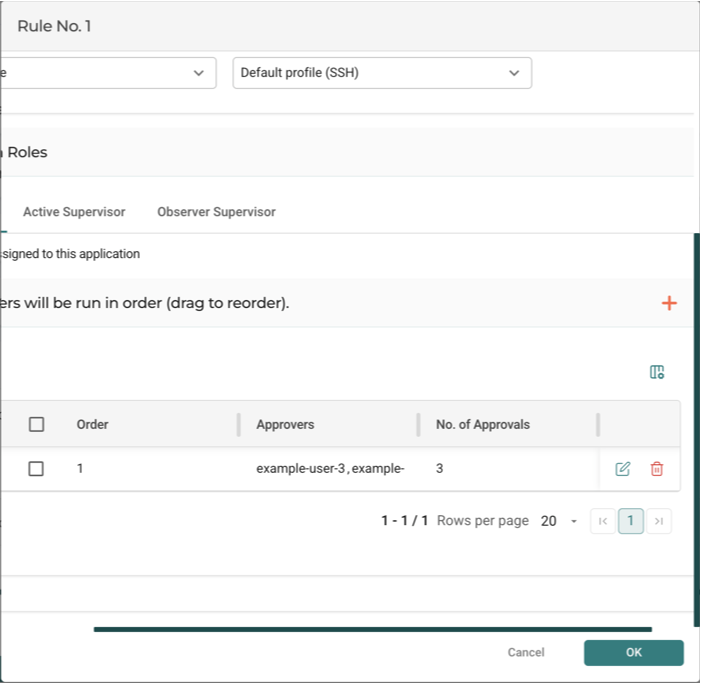
- In the example shown above, a value of 3 means that all 3 identities must approve.
- A value of 1 would mean that any 1 of the 3 must approve.
Sequential Approval
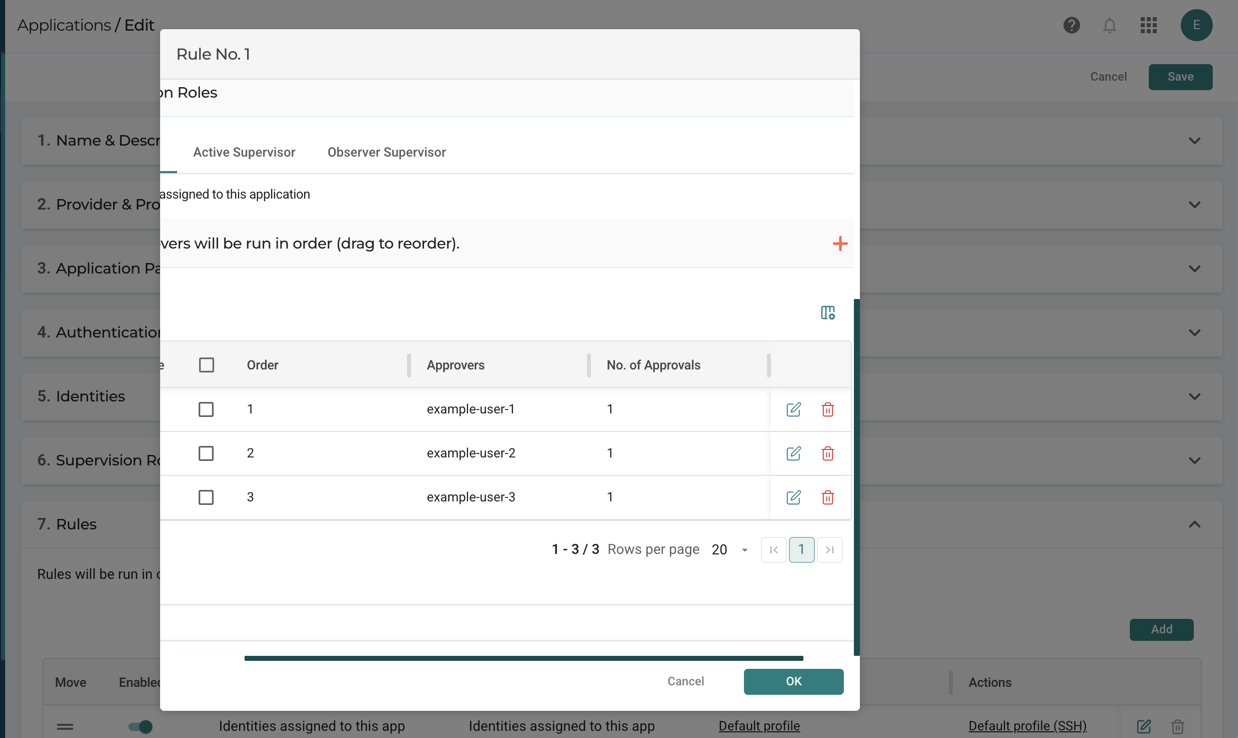
To create a sequence of Approvers, go to Rules, click Edit button on the right side of the relevant rule, under Approver in the Supervision Roles section, uncheck the Roles assigned to this application options, and then click the + button on the far right of the Approvers will be run in order (drag to reorder) text.
The request is sent to the first Approver, then continues through the sequence only after the previous Approver has approved. The example below shows 3 identities assigned, in order, as Approvers.