Applications
Overview
Use the Applications page to view, manage, and maintain all configured applications.
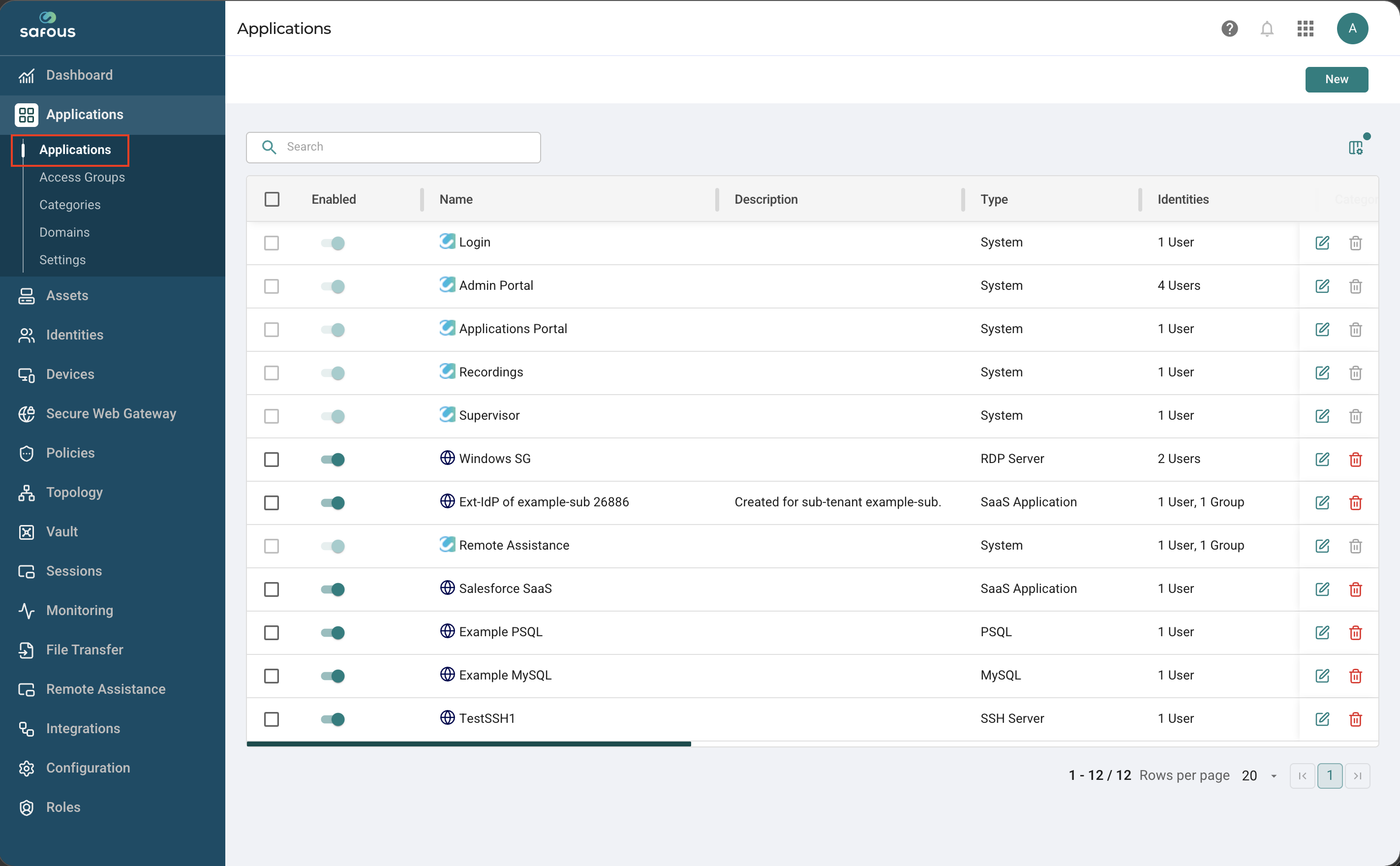
From this page, you can:
- Enable or disable applications
- Edit application configuration
- Delete applications
- Manage visibility in the Application Portal
- Customize the table view
Edit/Delete an Application or Category
To edit or delete an application or category, hover your mouse over it and click the Edit or Delete button.
-
Click the hyperlinked name of the application.
-
Click the Edit button on the right and the Delete button in the top right corner.
Delete Multiple Applications/Categories
-
Enable the checkbox alongside the applications to be deleted.
-
Click the Delete button in the top right corner.
Enable/Disable Applications/Categories
-
Enable or disable the toggle button alongside the application to be enabled or disabled.
-
Click the hyperlinked name of the application and enable or disable the toggle button in the top right corner of the page.
Manage Information Displayed
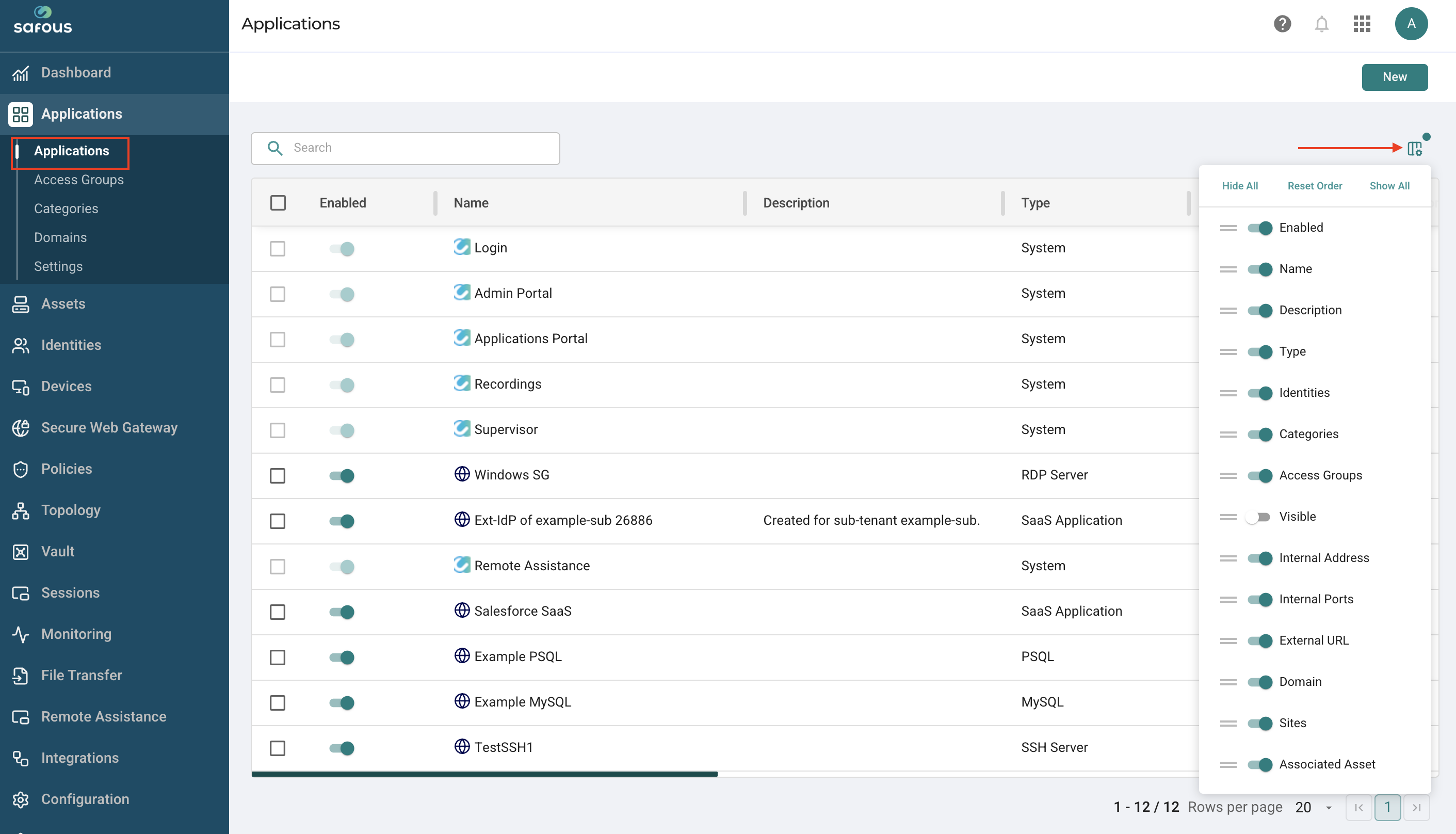
You can control which columns are displayed in the Applications table.
- Click the first icon in the far right corner to show the drop-down list of column headers to select or deselect their display.
- Reorder columns by dragging them
- Reset to the default layout if needed
This allows you to tailor the table view to your needs.
Search - Click the Search bar to search for information on the page.
Sort - Click the up arrow / down arrow to sort the list by the column headers.
Filter - Click the Filter icon in the header row to filter by application name.