Malware Detection and Handling
Overview
Safous enables malware detection for file transfers over SMB and Secure File Transfer (SFT) applications. This ensures that files are inspected before being before transferred to the destination server, helping prevent the spread of malicious content.
You can configure malware detection using:
- Safous service (hash-based reputation check)
- External integration (deep scanning via third-party ICAP engines)
When configuring malware detection, you must decide how the system should behave in cases where a file cannot be definitively classified. These situations may occur when:
- A file hash is unknown
- A scan fails due to timeout or service issues
Your configuration determines whether such files are allowed or blocked, which directly impacts both security and user experience.
The recommended malware handling configurations supported by Safous are detailed below.
Recommended Configuration Options
Most Conservative (Maximum Security)
Use this when security is the top priority. This minimizes risk but may result in legitimate files being blocked.
Blocks all files unless they are explicitly verified as safe.
- Blocks malicious files
- Blocks files with unknown status (e.g., unknown hash, scan failure)
Balanced (Fewer False Positives)
Use this when you want strong protection without disrupting business workflows. This reduces false positives while still blocking known threats.
Blocks only confirmed malicious files while allowing files with unknown status.
- Blocks malicious files
- Allows files with unknown status
Allow Exceptions via Policy
Use this for controlled exceptions, such as trusted users, testing environments, or operational needs where blocking is not acceptable.
Allows you to override malware handling for specific users, applications, or scenarios.
- Can allow files even if flagged as malicious
- Can log or report instead of blocking
How To Configure Each Option
Most Conservative Configuration
Go to Integrations > Malware Detection
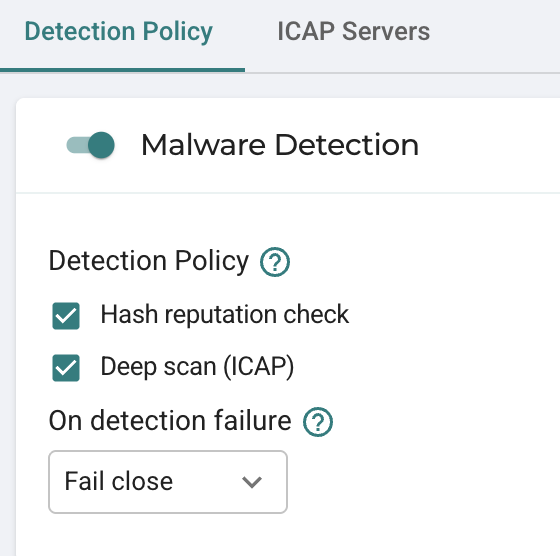
- Enable Malware Detection
- If using Hash reputation:
- Enable Hash reputation check
- Set Consider unknown hashes as → Malicious
- If using ICAP:
- Enable Deep scan (ICAP)
- Set detection failure behavior → Fail close (block)
- If using both (Hash reputation + ICAP):
- Enable Hash reputation check
- Enable Deep scan (ICAP) as fallback
- Set detection failure behavior → Fail close (block)
Result:
All files that are malicious or undetermined are blocked.
Balanced Configuration (Fewer False Positives)
Go to Integrations > Malware Detection
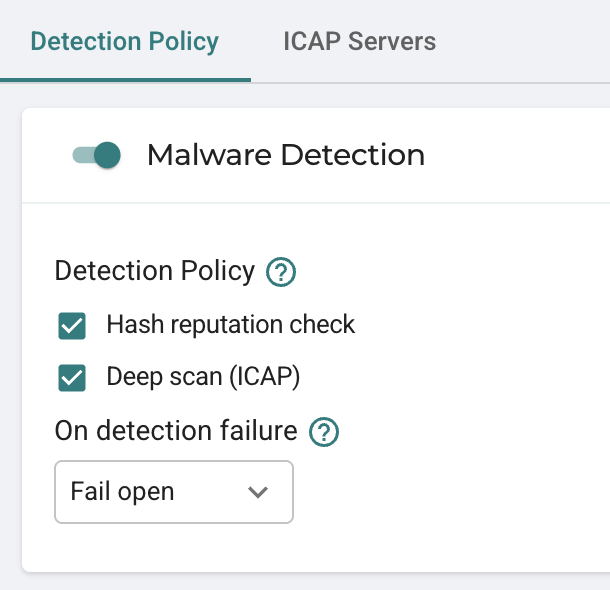
- Enable Malware Detection
- If using Hash reputation:
- Enable Hash reputation check
- Set Consider unknown hashes as → Benign
- If using ICAP:
- Enable Deep scan (ICAP)
- Set detection failure behavior → Fail open (allow)
- If using both (Hash reputation + ICAP):
- Enable Hash reputation check
- Enable Deep scan (ICAP) as fallback
- Set detection failure behavior → Fail open (allow)
Result:
Only confirmed malicious files are blocked. Unknown files are allowed.
Allow Exceptions via Policy
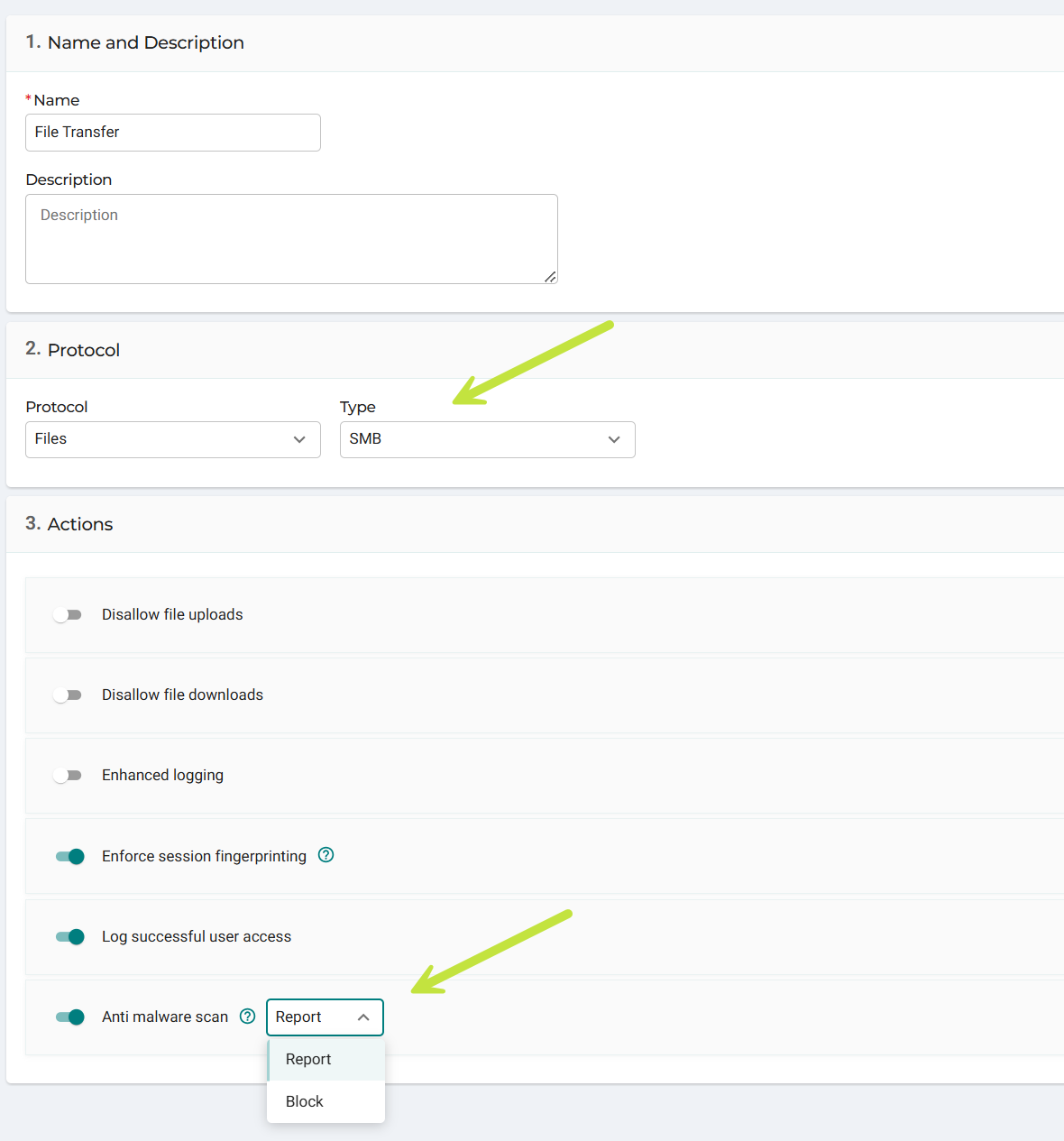
- Configure malware detection globally (recommended: Balanced or Conservative)
- Go to Policies > Actions
- Edit the relevant action profile (e.g., SMB application)
- Under Anti-malware scan:
- Disable to fully bypass malware checks, or
- Set to Report to log detections without blocking
Result:
Selected users or applications can transfer files even if they are flagged as malicious or cannot be scanned.
How To Configure ICAP Servers
Internet Content Adaptation Protocol (ICAP) is a protocol that scans files. ICAP allows for real-time analysis and modification as it passes through the network.
The Safous platform can integrate antivirus and anti-malware solutions using ICAP. Safous transfers the files to the ICAP server, which scans them before they are accessed by others. This prevents the spread of malware and other security threats.
Currently ICAP scans files when they are uploaded or downloading during an SMB or File Transfer session.
Prerequisites
- The anti-virus or anti-malware software must be installed before integrating into the Safous admin portal.
Configuration
- Navigate to the Integrations > Anti Malware page.
- Click the ICAP Servers tab.
- Click New in the top right-hand corner.
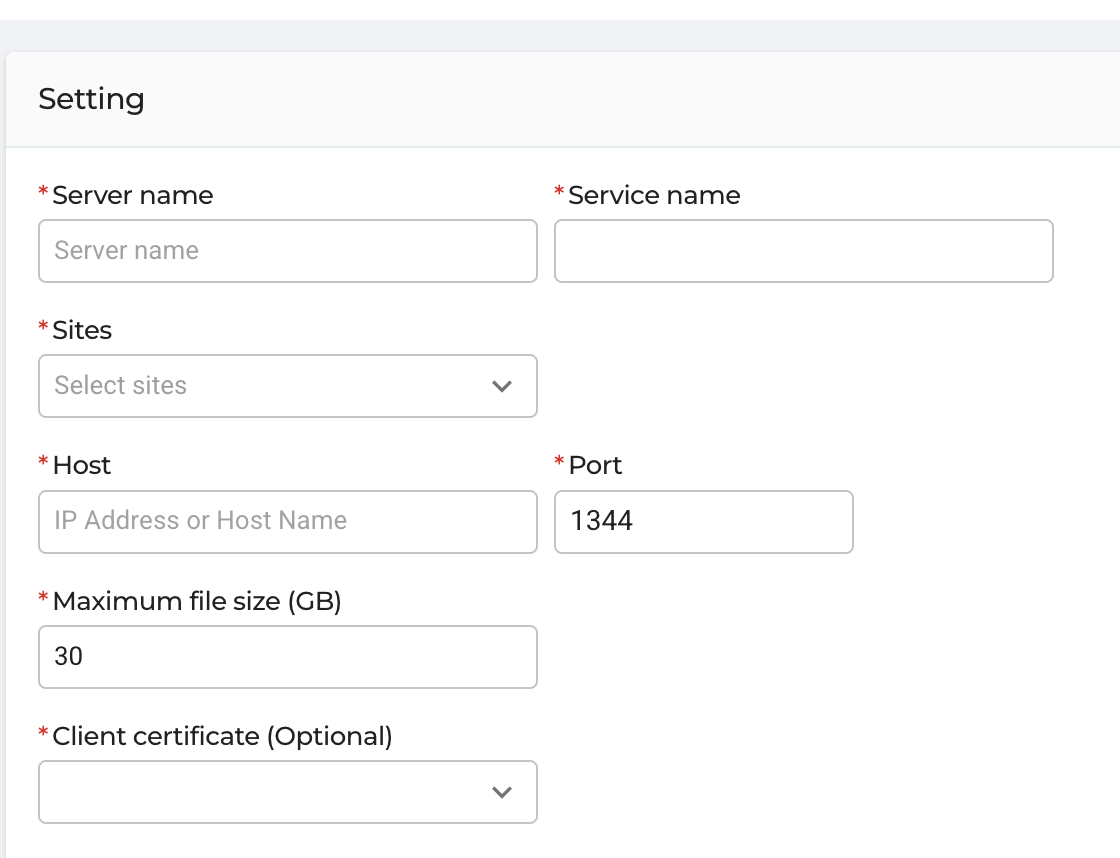
- Server name - Enter the name of the server.
- Site - Click the drop-down under Sites to select the sites this configuration will apply to. In the example below, All Sites is selected.
- Host: - Enter the IP address or hostname of the server. The IP address or hostname must be reachable from the portal.
- Maximum file size (GB) – Enter the maximum size of the file to be scanned. Although the default size is 30 GB, the maximum permissible size is unlimited. However, the larger the file, the longer it will take to scan - which could affect user experience.
- Port – This is the port number that the server is listening on. The default is 1344. You can change it based on the server.
- Service Name – This is the path within the ICAP server in which the application is hosted.
- Client certificate (Optional) – If the server is configured to require the client certificate before establishing connection, click the drop-down and select the certificate. The certificate must have been uploaded on the Trusted Certificates page under Policies.
- Click Save.