Import Users from CSV File
-
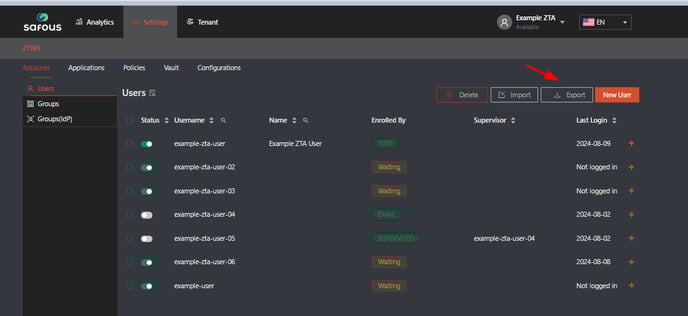
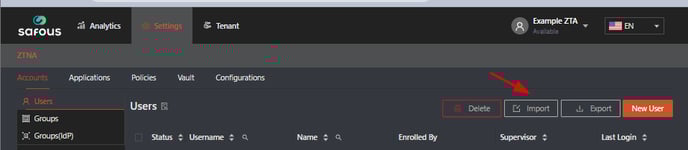
Navigate to the Settings > ZTNA > Accounts > Users.
-
Click on Export to download the template document in CSV format for importing users.
-
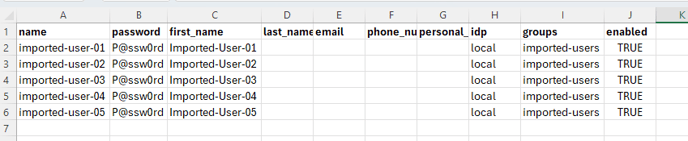
Once the template file has been downloaded, you will receive the default format, and you will need to edit that document.

-
Explanation:
These fields must be filled out; other fields are optional
- name: Enter the username.
- password: Enter the password.
- idp: Enter 'local'.
- groups: Enter the group name. The group must be predefined (you need to create a group first).
- enabled: Enter TRUE or FALSE. If the user should be active after creation, enter TRUE; otherwise, enter FALSE.
-
Notes:
- If you edit the CSV file in Excel, make sure to save it in CSV format with a comma as the separator, not a semicolon. Please verify this by opening the file in a text editor (e.g., Notepad).
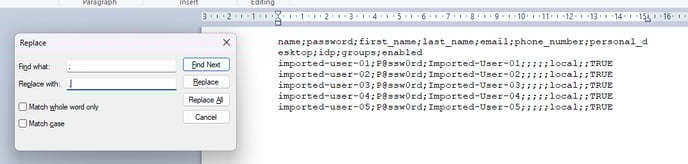

- If the separator is a semicolon, importing the file will result in an error message: 'Can't read this CSV'.

- If you edit the CSV file in Excel, make sure to save it in CSV format with a comma as the separator, not a semicolon. Please verify this by opening the file in a text editor (e.g., Notepad).
-
-
Import the users from the CSV file by clicking 'Import'.
-
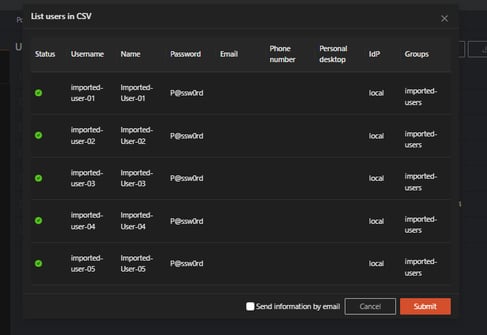
If you correctly edit and input the values in the template CSV document, you will receive a confirmation pop-up.
-
If everything is correct, simply click the Submit button on the confirmation pop-up. There is also an option to send the user creation information, along with credentials, to the user. However, you must include their email address in the CSV file.
-
It will shows the result of user import

-
You can check all the users you successfully imported in the users list.

-
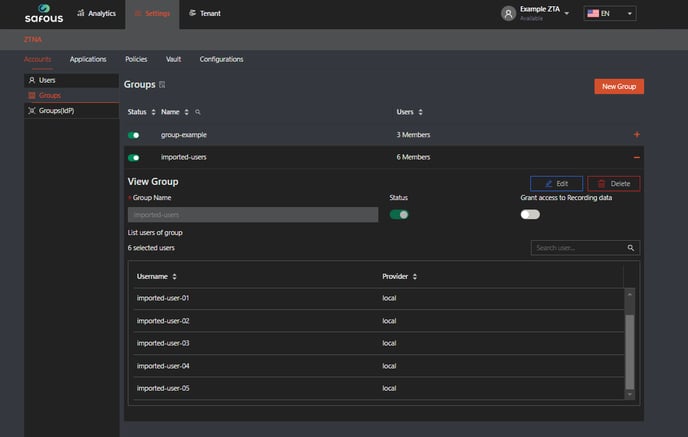
If you check the group, the newly imported users will also be included in the defined group.