Users
This article explains detailed configuration parameters of Tenant > Users in the Safous admin portal (portal.safous.com)
This page allows you to add, modify, or remove the administrator account for the Safous admin portal.
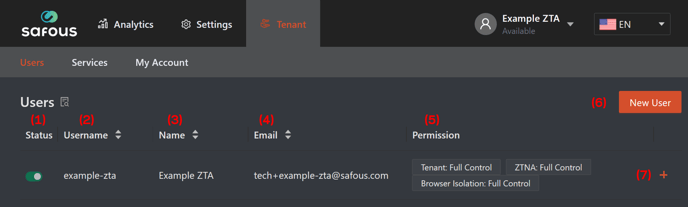
-
Status, switch this toggle to disable or enable the administrator account.
-
Username, this column shows the username of the administrator account.
-
Name, this column shows the administrator account's name (consisting of first name & last name).
-
Email, this column shows the email address of the administrator account.
-
Permission, this column shows assigned permission to the administrator account.
-
New User, click this button to add a new administrator with detailed parameters as follows:
-
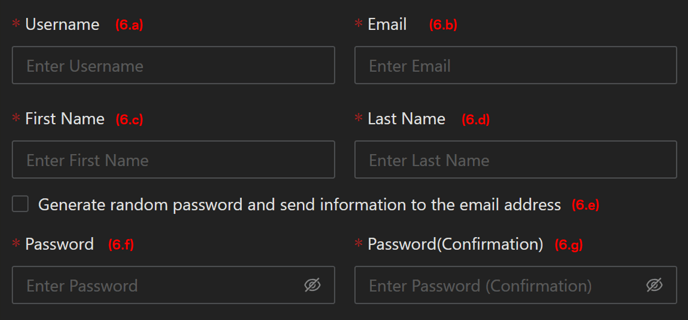
(6.a) Username, fill this field with the new administrator's username.
-
(6.b) Email, fill this field with the new administrator's email address (currently, you cannot re-use email address that are already registered in another tenant).
-
(6.c) First Name, fill this field with the new administrator's first name.
-
(6.d) Last Name, fill this field with the new administrator's last name.
-
(6.e) Generate random password..., check this option if you want the system to generate random password and send it to the new administrator's email.
-
(6.f) Password, fill this field with the new administrator's password.
-
(6.g) Password(Confirmation), fill this field to confirm the new administrator's password.

-
(6.h) Permission-Tenant, tenant permission has three permissions. These permissions restrict access to the administrator's accounts. At least read permission is required.
- Read: read only permission
- Write: the administrator can manage the following excluding own account:
- Adding new administrator
- Updating other administrator
- Changing status of other administrator
- Deleting the other administrator
- Full Control: users can manage the following
- Resetting enrollment
- Updating own account (Users need this permission to update to own account)
-
(6.i - 6.j) Permission - ZTNA & Browser Isolation, service permissions are privileges to each services. It is also possible to not grant permission at all (None).
- None: not grant permission (the administrator cannot access this service not even to view/read it).
- Read: read only permission
- Write: users can manage the following
- Adding
- Updating
- Changing status
- Deleting
- Full Control: Users can manage the following
- On Tenant/Services.
- Get Token (ZTNA/WAAP)
- Activate (Browser Isolation/WAAP)
- On Settings/ZTNA/Accounts/Users
- Reset Password
- Reset Enrollment
- On Analytics
- Terminate Session
- On Tenant/Services.
-
-
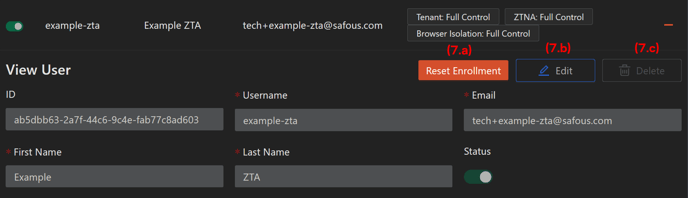
+ (plus) button, click this button to view or modify the administrator account (depends on permission).
-
(7.a) Reset Enrollment, click this button to reset/re-enroll the administrator's MFA.
-
(7.b) Edit, click this button to modify the administrator's account information (configuration parameter already explained above).
-
(7.c) Delete, click this button to remove the administrator's account (the account status need to be disabled first).
-