Configuring SCIM Auto Provisioning with Microsoft Entra
This article explains how to configure Microsoft Entra (previously Azure AD) for SCIM automatic provisioning so that user information is matched in both Safous and Entra.
Prerequisites
-
Read the article here on how to configure Safous’ IdP Auto-Provisioning. All the steps in that article must be implemented for the feature to function. For Microsoft Entra, you will need the SCIM endpoint and Token (Bearer) copied from Step 5.
-
To use this feature, you must configure the Microsoft Entra external IdP for Safous before enabling SCIM. Please refer to these guides for the configuration:
-
It is useful to be proficient in how to add, delete, edit, de-activate, and re-activate users on Microsoft Entra.
Configuring Microsoft Entra SCIM
- Changing Microsoft Entra default attributes can cause failure to sync users, please ensure matching precedence on unique attributes.
- Microsoft Entra doesn’t support SCIM sync of nested groups.
Configuring Microsoft Entra SCIM (SAML)
-
Log in to the Microsoft Entra Admin Center Dashboard.
-
Select the Enterprise Application from the list of Entra services.
-
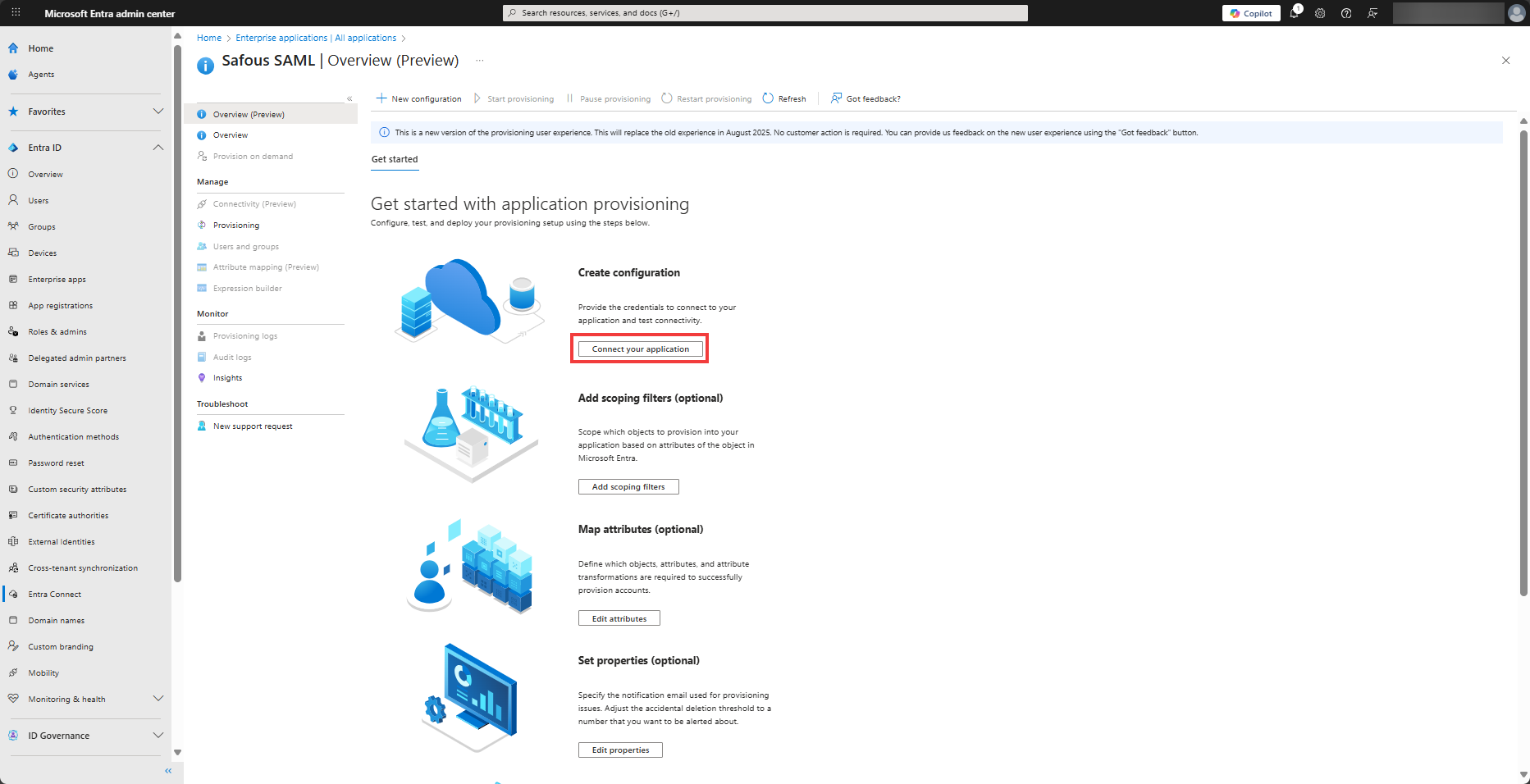
Find the existing Safous Enterprise application that you are currently using for SAML SSO. Go to the Navigation menu. In the Manage section, select Provisioning, and click the Connect your application button under Create configuration.
-
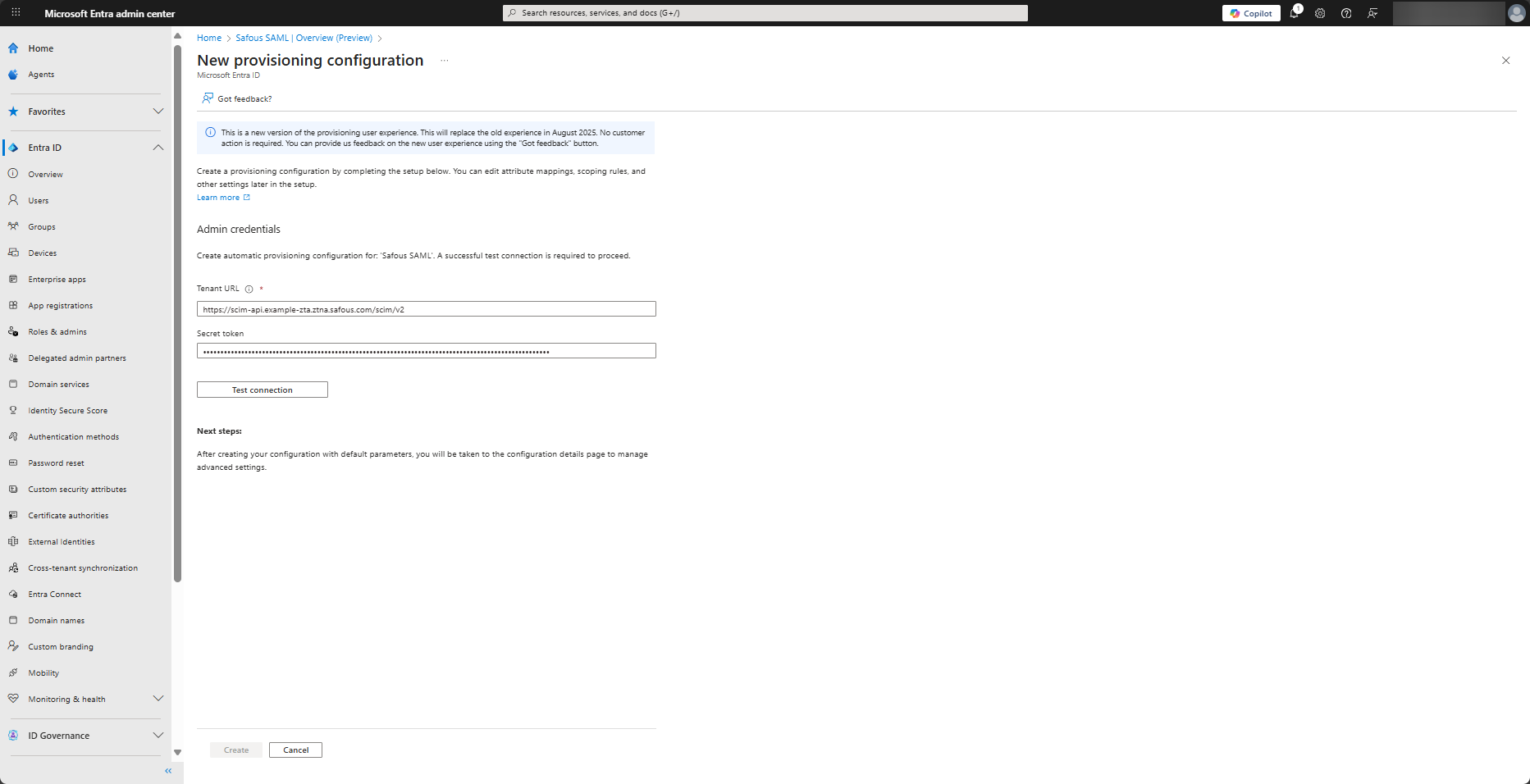
Under Admin Credentials, paste the SCIM Endpoint in the Tenant URL field and the Token (Bearer) in the Secret Token field.
 note
noteThe value of SCIM Endpoint and Token (Bearer) is generated when you enabled Auto Provisioning for the IdP in Safous Admin Portal
-
Click Test Connection to confirm that the connection is set up correctly. In the top right-hand corner, the screen will say “The supplied credentials are authorized to enable provisioning,” which means that the connection is successful.

-
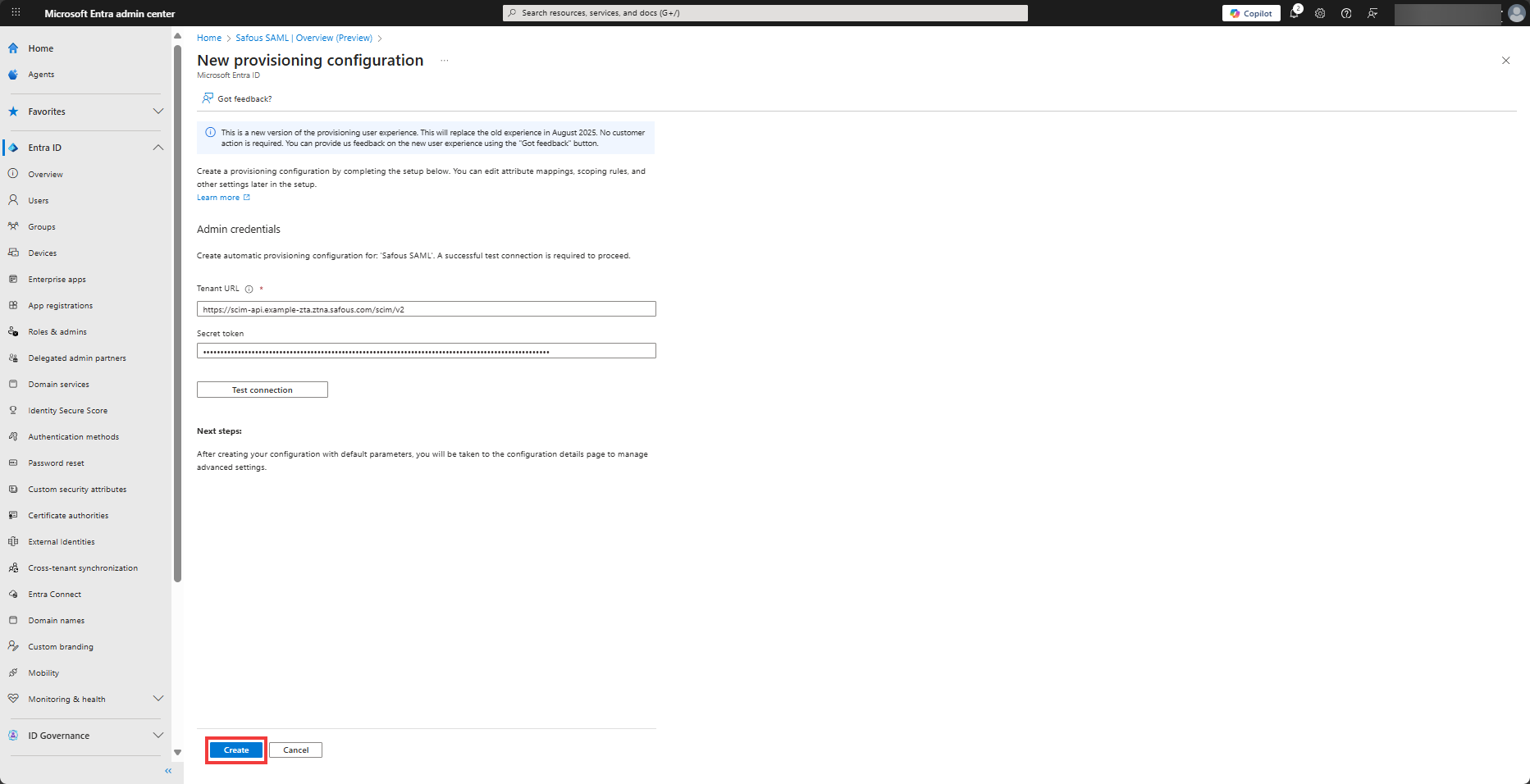
Click Create button at the bottom of the screen.
-
Click Start provisioning.
 note
noteMicrosoft Entra has an up to 40-minutes time frame to sync users.
-
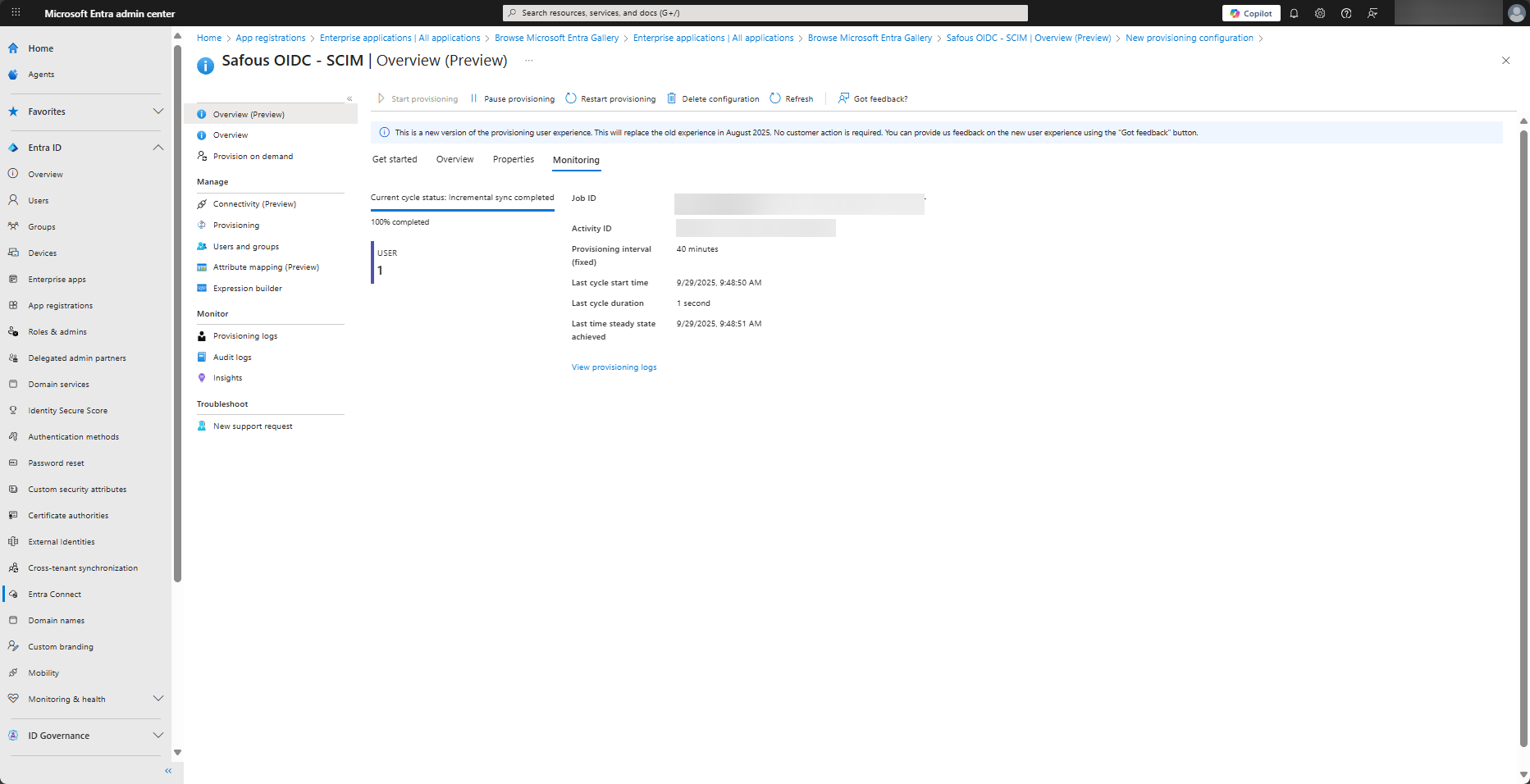
Click the Monitoring tab and periodically check the sync status. When a sync is completed, it will look like this:
-
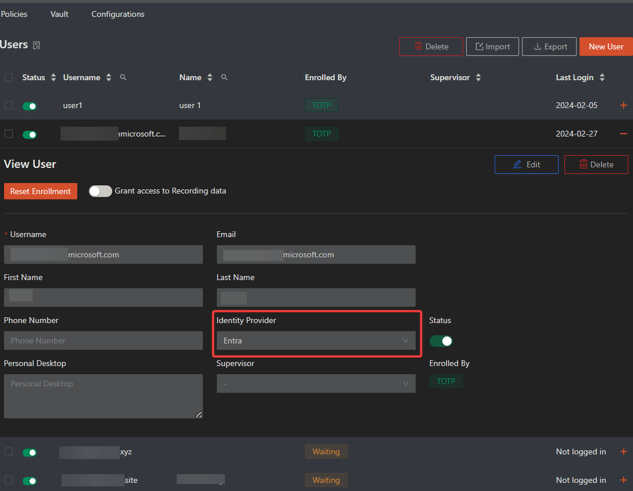
To check that the users were added, return to Safous Admin Portal and navigate to Settings > Accounts > Users screen and look for the added users. It will list the user profile and the name of the IdP it came from.

Configuring Microsoft Entra SCIM (OpenID)
For OpenID, you need to use separate Enterprise App from the one used for SSO. In other words, you need 2 Enterprise Apps: 1 app for SSO and 1 app for SCIM provisioning
-
Log in to the Microsoft Entra Admin Center Dashboard.
-
Select the Enterprise Application from the list of Entra services.
-
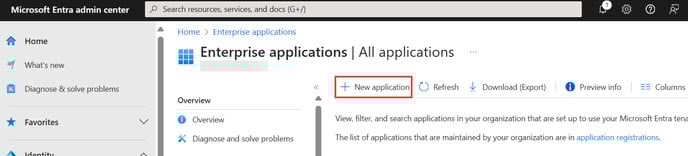
Create New application
 note
noteIf you have created a separate app beforehand, you can skip to step 6
-
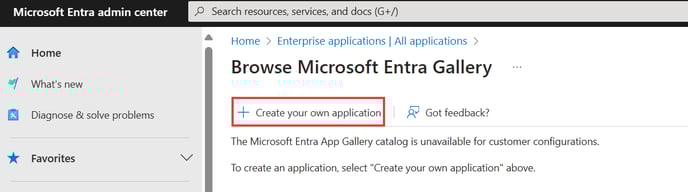
Next click on "Create your own application"
-
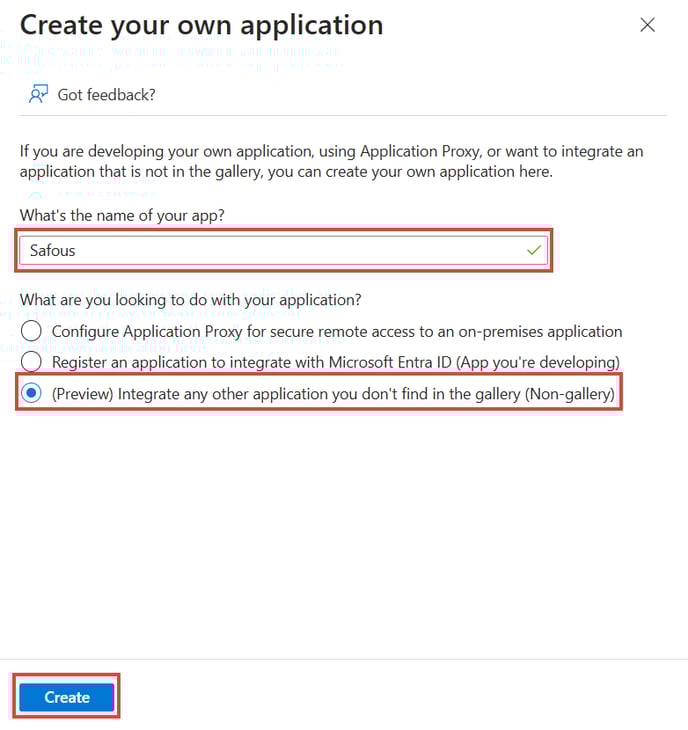
Fill the information about your app name and choose "Integrate any other application you don't find in the gallery (Non-gallery)". Then click "Create"
-
In the Manage section, select Provisioning, and click the Connect your application button under Create configuration.
-
Under Admin Credentials, paste the SCIM Endpoint in the Tenant URL field and the Token (Bearer) in the Secret Token field.
noteThe value of SCIM Endpoint and Token (Bearer) is generated when you enabled Auto Provisioning for the IdP in Safous Admin Portal
-
Click Test Connection to confirm that the connection is set up correctly. In the top right-hand corner, the screen will say “The supplied credentials are authorized to enable provisioning,” which means that the connection is successful.
-
Click Create button at the bottom of the screen.
-
Click Start provisioning.
Microsoft Entra has an up to 40-minutes time frame to sync users.
-
Click the Monitoring tab and periodically check the sync status. When a sync is completed, it will look like this:
-
To check that the users were added, return to Safous Admin Portal and navigate to Settings > Accounts > Users screen and look for the added users. It will list the user profile and the name of the IdP it came from.
Provision on Demand
You can add users or groups and force provision on demand without needing to wait for 40 minutes. Please follow the steps below to do so.
-
Return to the Microsoft Entra provisioning screen and click the Users and Groups tab on the left.
-
Click Add user/group
-
Search for users/groups and click the Assign button on the bottom left.
-
Click Provision on Demand on the left bar
-
Select the user(s) using the search button and click the Provision blue button on the bottom left.

-
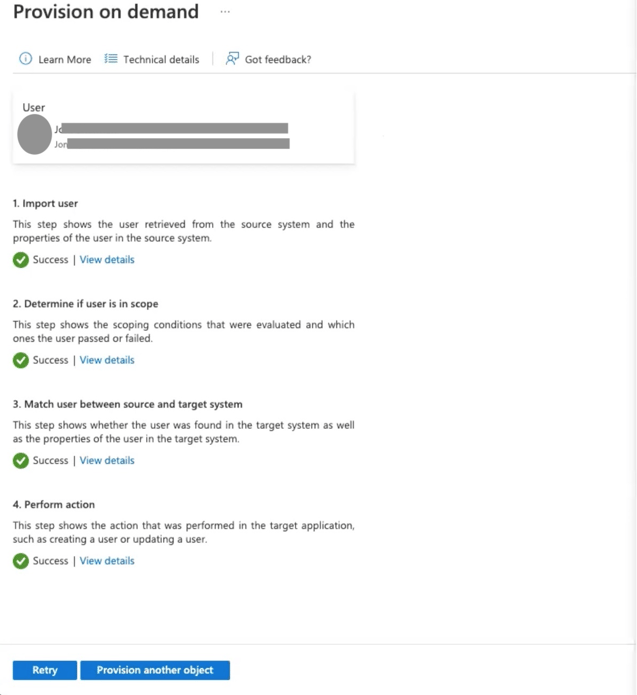
The system will confirm if the user was provisioned successfully, and the screen will look like this:
Troubleshooting
-
When users are removed/deleted from Microsoft Entra, the latter sends disable commands to Safous. In the Admin portal, the user will receive a new username (e.g., from
newusertest@v21ws.onmicrosoft.comto249ab2e9b056407ea8489940d85edae3newusertest@v21ws.onmicrosoft.com) that is automatically disabled. Even if you delete a user from Microsoft Entra, the user will appear in Safous as disabled and not deleted. -
To provision permanent deletion from Microsoft Entra to Safous, delete the user in Entra and then navigate to the Manage tab, as shown in the screenshot below. Select the user again and select “Delete Permanently” (on the top tab):

-
If a quarantine error is received during on-demand provisioning in Microsoft Entra, click on the Restart Provisioning tab on the top of the Provisioning page and start the Provision on-demand process again as described above. Quarantine errors appear for a variety of reasons, primarily if the App Gateway is not available or as a result of errors received from Safous.
-
If the App Gateway is unavailable, Microsoft Entra puts auto-provisioning on hold. It will need to be restarted again from within the Microsoft Entra platform.
Logs
-
You can navigate to Analytics > ZTNA > Audit Log in the Admin console to find the logs events (create or update) for any change in the object. The update can mean that a user was de-activated. The number of ‘update’ messages may be larger than of the number of actual changes performed in Entra.

-
If the App Gateway server is unavailable, please refer to the logs on the external IdP.