Links
Safous ZTNA offers an app function where customers can make some sort of "bookmark" in the user portal to enable the end-user to access internal or public URLs more easily, the app is called Links.
Page of Links applications:
Navigate to Settings > ZTNA > Applications > Links
Several columns and buttons will appear as follows:
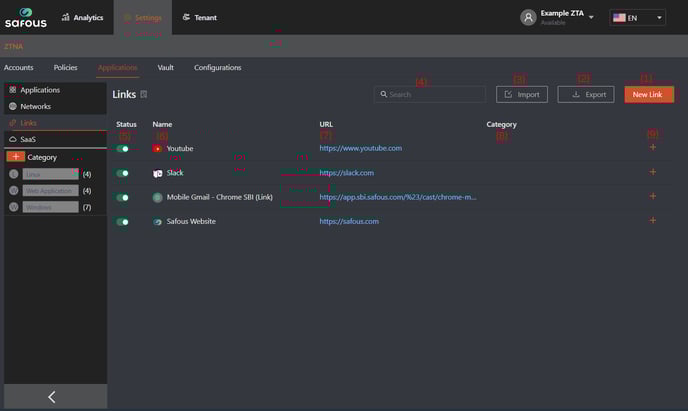
-
New Link button: Create a new link application.
-
Export button: Export the list of created link applications to a file in CSV format.
-
Import button: Create a link application by importing from the list made in a CSV file. For the exact format, please refer to the format from the exported CSV file.
-
Search field: Search for an application by its name.
-
Status: Shows the status of the application. Can be toggled on (enabled) or off (disabled).
-
Name: Shows the name of the link application.
-
URL: Shows the URL of the link.
-
Category: Shows the list of categories associated with the application.
-
Expand/Shrink button: A '+' button to expand and a '–' button to shrink the links application's detailed information. Clicking the + button will show several configuration parameters as follows:
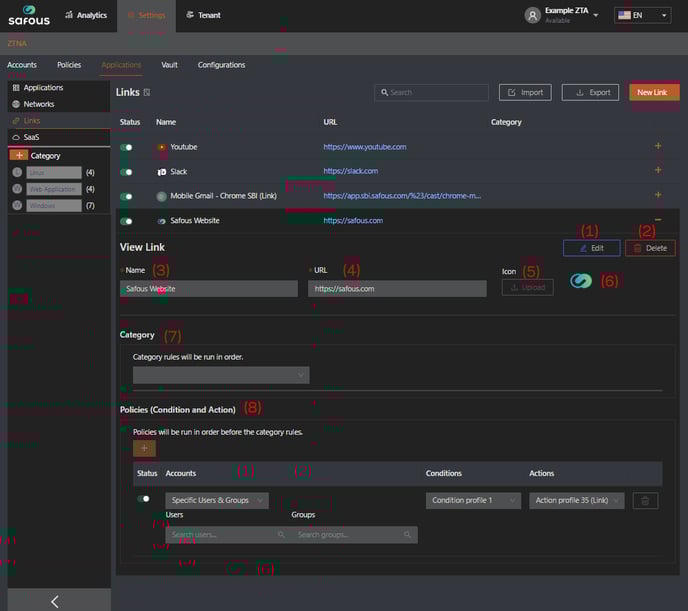
-
Edit button: Allow modification of the links application's configuration.
-
Delete button: Delete the links application.
The following parameters also need to be defined during a new Link application registration:_
-
Name: Name of the link's application.
-
URL: URL of a website to link.
-
Icon Upload button: Upload an icon image from the local drive.
-
Icon Image: Icon for the application. By default, will automatically use favicon of the URL in links application. Can be changed by uploading an icon from local drive.
-
Category: Select the list of categories to associate with the application.
-
Policies (Condition and Action): Define the policy to be applied to the application.
- Status: Set the status of the policy. Toggle on to enable, toggle off to disable
- Accounts: Define the entities that should be applied to the policy.
- Condition: Select the access condition that should apply to the policy from the list of available conditions.
- Action: Select the configuration that should apply to the policy for the links application from the list of available actions
-