Monitoring
Safous’s Admin Console includes three types of logs:
- Activity logs
- Audit logs
- System logs.
The Safous platform supports the exporting of activity, audit, and system logs - along with web-based access logs via SYSLogs. Below is a description of each type of logging system.
Activity Logs
Activity logs manage and reflect all actions performed by users related to applications. The Activity logs are displayed in a table. On the top left-hand side of the table, there is a boolean search option for data displayed in the columns that appear in the logs. On the top right side of the table, there is a calendar to select the period of time in which the data should be presented.
The Activity log table presents data with the following columns:
- Event ID: A specific number that relates to the specific event/
- Date and Time: The date and time that the event occurred, in local time.
- IDAC: The ID number of the IDAC in which the event occurred. The IDAC is hyperlinked, and when clicked, the IDACS and Edges screen displays under Configurations > IDACs and Edges.
- Site: The site in which the event occurred, hyperlinked to the Sites screen under Configurations > Sites.
- User name: The user name.
- Authority: The policy that is implicated in the user’s activity, e.g., “login_policy,” “users_policy,” “console_policy,” “supervisor_policy,” or “general.”
- Application: Displays the application connected to the activity.
- Status: What occurred as a result of the action; e.g., user logged in, or user was allowed access to application, or user denied access, or user logged in to <server_ip> using rdp (for RDP application).
- IP Address: The IP address used for the logged activity.
To remove a column, click in the bar next to the Auto Refresh toggle, click the drop-down arrow and de-select the columns that you want to hide from the logs.
Audit Logs
Audit logs manage the results of actions performed by the Administrator that are performed in Safous, displayed in a table. On the top left-hand side of the table, there is a boolean search option for data in the table based on the columns in the table. On the top right side of the table, there is a calendar to select the period of time in which the data should be presented.
The Audit log table presents data with the following columns:
- Event_ID: Each event has a specific event ID number.
- Date and Time: The date and time that the event took place, reflected in the Administrator’s local time.
- Subject: The user’s email.
- Action: Includes three options - create, update, or delete - for any particular activity.
- Object Type: Includes users, simple_group, dynamic_group, mapping, mapping_category, policy, sites, console_roles, recording_roles, certificates, idap_saml, webhook, api_keys, and system_secrets. Mapping, API keys, policy, configuration, openID.
- Object Name: This could be, for example, the name of the policy given by the Admin when the policy was created.
- Result: Success or failure.
System Logs
System logs record events - including when an event occurred, where it occurred (Authority), and other details about the event. On the top left-hand side of the table, there is a boolean search option for data displayed in the columns that appear in the logs. On the top right side of the table, there is a calendar to select the period of time in which the data should be presented.
The System log table presents data with the following columns:
- Event ID: A specific number that relates to the event.
- Date and Time: The date and time that the event occurred, in local time.
- IDAC: The ID number of the IDAC in which the event occurred. The IDAC is hyperlinked, and when clicked, the IDACS and Edges screen displays under Configurations > IDACs and Edges.
- Authority: The entity that has permission to perform a particular action; e.g., “health check,” “system alert,” “system,” or “cloud provider.”
- Application: Shows the application connected to the event.
- Status: What occurred as a result of an event; e.g., an IDAC was disconnected, system update, timeout, or failed to sample mappings.
Additional Logs
Syslog
For Syslog information, see the section Exporting Logs to Other Destinations .
Safous Connect Logs
There are two options for checking the Safous Connect logs:
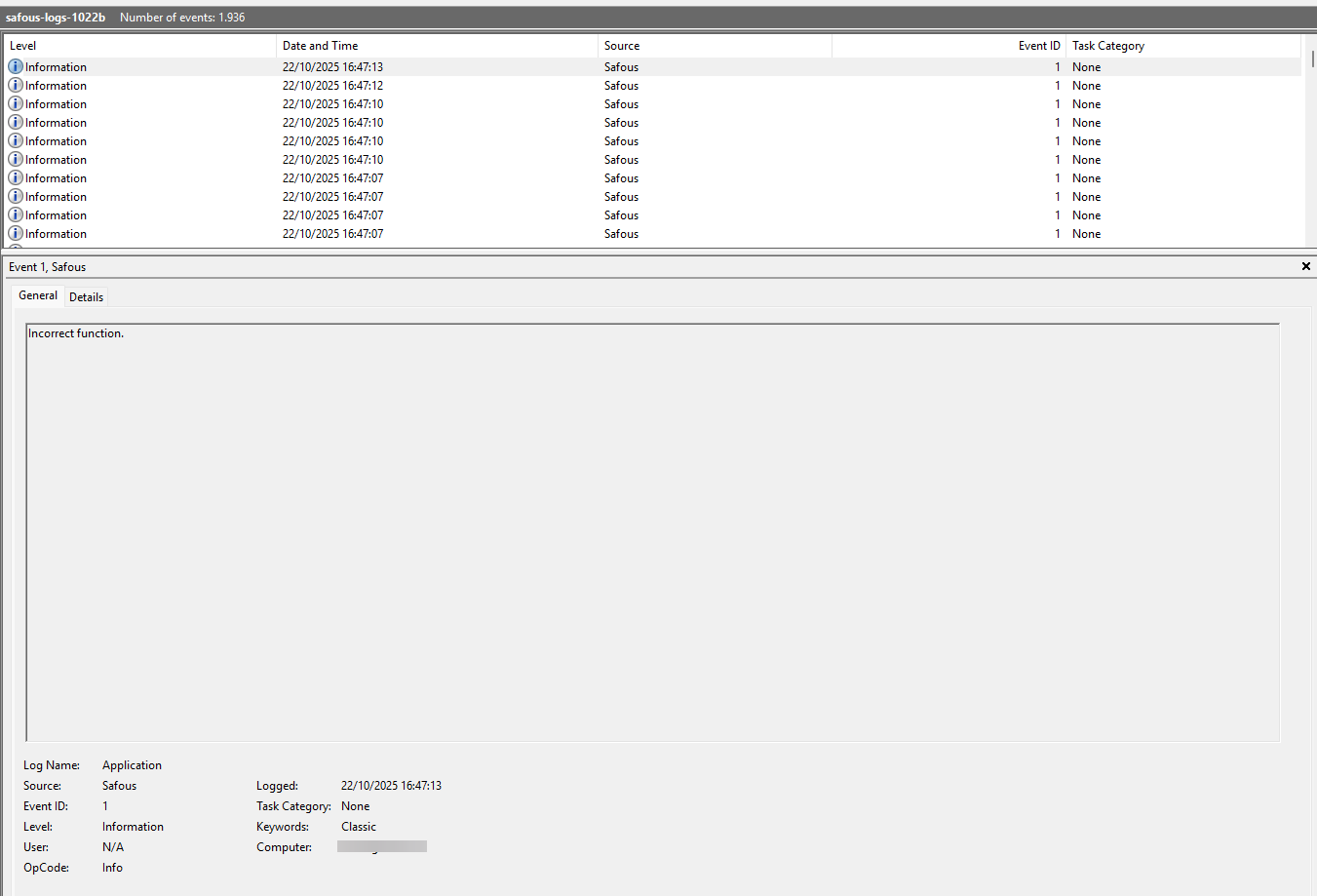
- Right-click on Safous Agent and then click Export Logs.
- For Windows, open Event Viewer to display the log: