Rotation
Prerequisites
-
The passwords must first be created on the Vault > System Secrets page. To read about secrets, refer to the section: System Secrets.
-
The LDAP identity provider must be connected to the Safous platform. For more details on how to integrate LDAP as an identity provider, refer to the section: Configuring LDAP Integration.
notePassword rotation only works if you integrated Active directory using secure connection (LDAPS). Normal LDAP will not work.
-
Make sure that the account exists on the LDAP server.
-
Set the LDAP policy MinPasswordAge to 0 days.
noteBy default, this value is often set to 1 day, which enforces a mandatory waiting period between password changes. This restriction prevents Safous from performing supervised or repeated password rotations.
If MinPasswordAge is not set to 0, the LDAP server will reject password change requests that occur within the restricted time window.
Configuration
-
Log in to the Safous Admin Portal.
-
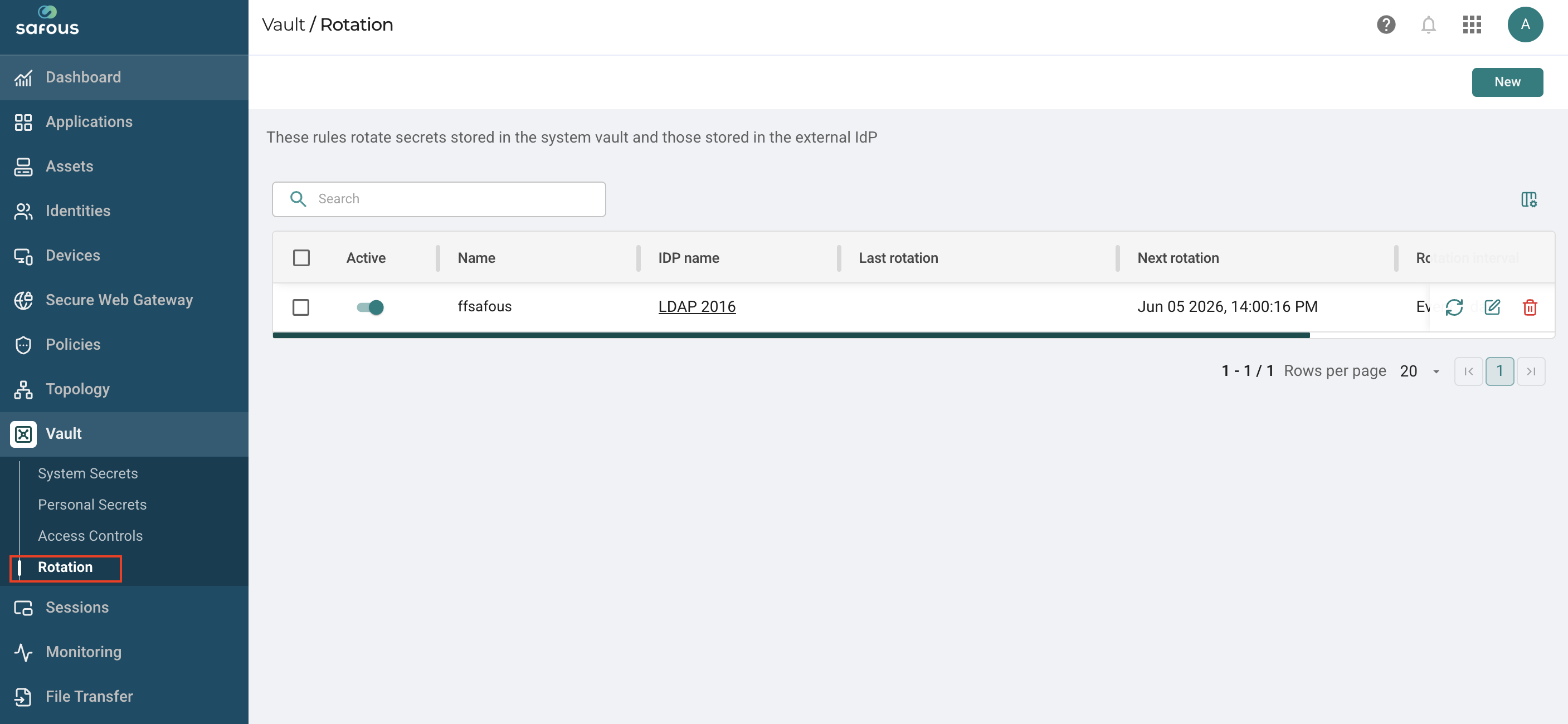
Navigate to the Vault > Rotations page.
-
Click the New button at the top right side.
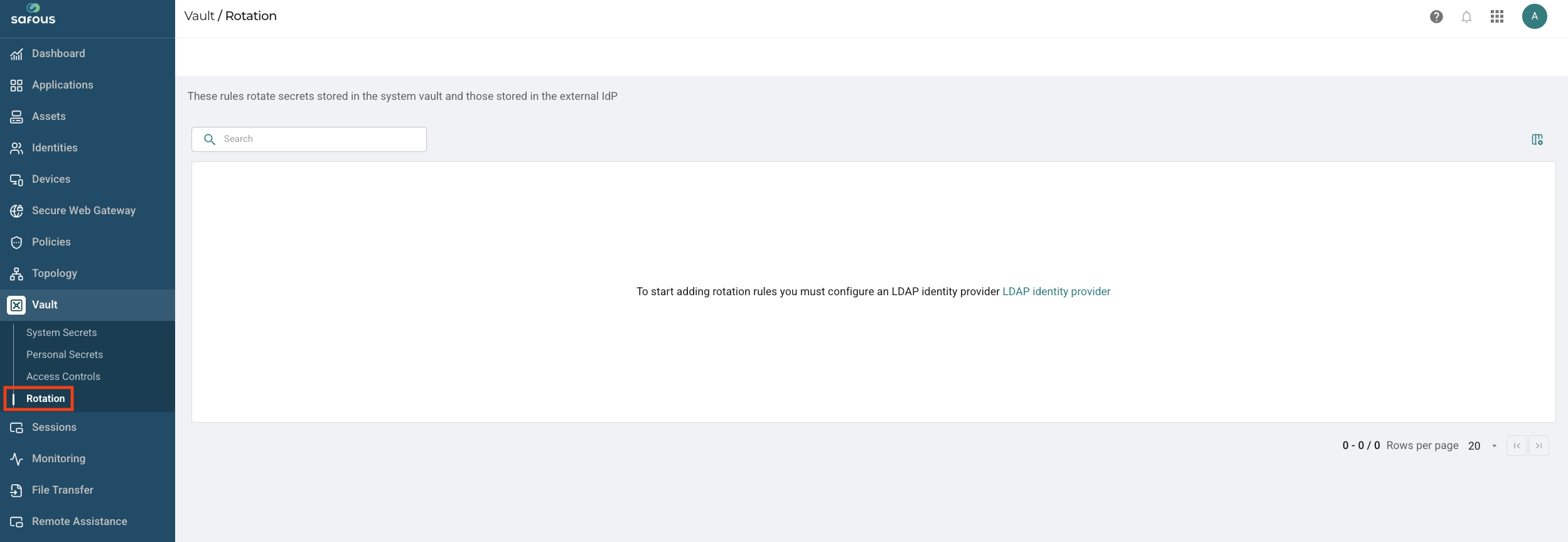
If you have not integrated any LDAP Identity provider yet, this page will appear instead.
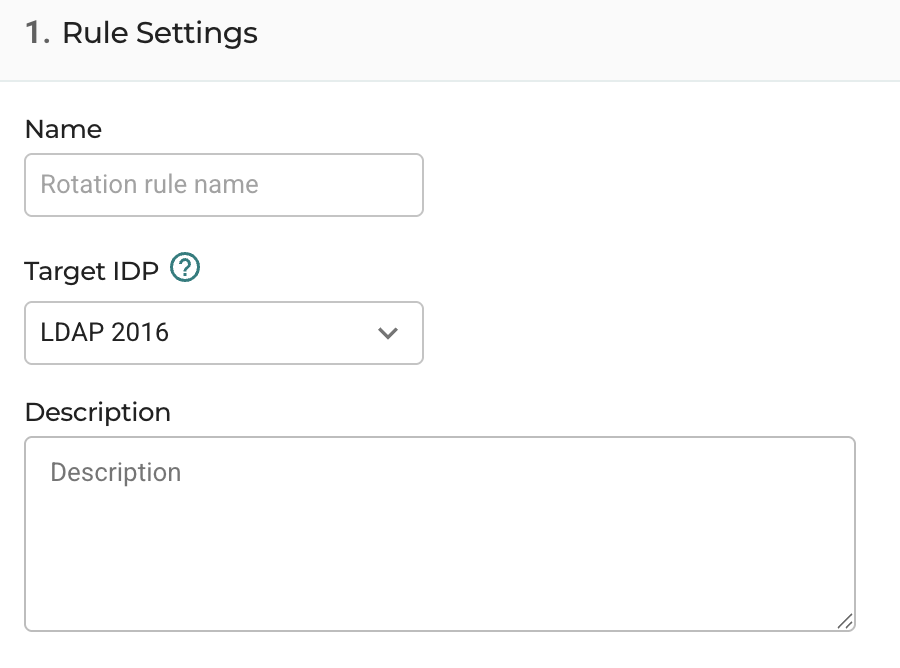
Rule Settings
-
Name- Enter a unique name for the rotation rule. This name helps in identifying and managing the rotation rule. Choose a descriptive name that reflects the purpose of the rule.
-
Target IDP- Select the LDAP identity provider from the drop-down menu. The passwords stored in the system vault must correspond with the password in the LDAP server.
-
Description- Provide a brief description of the rotation rule. The description field helps in documenting the purpose and details of the rotation rule for future reference.
Select Labels and Secrets
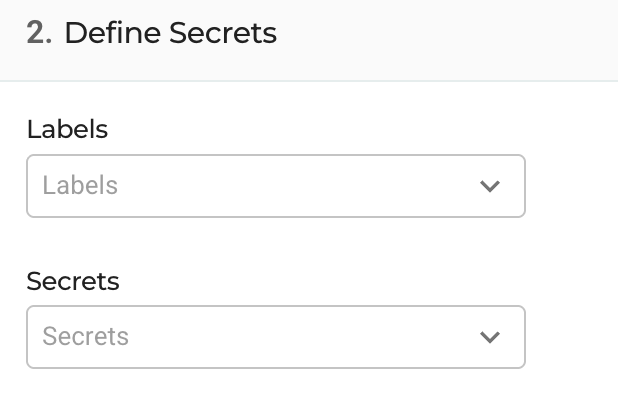
- Use the search bar to find and select the passwords that need to be included in the rotation rule. Select passwords that have a corresponding account on the LDAP server.
Rotation Method

The Rotation Method section is for defining how and when your passwords will be rotated.
-
Every number of days- This option allows you to set the rotation to occur at a regular interval defined in days. The default is set to 90 days, but can be changed to a lower or higher number of days. This applies to all applications such as web, RDP, and SSH native.
-
Selecting a day of the week - This option allows the administrator to select a particular day of the week closest to the expiry period. This is to avoid disruption of resource access during work hours. For example, if the 90-day period expires on a Thursday, to avoid disruption of resource access on a workday, the admin can set the nearest non-workday to push password rotation, albeit the day falling a day or two before or after the 90-day period.
-
Strict - Alternately, the admin can select strict to perform the rotation on the exact day of the expiry period, irrespective of it being a workday.
-
-
After every session - This applies to RDP and SSH sessions only, and the rotation takes place after every RDP and SSH session.
The days are calculated as per the time zone of the administrator.
Once done, click the save button to save the rule.