SAML
Configuration
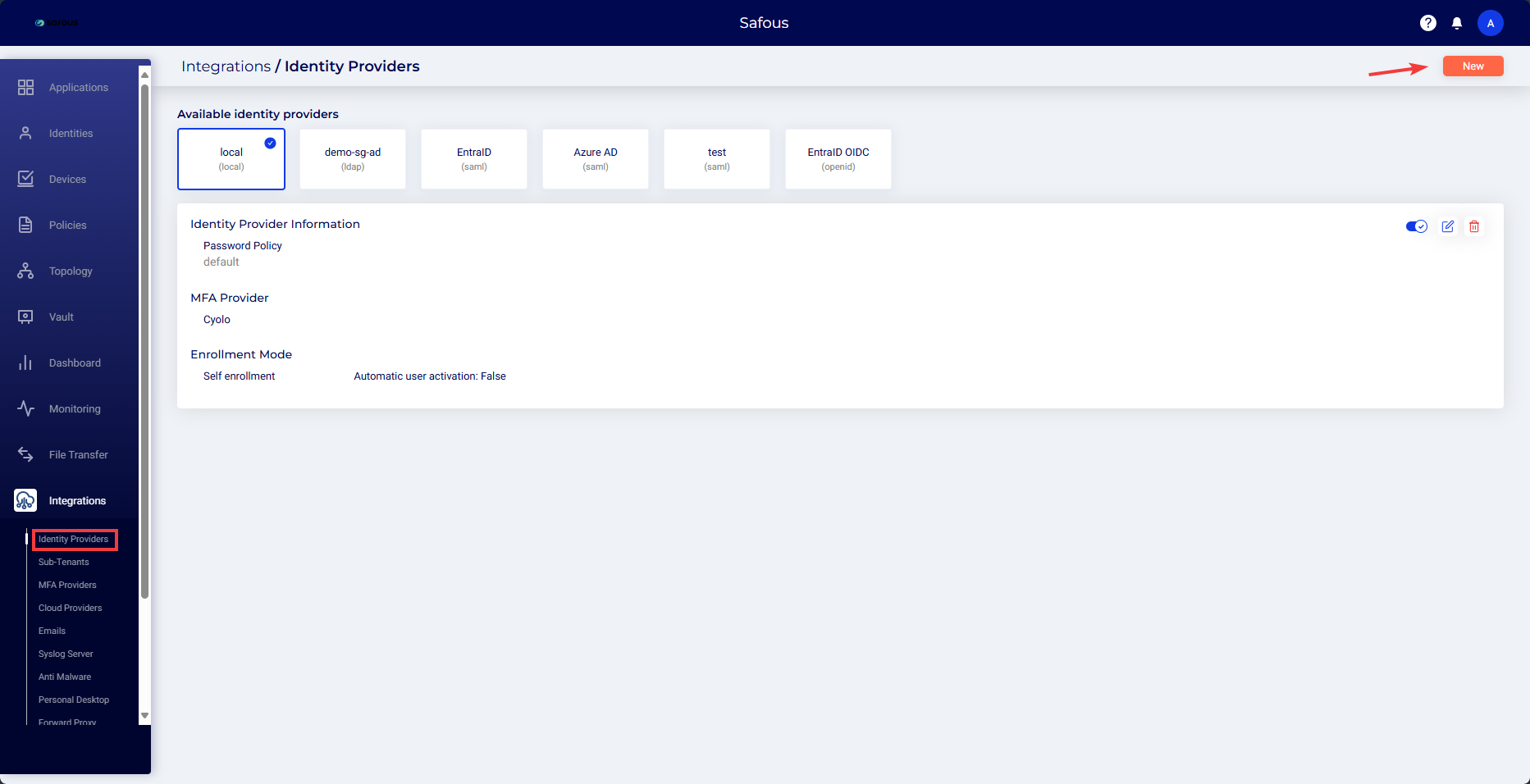
- Log in to the Safous admin portal with your admin credentials.
- Navigate to the Integrations > Identity Providers page.
- Click the New button located at the top-right corner of the screen.
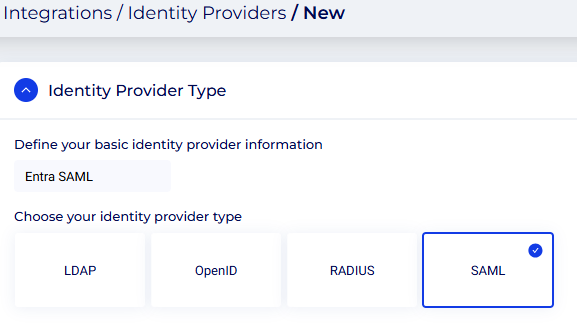
Step 1: Identity Provider Type
- Define your basic identity provider information - Enter a unique name.
- Select SAML under Choose your identity provider type.
Step 2: Identity Providers Details
-
Entity Issuer, parameter provided by the third-party IdP usually the identity/name of the application.
-
SSO Issuer, a URL that uniquely identifies the SAML of third-party IdP.
-
SSO URL, the SSO URL provided by the third-party IdP.
-
CA Trsusted Certificate, X.509 Certificate from the third-party IdP.

-
Request Signature: Used to ask the IdP to sign the SAML requests for security purpose. Download the certificate using download button placed beside the option and configure the SAML IdP to use that certificate. SHA1 or SHA256 is used as the signature algorithm.

-
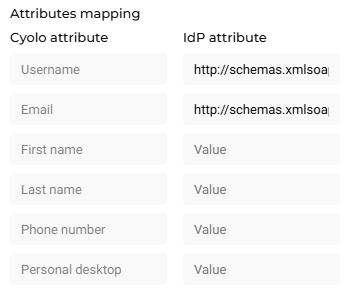
Attributes Mapping: This is used to map attributes between Safous and SAML IdP. These can be found under the Attribute editor section.
- Username (mandatory): Map the Safous attribute Username to the corresponding SAML attribute.
- Email (mandatory): Map the Safous attribute Email to the corresponding SAML attribute.
- First Name (optional): Map the Safous attribute First name to the corresponding SAML attribute, if applicable.
- Last Name (optional): Map the Safous attribute Last name to the corresponding SAML attribute, if applicable.
- Phone Number (optional): Map the Safous attribute Phone number to the corresponding SAML attribute , if applicable.
- Personal Desktop (optional): Map the Safous attribute Personal desktop to the corresponding SAML attribute, if applicable.
-
Auto Provisioning: An option that ensures user accounts are created, granted proper permissions, modified, disabled, and deleted as needed through SCIM.
Step 3: MFA Parameter
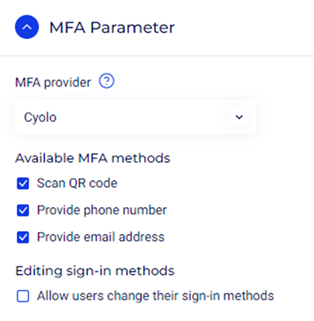
- MFA Provider: Ensure that the MFA Provider is set to Safous. This will enforce MFA for added security.
- Available MFA methods
- Scan QR code: This option enables the use of QR codes for authentication. Users can scan the QR code with an authenticator app on their phone to generate a one-time code.
- Provide phone number: If this option is selected, users can use their phone number for MFA. They may receive a verification code via SMS or a phone call.
- Provide email address: This option, when selected, will allow users to use their email address as one of the authentication methods. They might receive a verification code or link via email.
By default, all three are selected.
- Editing sign-in methods
- Allow users to change their sign-in methods - If this option is enabled, users will have the ability to change their selected MFA methods. This gives them flexibility to switch between different methods as needed.
For this article, we will leave it unchecked.
- Allow users to change their sign-in methods - If this option is enabled, users will have the ability to change their selected MFA methods. This gives them flexibility to switch between different methods as needed.
Step 4: Enrollment Method
These settings are used to control how users enroll into the Safous user database.
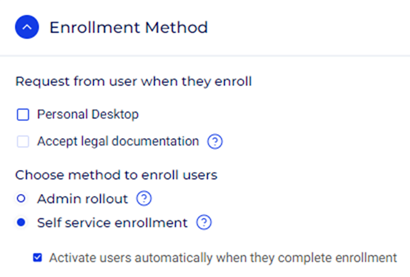
Request from user when they enroll:
- Personal Desktop: When selected, users will be required to register their personal desktop device during enrollment.
- Accept legal documentation: If selected, users will need to accept legal documents or terms and conditions as part of the enrollment process.
For this article, we will leave these options unchecked.
Choose the method to enroll users:
- Admin rollout: Enrollment is managed and initiated by an administrator.
- Self service enrollment: Users can enroll themselves into the system. This option allows users to self-register, which is often more scalable.
- Activate users automatically when they complete enrollment: When this is checked, users are activated immediately upon completing the enrollment process.
For this article, we will select Self service enrollment and enable the Activate users automatically when they complete enrollment option.
- Activate users automatically when they complete enrollment: When this is checked, users are activated immediately upon completing the enrollment process.
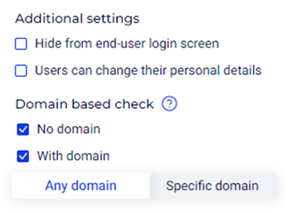
Additional Settings:
- Hide from end-user login screen: This option hides the enrollment method from the users' login screen.
- Users can change their personal details: Allows users to update their personal information after enrollment.
Domain based check:
- No domain: Indicates that no domain-based restrictions apply to the enrollment.
- With domain: Enables domain-based restrictions for enrollment.
- Any domain: Allows enrollment from any domain.
- Specific domain: Restricts enrollment to users from specific domains.
For this article, we will select Any domain and check the checkboxes for both the No domain and With domain options.