Device Posture
Background
Device posture is the ability to configure policies with minimum requirements that ensure the device’s compliance before it connects to a session.
Organizations can prevent corrupt or non-compliant devices from accessing sensitive information and critical applications by monitoring and enforcing device posture before users connect to applications.
Device Posture feature reduces the risk of exposure to vulnerabilities by allowing Administrators to configure device compliance requirements for laptops and desktops before users connect to digital assets.
Once Device Posture Profiles are created, they can be linked to specific Policies.
Device Posture Profiles
Device posture profiles are sets of at least 1 “check condition” that users' devices must meet in order to access resources. For example, Administrators can configure the Device Posture profiles such that they possess the most recent version of that device’s operating system, and that anti-virus software is installed and updated. Administrators can create multiple device posture profiles, and link them to policies, and all of those policies must be met in order for the end user to access them. The list of check conditions, as configured by the Administrator, must be met in order to access the organization’s applications.
Conditions
Device posture conditions are the criteria that return a true or false response. For example, a Device Posture Profile might require Windows greater than v10, with the condition set to “True.” If the condition is returned as “false,” the device will not be allowed and the user will not be able to connect to digital assets.
Prerequisites
-
Please note that internet connectivity is a prerequisite for the Device Posture feature. At this time, Device Posture is not supported if you are running Safous ZTA in an isolated environment.
-
The Device Posture feature is functional only when the Safous ZTA agent is installed and running on the user's device, as indicated by the icon in their toolbar

Basic Steps
Configuring Device Posture includes these three steps:
-
Enabling the General Settings for Device Posture on the Global Configuration Screen (Settings > ZTNA > Configurations > Device Posture > Edit) which includes:
-
Enabling device posture (defaulted to disabled).
-
Enabling custom checks (defaulted to disabled).
-
-
Configuring the Device Posture screen to create profiles and conditions, and
-
Linking Device Posture profiles to policies.
All these steps are described below:
Enabling Device Posture Feature
Before configuring device posture profile, you must enable the device posture feature in the admin portal first. By default, the device posture feature is disabled.
To enable the Device Posture feature, follow these steps:
-
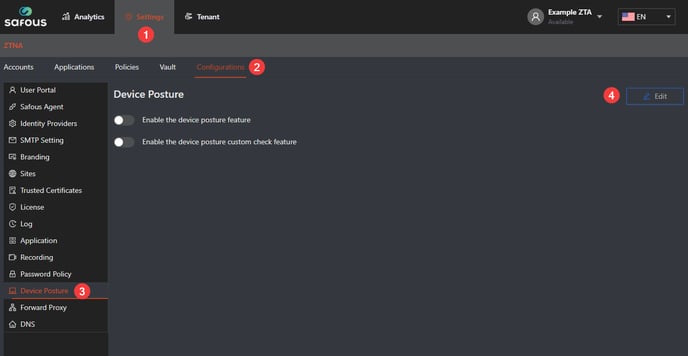
Access the configuration panel on the admin portal (Settings > ZTNA > Configurations > Device Posture > Edit) screen. Check on the left side panel of the admin portal to navigate to Device Posture.
-
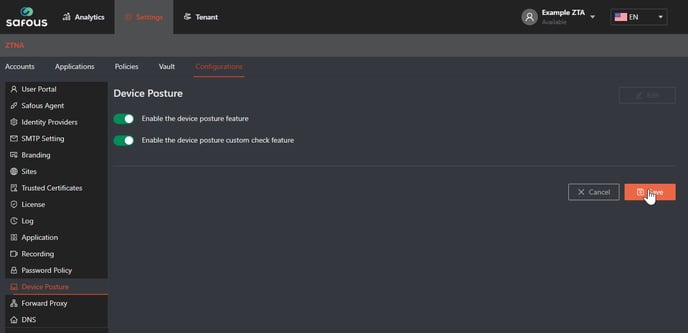
To enable device posture, click edit and toggle the “Enable the device posture feature” button to on. When this field is enabled, the osquery package is automatically downloaded.
-
(Optional) Toggle the “Enable the device posture custom feature" button to on. This allows Administrators to create any SQL query to osquery and add it as a custom check when configuring Conditions later on.
-
Once done, click on the Save button.
Configuring Device Posture Profiles and Conditions
Device Posture enforcement starts with creating Profiles for your devices. One device posture can be connected to many policies. They can also include one or more operating systems.
Administrators can create as many profiles as they wish, including creating different profiles for different types of devices.
To configure the Device Posture Profiles, follow these steps:
-
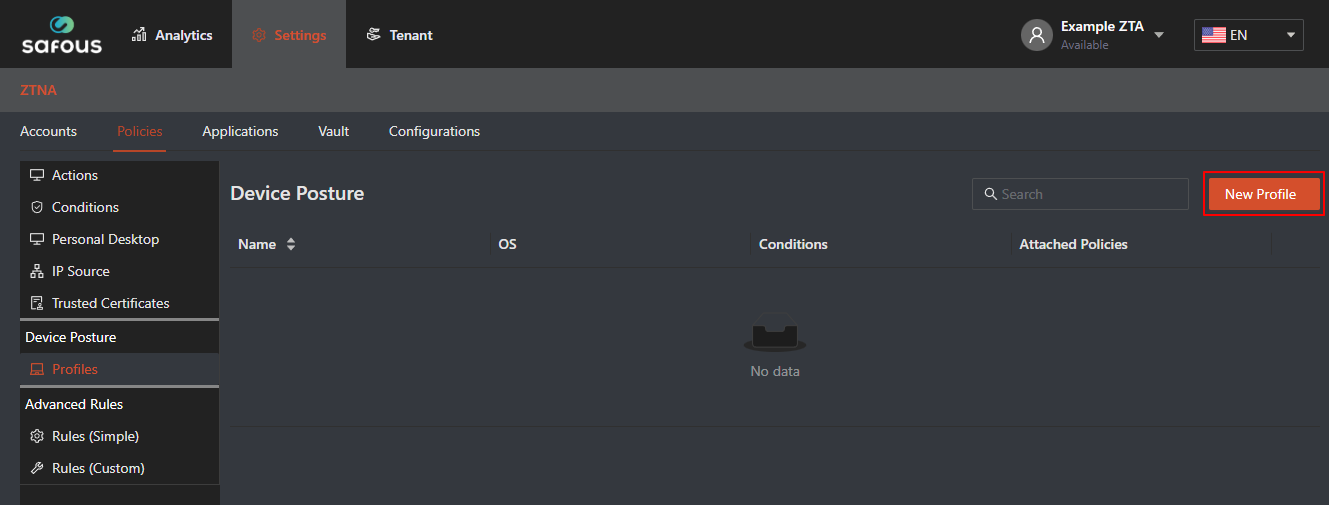
Navigate to the Device Posture screen (Settings > ZTNA > Policies > Device Posture > Profiles).
-
Click on the orange New Profile button in the top right corner to create a new Device Posture profile.
-
Select the Operating System (Windows or MacOS) for which you are creating the device posture.

-
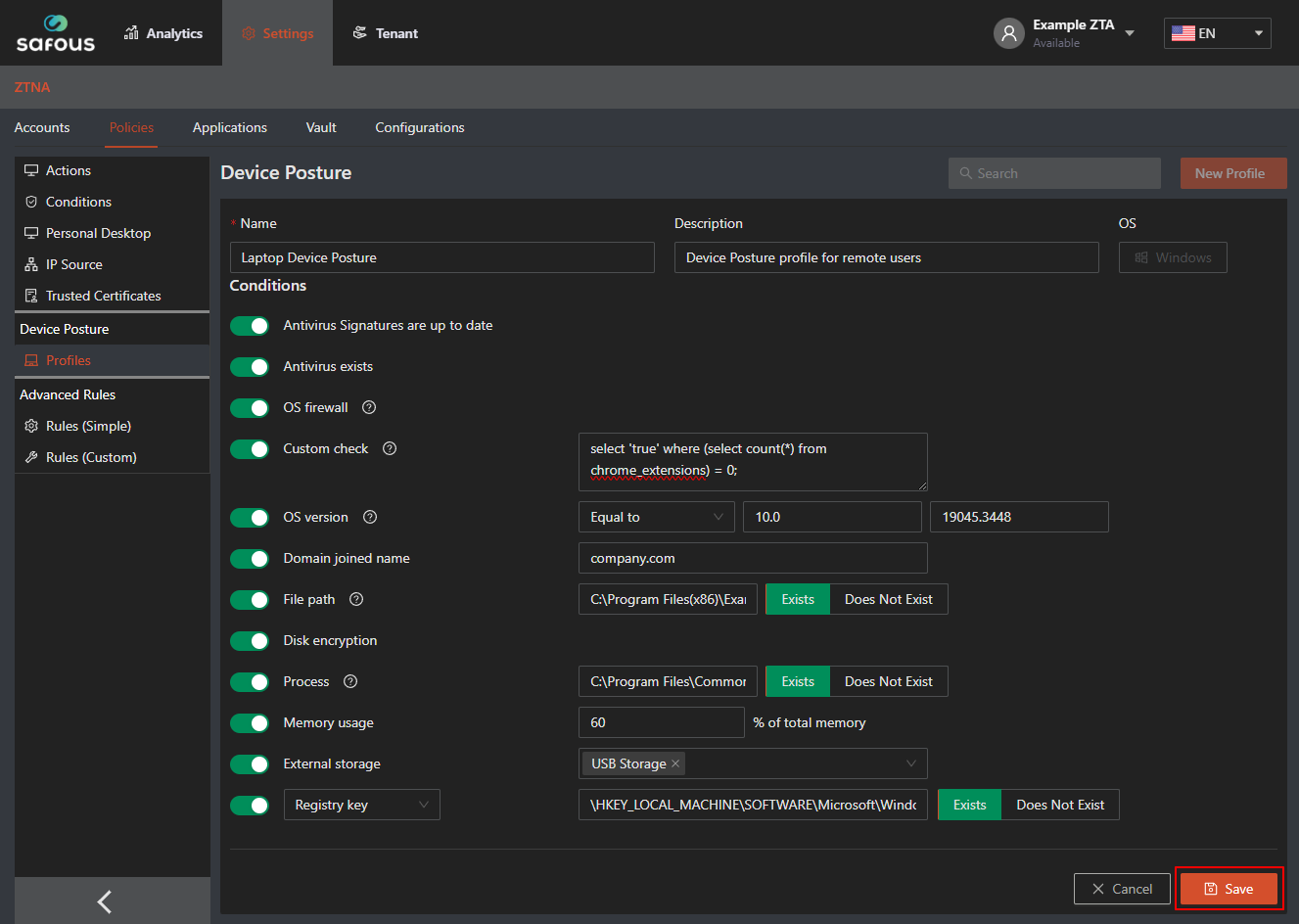
Define the Profile name (e.g., Laptop Device Posture) in the Profile Name field. We recommend that you make the profile name as specific as possible for ease of searchability and editing later on. We also recommend that you give the profile a description in the Description field as well. This is particularly helpful when you have a number of profiles that need to be attached to multiple policies.

-
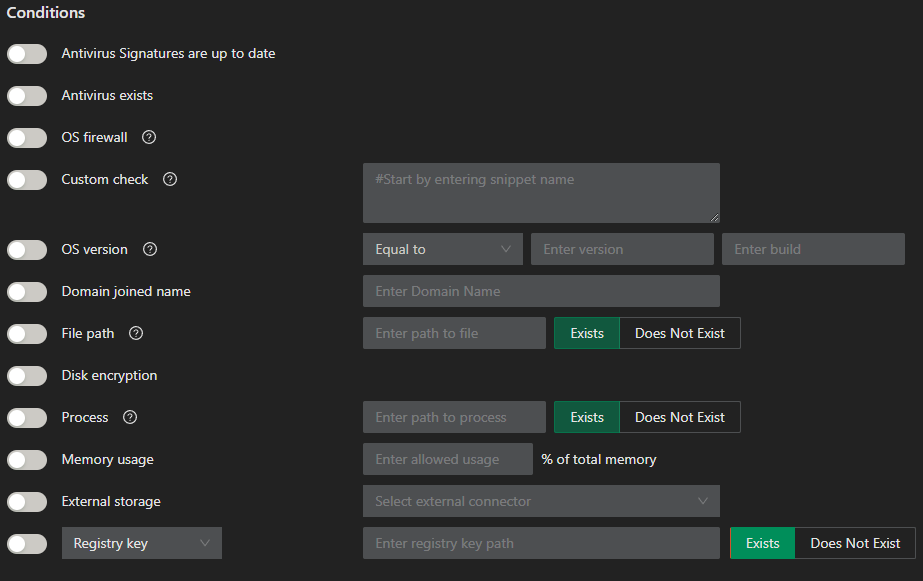
Once the device Profile information is complete, the Administrator can configure the Conditions for the Profile. Conditions configuration can be found on the bottom part of the screen. First, select Condition Type. Condition types include:
-
Antivirus Signatures are up to date: Checks whether the Antivirus software installed on the device has the latest signature updates. Must be checked along with the "Antivirus Exists" condition, else this check will fail.
-
Antivirus Exists: Checks whether an Antivirus software is installed on the device.
-
OS firewall: Checks whether there are active firewall profiles on the device. At least one of private, public, or domain firewall profiles must be active to pass this check.
-
Custom Check: This custom condition is available only when the Administrator enabled it in the general settings as noted above. This condition supports custom check, using osquery to audit the OS and all its configurations as an SQL-based relational database. Administrators can write SQL queries to explore the osquery and add it as a custom check. The query should be based on osquery version 5.4.0. When this is selected, a text box appears. Start by entering the snippet name, for example:
- Validating a file's hash:
select 'true' from hash where path='/etc/hosts' and sha256='7aeefe1afd90f413f6e4ec9bc715c9be6d2535422bf62a91784be5148c0cb7c7' ; - Checking the number of Chrome extensions (negative check): Result > 0 means 'true', so the Administrator should define this check as a negative one:
select count(*) from chrome_extensions; - Checking the number of Chrome extensions (positive check):
select 'true' where (select count(*) from chrome_extensions) = 0;
- Validating a file's hash:
-
OS version: Checks the OS version of the device. When this condition is selected, additional configuration options appear - Expression, Version, and Build.

- Expression triggers the OS level sought (e.g., select Equal to, Not Equal to, Equal or Greater Than, or Equal or Less Than).
- Version refers to a particular version of an OS (e.g. 10.0 for Windows 10).
- Build refers to the build version of the OS. When choosing more than 1 version of the OS and when selecting “Equal To” or “Not Equal To,” there is no need to select a build. For example, selecting “Equal To” 7, 8, 9, does not require the selection of builds. However, when selecting only 1 version of the OS (e.g., “Equal To” 7), selection of build is required, e.g., 7.1, 7.2, 7.3.
In Windows, if you are not sure which OS version you are using, use the
vercommand in CMD like this:
-
Domain joined name: This condition checks whether a Windows device is domain-joined to an Active Directory domain. To pass this posture validation check, the device's server domain must be joined to the Active Directory domain that was configured in the Device Posture.

-
File path: The check will search for the specific file path to see if it is found on the user's device. For example, C:\Program Files(x86)\Example\AV.txt. You can choose whether you want to check if this file Exists or Does Not Exist by clicking on the relevant button.

-
Boot disk encryption: Checks whether the boot disk is encrypted or not (e.g. encrypted with BitLocker)
-
Process: Check whether a specific process is running on the device. For example, C:\Program Files\Common Files\McAfee\AVSolution\Mcshield.exe. Then choose whether you want to check if this process Exists or Does Not Exist by clicking on the relevant button.

-
Memory usage: Checks the percentage of total memory used that is allowed from the connected device.

-
External storage: Checks whether the device allows USB storage, Bluetooth file sharing, or both. Please note that the option for Bluetooth file sharing only applies to Mac OS.

-
Registry key: Checks the registry in Windows devices. You can choose whether you want to check for a registry key, value or content. For example, please refer to the screenshot below:

-
When selecting Registry Key, enter the path of the registry key and select whether it should exist or not as part of the validation check.

-
When selecting Registry Value, enter the path of the registry value and select whether it should exist or not as part of the validation check.

-
When selecting Registry Content, enter the path of the registry value and the actual data associated with the value name to check if the content matched as part of the validation check.

-
noteThe current version of the Device Posture feature allows for adding a condition type only once. For example, if one File Path condition is used for the profile, a second File Path condition cannot be added at this time. This will be addressed in future versions. In the meantime, if a second device posture condition of the same type is needed (i.e., two File Paths or two Custom Checks), another device posture profile needs to be created and attached to a policy.
-
-
Click the Save button at the bottom of the screen to save the Device Posture Profile and Conditions.
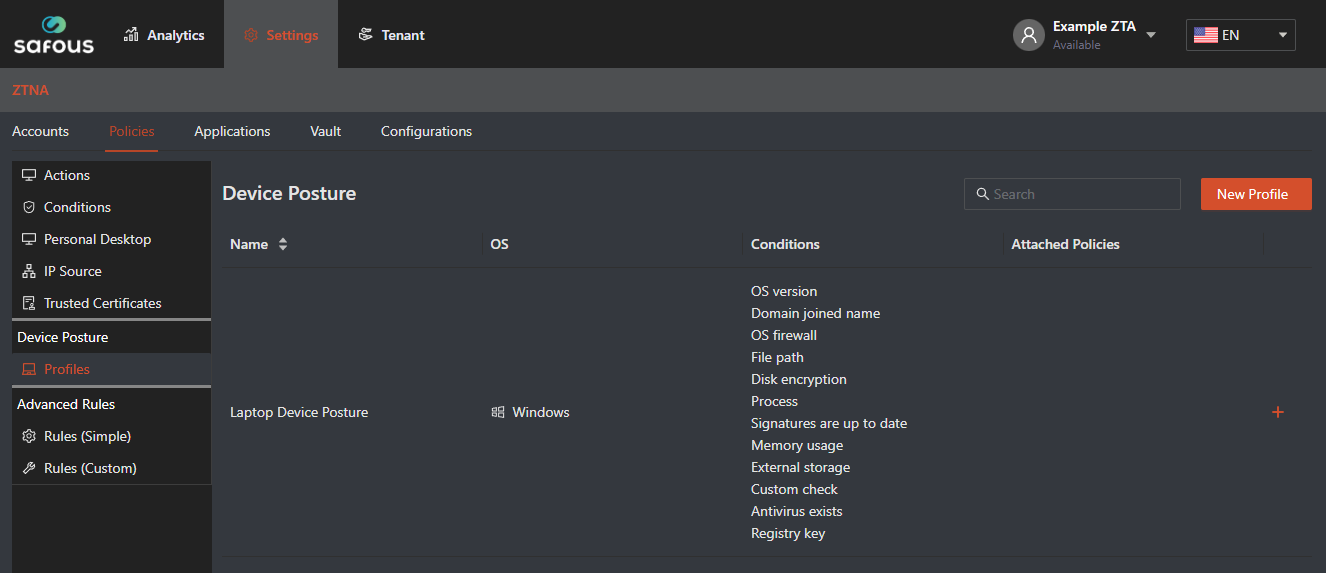
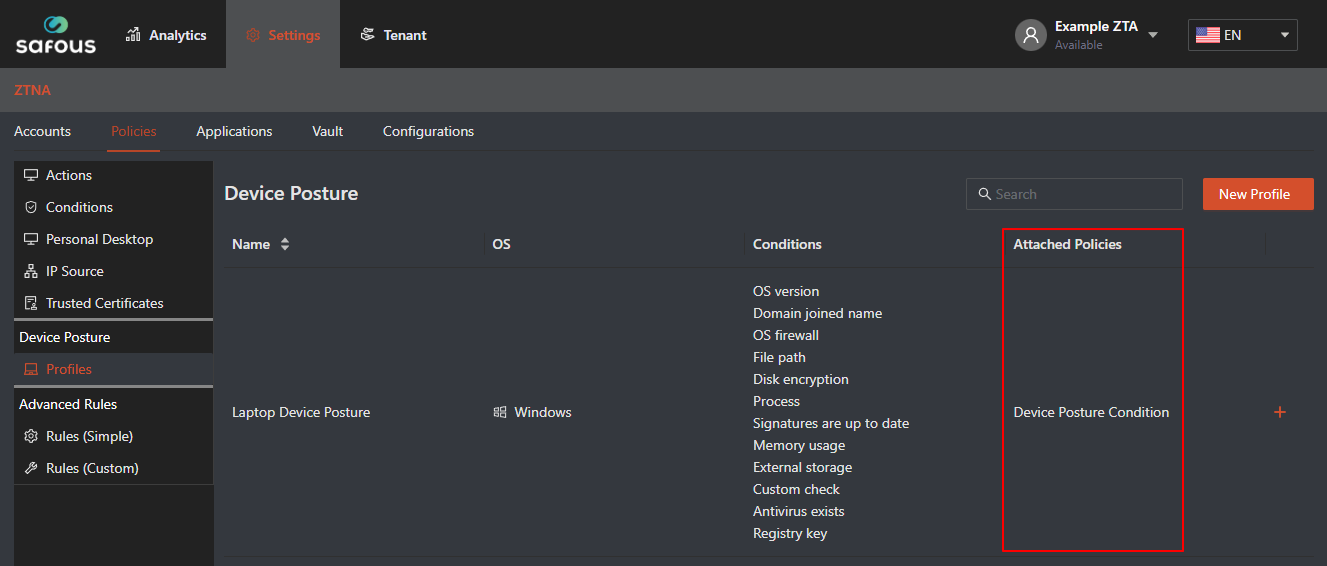
All Device Posture Profiles are listed on the Device Posture screen in the Admin Portal, along with a description of the conditions for each profile.
Updating Device Posture Profiles
If you need to update a Device Posture Profile, navigate to the Device Posture screen in the Admin Portal (Settings > ZTNA > Policies> Device Posture > Profiles), select the profile, and click the + button in the right side, and click edit to modify. After you are done modifying, then click the Save button on the bottom screen.
Linking Device Posture to Conditions
Once the Device Posture profile has been created, it can be linked to a Policy. Follow these steps:
-
Access the Admin Portal Conditions screen (Settings > ZTNA > Policies > Conditions).
-
Click on the New Condition orange button in the top right corner to create a new policy, or select one of the current policies from your list to edit that specific

-
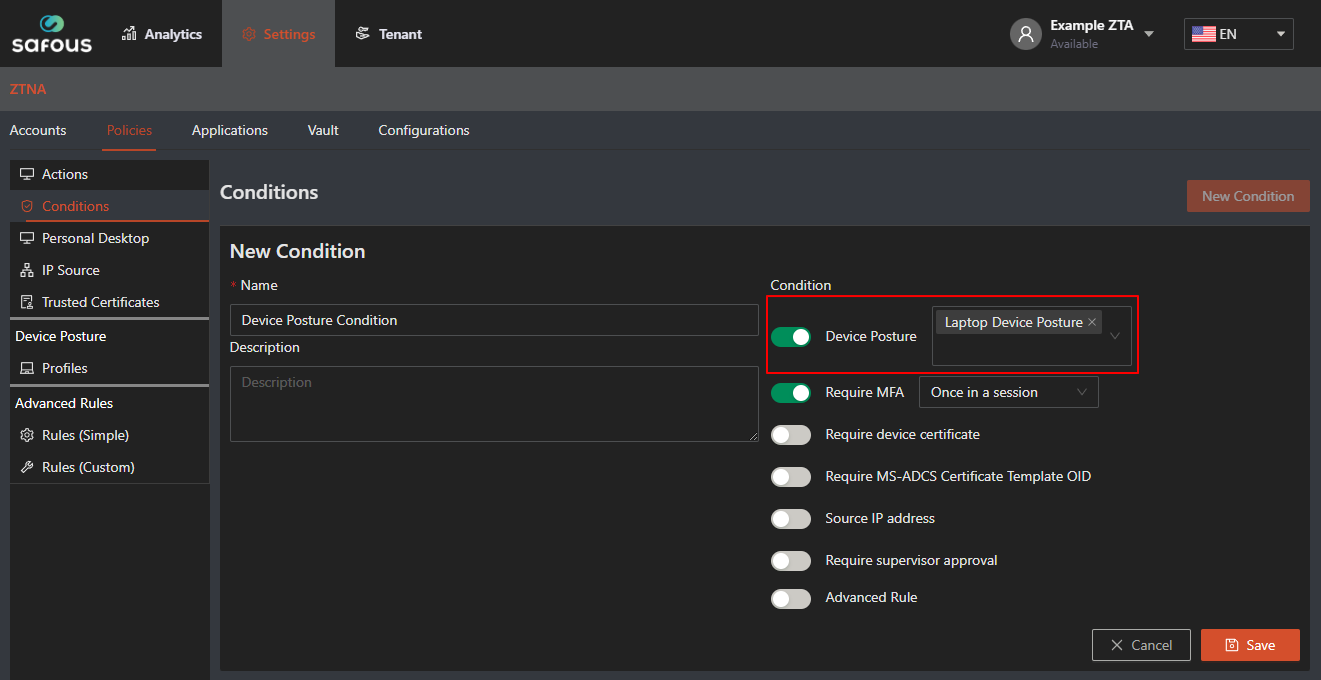
Under the Condition tab, there is a field labeled “Device Posture” where the default is disabled. Enable the feature and use the dropdown arrow to select the Device Posture profile previously created. If the Device Posture profile does not appear in the dropdown, it means that it was not created or saved properly.
 note
noteA specific policy can include multiple profiles and conditions among them. Therefore, when multiple conditions and/or profiles are set, the device is validated against all of them and the failure to meet just one of the profiles will result in denial of access. The policy containing the device posture profile is enforced in the App Gateway which implements the device check from each agent every 15 minutes.
-
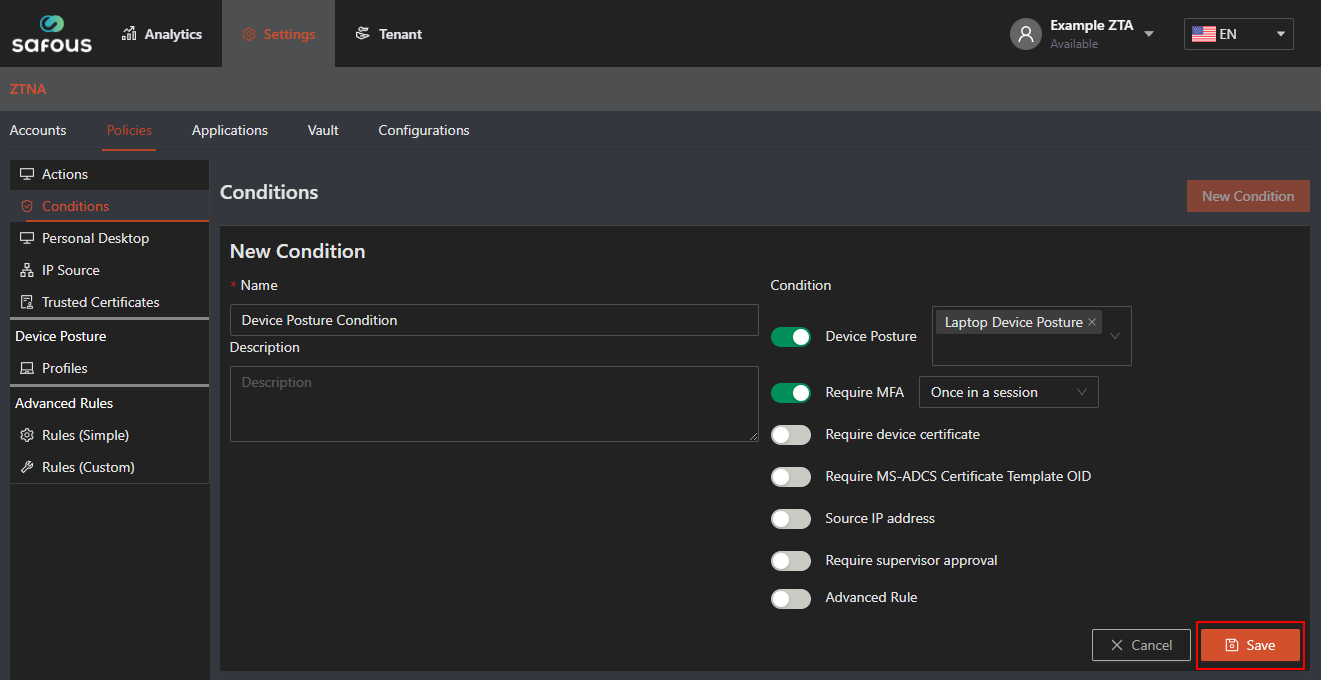
Once the condition has been configured, click the Save orange button on the bottom right of the screen.
-
Once a device posture profile is connected to a policy, the Device Posture screen will be hyperlinked to the policies to which they are connected.
Troubleshooting
There are a variety of reasons why a user might be denied access to a session with Device Posture enabled:
-
The Safous agent was not installed on the user’s device and therefore the session was denied because the device check was not able to execute.
-
If the device does not meet the criteria set by the Administrator, the user will be denied access to the session.
-
If the “Device Posture” feature is disabled in Settings > ZTNA > Configuration > Device Posture, the Device Posture Profile will not be enforced. It will remain connected to the policy, but will not be enforced.
-
There can be connectivity issues, hardware issues, or user unauthorized actions, that can also impact a user’s ability to access a session with Device Posture enabled.
Logs
-
When users meet the device posture requirements and successfully connect, the event is recorded in the Activity Logs.
-
If users are denied access because the device does not meet the configured device posture requirements, the event is also logged in Activity Logs, indicating that the user could not connect because the connected device did not meet the configured condition.
-
If the user was denied access because the device failed more than 1 Device Posture Profile, all of the failed profiles will be listed in the logs.