MFA Provider
Duo Security can now be used for external multi-factor authentication. This enables you to configure external MFA using Duo Security without the need to configure it as an external IdP.
Page Overview
You can access this feature by navigating to Settings > ZTNA > Configurations > MFA Provider.
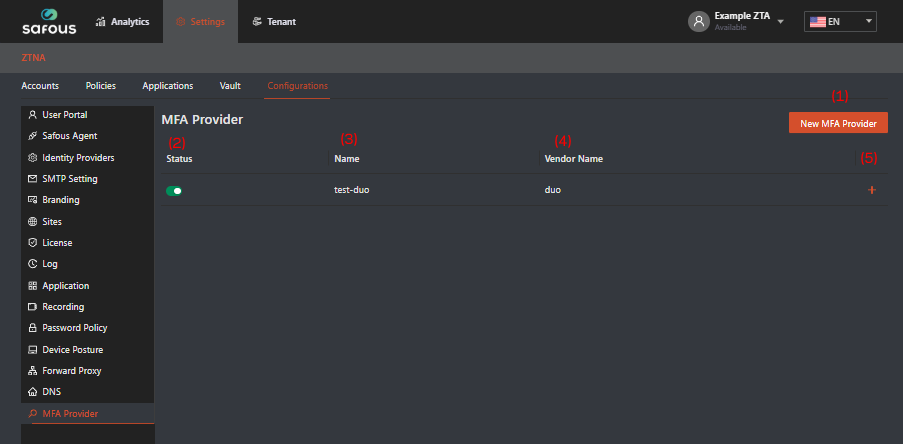
- New MFA Provider: Create a new integration with a third-party MFA Provider
- Status: A toggle to enable/disable an existing integration
- Name: Name of an existing integration
- Vendor Name: Name of the third-party MFA provider. Only Duo is able to be integrated for now
- +: Expand/shrink button to show/hide the details of an existing integration. The details of an existing integration can be seen as follows:
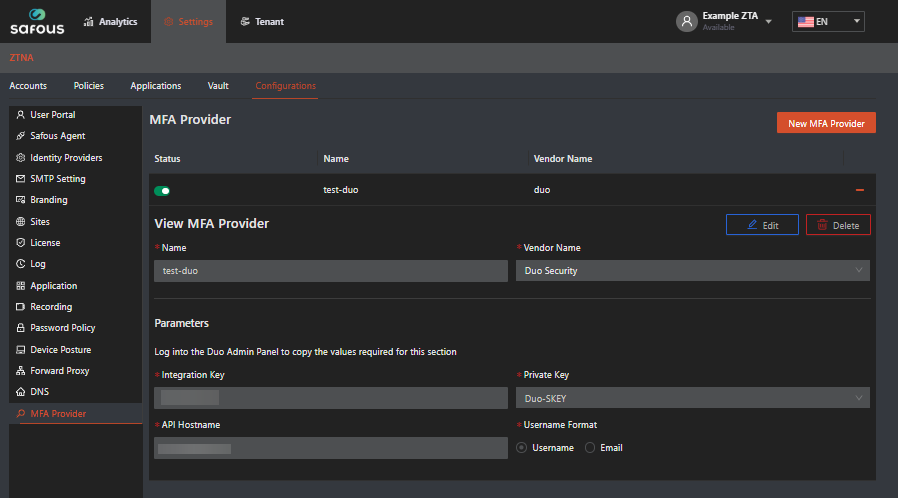
Configuring Duo as MFA Provider
Setup WebSDK App in Duo
-
Navigate to the Duo Admin Console
-
Navigate to Applications -> Protect an Application -> WebSDK -> Protect

-
You'll need this information moving forward, keep this page open

Setup Duo Integration in Admin Portal
-
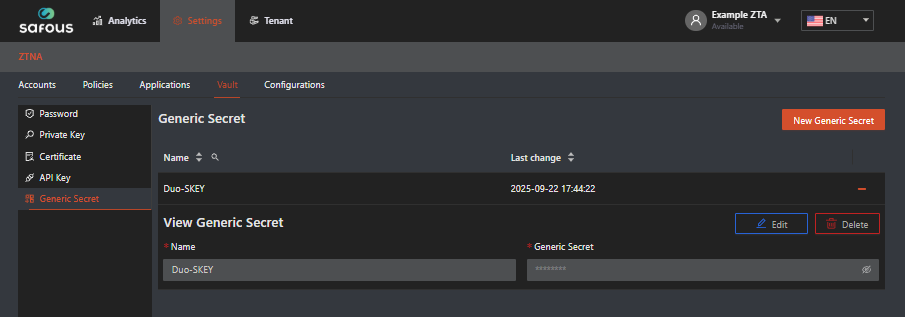
Create vaulted generic secret for Duo Client secret (Duo SKEY)
-
The value for secret on vault is the SKEY
-
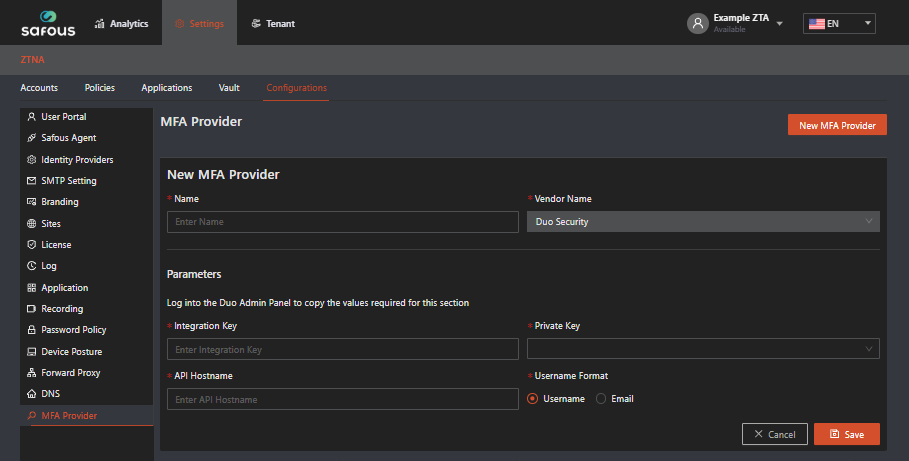
Navigate to Settings > ZTNA > Configurations > MFA Provider. Click New MFA Provider
-
Provide the integration a name, and copy/paste the values from the Duo Admin Console to the fields in admin portal
- Integration Key = Client ID
- Private Key = Client Secret
- API Hostname = API Hostname
-
Click Save
-
Test integration to verify connectivity to Duo
Using Duo as External MFA on Integrated IdP
- Navigate to Settings > ZTNA > Configurations > Identity Providers
- Edit an integrated IdP
- Choose your Duo integration for MFA Mode
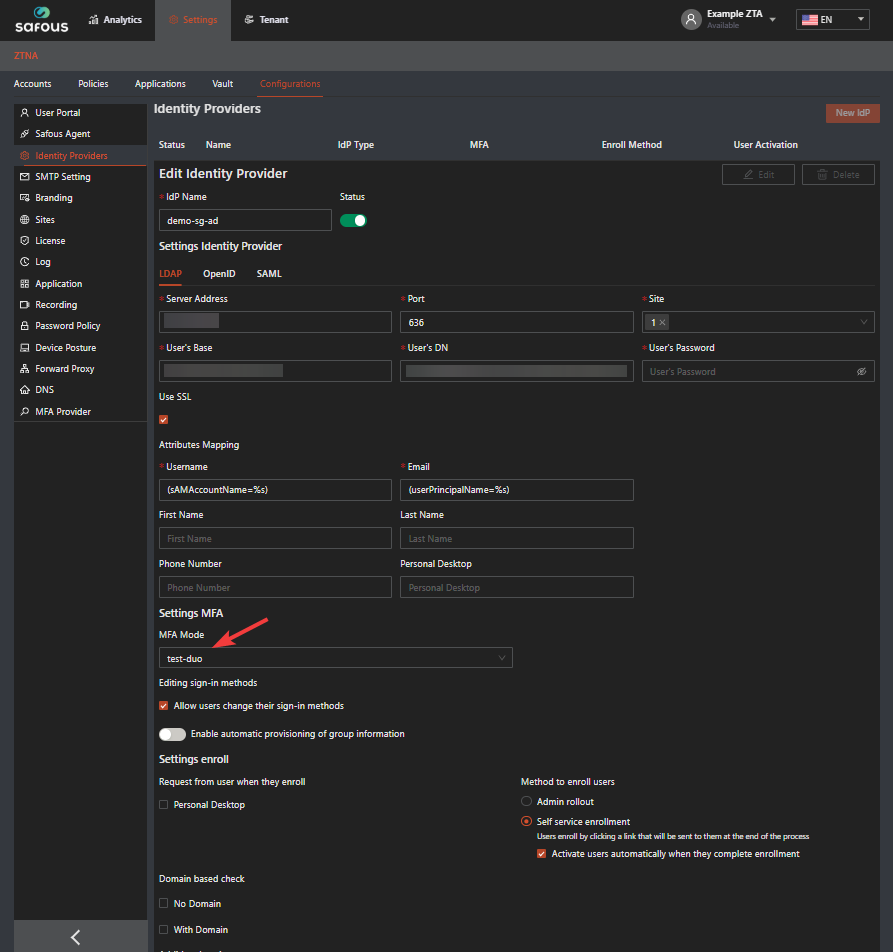
- Click Save