Branding
If you want to change your Safous ZTA user portal logo so it can be easier to be recognized by the users who use it, Safous provides that kind of customization.
Page Overview
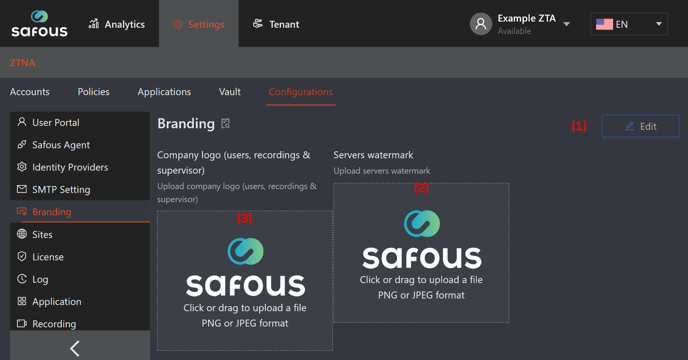
-
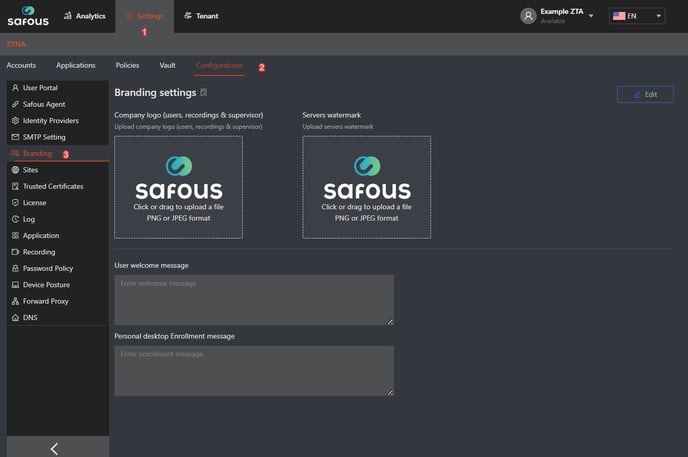
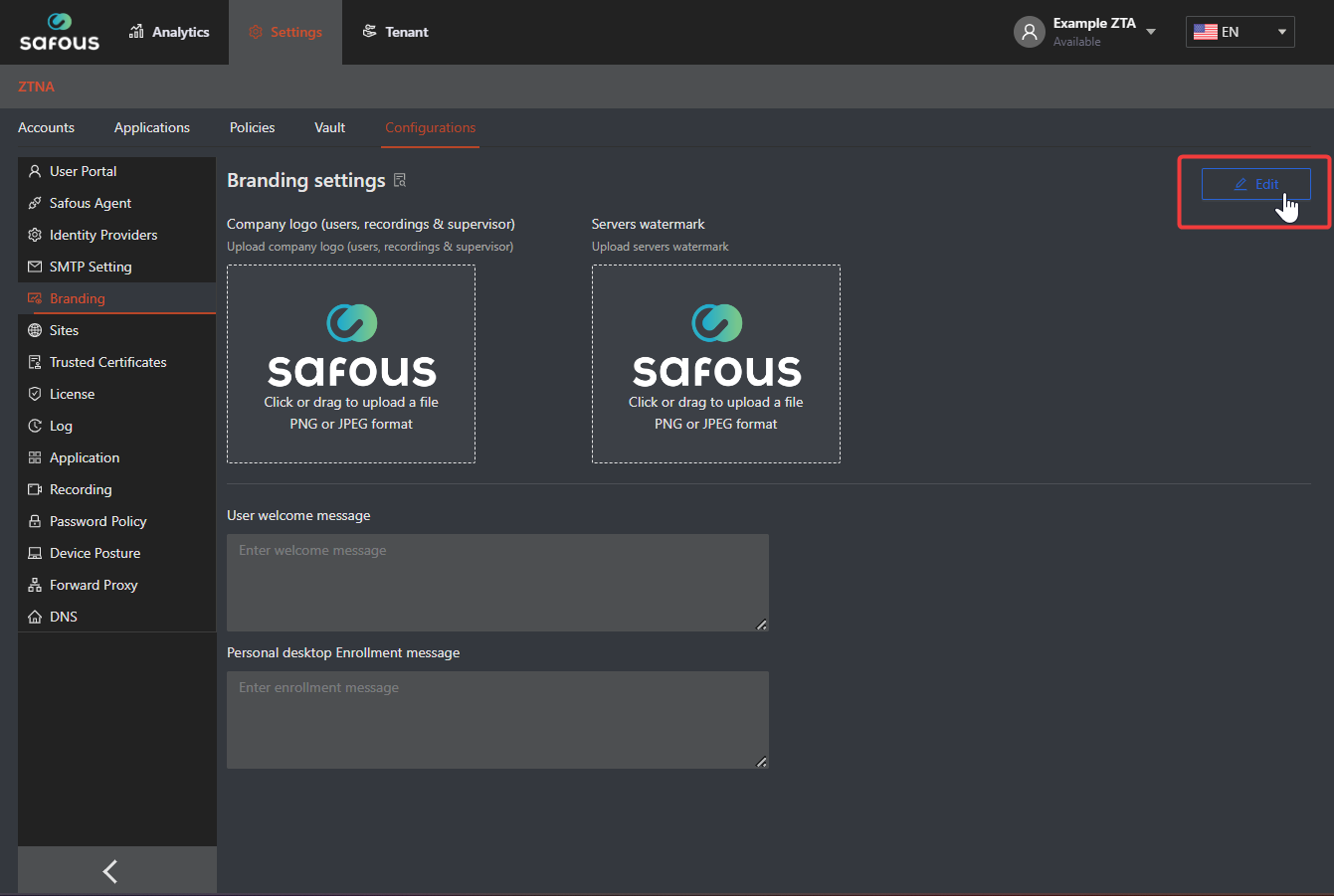
Edit, click this button to modify the configurations.
-
Safous Square, click or drag to upload a logo for the server watermark
-
Safous Square, click or drag to upload a logo for the general display of the company logo in your Safous environment.
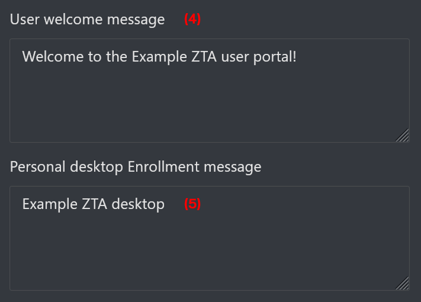
-
User welcome message, edit this to modify the welcome text shown on the user portal login page.
-
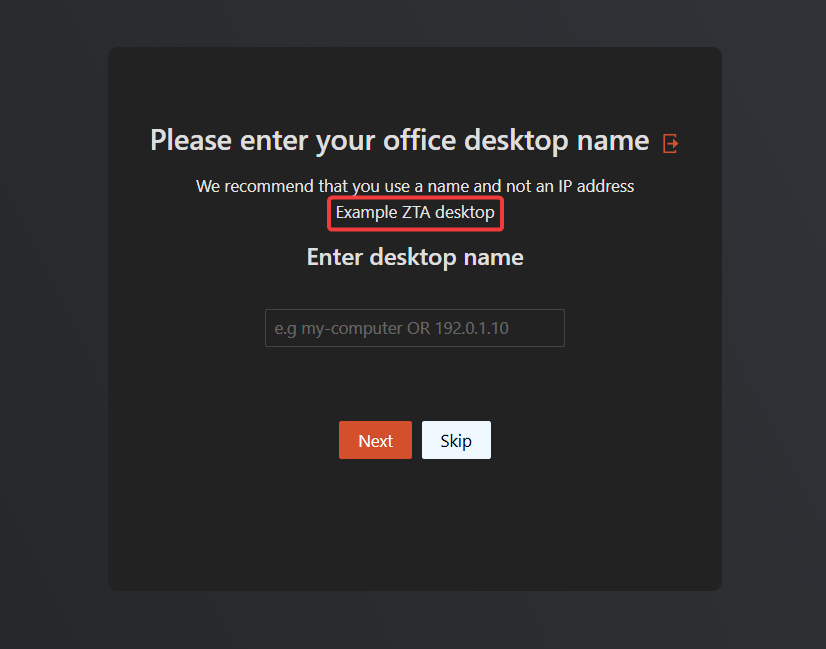
Personal desktop Enrollment message, edit this to modify the welcome text shown on the personal desktop enrollment page.
After finishing modifying, don't forget to click the Save button.
Branding Configuration Example
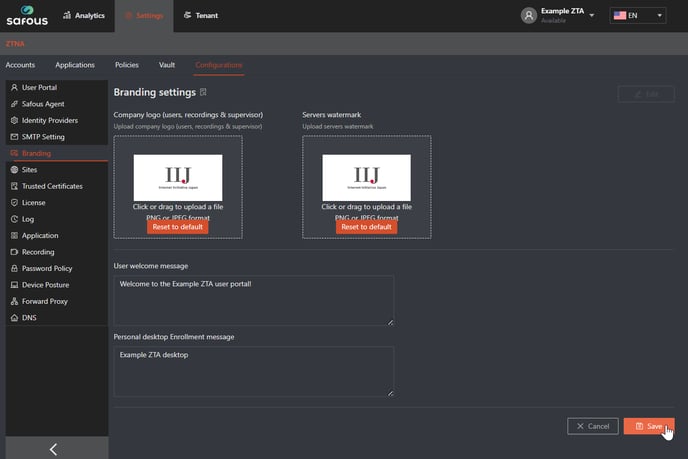
- Navigate to Settings tab > ZTNA > Configurations > Branding
- It will open several forms and logos which you can change to your brand.
- To configure it, click on the "Edit" button to make the form accessible
- For the logo, you can choose to click on the Safous logo and select an image from your computer, or you could just drag and drop the image from your computer into the logo area.
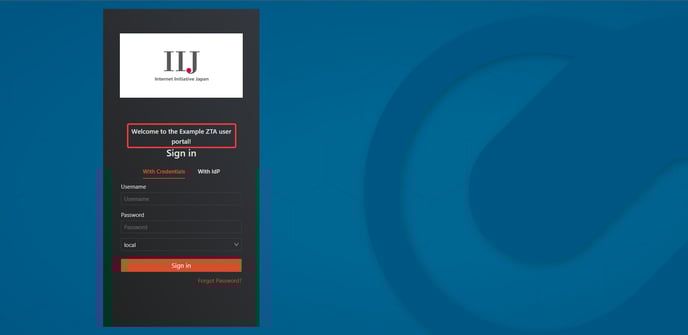
- The Company logo is shown on the login page of the user portal, the recordings page, and the supervisor page.
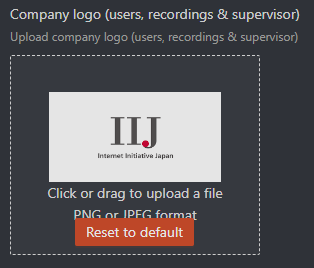
Result example:

- The Servers watermark logo is displayed as a watermark for server web remote access services such as SSH, RDP, TELNET, and VNC

Result example:

- You could even put a custom user welcome message

Result example:
- Also the desktop enrollment message

Result example:
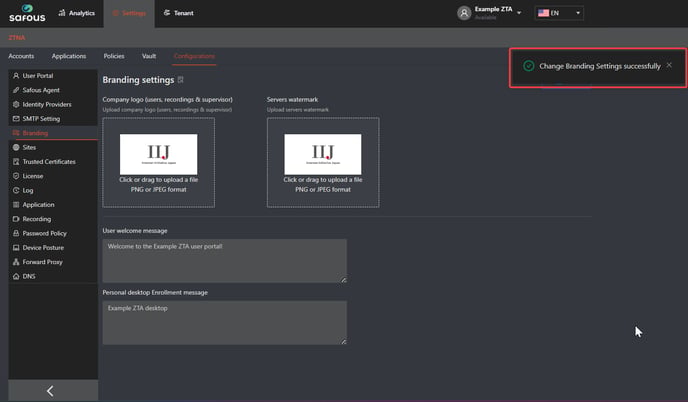
- Once you are done, click the "Save" button at the bottom of the page. The page will give you a successful notification of the branding change.