App Gateway Installation for Custom Domain
Prerequisites
Before proceeding with the installation of the App Gateway with a custom domain (non-Safous domain name), there are several things that need to be ensured from the customer side:
- Domain Name to be Used
- If you have a domain that is specifically being used for the Safous service and no other records are added to the domain, then you can use it directly with a wildcard (e.g., *.new-dom-example.com).
- If the domain that you use already has subdomain records (e.g., www.example.com, app.example.com, etc.), then you must create a wildcard record with another suffix that hasn't been used, e.g., *.pra.example.com.
- License to be Used
- License will be provided in the delivery document
- Please ensure that subdomain in the license is matched with subdomain that you want.
- SSL Certificate to be Used
- The SSL certificate must be a wildcard type and verified by a public authority.
- The SSL certificate must have the same value/record for the CN (Common Name) and DNS (Subject Alternative Name).
- DNS in the certificate must matches with subdomain in the license. For example, if subdomain in the license is *.pra.example.com, then DNS value in the certificate must be *.pra.example.com. Please check Certificate Rules for the explanation of this rule.
- The SSL certificate must use a full chain certificate, where the first certificate is the server certificate, the second one is the intermediate certificate, and the third one is the root certificate.
Installation
-
Ensure you have already added these CNAME records in your public DNS management. If the domain that you want to use for your custom tenant domain is pra.example.com, then you need to add these records as an example (*note: if your tenant is in China, please use tcp.ztna.safous.cn instead for the content).
*.pra.example.com. IN CNAME tcp.ztna.safous.com.

-
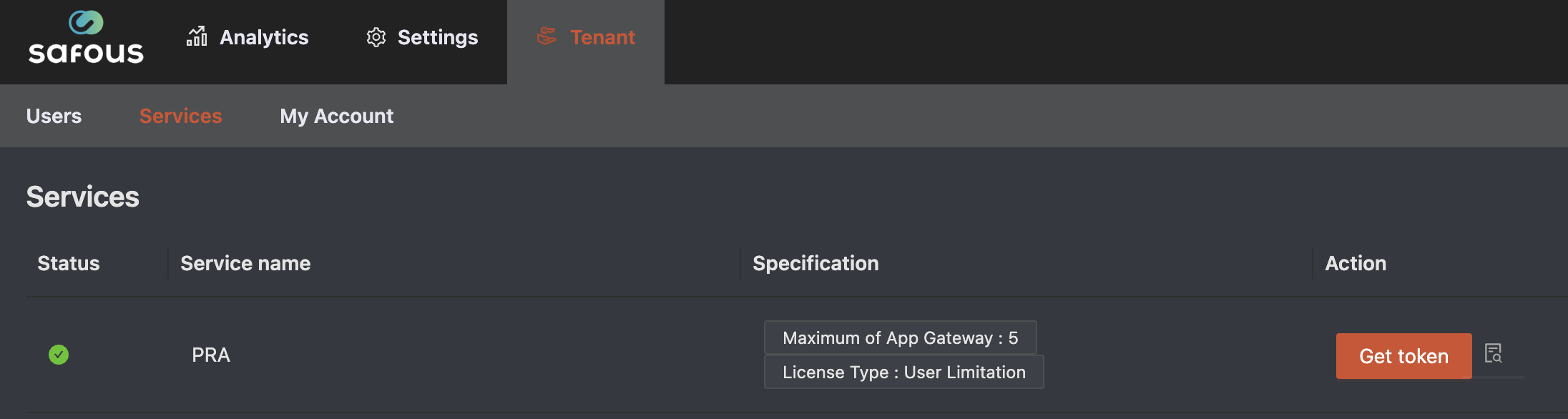
Login to Safous Admin Portal (https://portal.safous.com/), which you can refer to the following article Accessing Admin Portal and go to Tenant > Services where you can find Get Token button
-
Once you click Get Token button, it will pop-up the Safous Installation Token

-
Please copy the Safous Installation Token as INSTALLATION_TOKEN value, then execute this command
TOKEN=*INSTALLATION_TOKEN*noteTOKEN only valid for 24 hours since it generated
-
Download installer by executing this command
curl -s --fail -H "Authorization: Bearer $TOKEN" https://setup.safous.com/installer -o installer || echo 'Error' -
Run installation of App Gateway by executing this command
sudo bash installer -
Once you run the previous command for installation, it will ask for a series of inputs, either option-based or string-based. The first input is to verify whether the domain you will use is the correct one (either using the Safous domain or your own domain). If you are using your own domain, it will ask you to place your SSL certificate and key in a specific directory path. Note: you need to provide a Wildcard SSL if using your own domain.

-
If you haven't placed the SSL certificate and key, please cancel the installation and place it correctly. If it's done, type "Y" and press enter on your keyboard

-
Then the installer will ask for the License key that you received in the delivery documents from the Safous team.

-
Enter password for the admin account. Please note that the password must be strong. The requirements are:
- At least 8 digits long
- Have at least 1 upper case letter
- Have at least 1 lower case letter
- Have at least 1 symbol
Once you are done, re-enter the password for confirmation

This password is used for your first login. Please keep this password safely.
- It will ask site name for App Gateway that will be deployed, please enter name you prefer
- If you’re deploying App Gateway for different site, ensure you’re using different name than the existing one
- If you’re deploying App Gateway for the same site to have HA functionality, ensure it use the same name

-
Then the installer will check and ensure that all package dependencies have been installed for the App Gateway to run correctly.

-
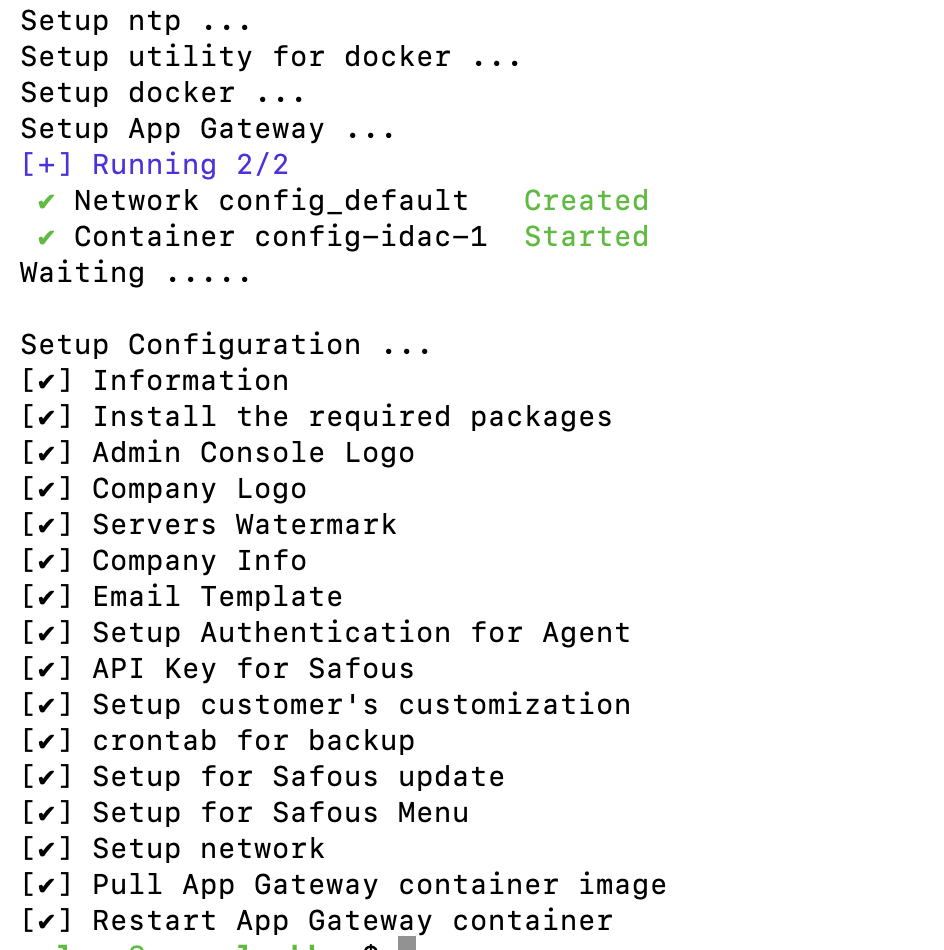
Next, the installation will proceed to install the package requirements and other configurations. Once it is finished, you will see all the checklists at the end of the installation.
Verification
The final procedure, after you see all the checklists at the end of the installation, is to perform the first-time verification of the App Gateway that has been installed by conducting the following steps:
-
Ensure you’re still on the App Gateway host SSH terminal
-
Run this command down below, which need to change DOMAIN with the domain parameter that you could find in the installation process:
curl https://login.pra.example.com -
If the App Gateway successfully installed, it will give output like this:

-
If the App Gateway installation is failed, it will give output like this:

-
If the output resembles success example, your app gateway installation is finished and you are now ready to Getting Started.
-
If the output resembles the failed example, please contact support@safous.com right away to get help from Safous Support.