Creating a Network App on Specific Subnet/FQDN
This article explains how to create a Safous Network application with specific destinations (subnet, IP address, or FQDN) and required ports for L3/L4 micro-segmentation.
Create a specific-destination Network App
Use this method to allow only required destinations instead of broad internet routing.
-
Navigate to Settings > ZTNA > Application > Networks.
-
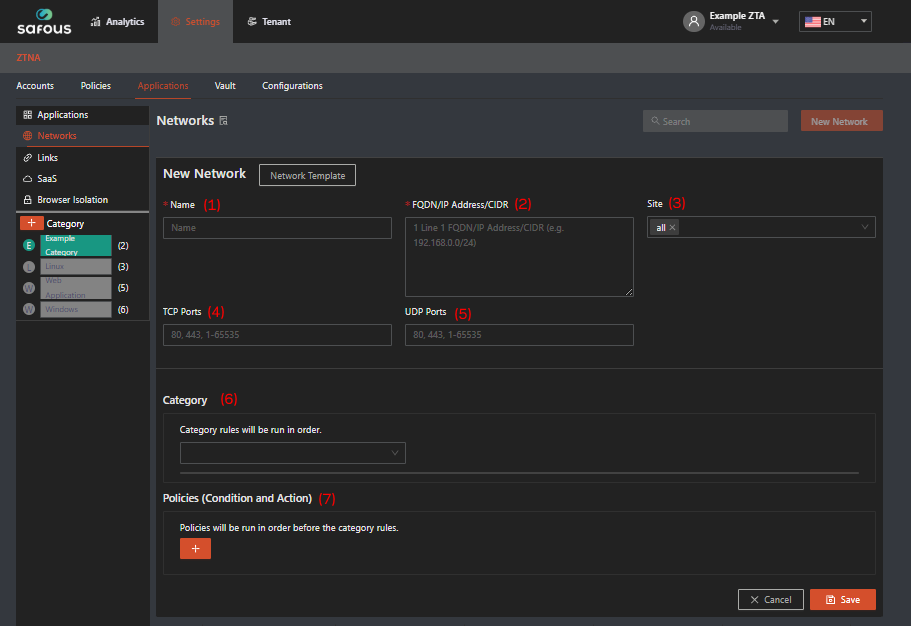
Click New Network, then fill in the fields as follows:
-
Name: Enter a unique name for the application (this is a required field).
-
FQDN/IP Address/CIDR: Add required destination URLs, IP addresses, or CIDR ranges (one entry per line).
-
Select Site: Select the site where App Gateway will route traffic. For multisite deployment, select a specific site.
-
TCP Ports: Specify only required TCP ports (for example: 80, 443, 53).
-
UDP Ports: Specify only required UDP ports.
-
Category: Select the list of categories to associate with the application.
-
Policies (Condition and Action): Define the policy to be applied to the application.
- Accounts: Define the entities that should be applied to the policy.
- Condition: Select the access condition that should apply to the policy from the list of available conditions.
- Action: Select the configuration that should apply to the policy for the network application from the list of available actions.
- Status: Set the status of the policy. Toggle on to enable, toggle off to disable.
-
-
Once all fields are configured, click Save.
Verify network routing behavior
-
Login to your tenant's user portal with a user account that has been authorized by policies to access the network app.
-
Click on "Download Agent".

Once clicked, it will show options to download the agent based on the user's OS. For general Safous Agent information, check here.
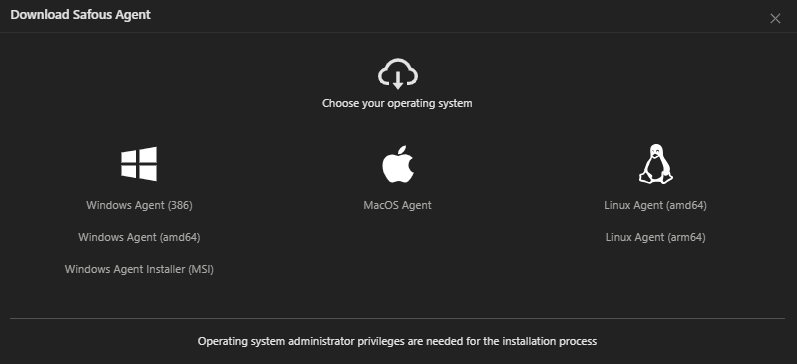
Download the agent from one of the options.
-
Install the agent on your machine. In this example, we are installing it on a Windows machine.
-
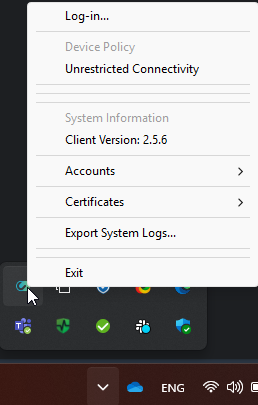
Once installation is complete, click the agent icon in the system tray and click Log-in.
-
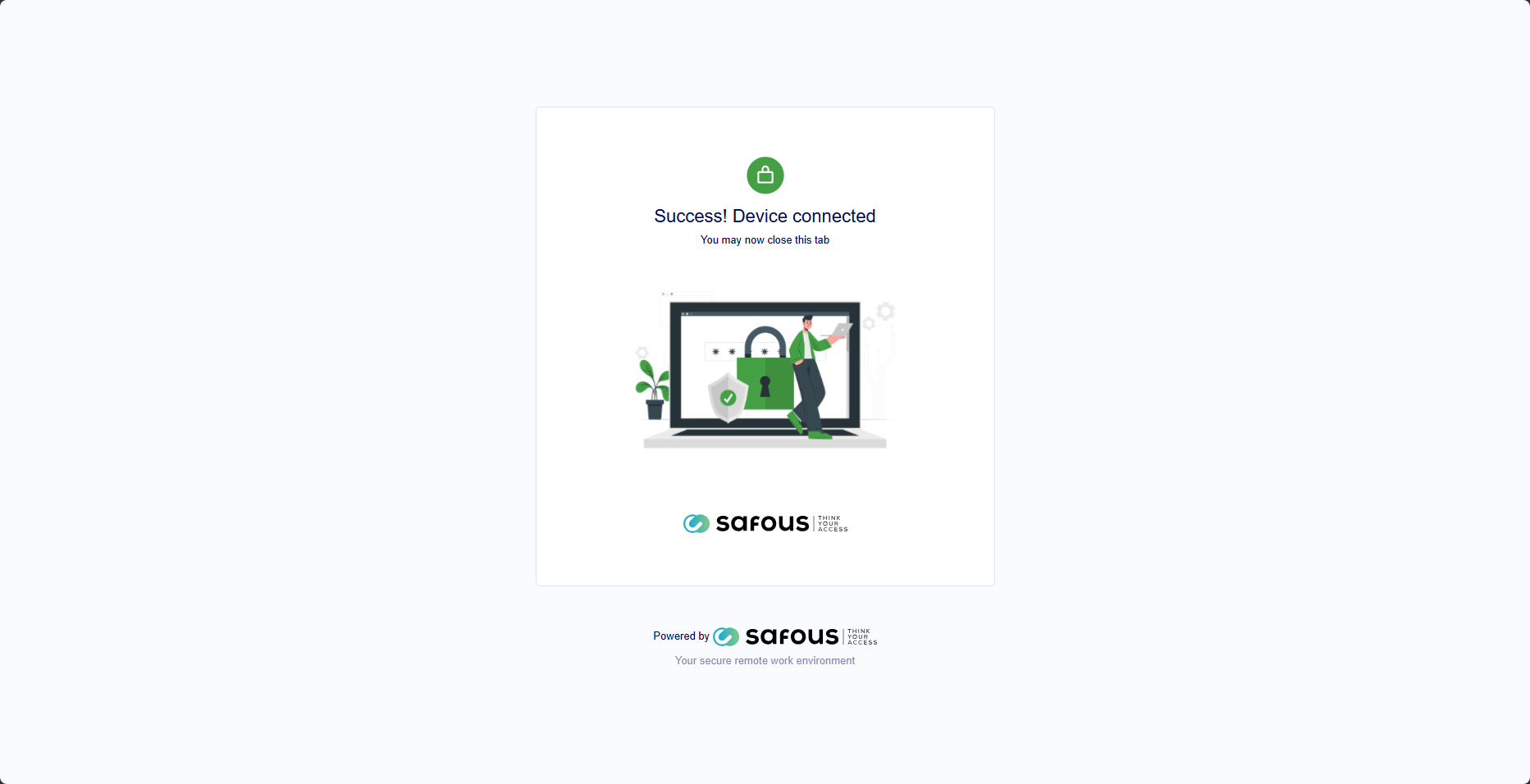
After login, the agent is connected with the same user account.
-
Verify expected routing behavior by accessing a target destination that is included in your network app scope.
If access works for allowed destinations and is denied for destinations outside the configured scope, the policy is applied correctly.