Safous Windows Agent Installation
Requirements
To download and use the agent, a user need to be
- Already enrolled the MFA and can login properly
- Authorized by policies to access a network app
Please also take note of the OS requirements to download and install the agent:
- Windows: version 7 SP1 or newer
Agent Installation
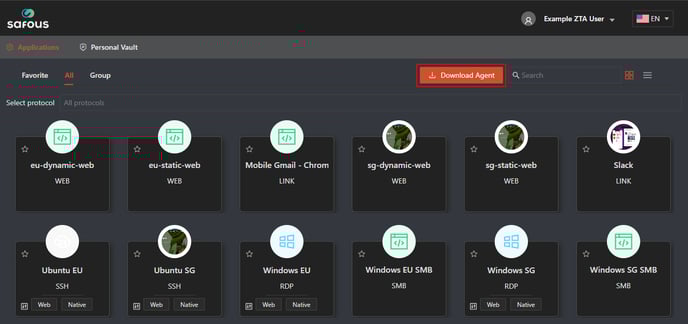
Once the user logs in to the user portal, they can download the agent by clicking "Download Agent."
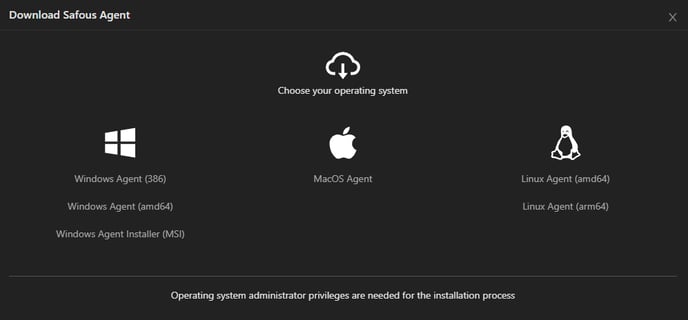
There are several types of Agent for Windows:
- Windows Portable Agent (x86 & amd64)
- Windows Agent Installer (MSI)
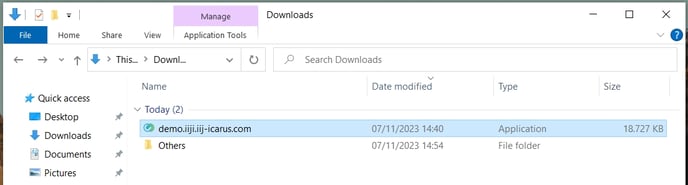
Windows Portable Agent (x86 & amd64)
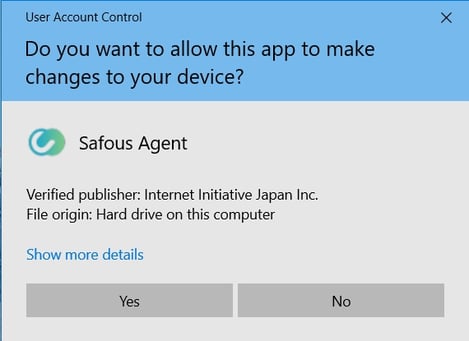
This is an executable file that won't be installed on your local machine but acts like a portable file that needs to be run whenever you want to connect to your network application. When you click the executable file, it will prompt for User Account Control verification to execute it.
Choose "Yes"
It will open a new browser tab to access your Safous tenant user portal.
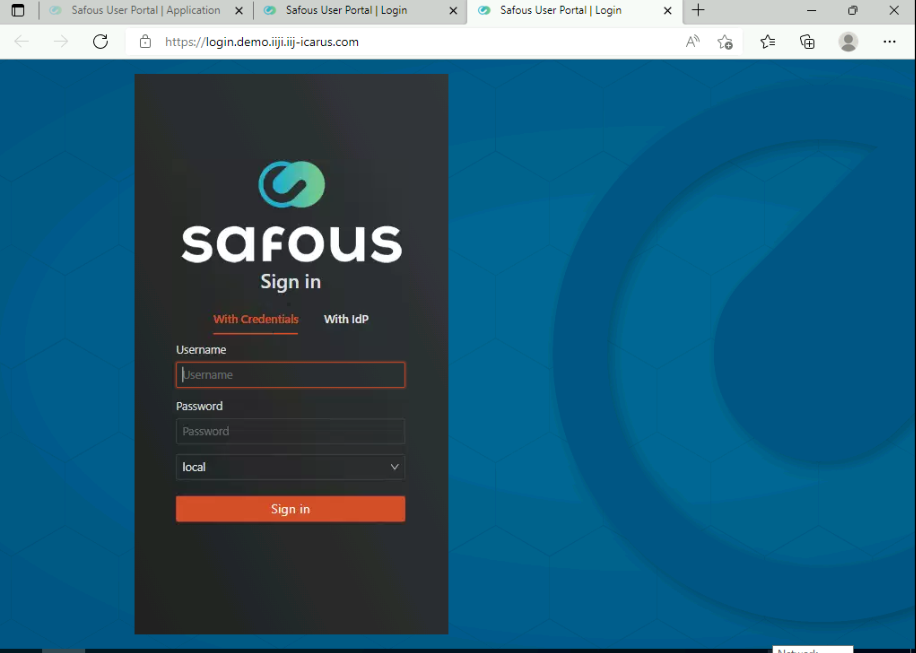
When you successfully verified your account and MFA, the "Device Connected" page will be shown.

Windows will ask for your permission to allow access through the firewall to make some changes. Click "Allow Access.".
Click on your Windows tray icon and check whether the agent is already running.

Click on the agent icon, then check the status to see if the agent is already logged in using the correct username and MFA.

To ensure the connection is already established, please also check the routing tables in Windows using the "route print" command in the Windows Command Prompt.
This is what the condition would be like before and after the agent is connected:
- Before Connected: Only two interfaces are present, and the routing is normal.

- After Connected: An additional interface is present, and one more destination has been added to the routing.

Windows Agent Installer (MSI)
This is a full installation package that will be installed on your local machine. The agent will start and stop with your Windows machine, but you still need to log in to your account before you can connect to your network application.
When you click the *.msi installer, Windows will give a security warning. Choose "Run" to proceed.
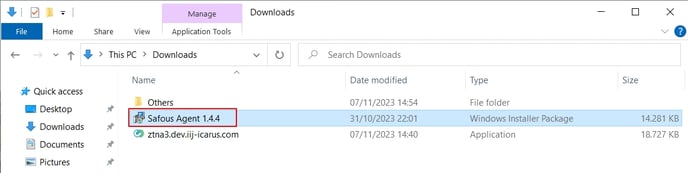
The installer window will appear and run. Click "Next."
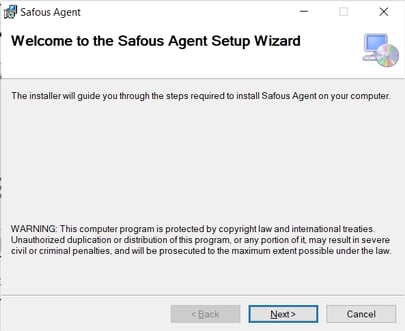
Please input your Safous tenant URL, such as https://demo.ztna.safous.com, then click "Next."
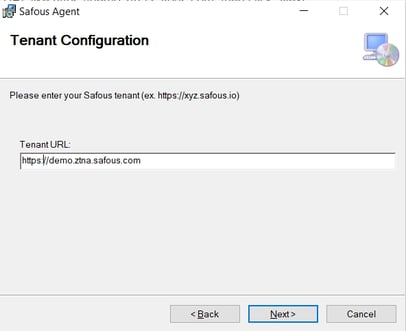
A confirmation page will be shown. Just click "Next" to start the installation process.

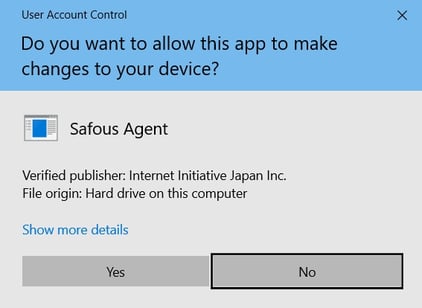
Next, the UAC window will pop up for confirmation. Click "Yes."
Once the installation process is finished, close the installer. You will find the "Safous" icon on your desktop.


Double-click the "Safous" icon on your desktop, and the agent will open in your taskbar icon tray.
Right-click on the "Safous" taskbar icon tray and choose "Sign-in." This will open your browser and redirect you to the Safous user portal, where you will need to authenticate.
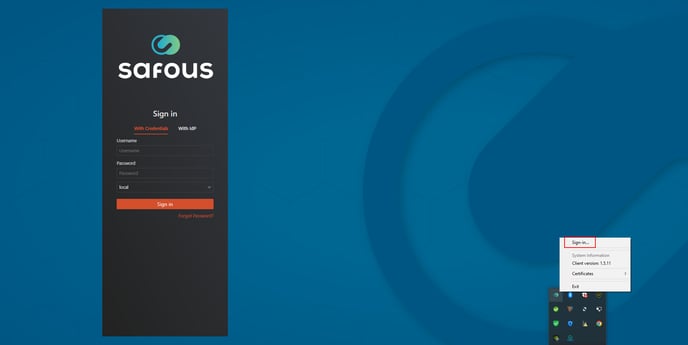
It will open a new browser tab to access your Safous tenant user portal.
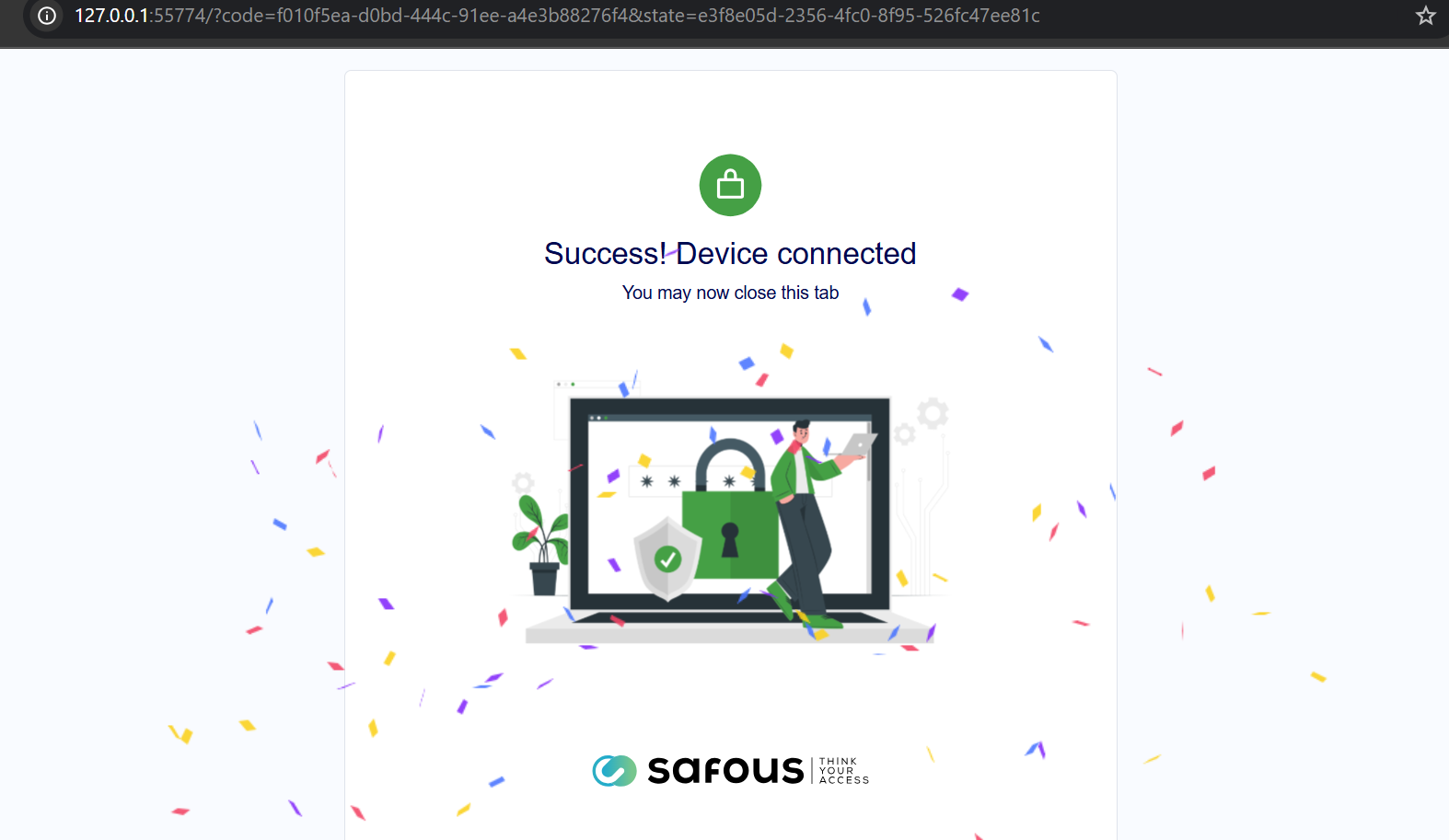
When you have successfully verified your account and MFA, the "Device Connected" page will be shown.
Click on the agent icon, then check if the agent is already logged in using the correct username and MFA.

To ensure the connection is properly established, please also check the routing tables in Windows using the "route print" command in the Windows Command Prompt.
This is what the condition would be like before and after the agent is connected:
-
Before Connected: Only two interfaces are present, and the routing is normal.
-
After Connected: An additional interface is present, and one more destination has been added to the routing.