Safous macOS Agent Installation
Requirements
To download and use the agent, users must:
- Have already enrolled in MFA and be able to log in successfully.
- Be authorized by the applicable policies to access a network application.
Please also note the OS requirements for downloading and installing the agent:
- macOS: Sequoia 15 and up
Download Agent
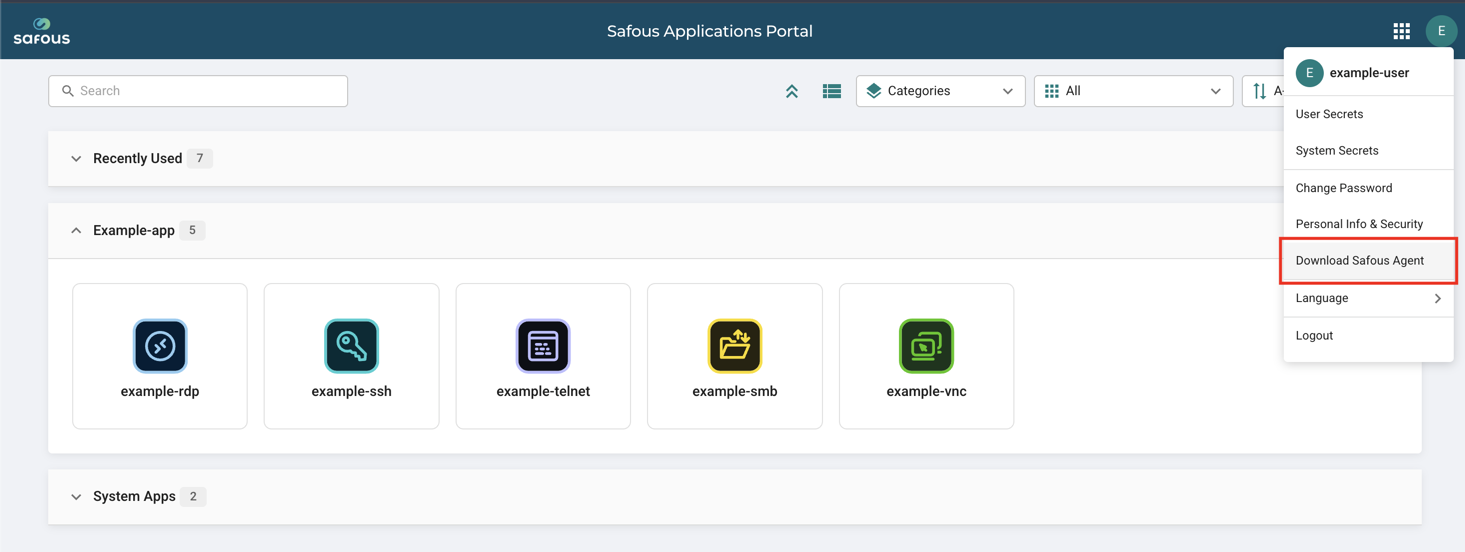
After logging in to the user portal, click the menu in the top-right corner and download the agent by clicking "Download Safous Agent."
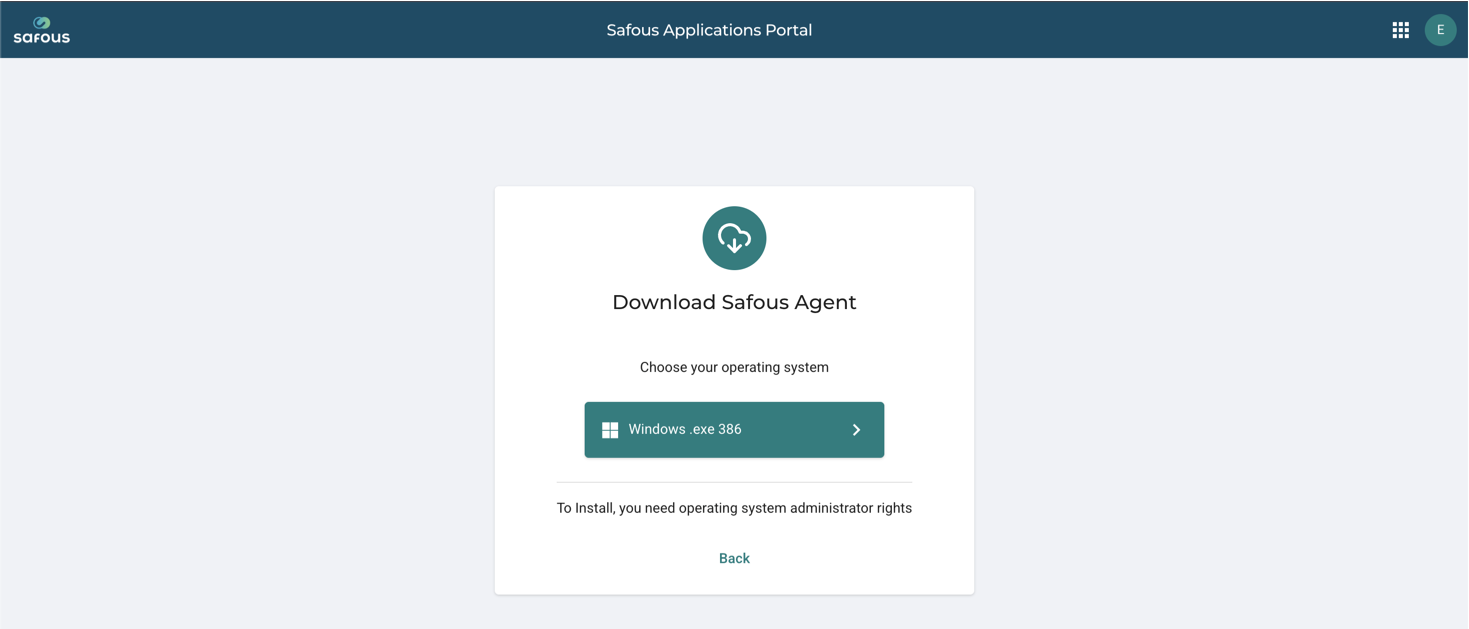
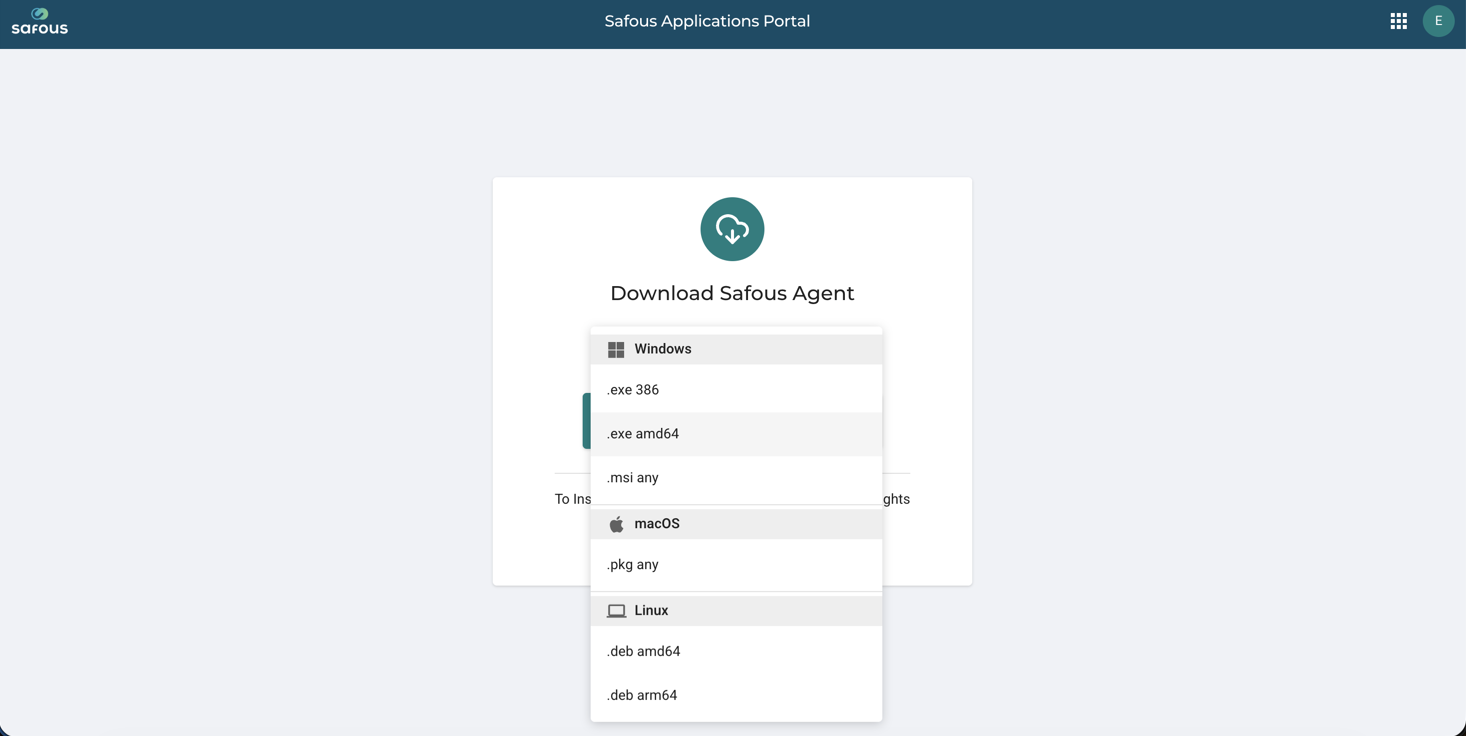
Download the agent file based on your operating system.
Agent Installation
The macOS Agent is provided as an installation package (.pkg) that is installed on your local machine. The agent starts automatically when your Mac starts, but you still need to sign in to your account before you can connect to your network application.
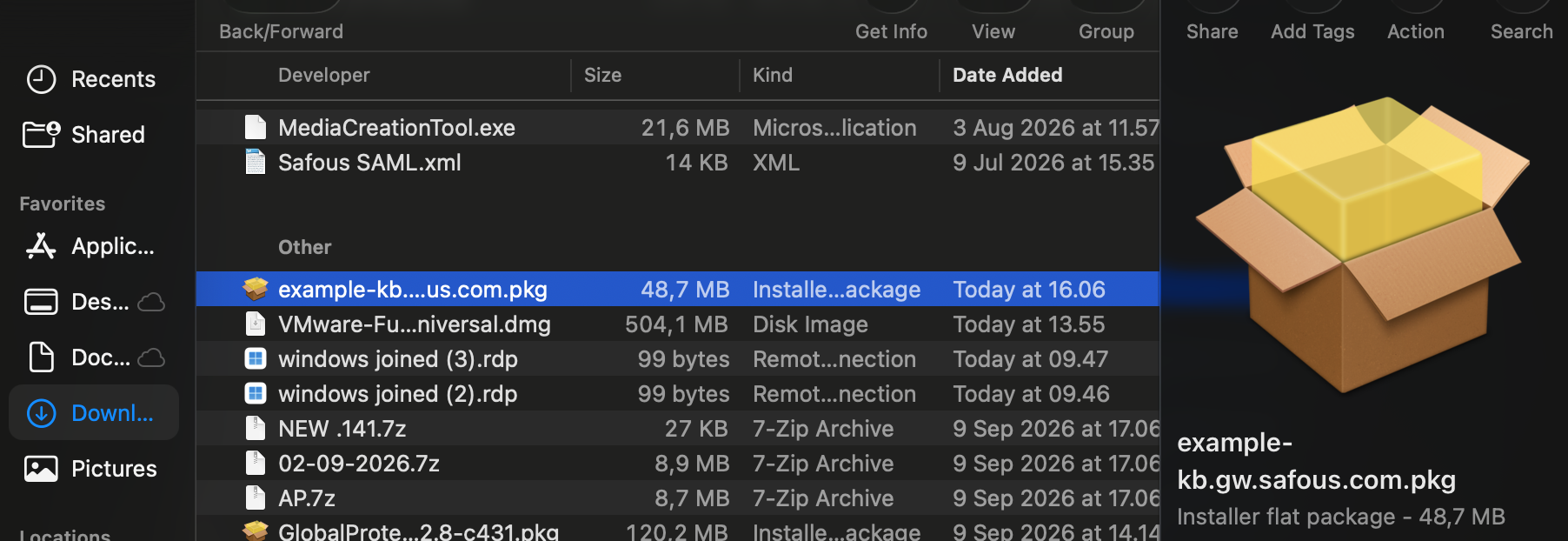
Double-click the downloaded *.pkg installer to start the installation process.
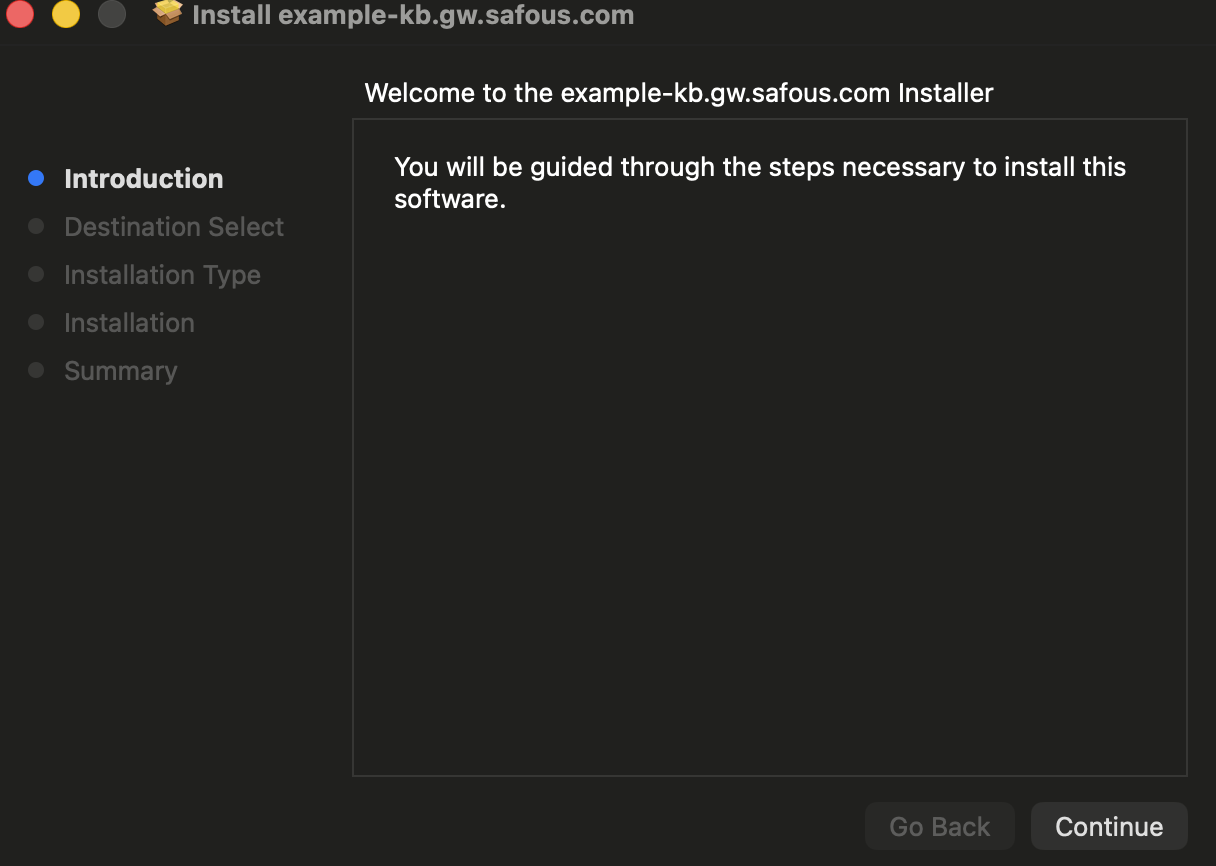
The installer window will appear. Click "Continue."
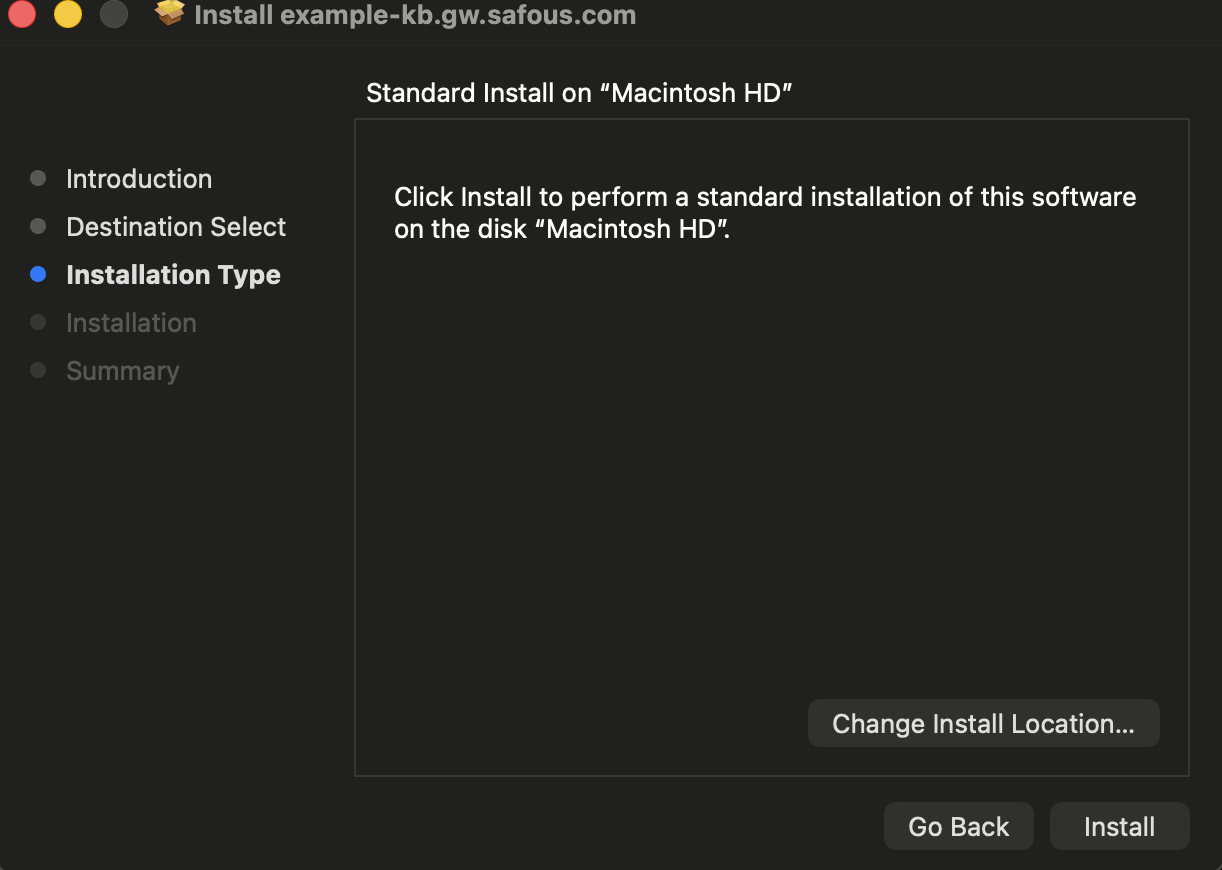
Select the disk destination where you want to install the agent, then click "Continue."
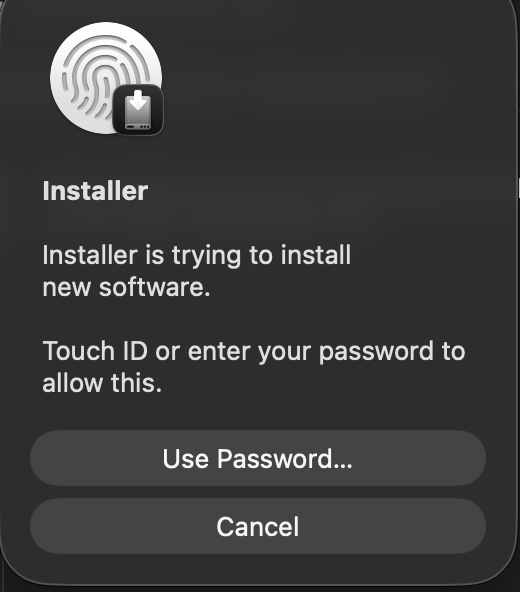
A new dialog will appear. To allow the installer to install the software on your Mac, enter your credentials and click "Install Software." Then click "OK."
Once the installation is complete, a "Background items added" notification will appear. The "Safous Agent" will automatically start and its icon will appear in the macOS menu bar.
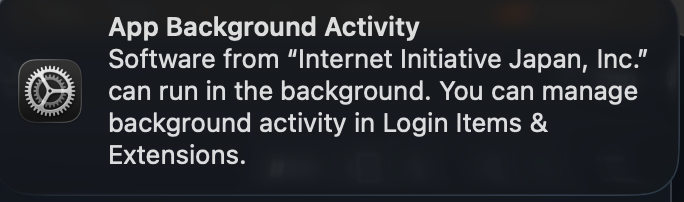
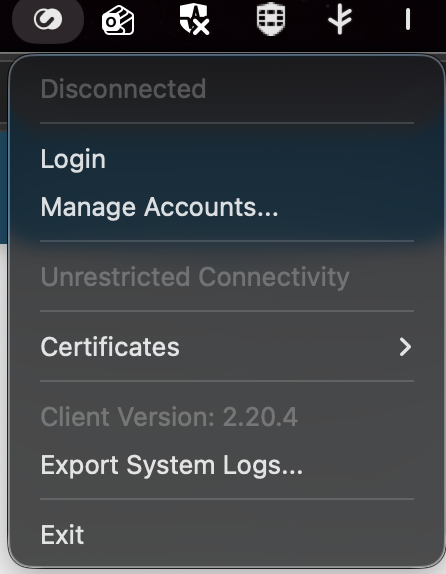
Click "Close" in the installer.
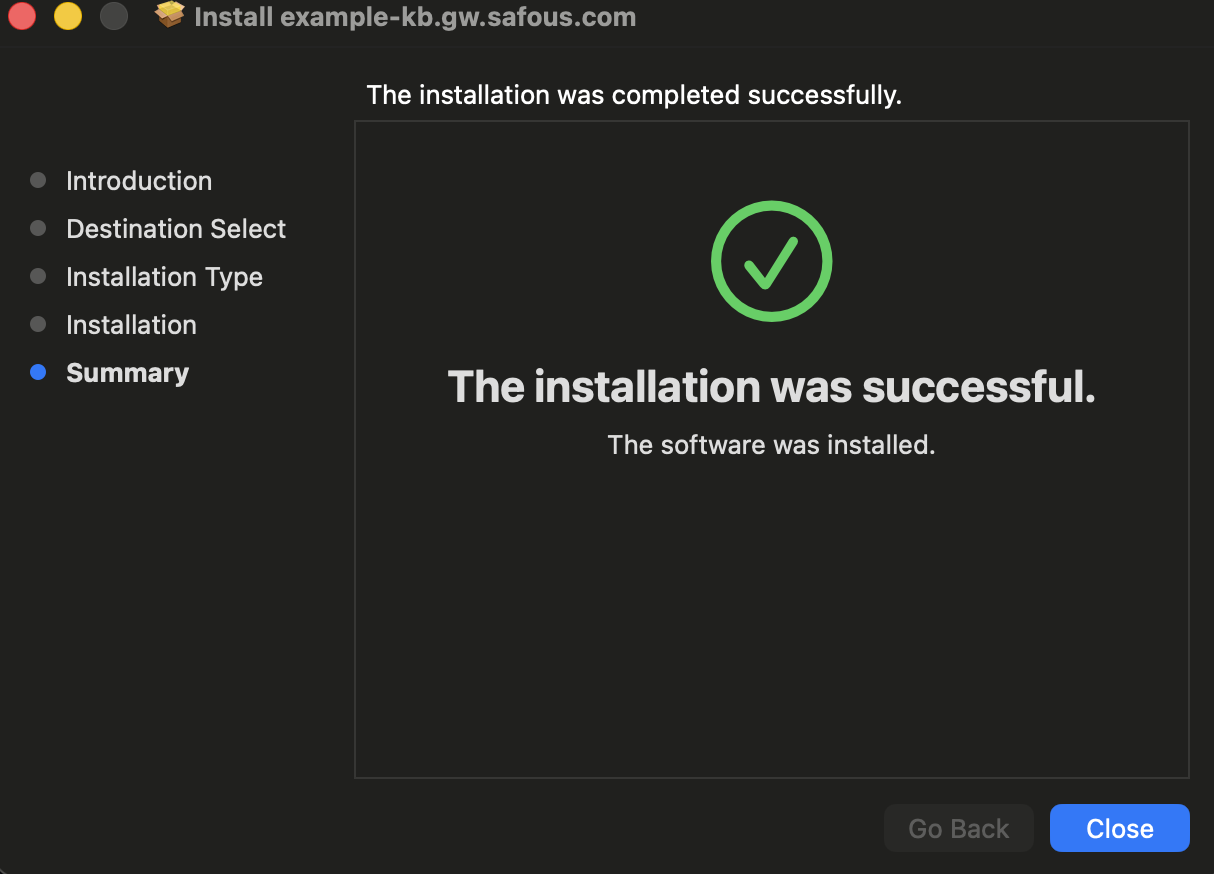
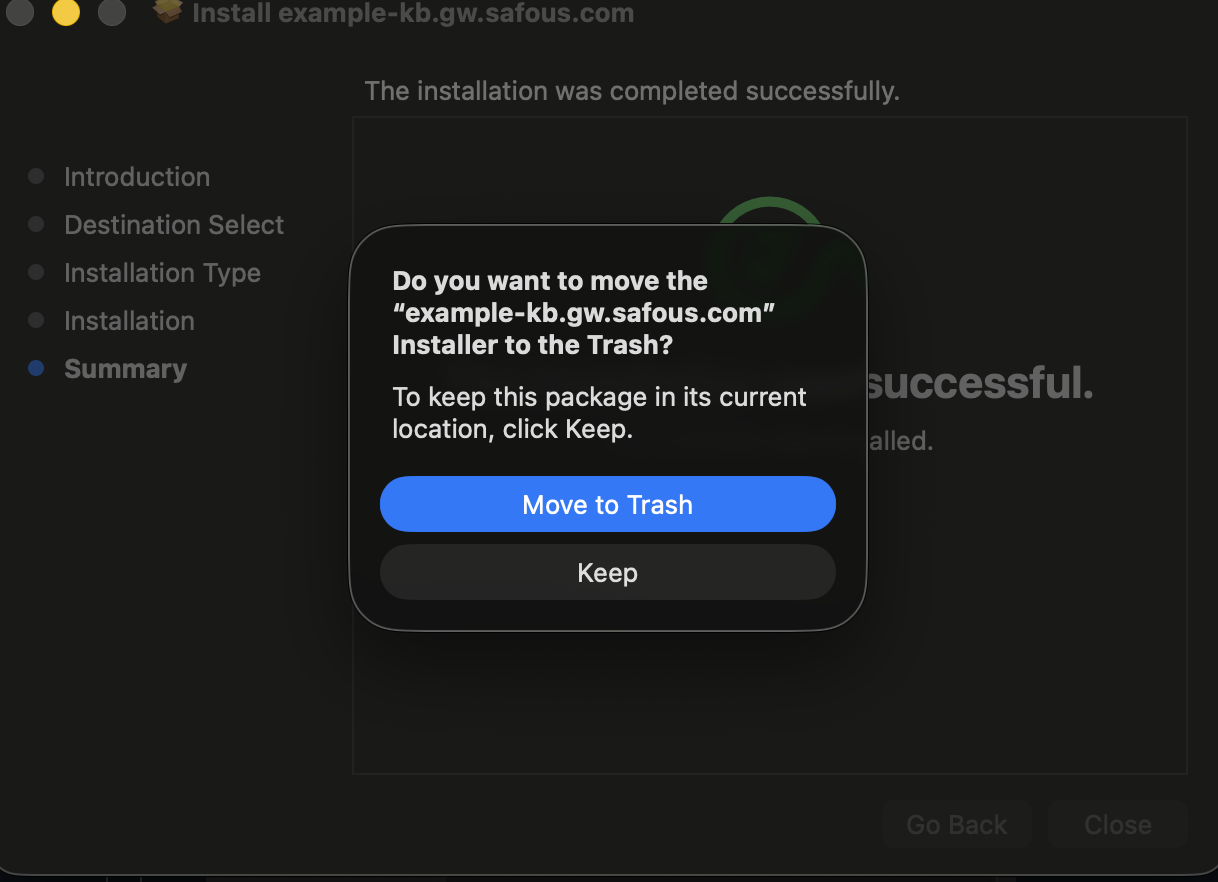
You can then choose whether to keep or remove the installation package file (*.pkg).
Use Safous Agent
To use the Safous Agent, right-click the Safous Agent icon in the menu bar and click "Sign-in."
A new browser tab will open and redirect you to your Safous tenant user portal.
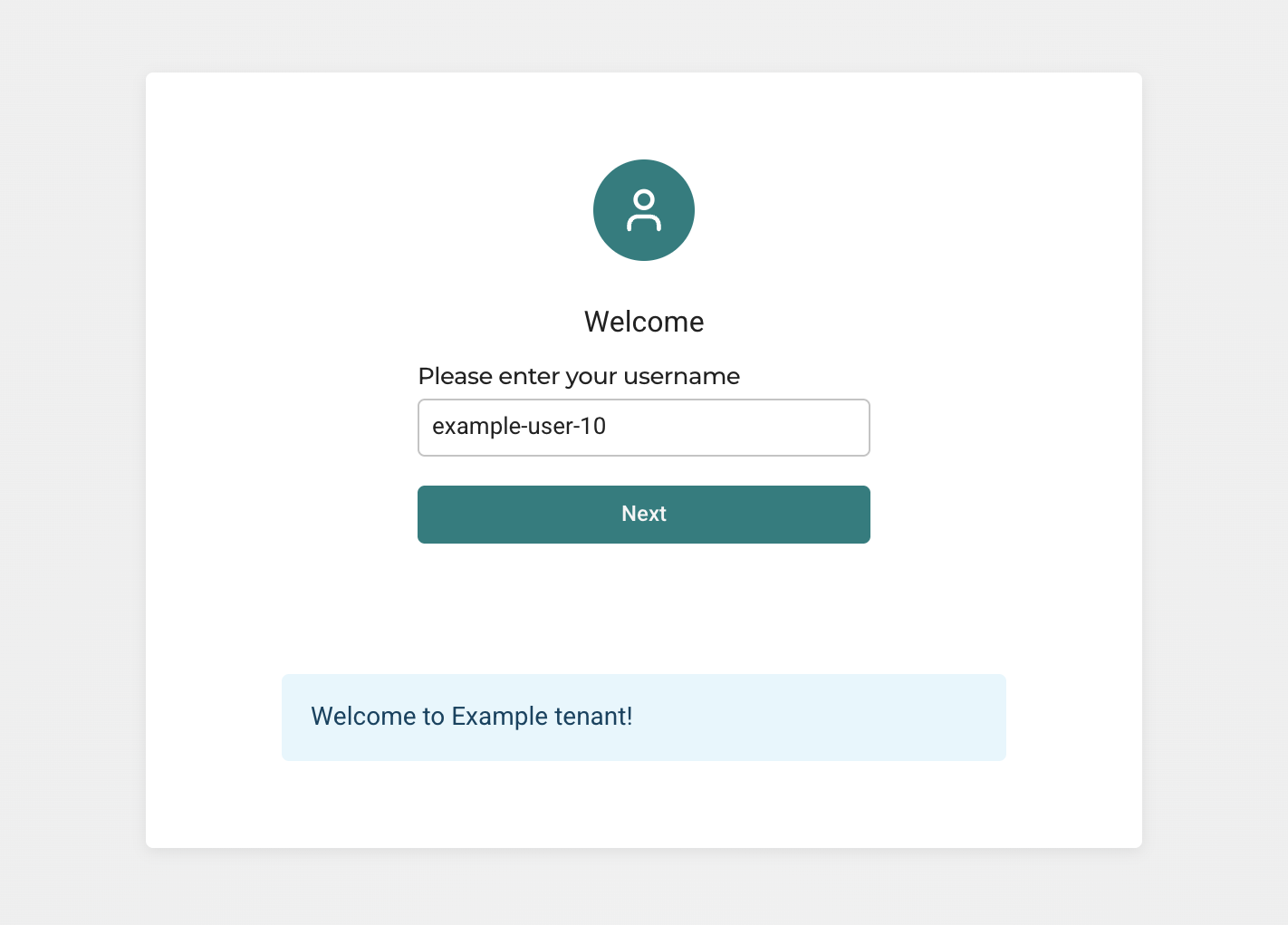
After successfully verifying your account and MFA, the "Device Connected" page will be displayed.
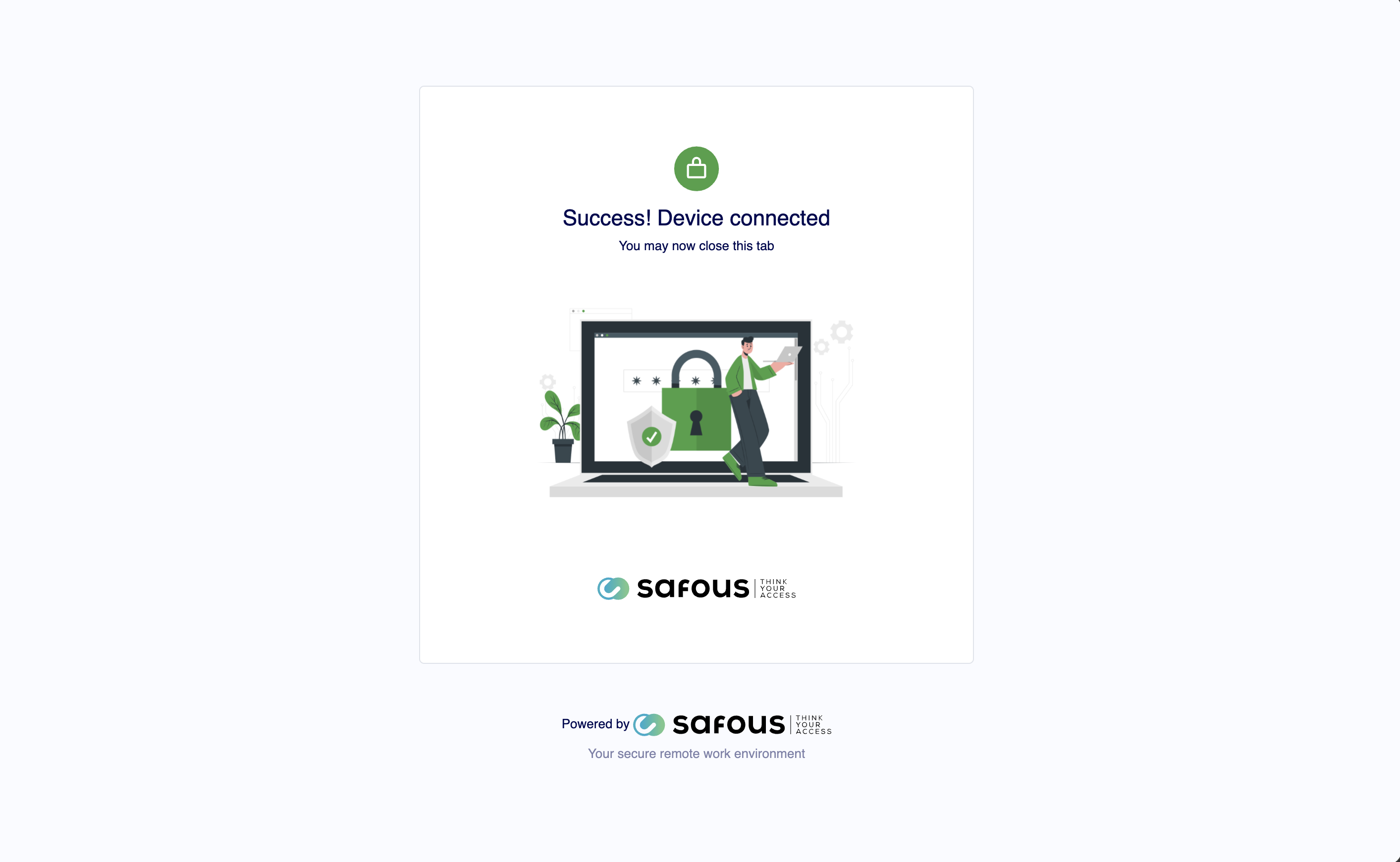
The agent will then install its certificate in the certificate store. Enter your password to allow the installation.
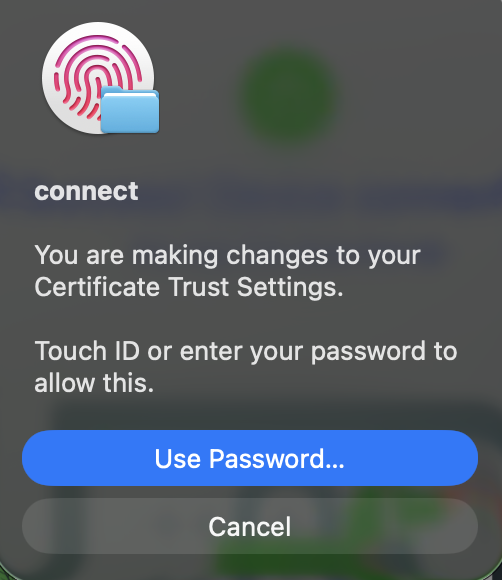
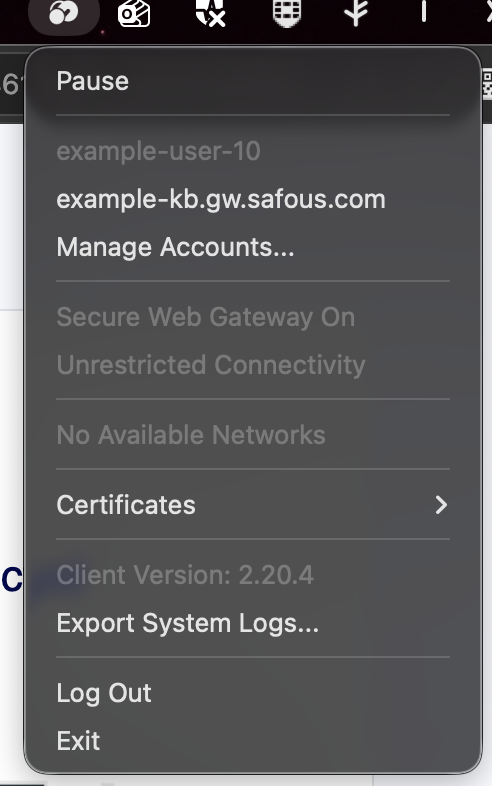
To verify the agent connection status, right-click the Safous icon in the menu bar again. Your logged-in user and MFA status will be displayed.
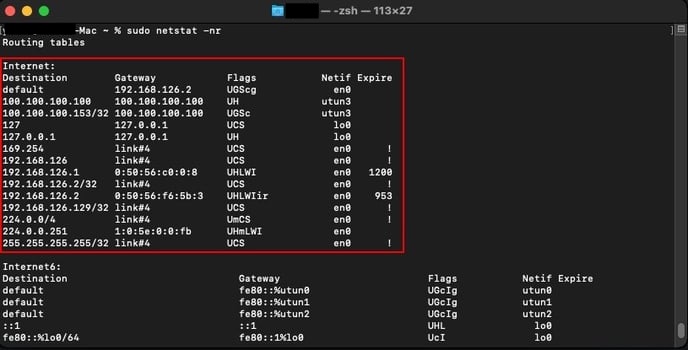
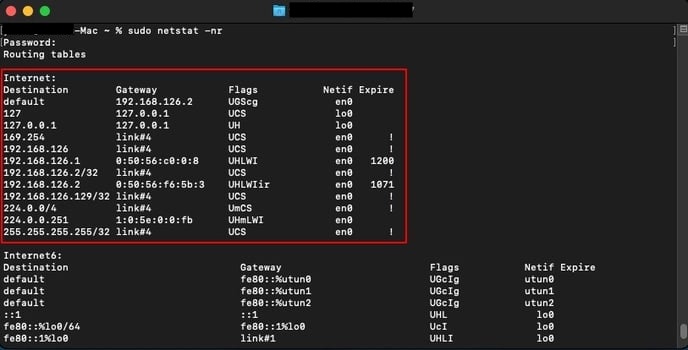
To ensure that the connection has been properly established, check the routing tables in Terminal using the "netstat" command.
The routing table should show the following changes before and after the agent is connected:
-
Before Connected: Only two interfaces are present, and the routing is normal.
-
After Connected: An additional "utun*" interface is present, and a route to the destination has been added.