Safous Linux Agent Installation
Requirements
To download and use the Safous Agent, users must:
- Already be enrolled in MFA and able to log in successfully.
- Be authorized by the applicable policies to access a network application.
Please also take note of the supported operating system requirements:
- Ubuntu: version 22.04 or later
- Debian: version 10 or later
Download Agent
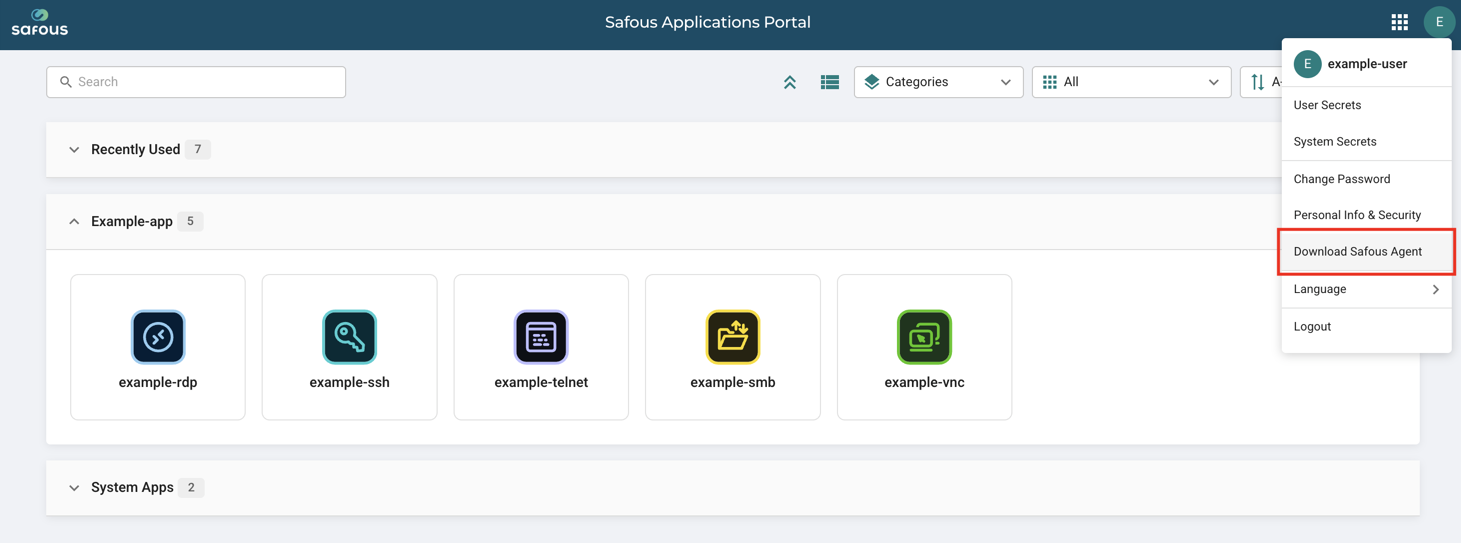
After logging in to the user portal, click the menu in the top-right corner and select "Download Safous Agent."
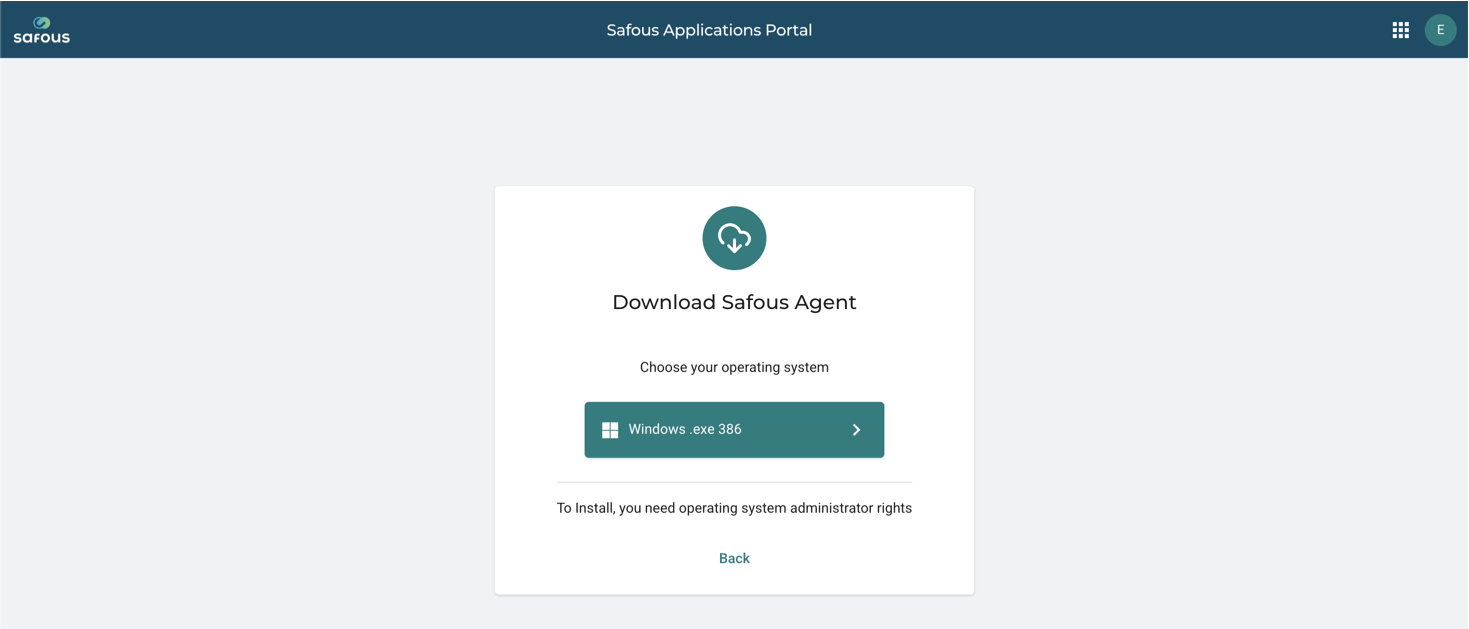
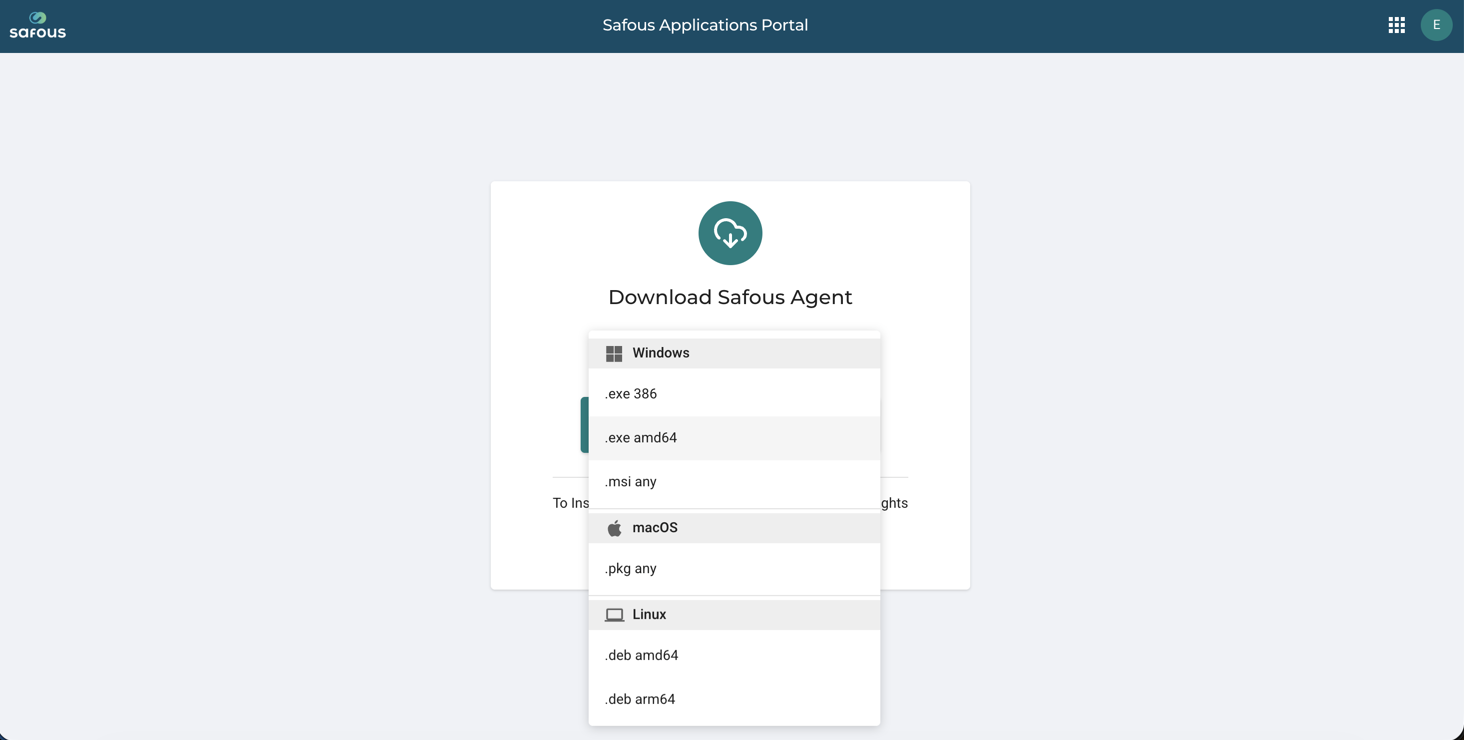
Download the agent file according to your operating system.
Agent Installation
The Linux Agent is distributed as a .deb installation package that can be installed on your local machine. The agent starts automatically when your Linux machine starts and stops when it shuts down. However, you must still sign in to your account before you can connect to your network applications.
Locate the downloaded *.deb installer to start the installation process.
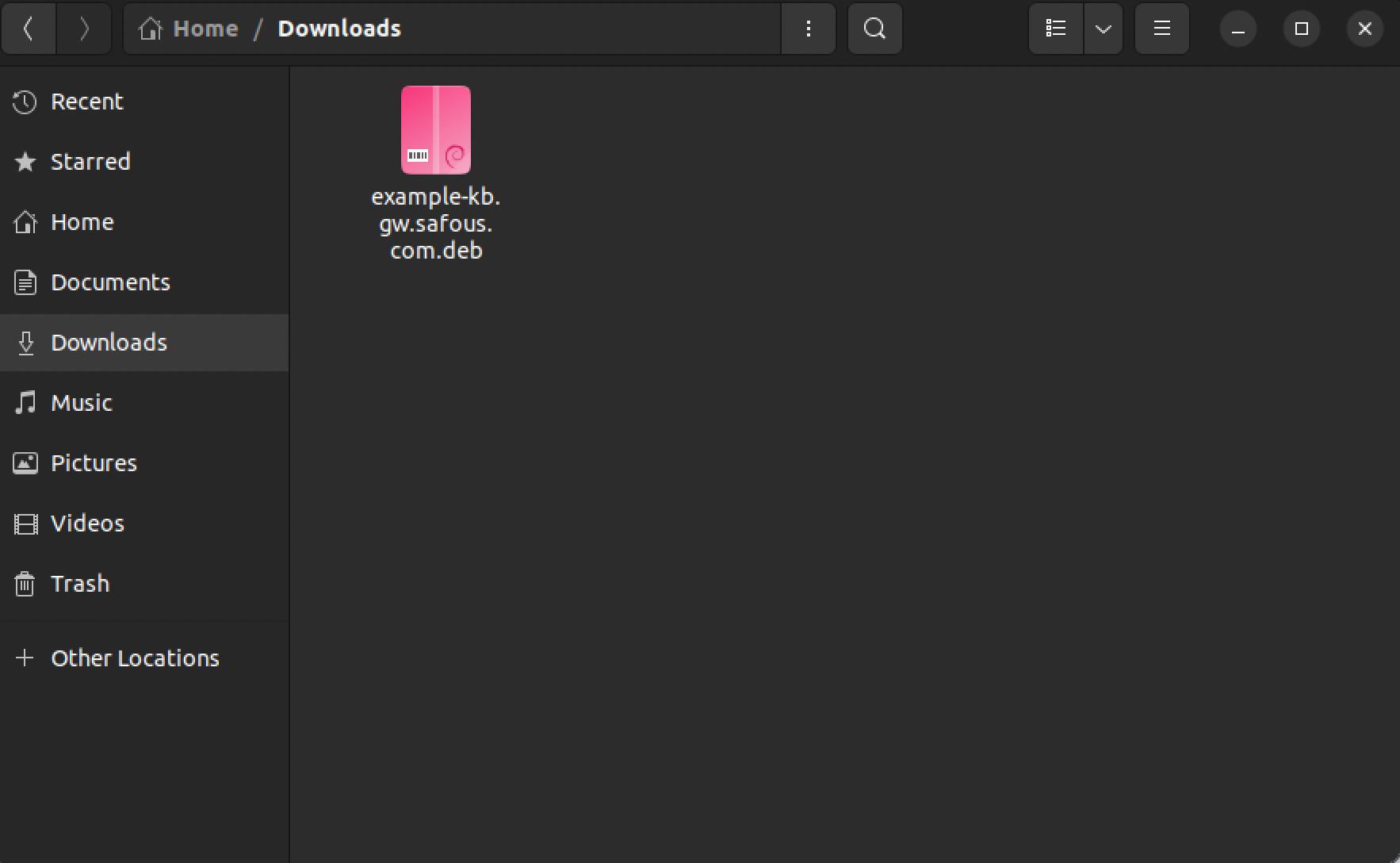
Open a terminal and navigate to the directory where the agent file was downloaded.

Start the agent installation using the following command. Once the installation is complete, output similar to the following will be displayed.
sudo dpkg -i (agent-file-name.deb)

Open the Applications menu and locate the Safous Agent to launch it.
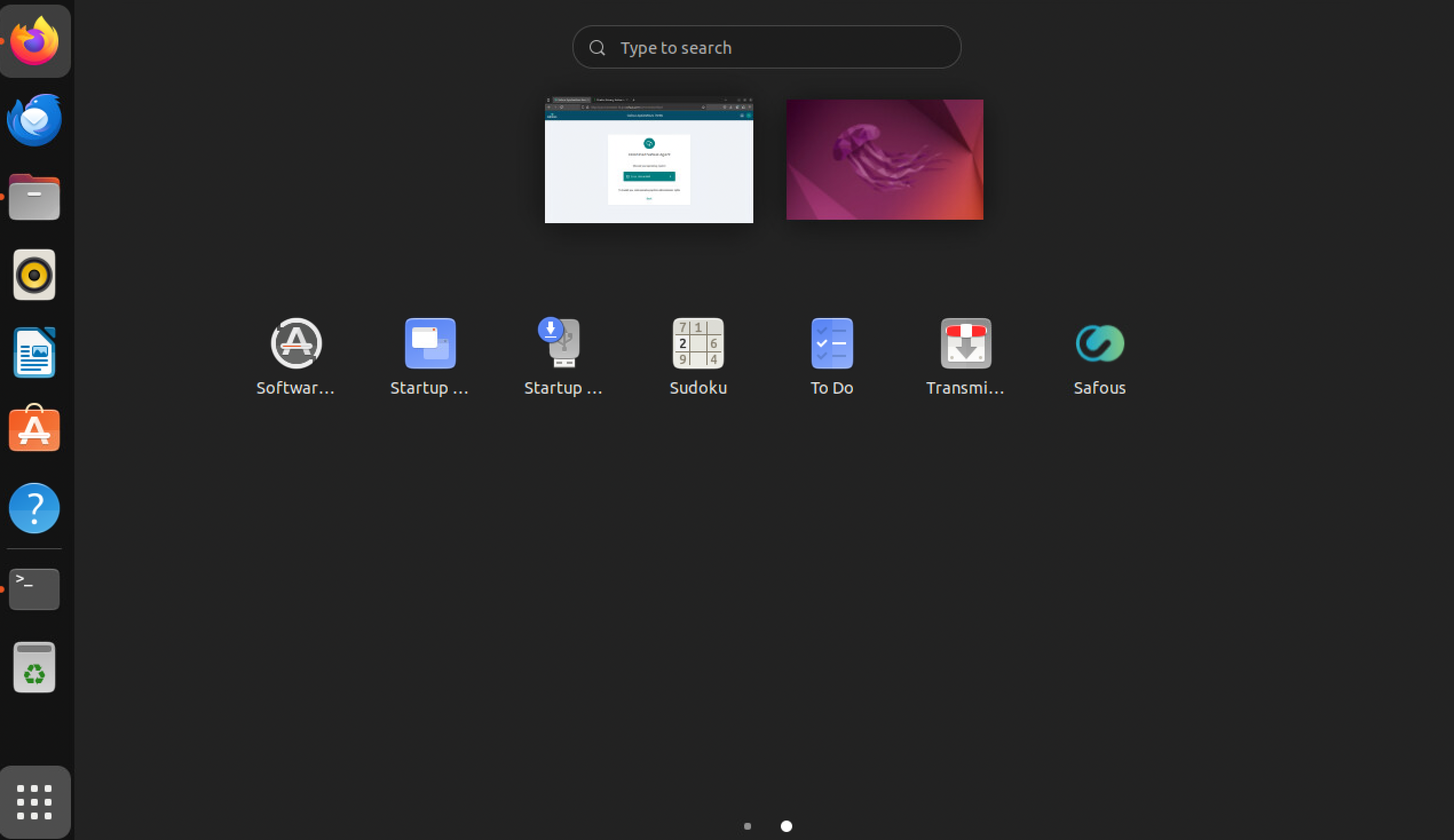
Use Safous Agent
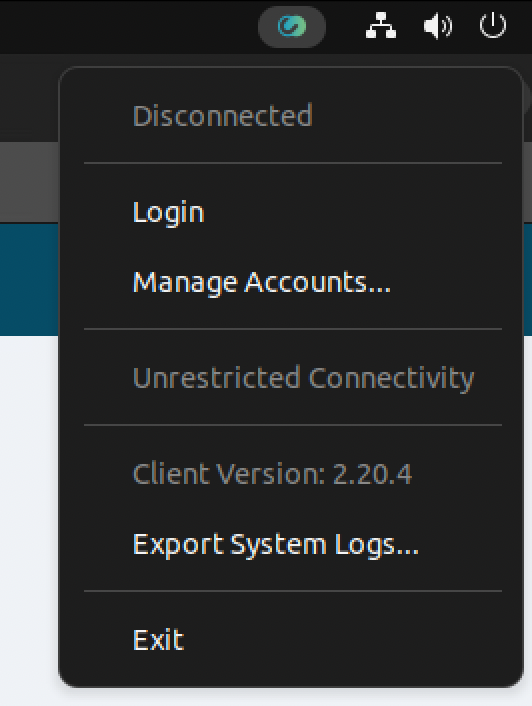
To use the Safous Agent, left-click the Safous Agent icon in the menu bar and select "Login."
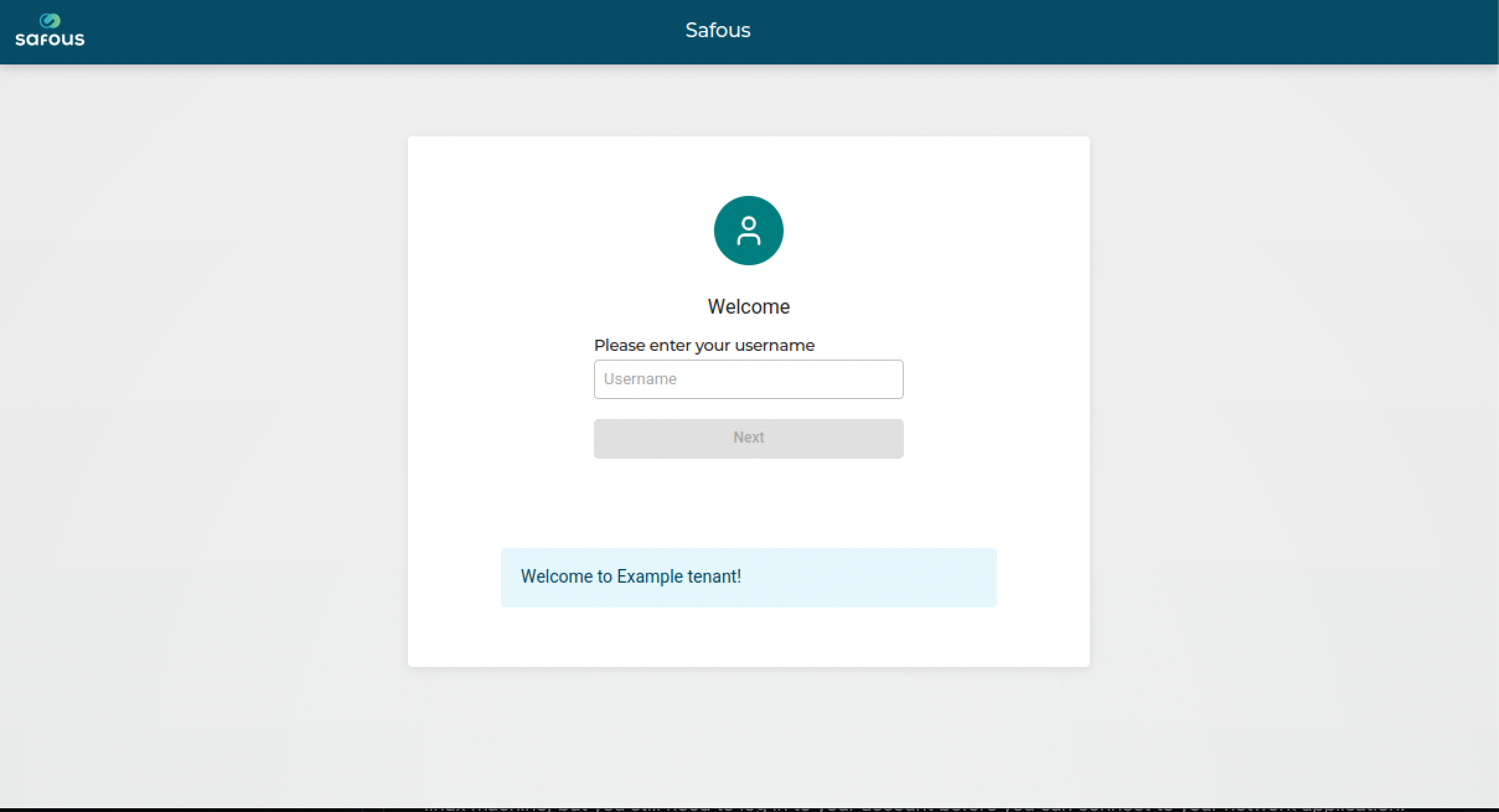
A new browser tab will open and redirect you to your Safous tenant user portal.
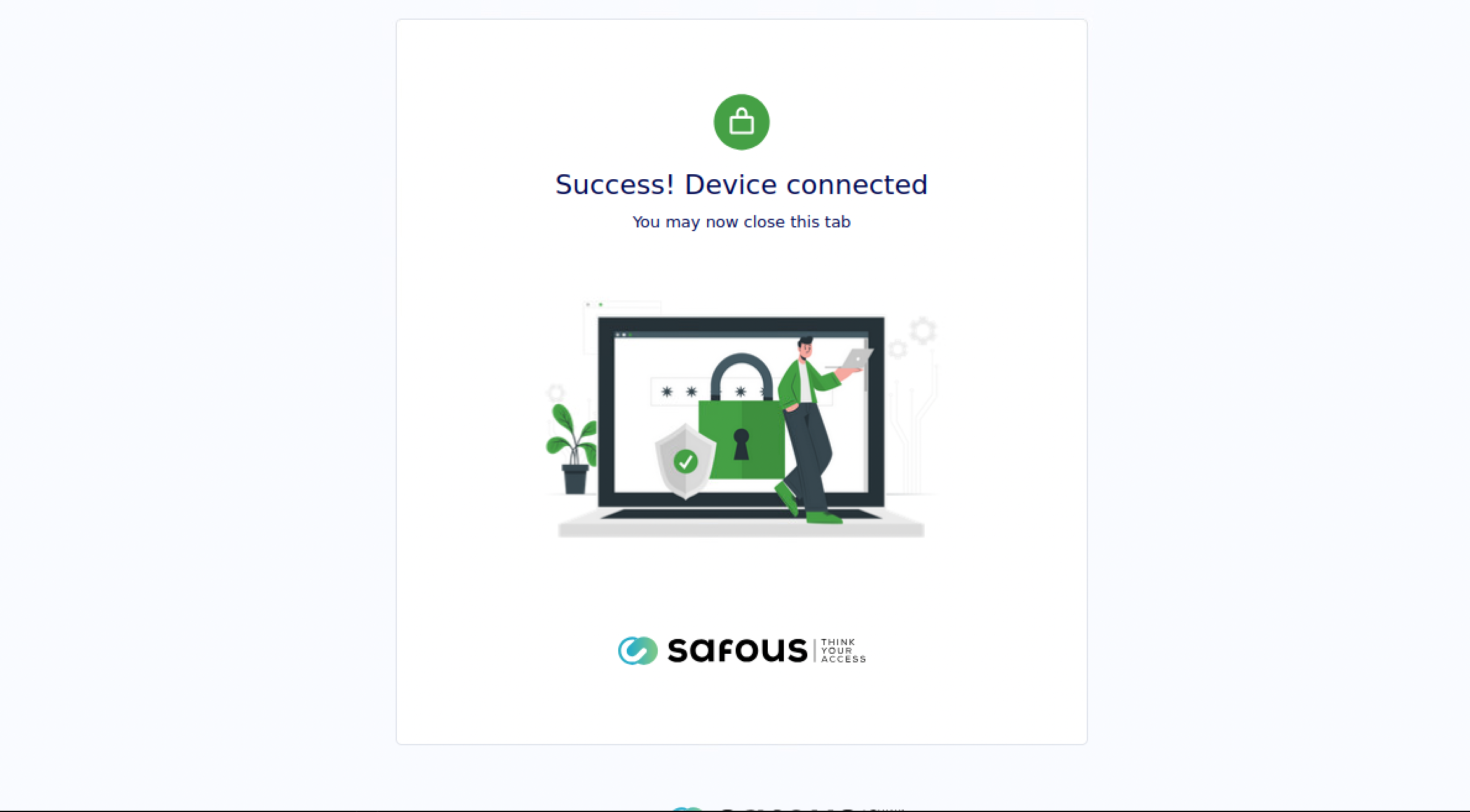
After successfully verifying your account and completing MFA, the "Device Connected" page will be displayed.
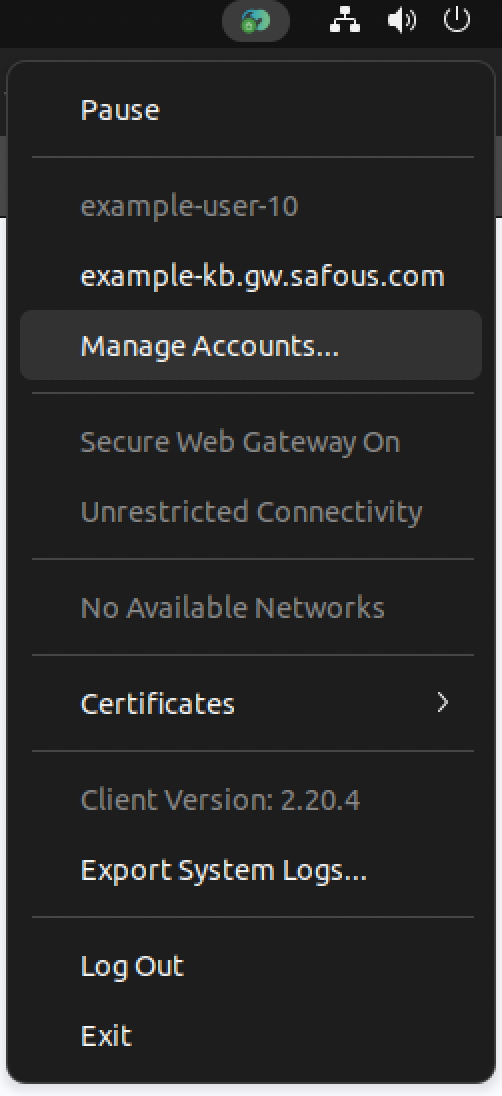
You can also check the agent connection status by left-clicking the Safous Agent icon in the menu bar again. Your logged-in user and MFA status will be displayed there.
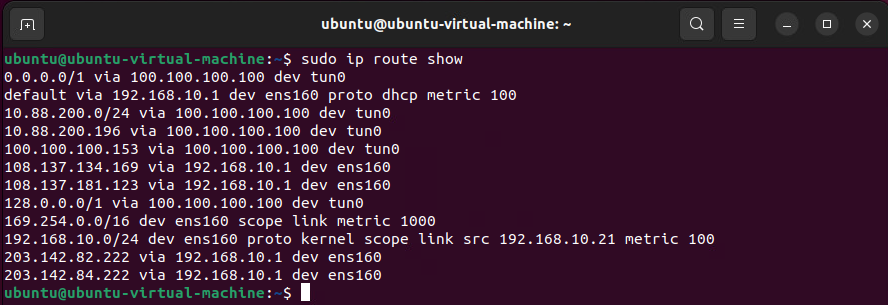
To verify that the connection has been established correctly, check the routing table in the terminal using the following command.
sudo ip route show
The following shows the routing table before and after the agent is connected:
-
Before Connected: Only two interfaces are present, and the routing table is in its normal state.

-
After Connected: An additional tun0 interface is present, and a route to the destination network has been added.