Personal Info
Accessing the Personal Info Page
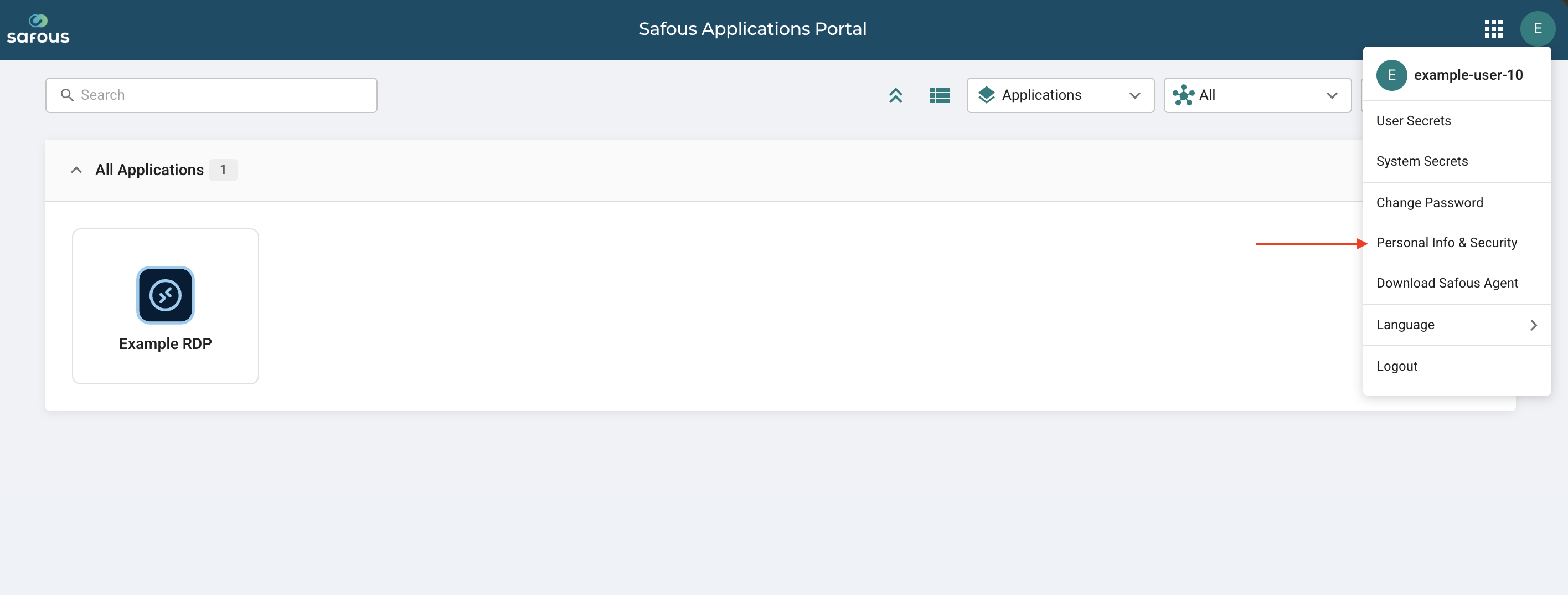
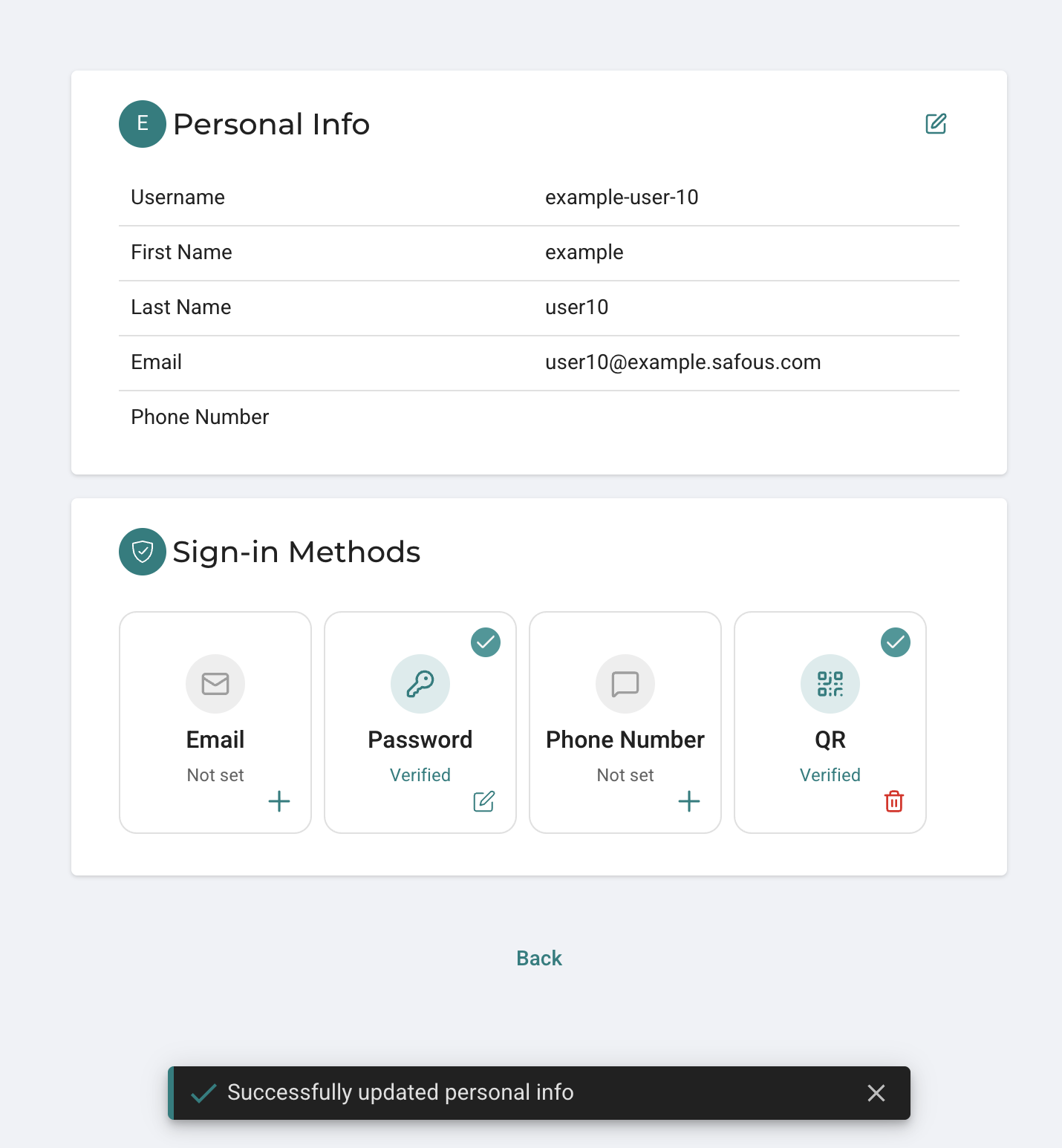
As a user, you can view your personal information from the user portal by clicking your account icon in the top-right corner and selecting Personal Info & Security.
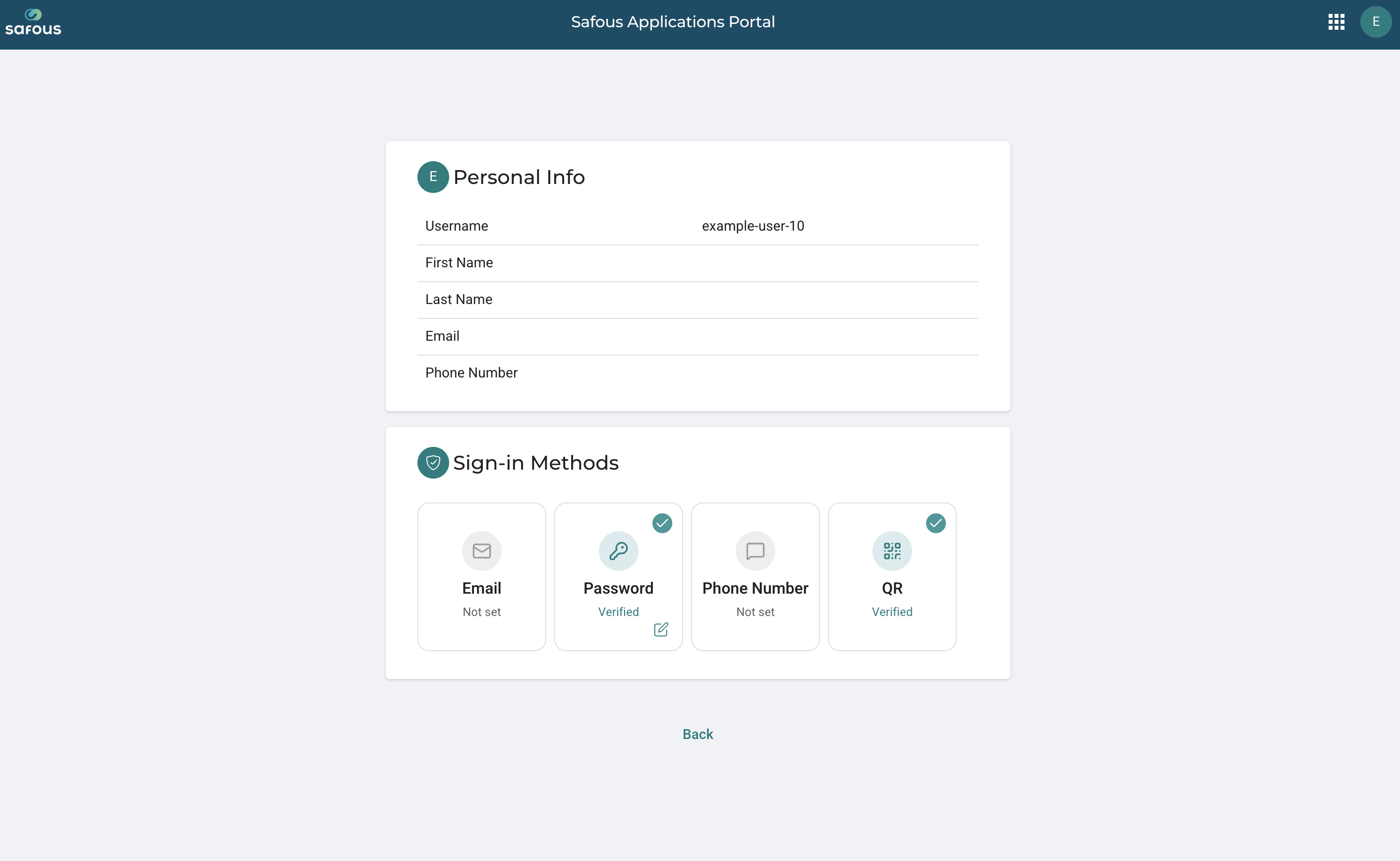
On the Personal Info & Security page, you can view the following personal information:
- Username
- First name
- Last name
- Phone number
You can also view all available sign-in methods, including the sign-in method currently verified for your account.
To return to the user portal, click Back at the bottom of the page.
Update Personal Info
The personal information displayed on this page can be updated in either of the following ways:
-
An administrator can update the user's attributes from the admin console.
-
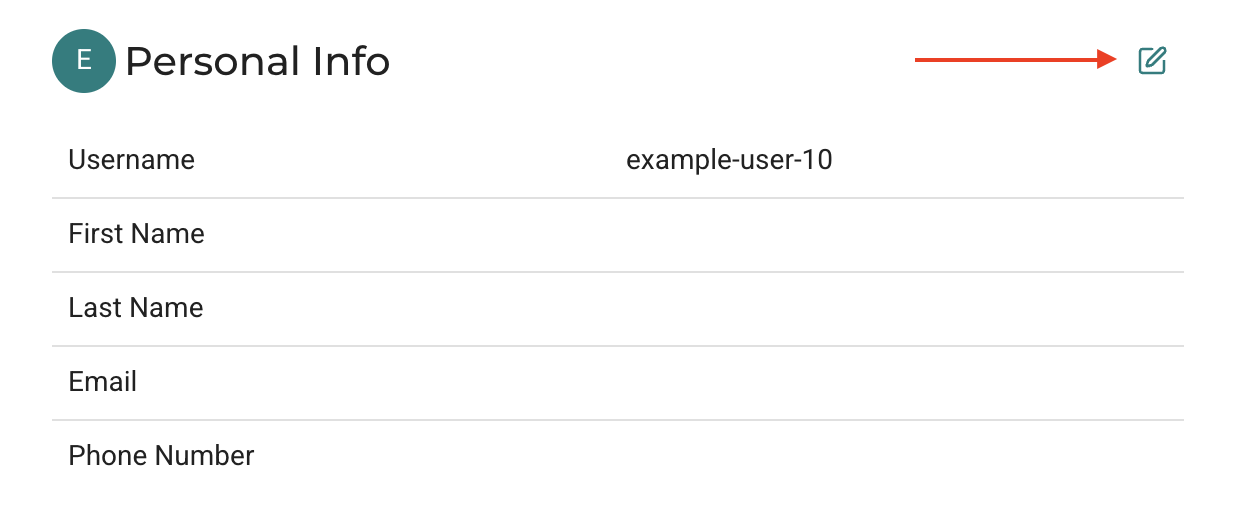
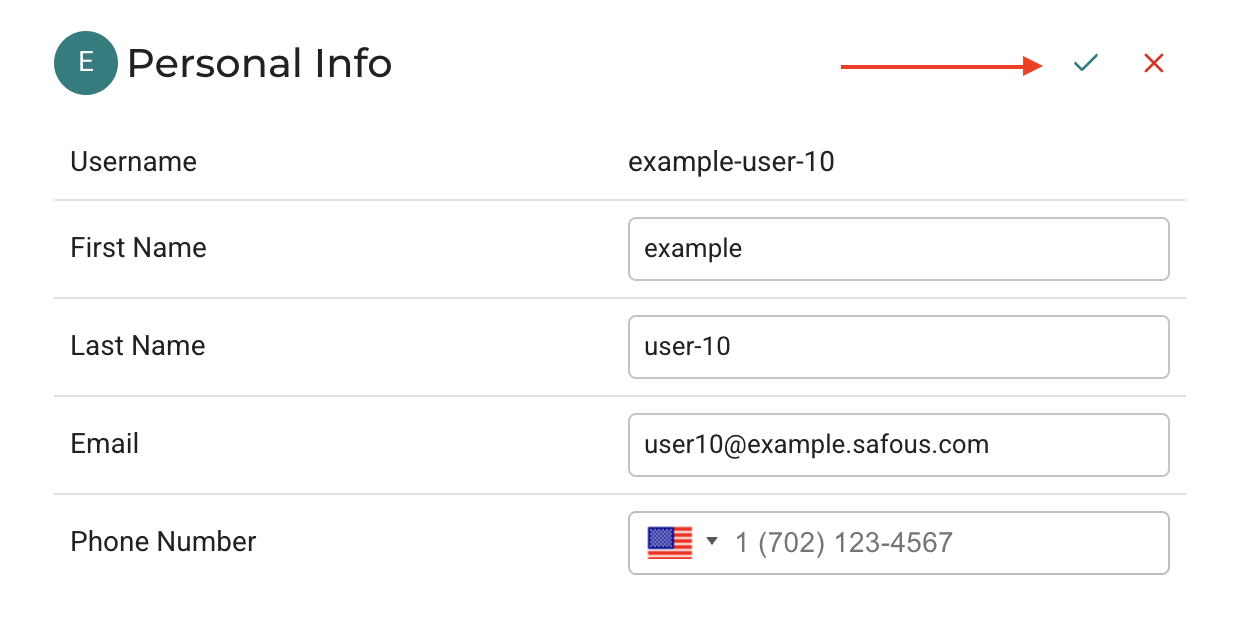
The user can update their own information by clicking the Edit button.
 note
noteSelf-service updates require the administrator to enable the Users can change their personal details option for the identity provider that the user uses to sign in.
Update Sign-in Methods
By default, a user's sign-in method cannot be changed directly. To change a sign-in method, the user must ask an administrator to reset their enrollment status. After the enrollment is reset, the user can update their sign-in method the next time they sign in.
If your organization wants users to manage their own sign-in methods, the administrator can enable the Allow users change their sign-in methods option for the identity provider that the user uses to sign in.
Once this option is enabled, users can manage their sign-in methods directly from the Personal Info & Security page.
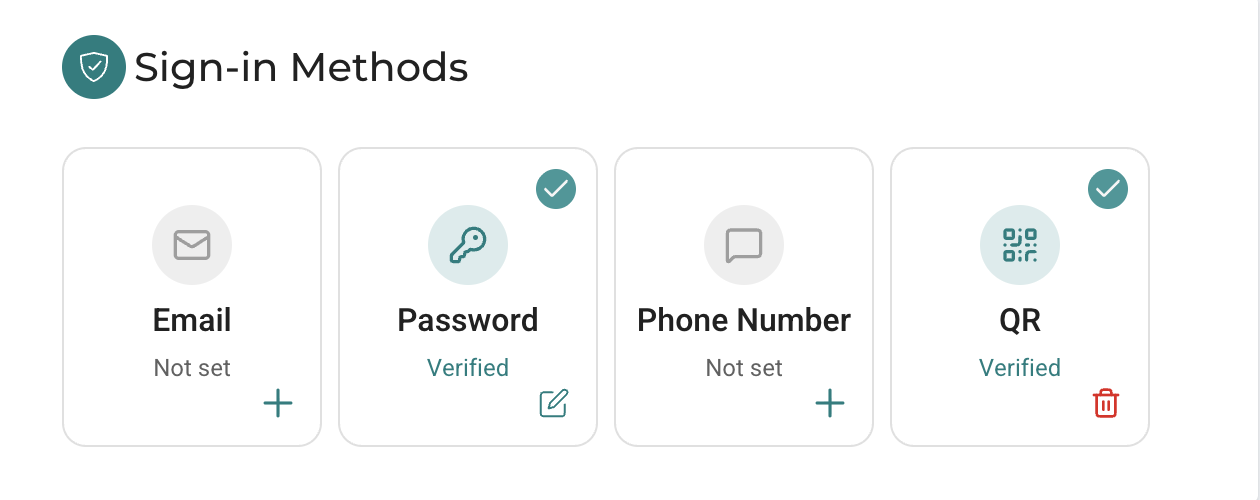
Users can perform the following actions:
Add a Sign-in Method
Users can add a new sign-in method from the list of available methods.
As a security measure, the user must first enter the OTP generated by their currently configured sign-in method.
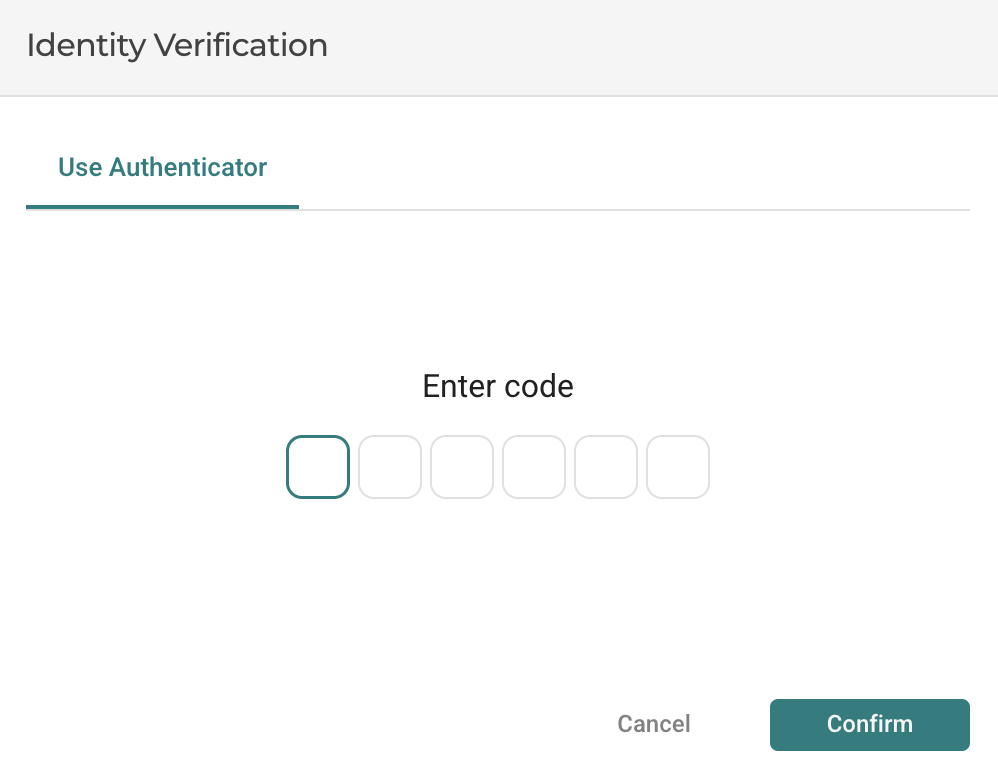
After the current sign-in method has been verified, the user must enter the OTP generated by the newly added sign-in method.
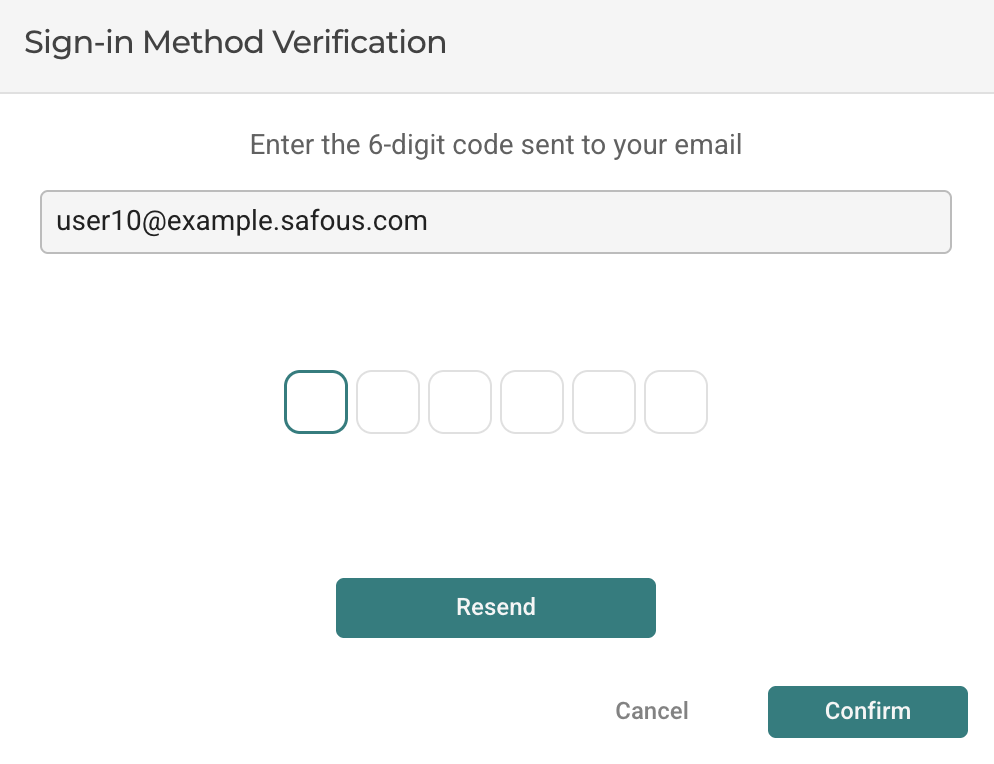
Once the new sign-in method is successfully verified, it will be added to the user's available sign-in methods.
Delete a Sign-in Method
Users can delete a currently configured sign-in method.
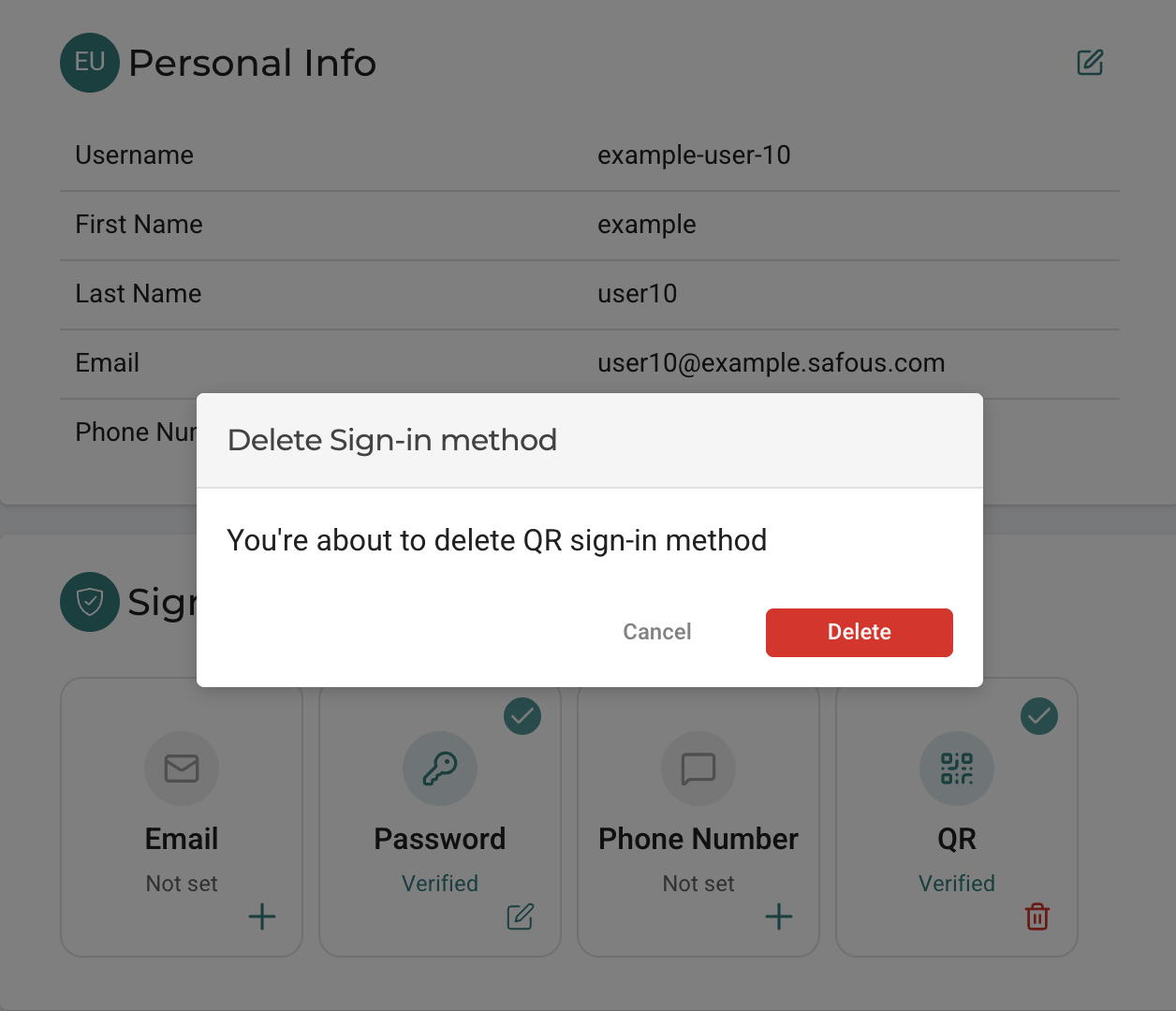
If the account currently has only one sign-in method, it cannot be deleted because doing so would disable MFA for the account.
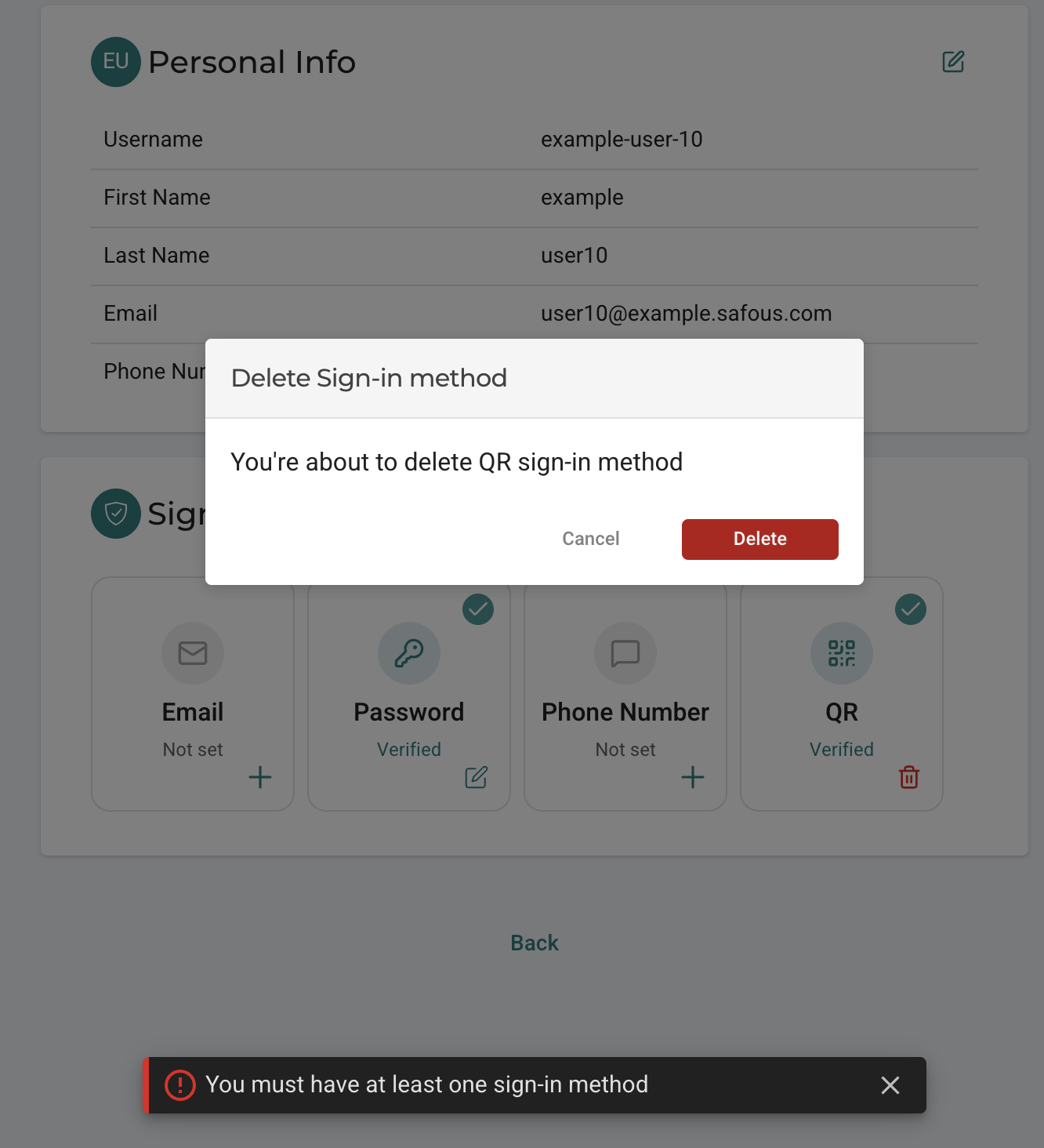
Reset a Sign-in Method Enrollment
Users can reset the enrollment for a currently configured sign-in method by deleting the existing sign-in method and adding it again later.
This allows the user to re-enroll the sign-in method without requiring an administrator to reset the enrollment status.
Change Password
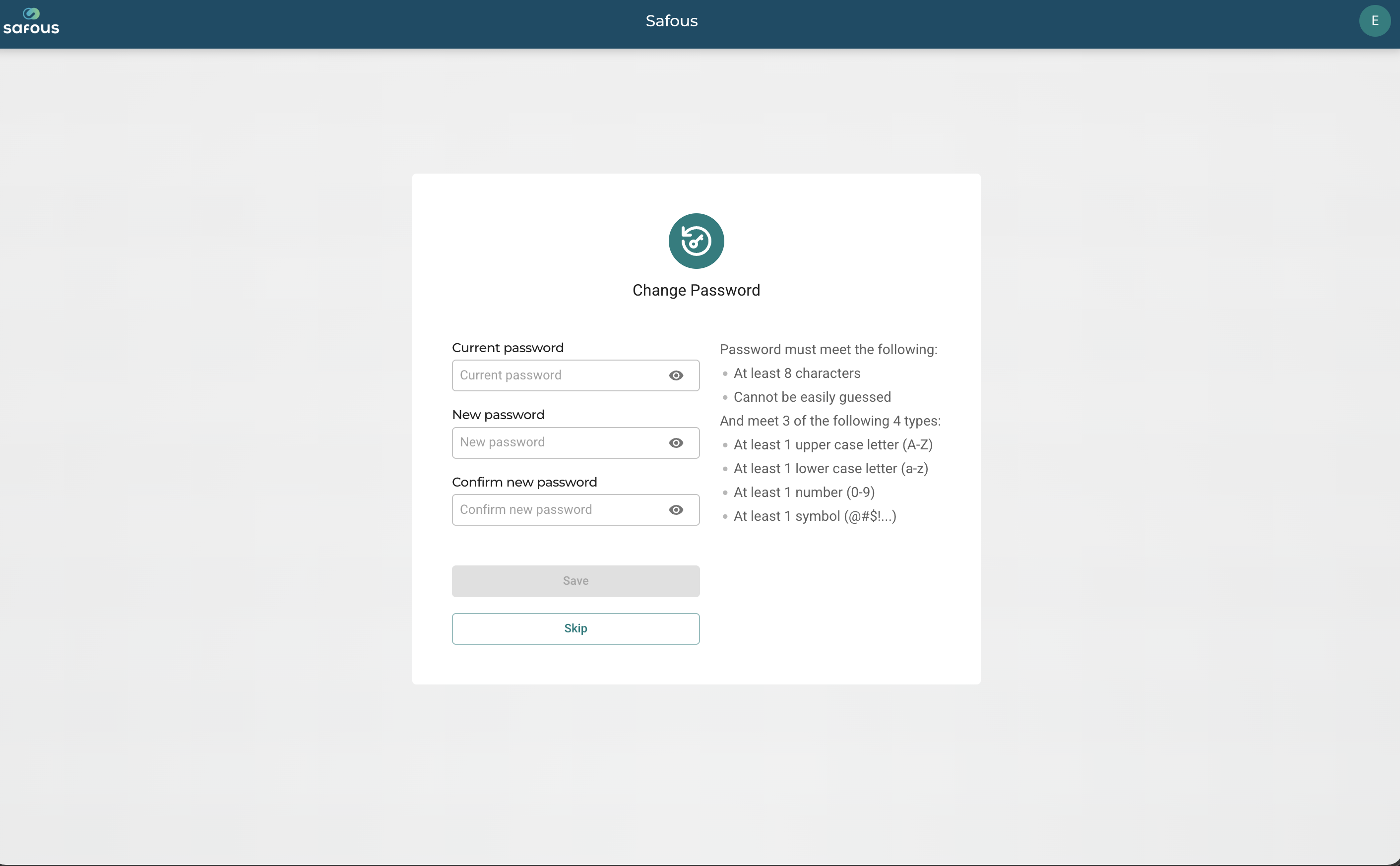
Users can change their password by clicking the Edit button below the password icon.
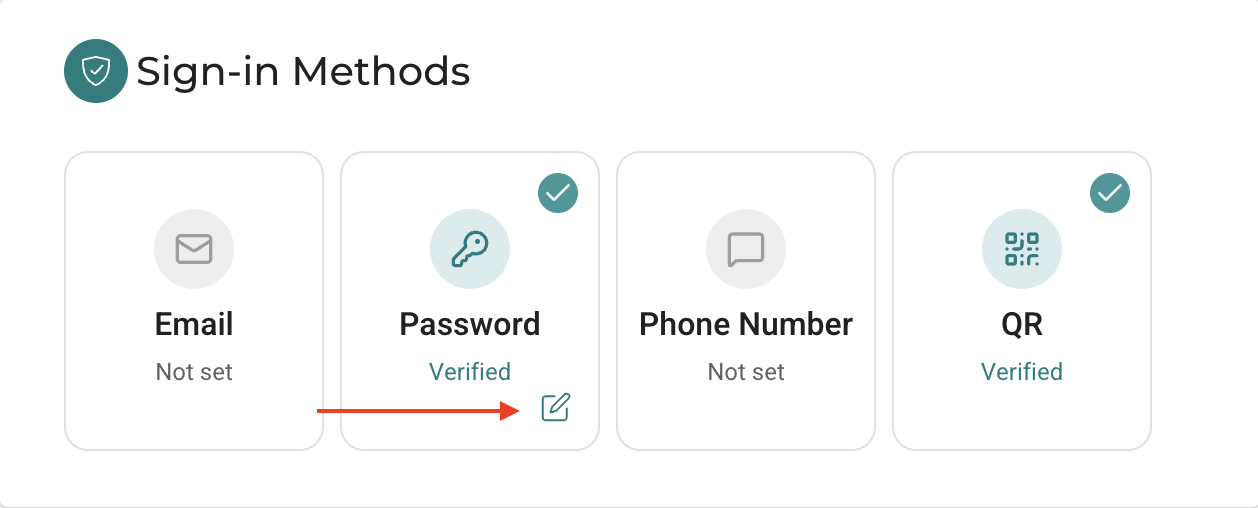
The user must enter their current password and a new password that meets the requirements defined by the password policy configured for the identity provider used by the user.