My Access Requests
Accessing the My Access Requests Page
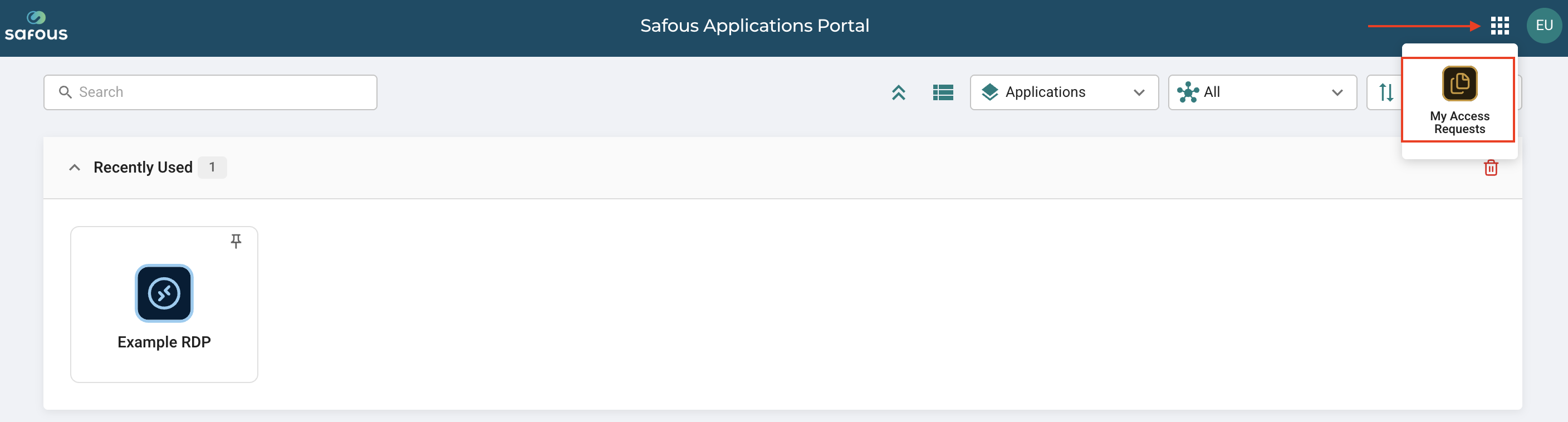
Users can access the My Access Requests page by clicking the menu button near their account icon and selecting My Access Requests.
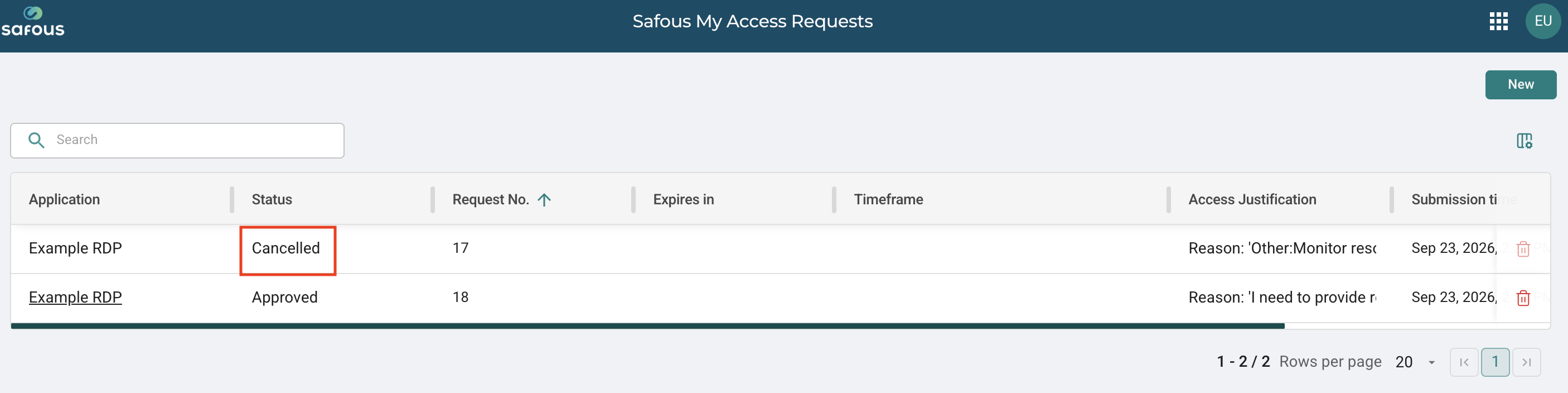
The My Access Requests page displays a list of access requests created by the user.
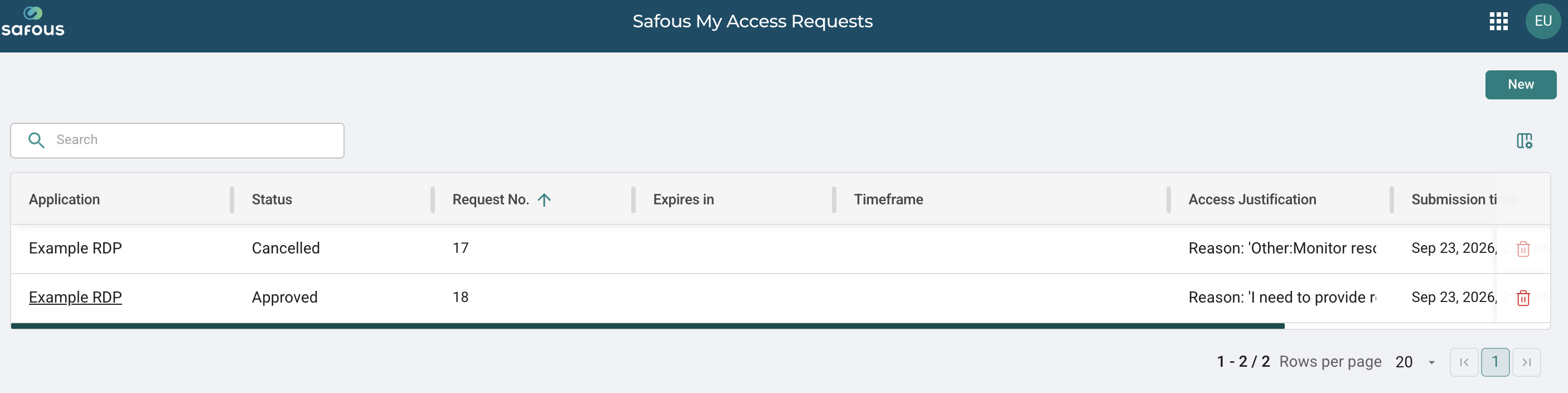
This includes access requests created when a user requests access to a supervised application from the user portal.
If the user has not created any access requests, the list is empty.
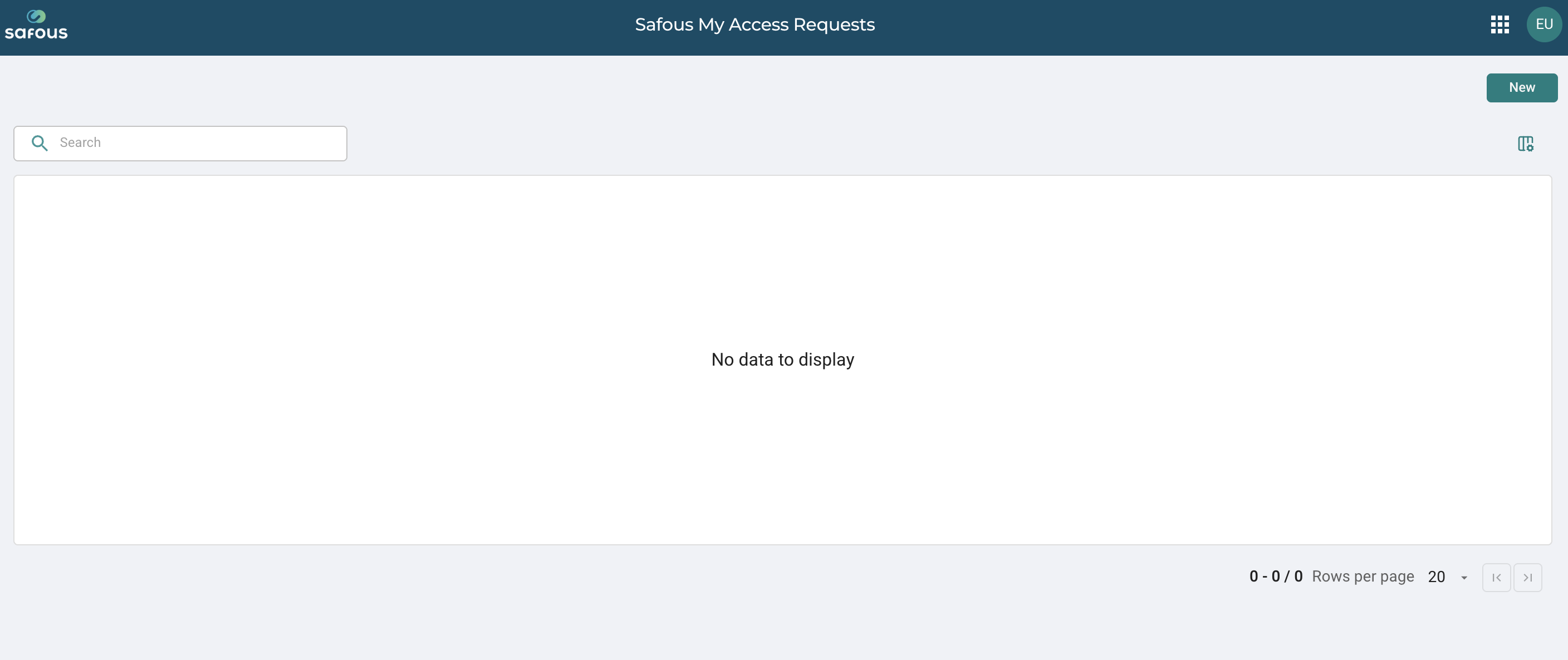
The list only displays access requests associated with the current session and pending sessions. Access requests from previous sessions are not displayed.

The access request list contains the following eight columns:
-
Application: The name of the application for which access was requested.
-
Status: The current status of the access request. The following statuses are available:
- Approved: The request has been approved by an approver.
- Pending: The request is waiting for an approver to approve or deny it.
- Cancelled: The request has been cancelled by the user.
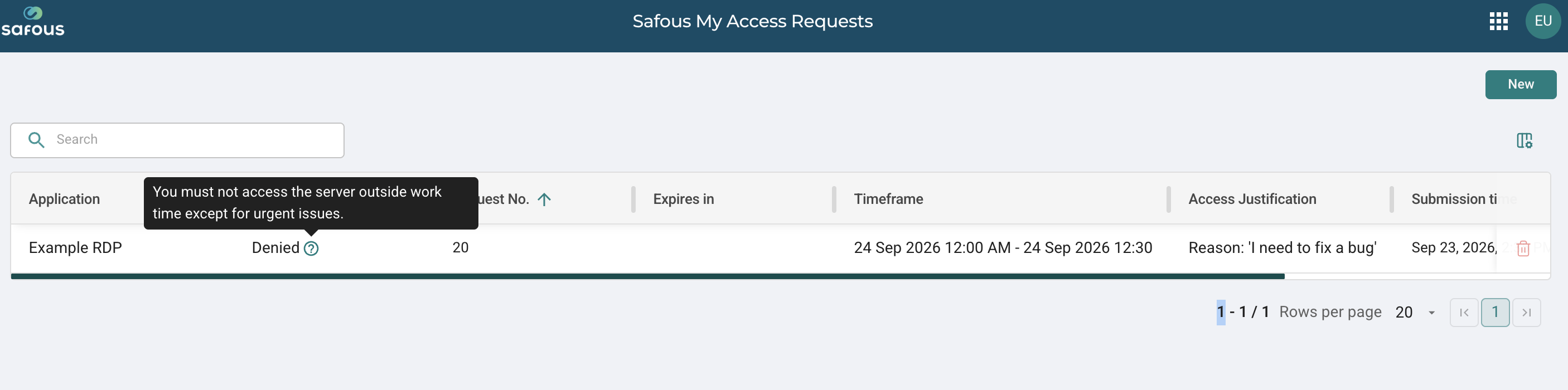
- Denied: The request has been denied by an approver. A denial reason is also displayed if one was provided.
-
Request No.: The unique request number.
-
Expires in: The remaining time before the request expires.
-
Timeframe: The start and end time of the requested access.
-
Access Justification: The justification provided for the access request. Depending on the access form configured in the policy, this can be a predefined value or a custom value entered by the user.
-
Submission time: The date and time when the access request was submitted.
-
Approver: The username of the approver who approved or denied the request.
Users can show or hide columns and change the column order according to their preferences.
Creating Access Requests
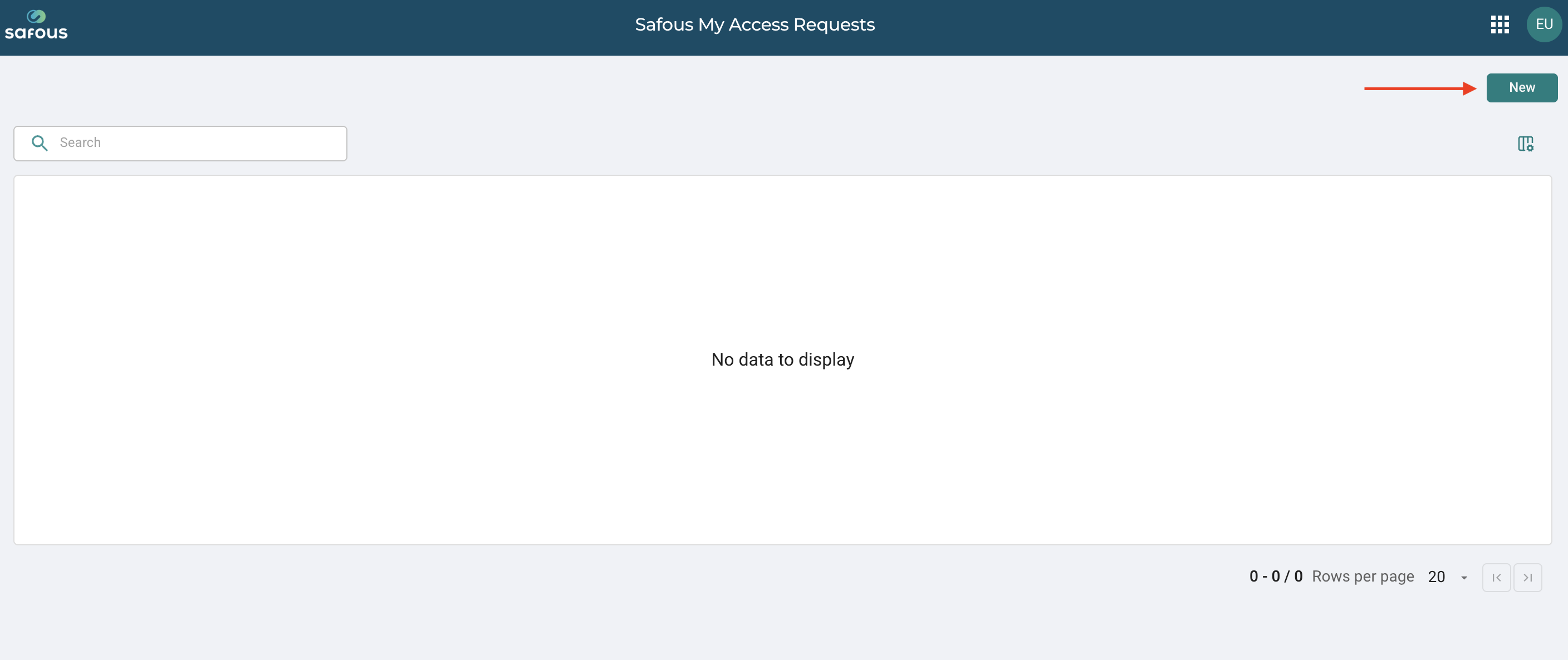
To create an access request, click New.
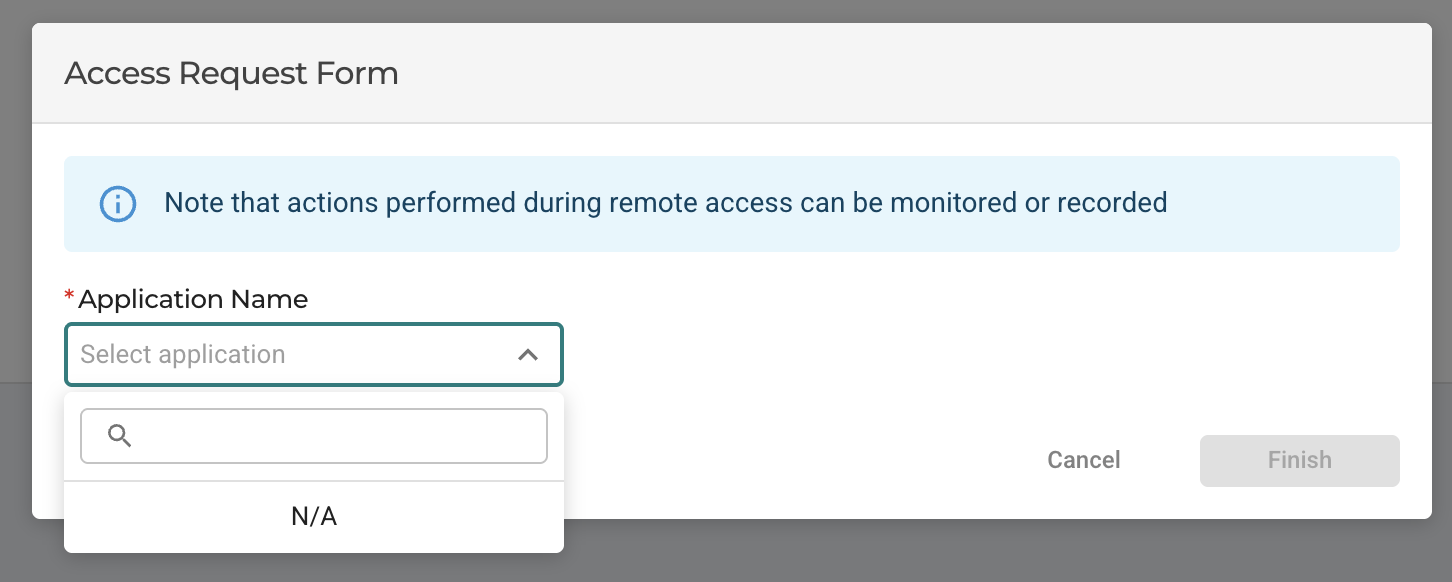
Select the application you want to access from the list of available applications.
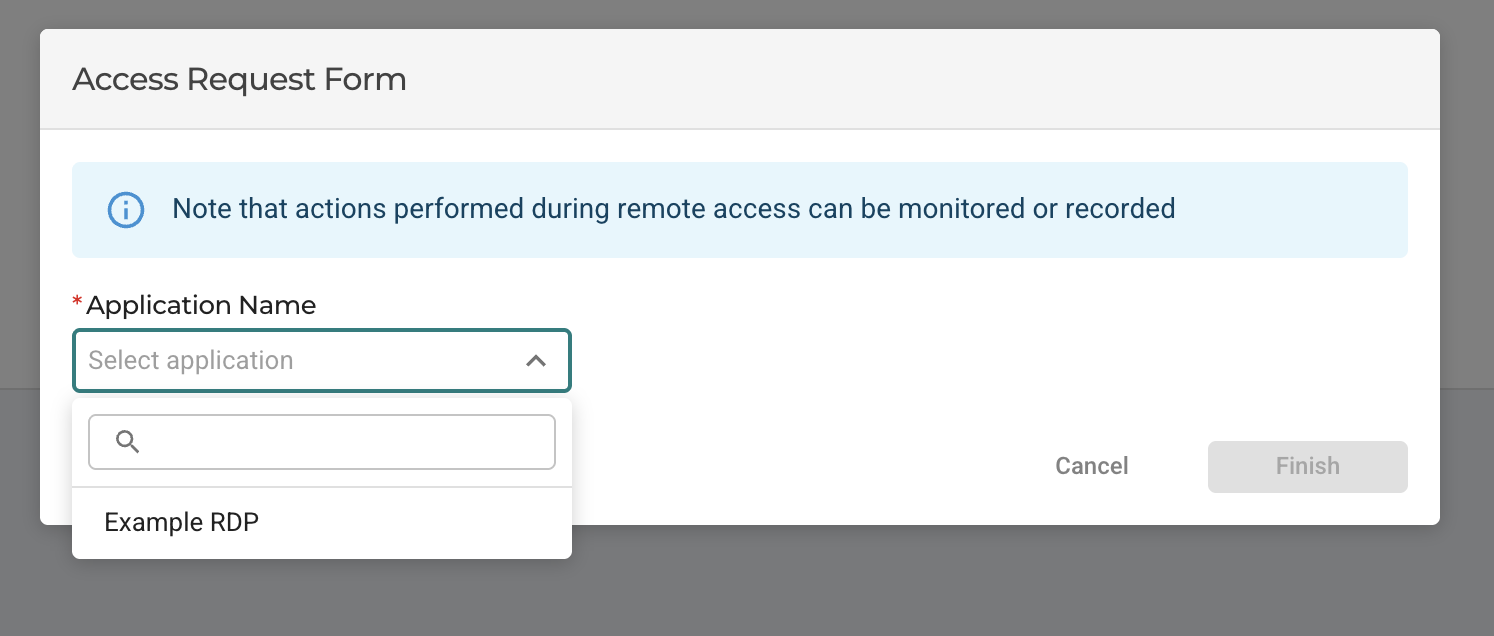
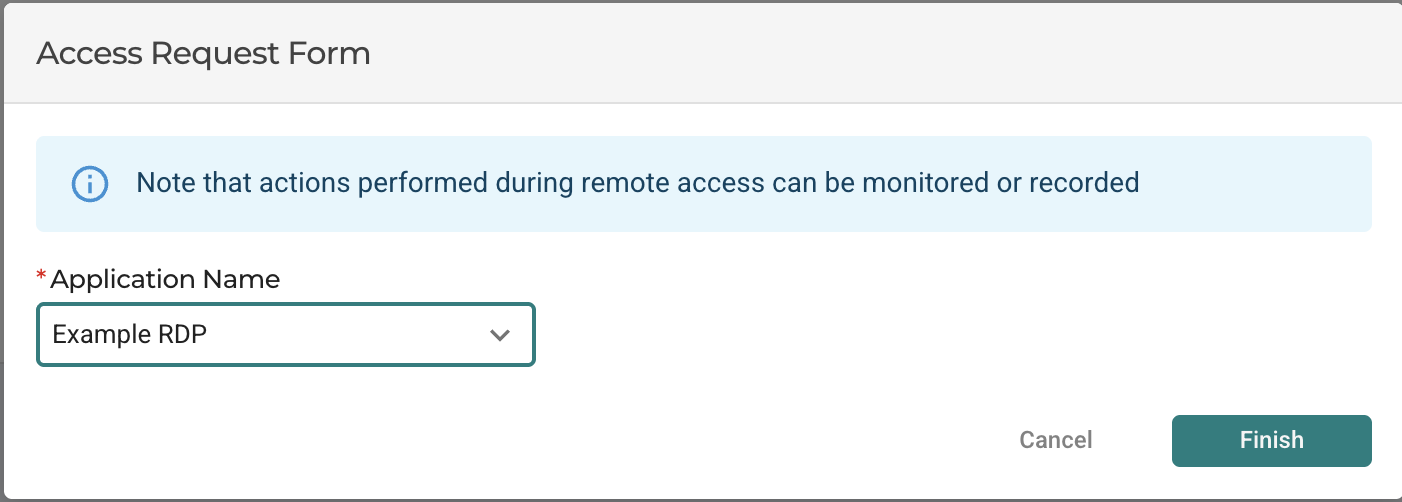
Only applications that require approval can be selected when creating an access request. If none of the applications that the user is allowed to access require approval, there will be no applications available for selection.
Select the Access Type
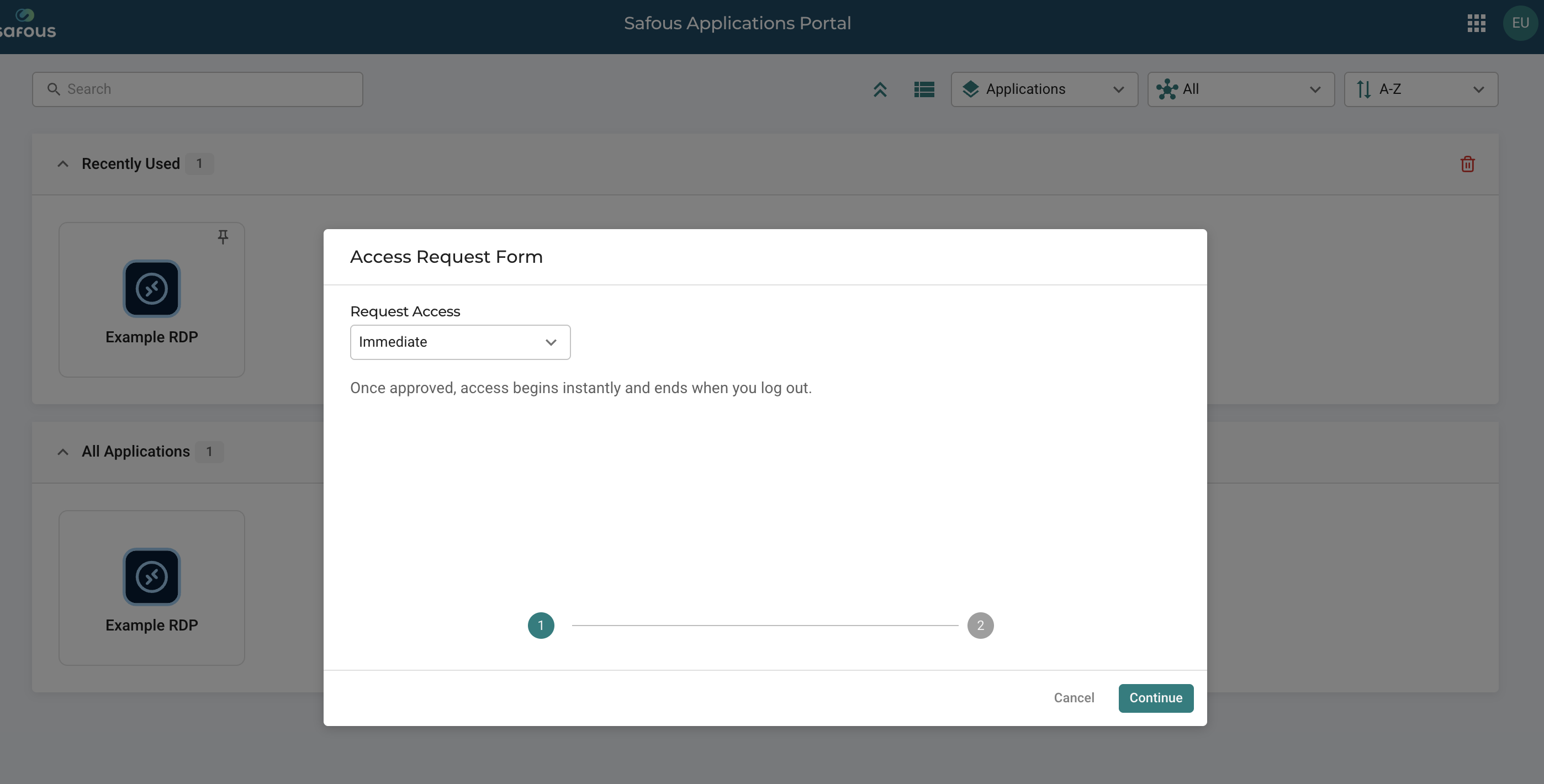
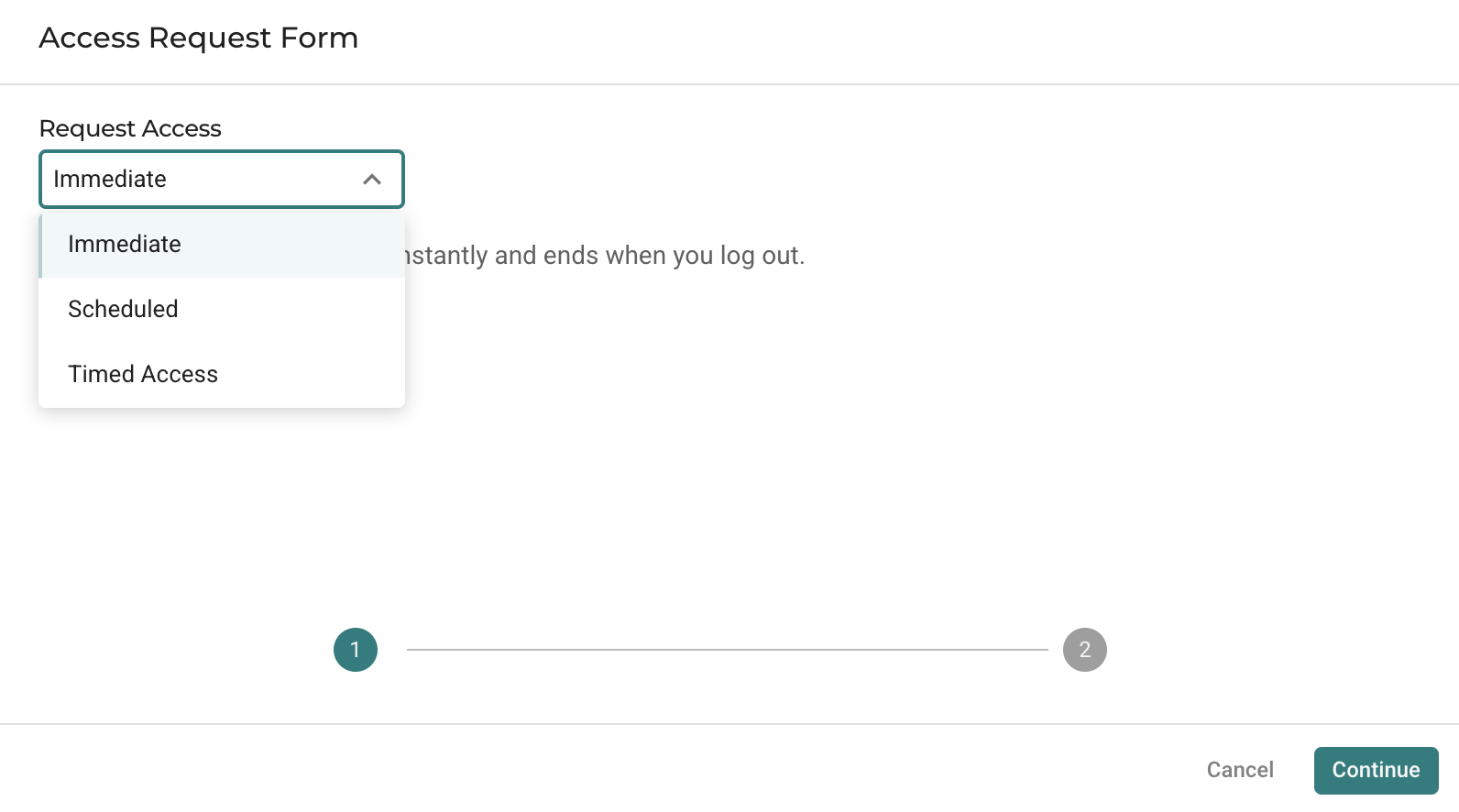
Select the access type for the request. There are three available access types:
-
Immediate: Once the request is approved, access begins immediately and remains active until the user logs out.
-
Scheduled: Specify the start and end time for the access. Once the request is approved, access becomes available during the specified timeframe. The start time must be at or after the next 30-minute mark.
-
Timed Access: Specify the duration of the access. Once the request is approved, access begins immediately and remains active for the selected duration, even if the user logs out and logs back in.
Complete the Access Form
Depending on the policy configured for the application, you may be required to complete an access form.
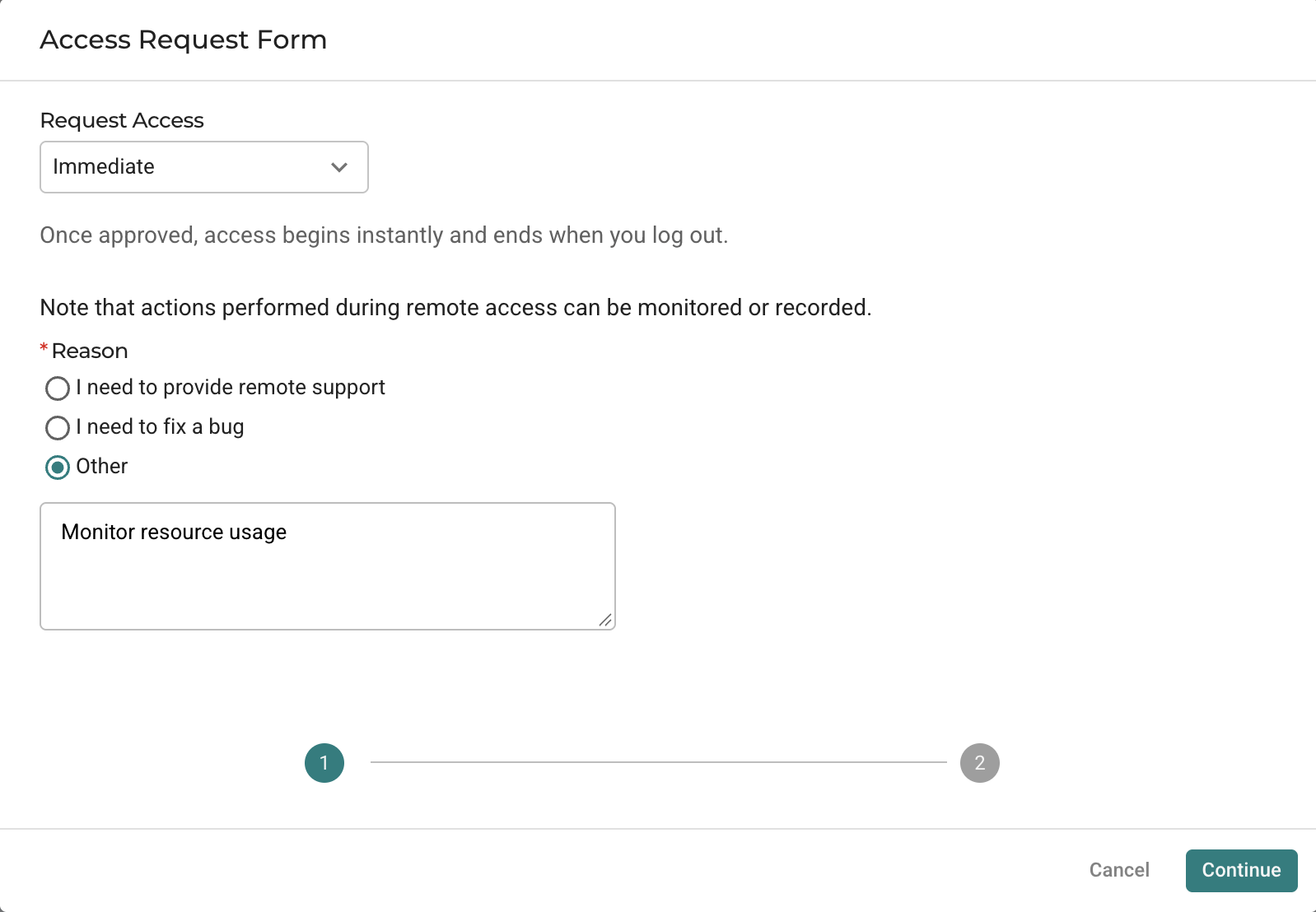
The fields displayed in the access form depend on the configuration of the access form associated with the application.
Select the Connection Method
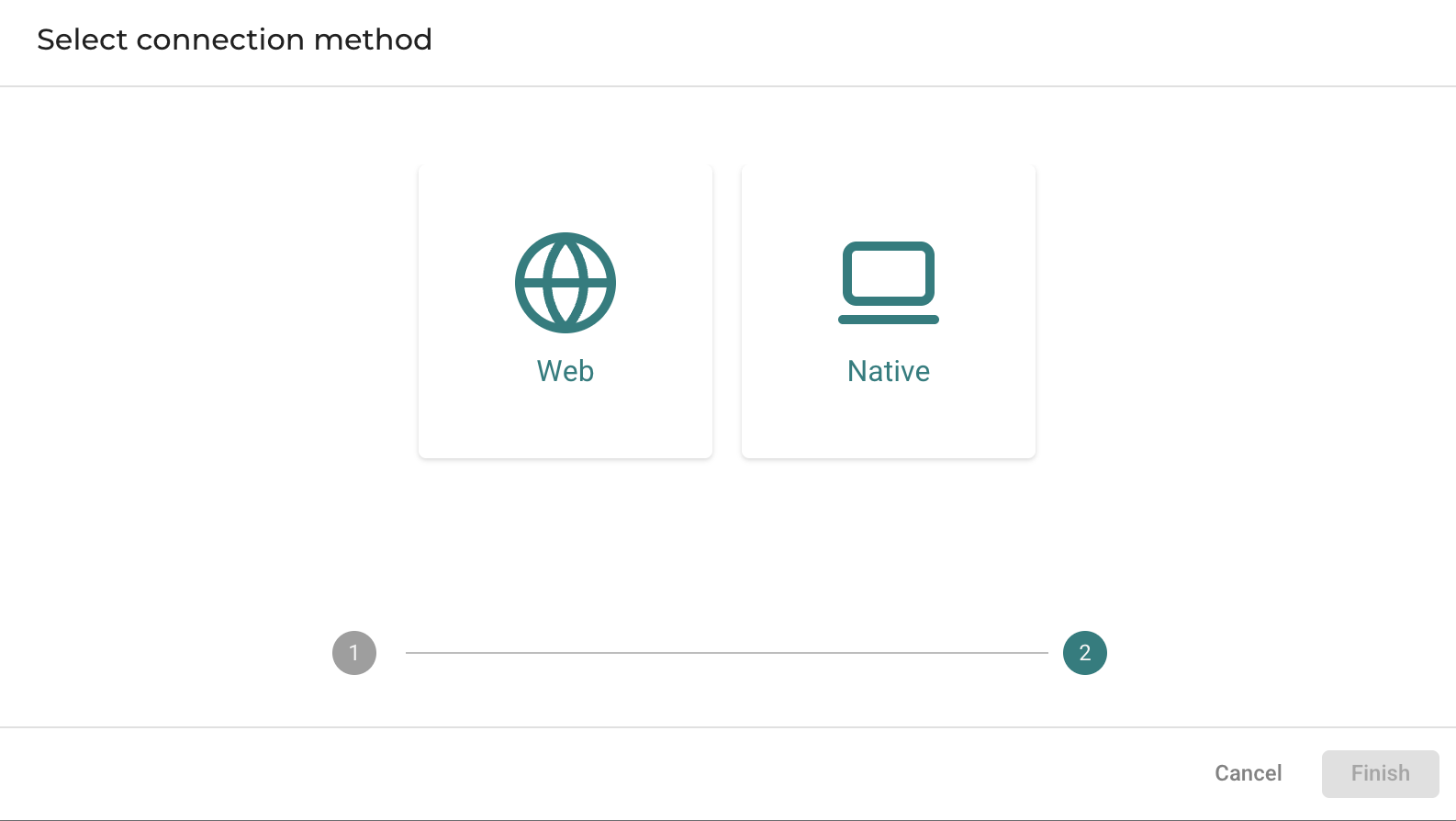
Select the connection method to use for the requested application, then click Finish to submit the request.
Access Request Approval
After the request is submitted, an approver can approve or deny the request.
While the request is waiting for a decision:
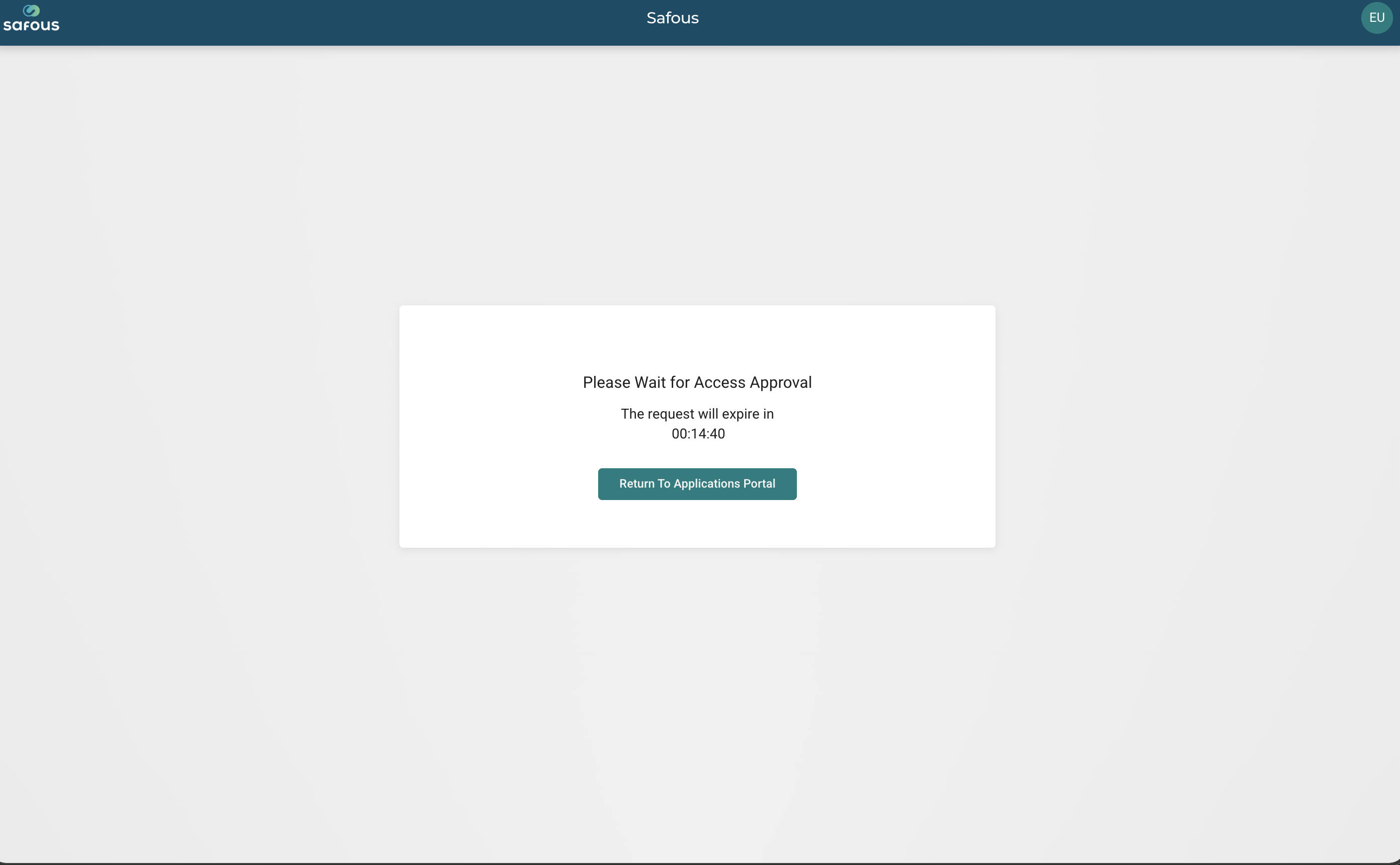
- The user is redirected to the waiting page.
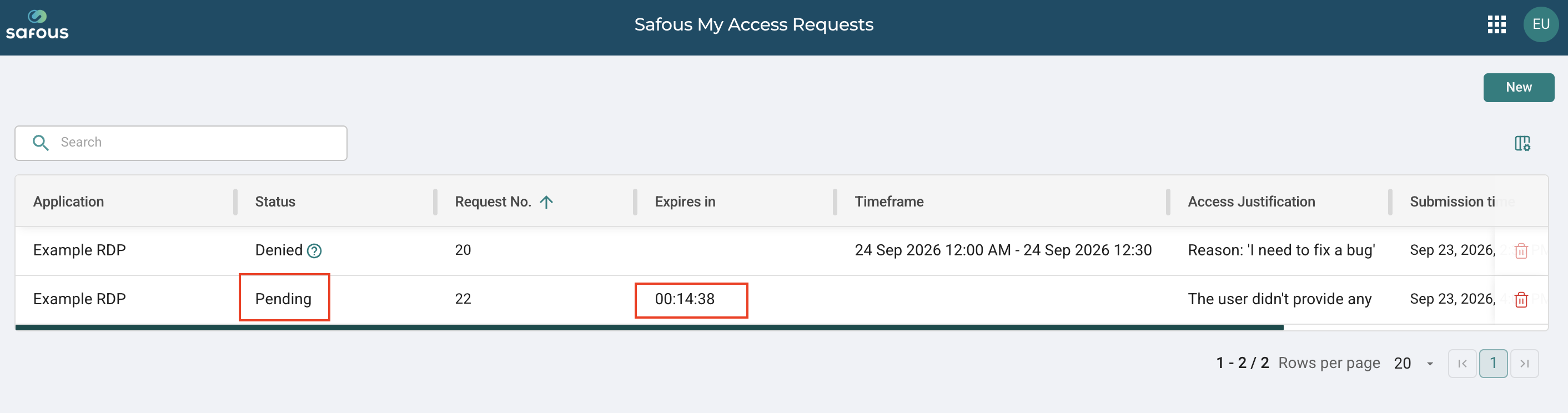
- The request status is set to Pending.
- For Immediate access requests, the request has an expiry time of 15 minutes.
The remaining expiry time for an Immediate access request is displayed in the Expires in column.
Approved Requests
If the request is approved, the user can access the application according to the selected access type:
- Immediate: Access begins immediately and remains active until the user logs out.
- Scheduled: Access is available during the specified start and end time.
- Timed Access: Access begins immediately and remains active for the selected duration.
The request status is updated to Approved in the request list. The Timeframe column is populated for Scheduled and Timed Access requests.

Denied Requests
If the request is denied, the user cannot access the application through the requested access.
The request status is updated to Denied. If the approver provides a denial message, it is displayed next to the Denied status.
Cancelling or Deleting a Request
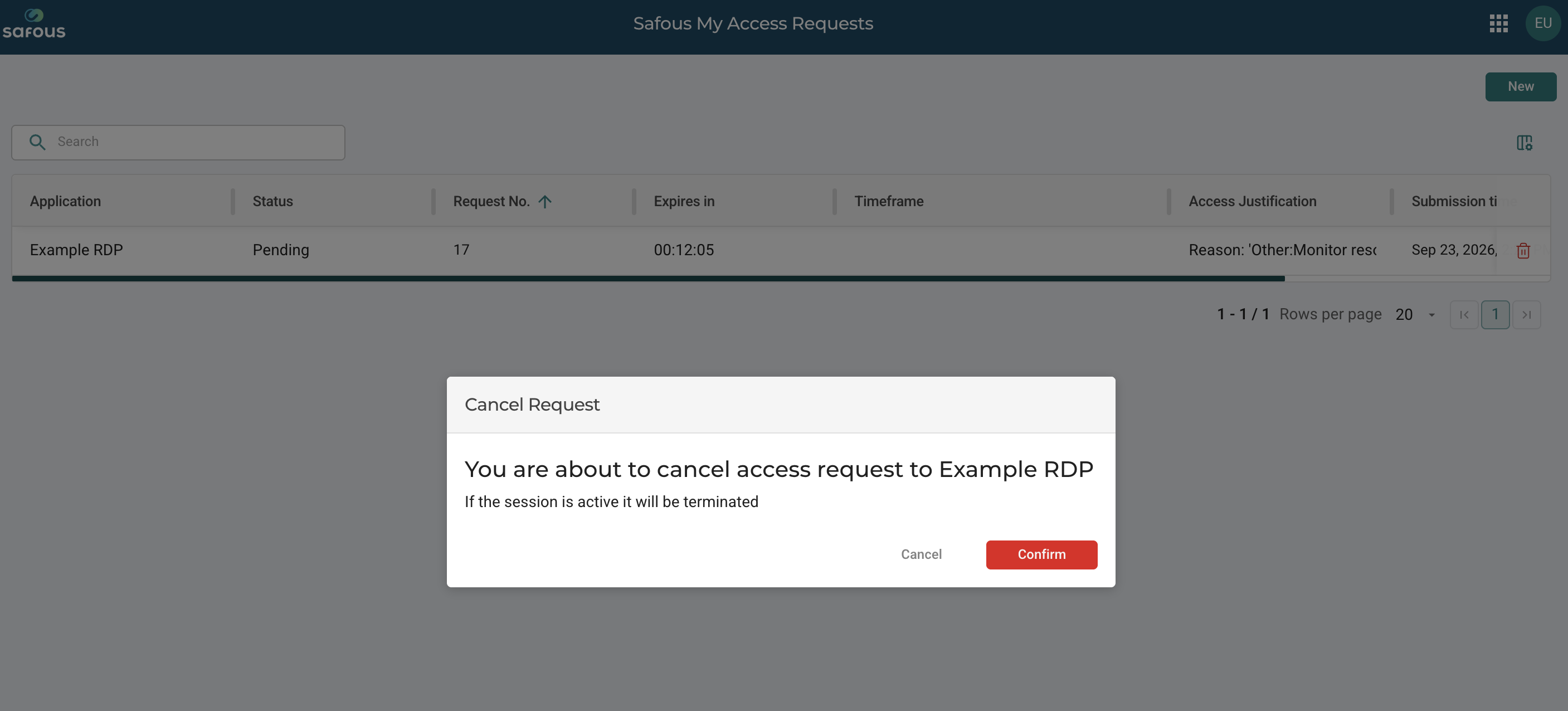
If the user deletes a request while it is in the Pending state, the request is also removed from the approver's request list.
If the user deletes a request after it has been Approved, any active session associated with that application is terminated.
Requesting Access When Access Is Already Effective
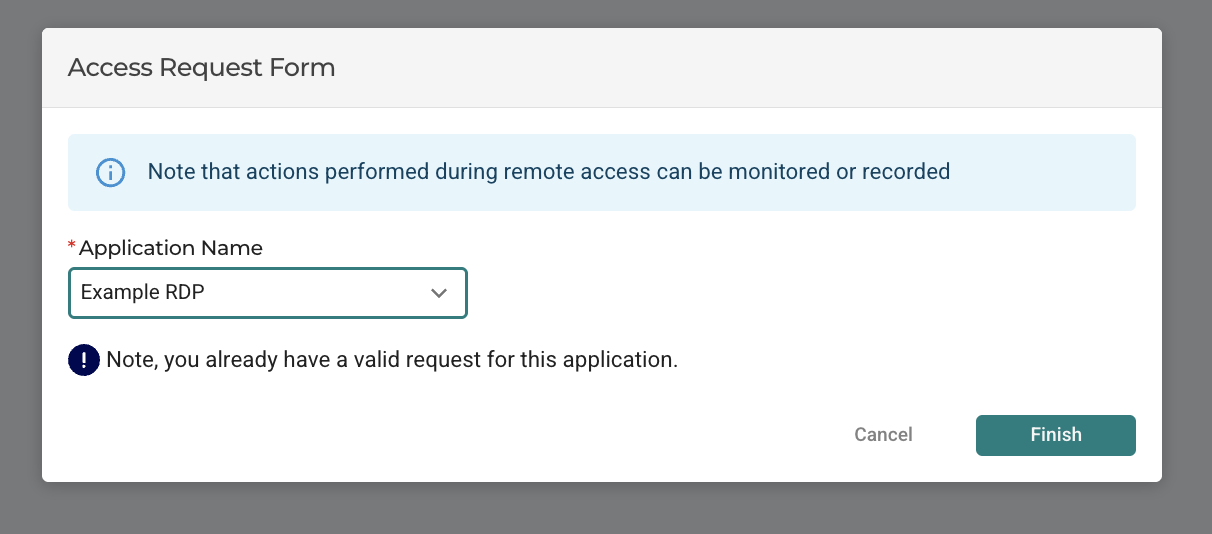
If the user already has effective access to an application and attempts to create another access request for the same application, a notification is displayed.