SSH Application
This article serves as a guide on how to access an SSH application through the Safous.
To access an SSH application created by an administrator, a user needs to:
- Have completed MFA enrollment and be able to log in successfully
- Be authorized by the configured access policies to access the application
Once the user logs in, all applications that the user is authorized to access will be displayed.
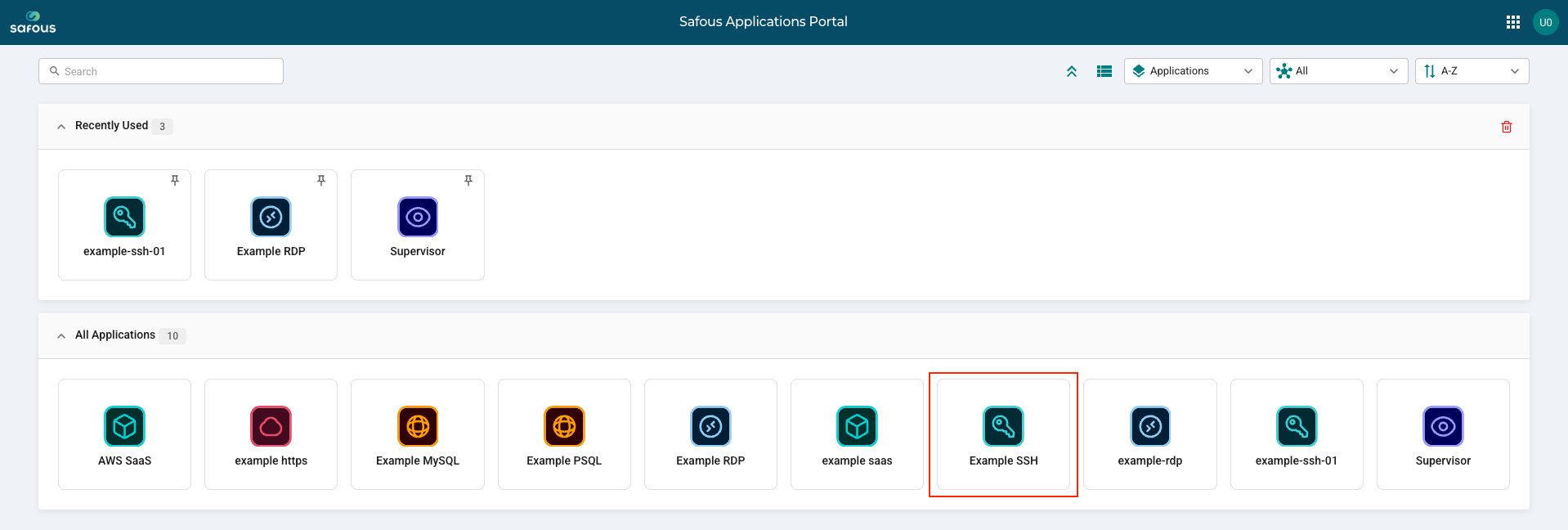
Select the access method you would like to use for the SSH application.
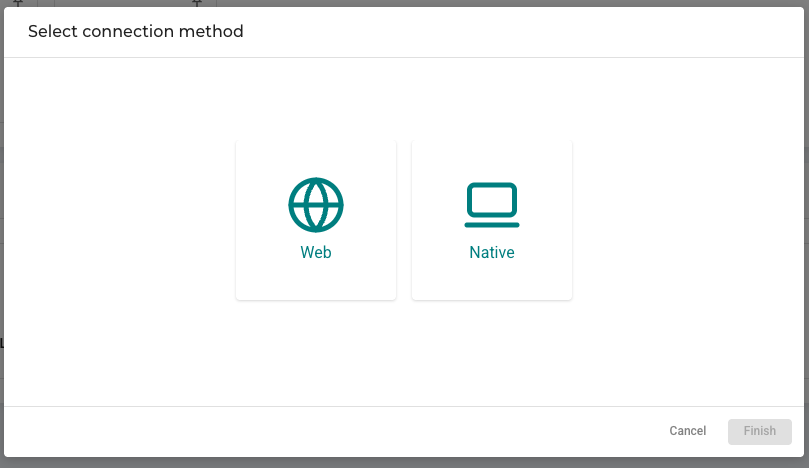
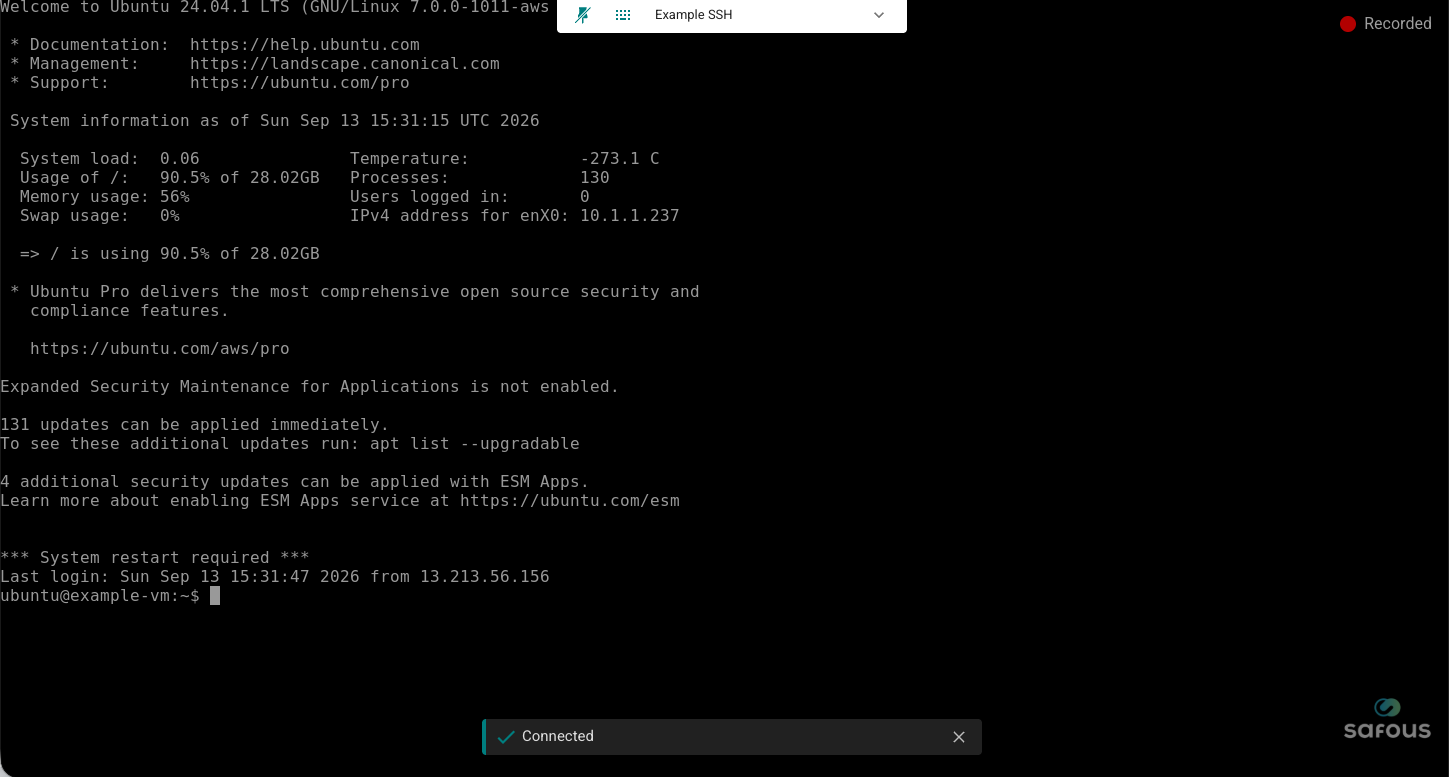
Web SSH
The SSH session will open in a new browser tab.
Native SSH
A new tab will open and display connection details for the SSH session.
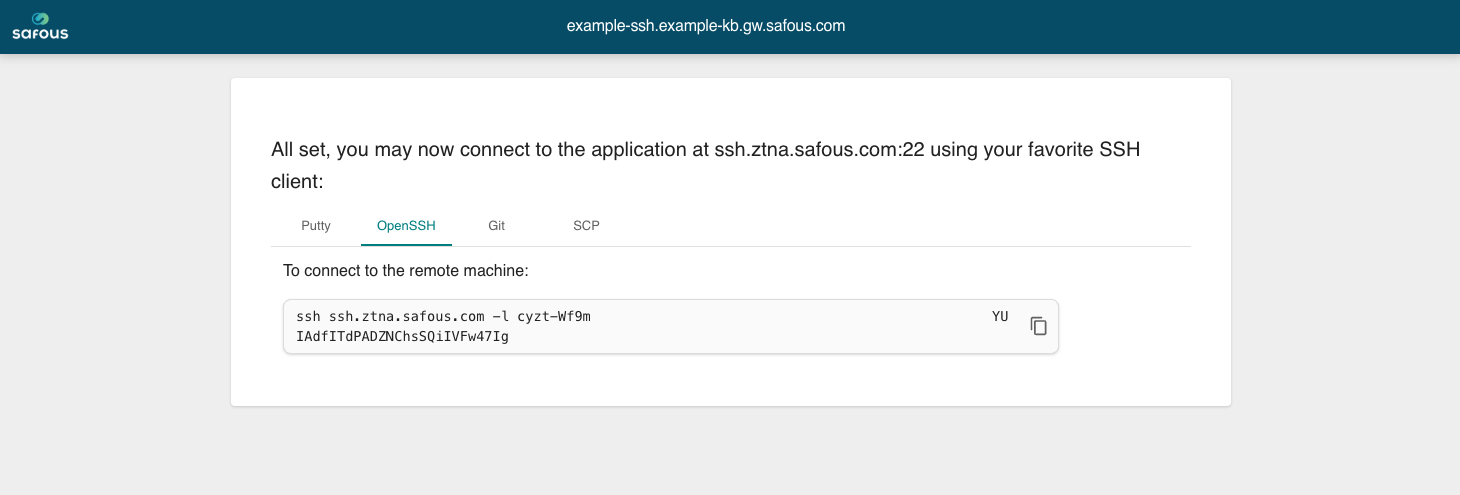
- Putty: Use Putty to connect to the remote machine via SSH. Copy and paste the generated hostname or connection information into the 'Host Name (or IP address)' field and start the connection.
- OpenSSH: Use OpenSSH to connect to the remote machine. Copy and paste the generated link to your terminal/shell and click enter.
- Git: Clone a private Git repository hosted on the remote machine. Copy the generated repository URL and specify the target repository.
- SCP: Choose your desired action between copying a file from the local machine to the remote machine or the opposite. Copy the generated command and specify the source and destination paths on the local and remote machines.