RDP Application
This article serves as a guide on how to access an RDP-based application through the Safous.
To access an RDP application created by an administrator, a user needs to:
- Have completed MFA enrollment and be able to log in successfully
- Be authorized by the configured access policies to access the application
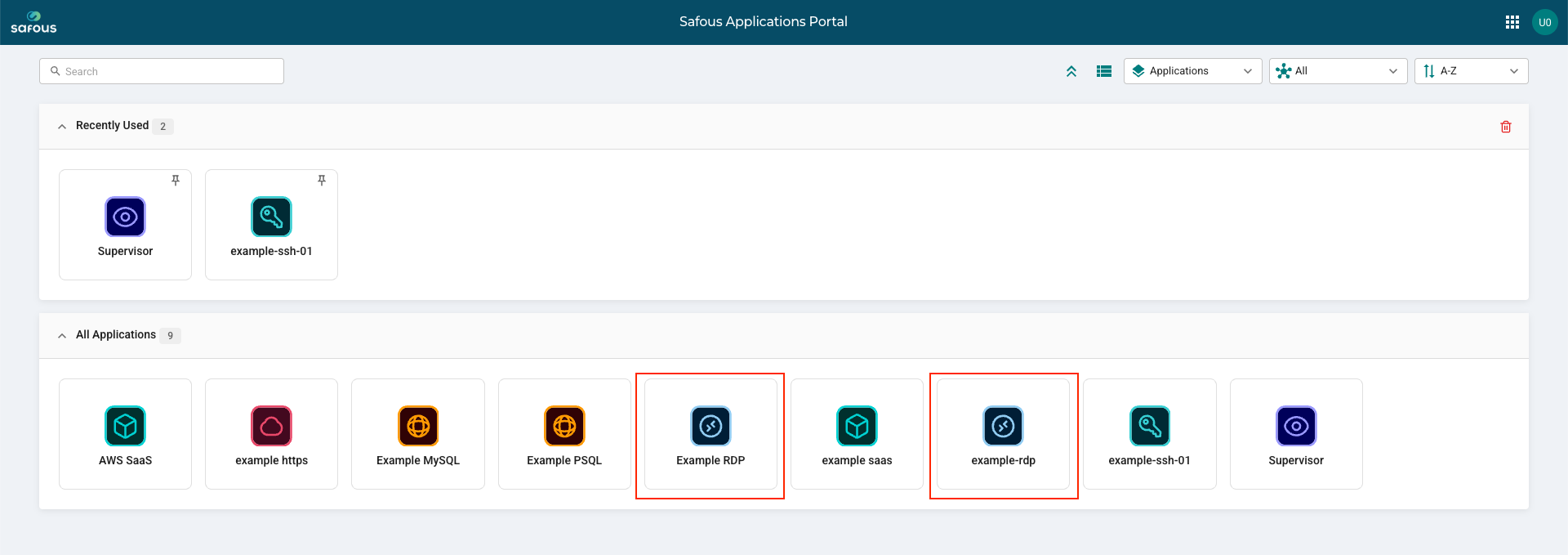
After logging in to Safous, you will see a list of applications available to you, including assigned RDP applications.
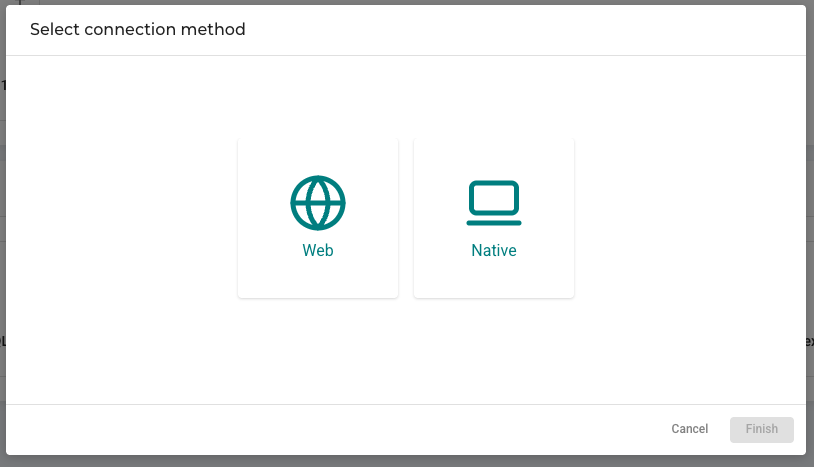
Select the RDP application. A pop-up window will appear asking you to choose a connection method. You can choose either Web to access the application through a web browser or Native RDP Client to connect using an RDP client installed on your device.
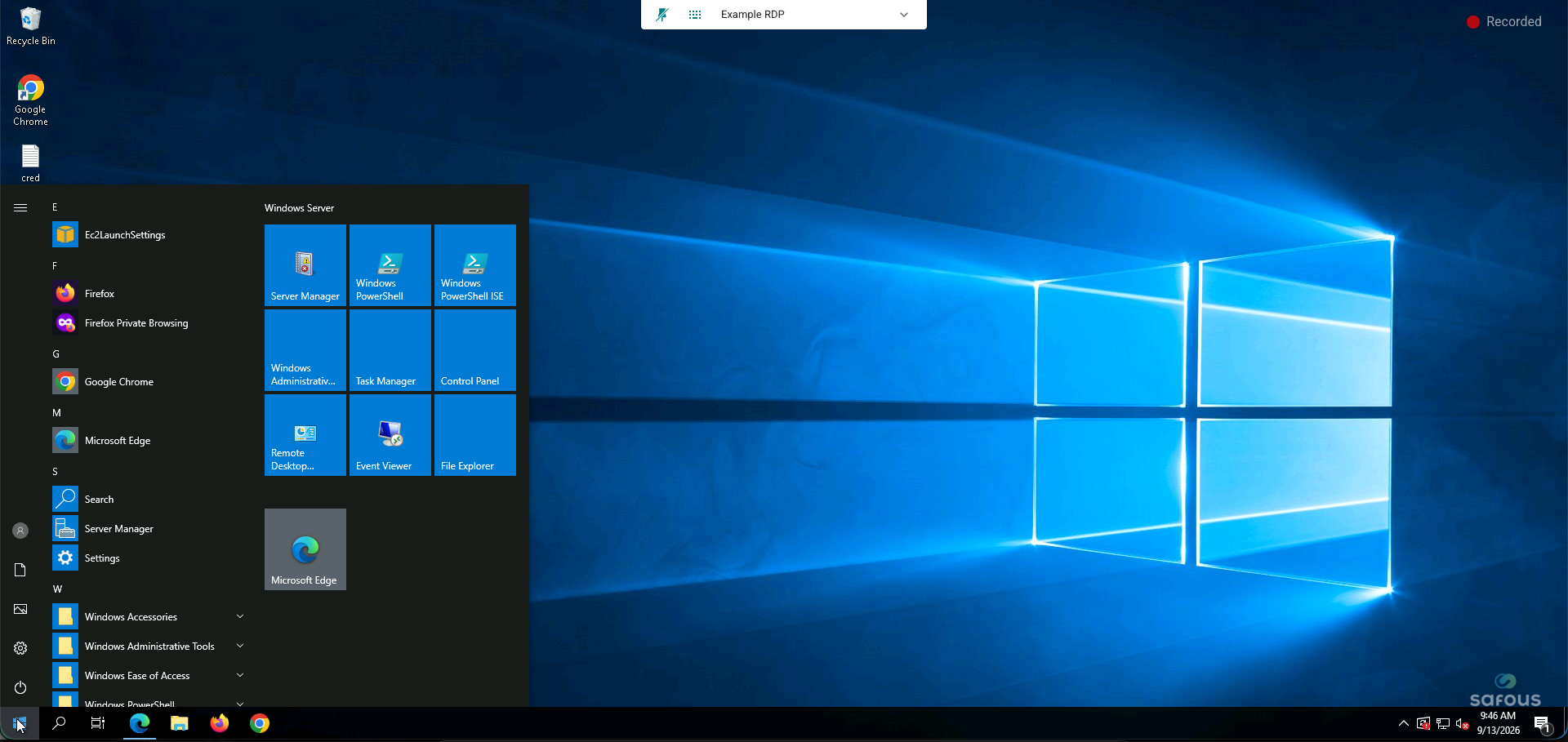
If you choose to access through the "Web", the RDP session will open in a new browser tab.
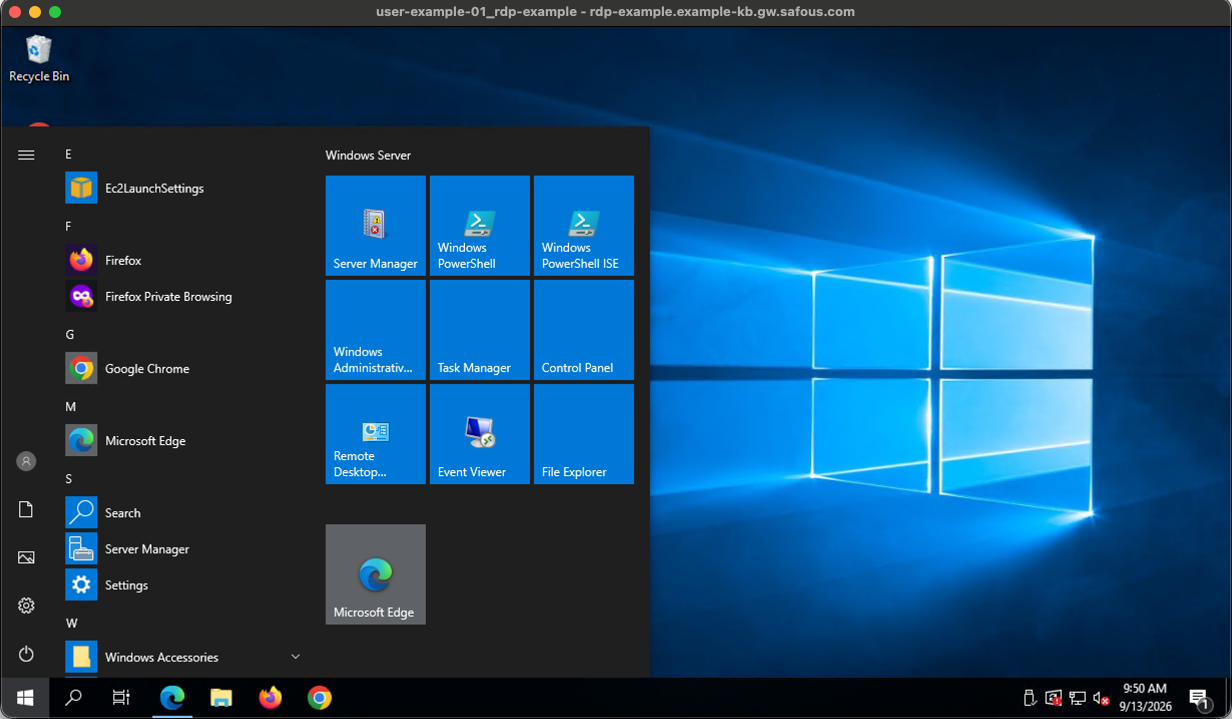
Selecting 'Native RDP Client' will open a new tab and initiate the download of an .rdp file to your local machine. If the download does not start automatically, click the 'click here' link at the bottom of the page to download the file manually.
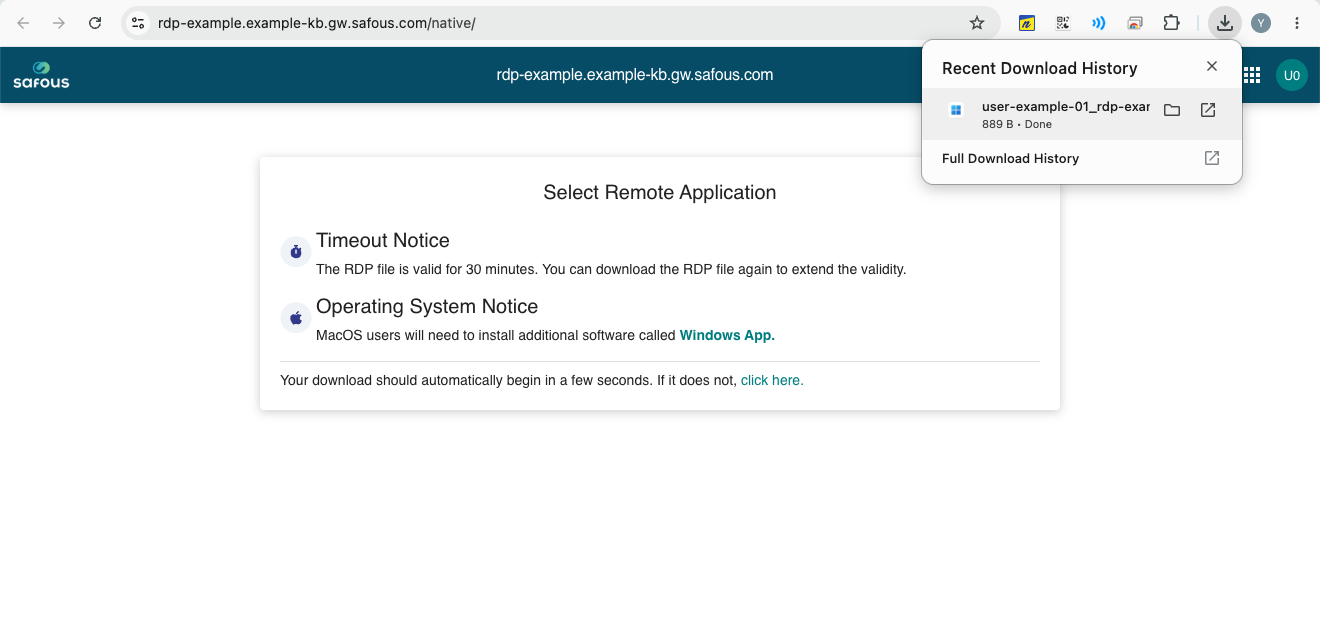
Once downloaded, open the .rdp file to start an RDP session with the application.