Accessing User Portal
Open the User Portal URL in your web browser using the information provided by your Safous representative or system notification. The URL will look like this https://users.tenant.gw.safous.com or https://users.tenant.gw.safous.cn depending on the domain configured for your environment. When you have opened the URL in the browser, it will show you the login web page:
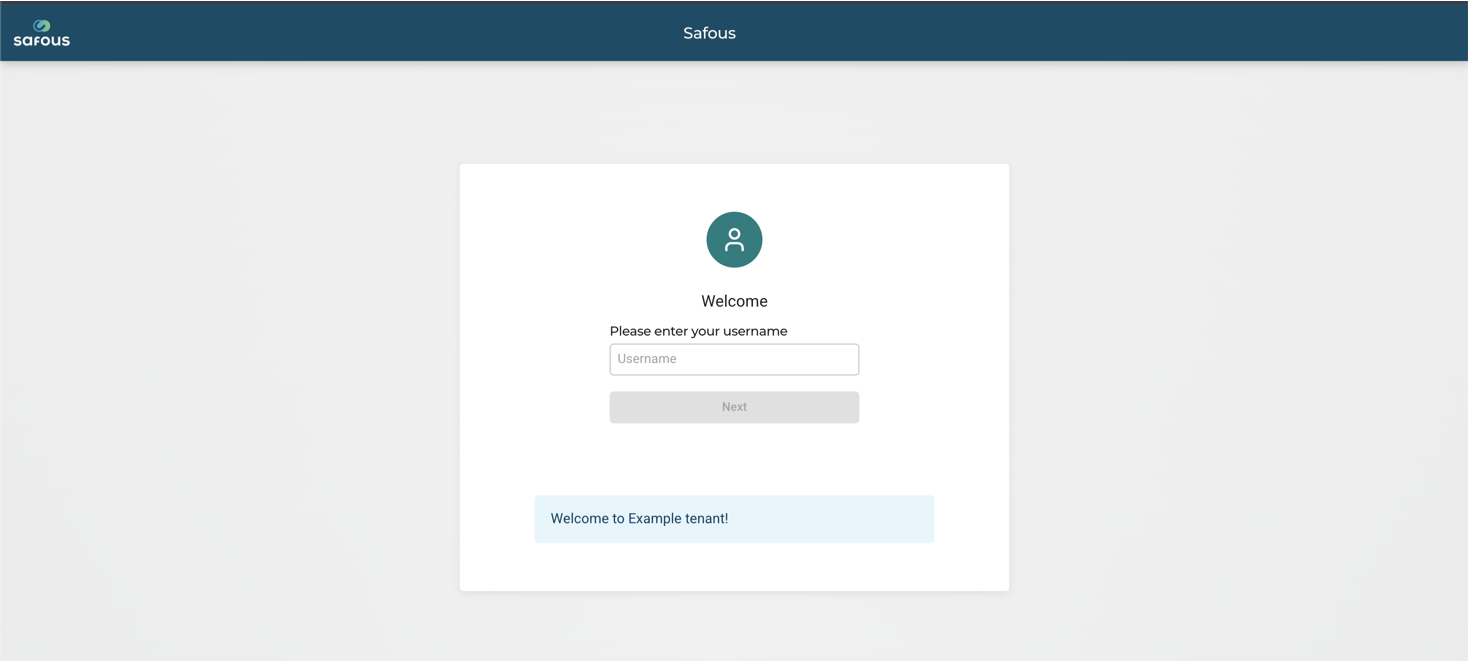
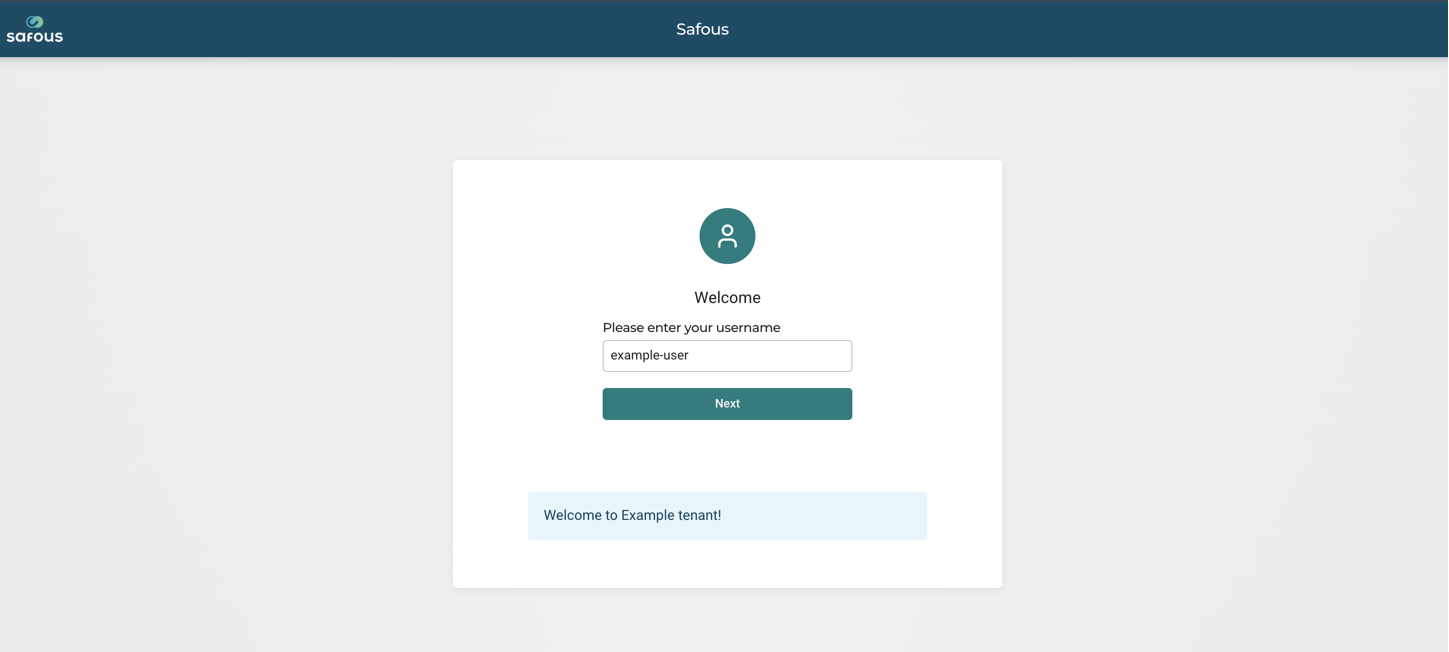
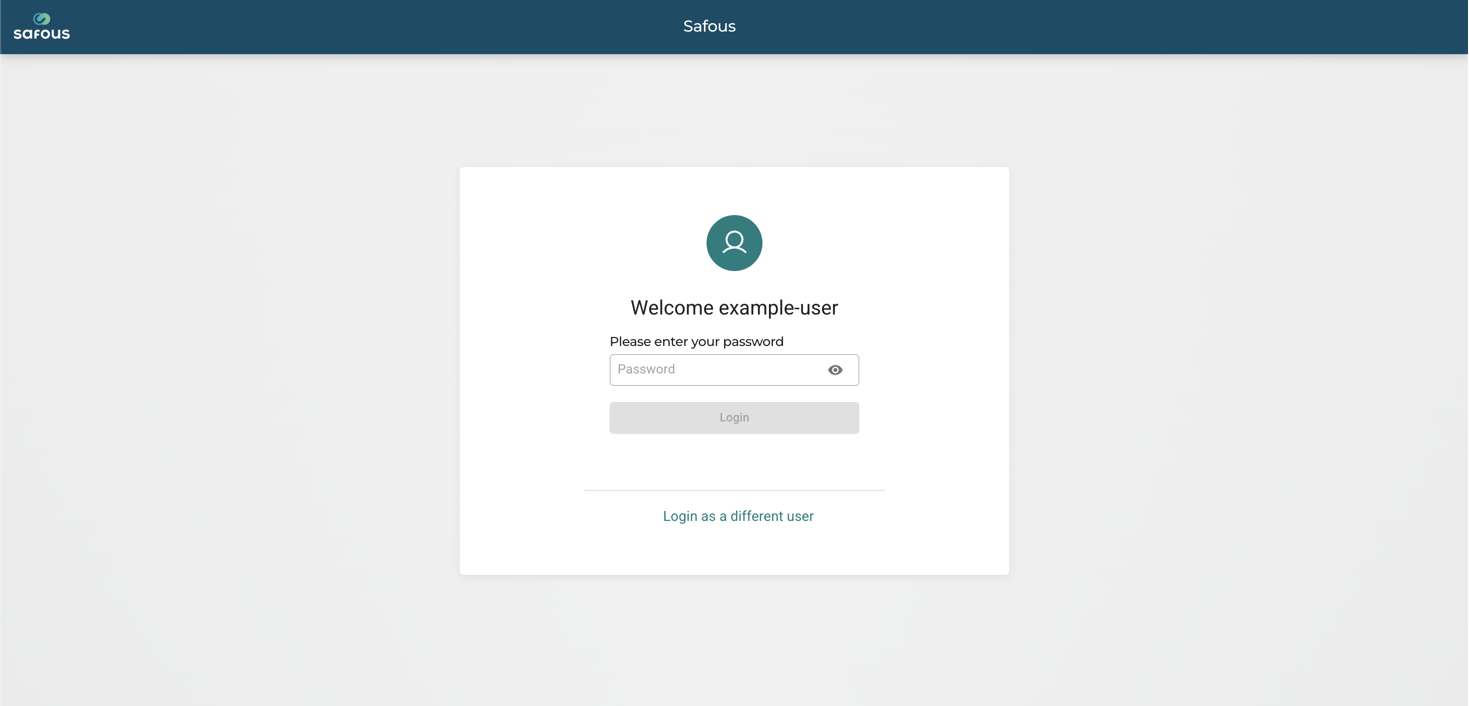
To log in to the User Portal, a user account must first be created by an administrator in the Admin Console. Click 'With Credential' and enter your username and password.
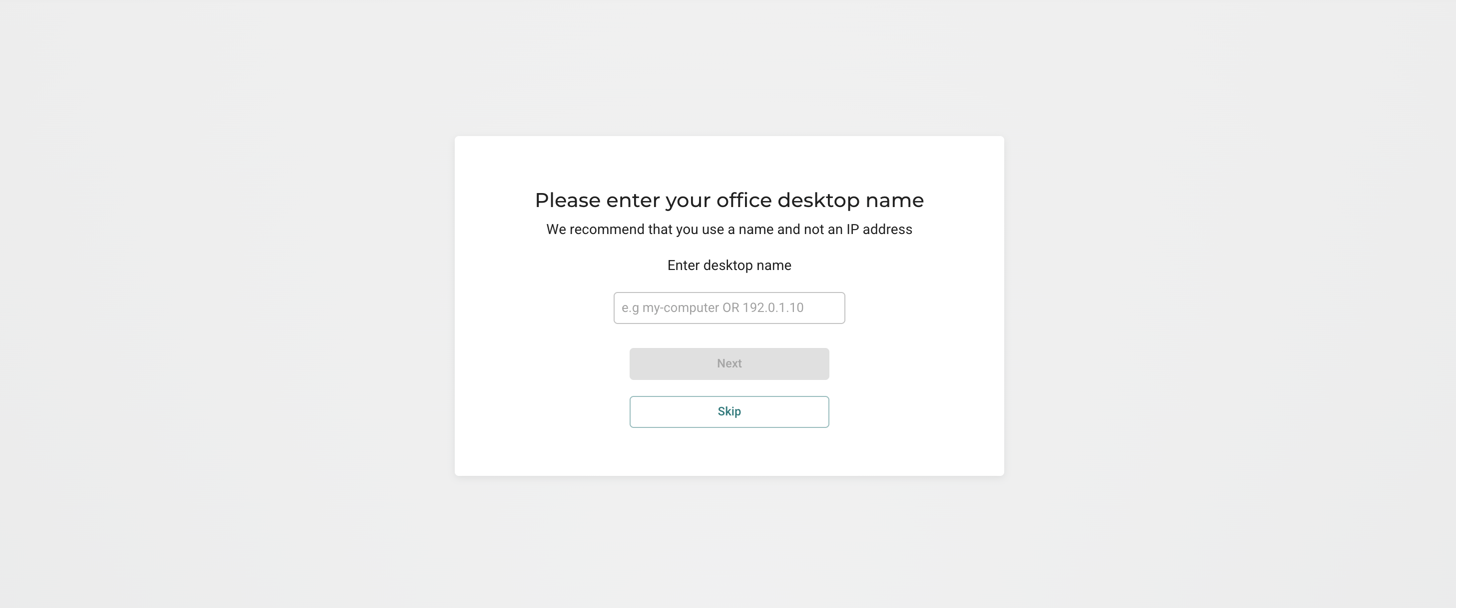
If the Personal Desktop feature is enabled by your administrator, you will be asked to enter your office desktop details to be able to access your personal desktop. Providing the information on this page is optional and can be skipped if not required.
This will only be asked for each new enrollment process, which includes:
- First time enrollment
- Reset enrollment
This information is only requested during a new enrollment process and will not be requested during subsequent logins.
If the information is skipped during enrollment and the Personal Desktop feature is needed later, an administrator can update the user's profile from the Admin Portal.
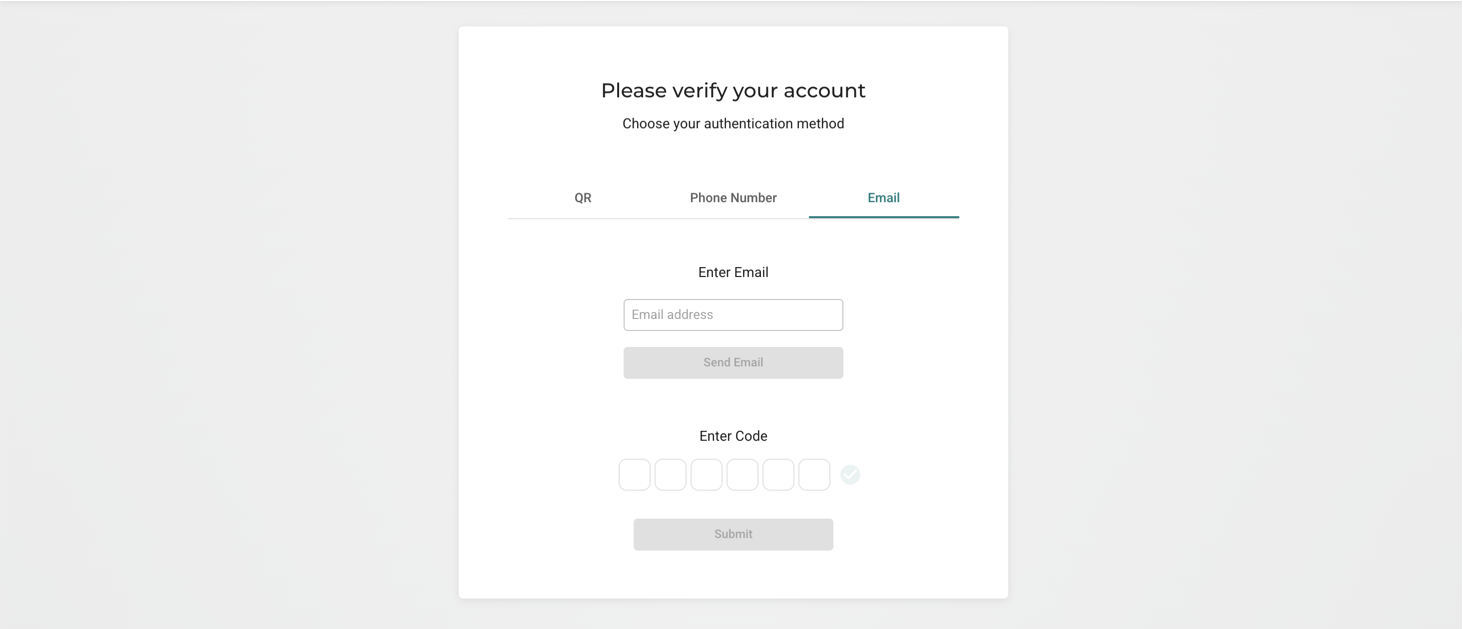
Next you will be asked to verify your account by enrolling Multi Factor Authentication (MFA). There are three options available for the verification method:
- QR code
- Phone number
- Email address
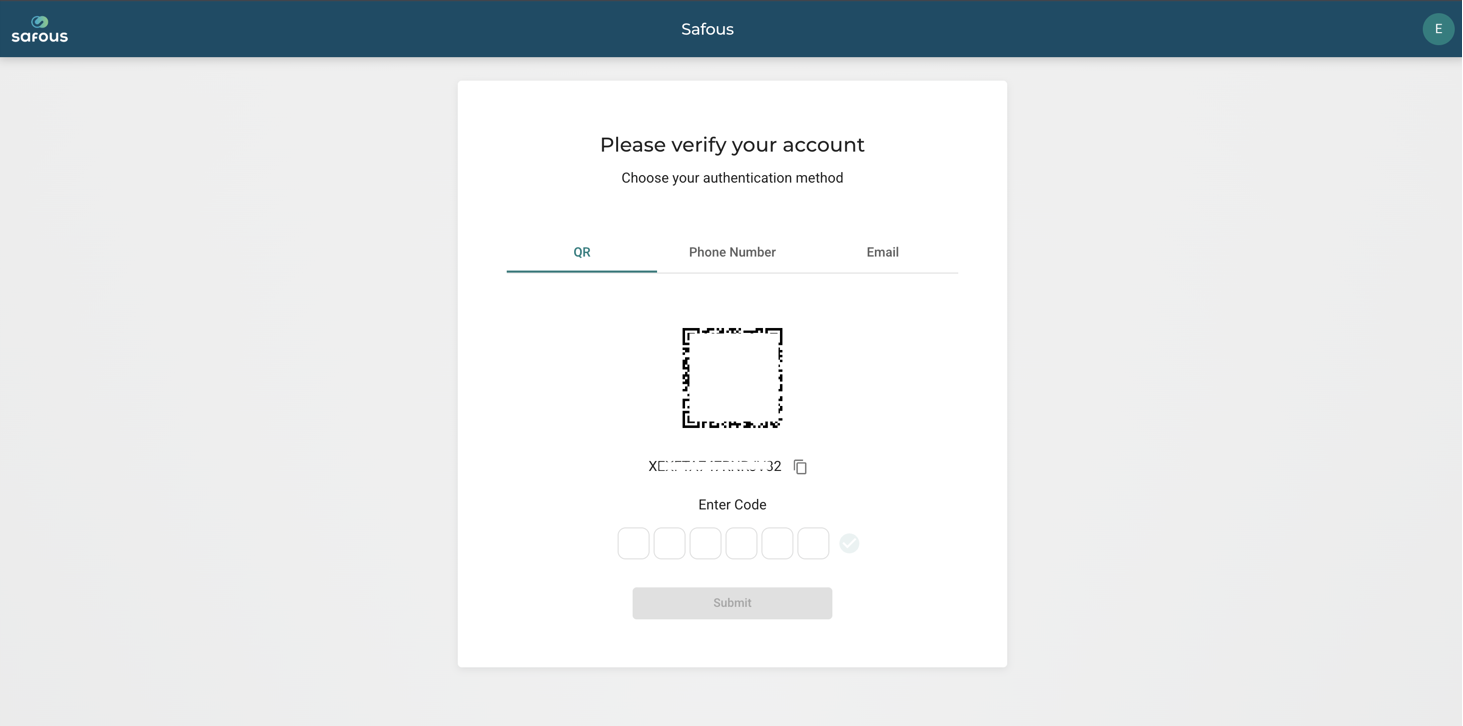
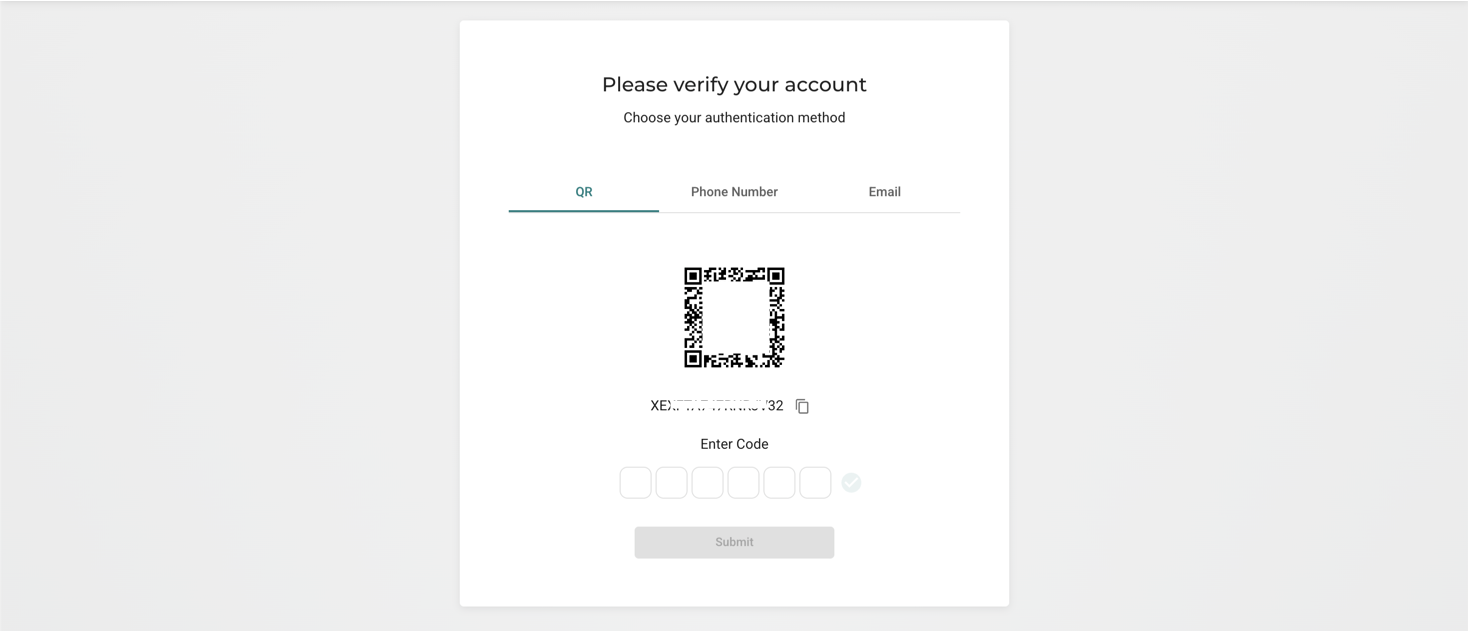
If you choose the QR code MFA method, then please scan the QR code using your authenticator application, the authenticator application will generate a time-based one-time password (TOTP) that you can enter for verification.
If you choose Phone Number as the MFA method, then you need to input your phone number in the format of country code - your phone number. After clicking Send, the OTP will be sent via SMS to your number.
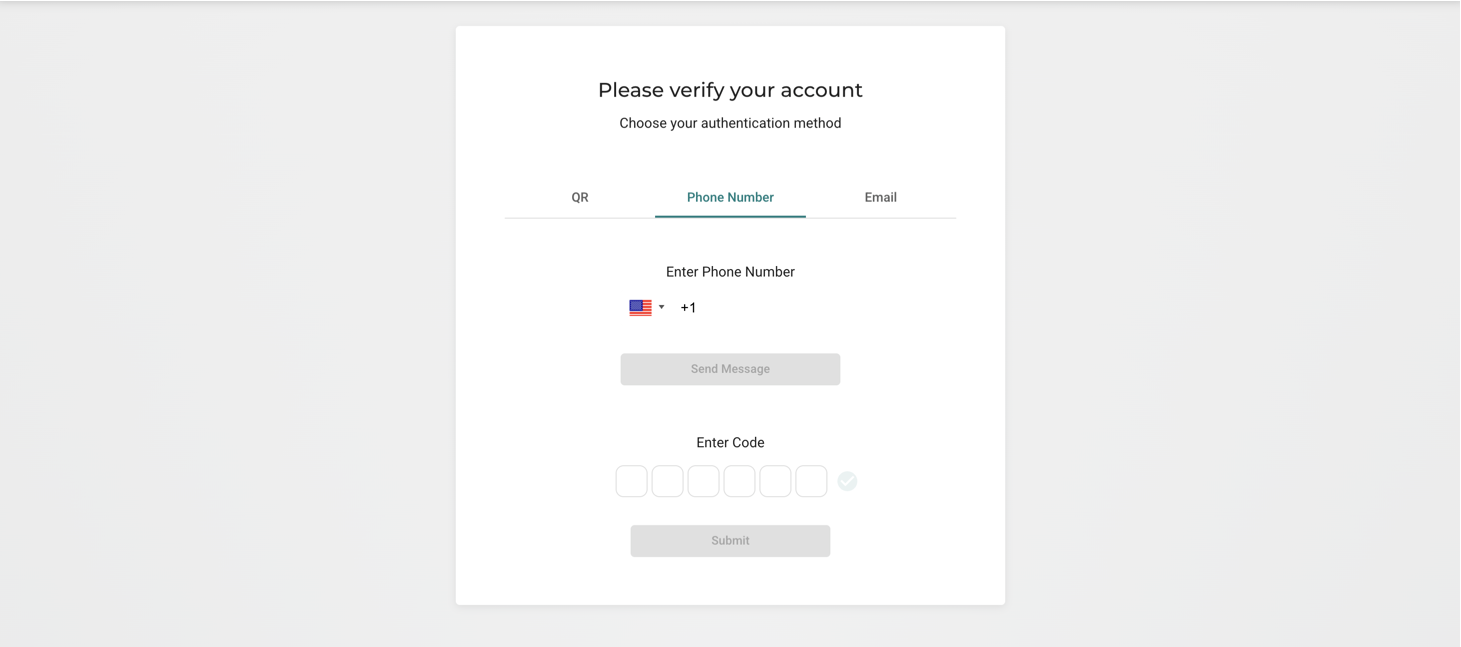
If the administrator has enabled Send OTP via WhatsApp feature and your phone number is associated with a WhatsApp account, then you will receive the OTP via Whatsapp instead of SMS.
If you choose Email address as the MFA method, then you need to input your email address. Once you click send, the OTP will be sent to your email address.
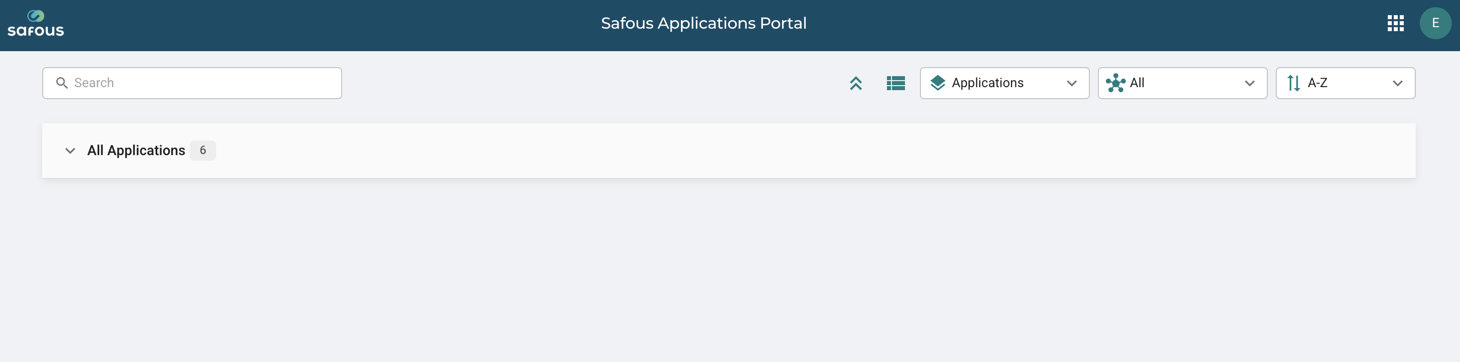
After successfully completing MFA verification, you will be redirected to the User Portal, where all authorized applications are displayed. If you have not been granted access to any applications, the page will not display any applications.