DNS
Safous PRA DNS allows administrators to configure and manage DNS search domains within their environment. This feature simplifies access to resources by allowing users to access resources using their short hostnames instead of entering the full domain name.
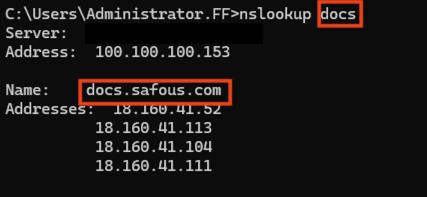
For example, when the DNS search domain safous.com is configured, users can access docs.safous.com by using the hostname docs.
Users must connect through the Safous Agent to use the DNS search domain configuration.
Accessing DNS Configuration
To access the DNS configuration:
-
Navigate to Settings > PRA > Configuration > DNS.
-
The DNS configuration page displays the following information:
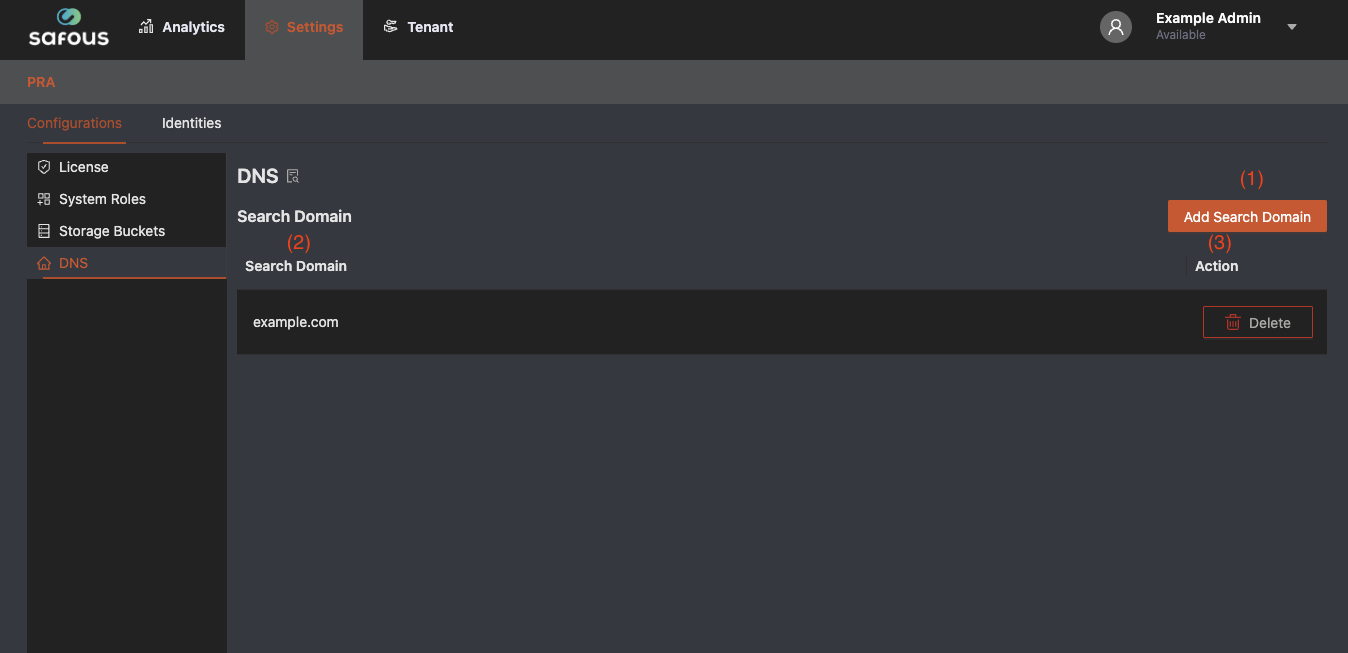
- Add Search Domain: Adds a new DNS search domain to the Safous environment.
- Configured DNS Search Domains: Displays the list of configured DNS search domains.
- Actions: Provides actions for each configured DNS search domain. The Delete button can be used to remove an existing configuration.
Creating a New DNS Configuration
To create a new DNS search domain:
-
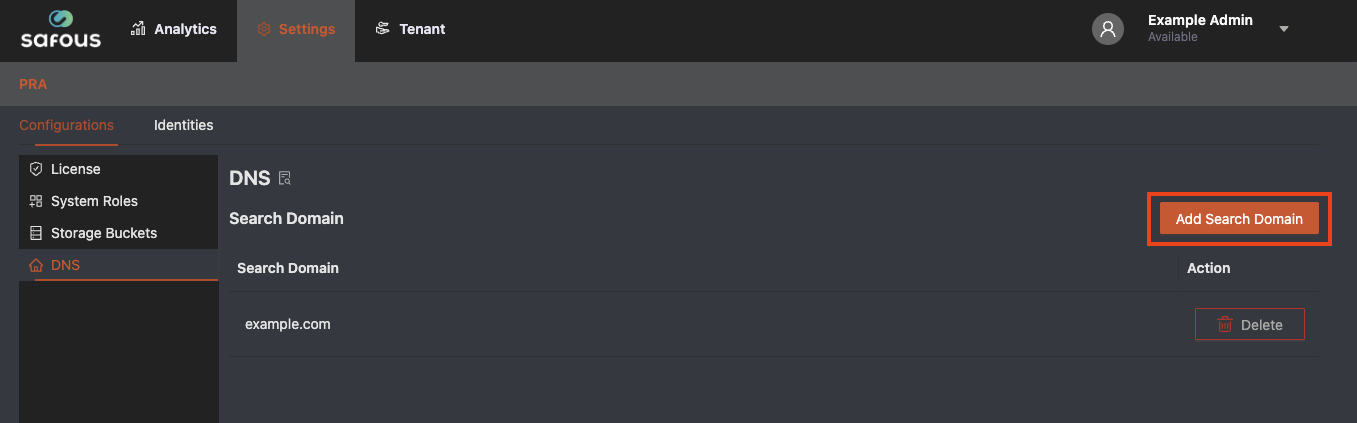
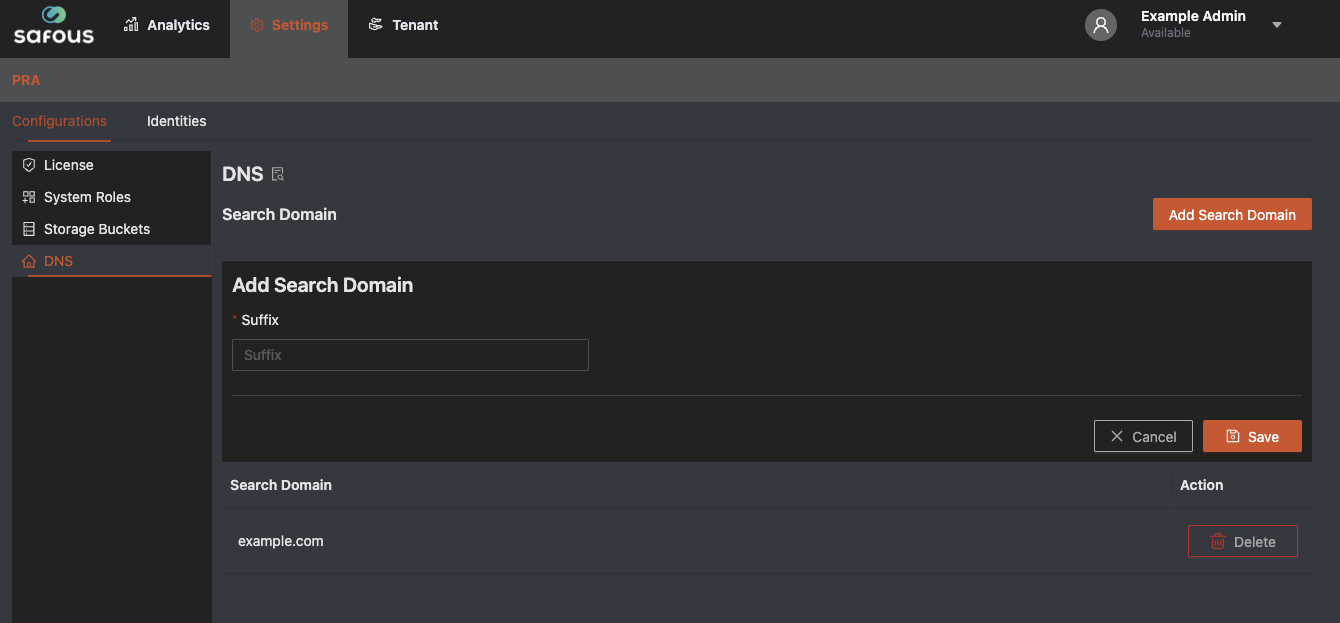
Click Add Search Domain.
-
The configuration form expands and displays the fields required to create a new search domain.
-
Enter the DNS search domain according to the following guidelines:
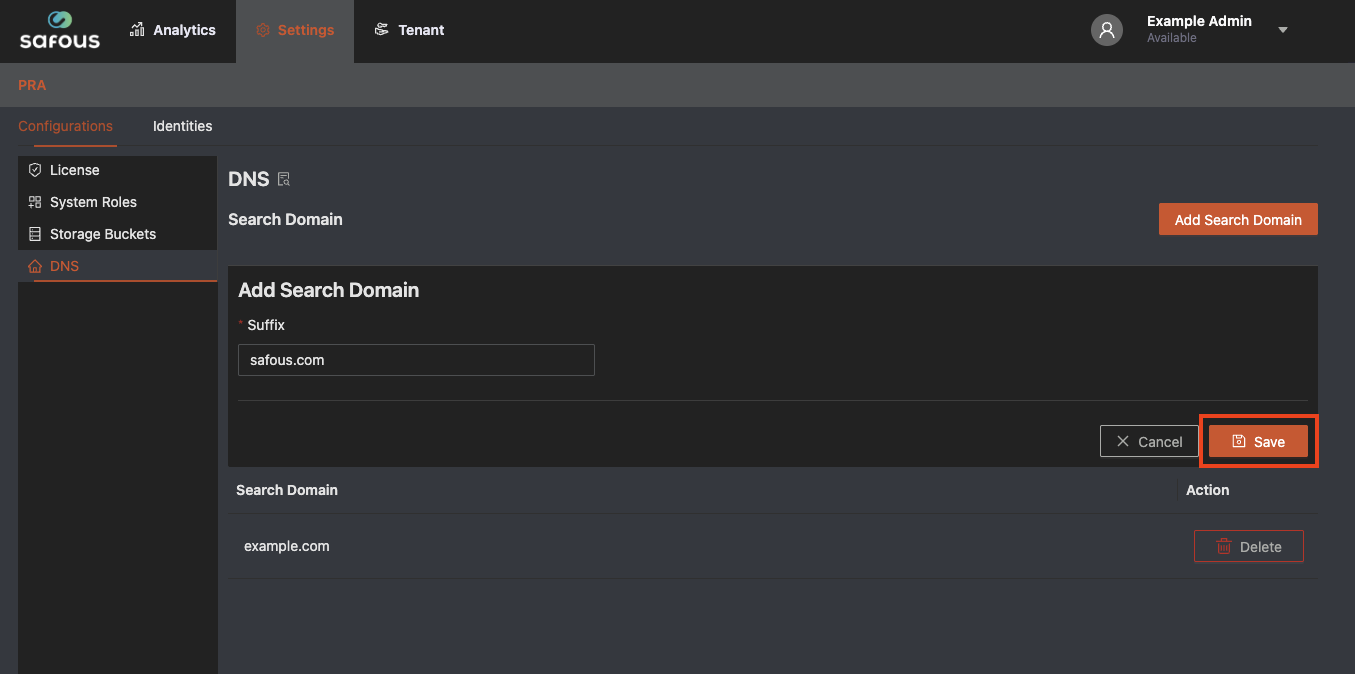
- Enter the root domain in the Suffix field.
- The configured DNS search domain applies to all users connected through the Safous Agent.
-
Click Save at the bottom of the form.
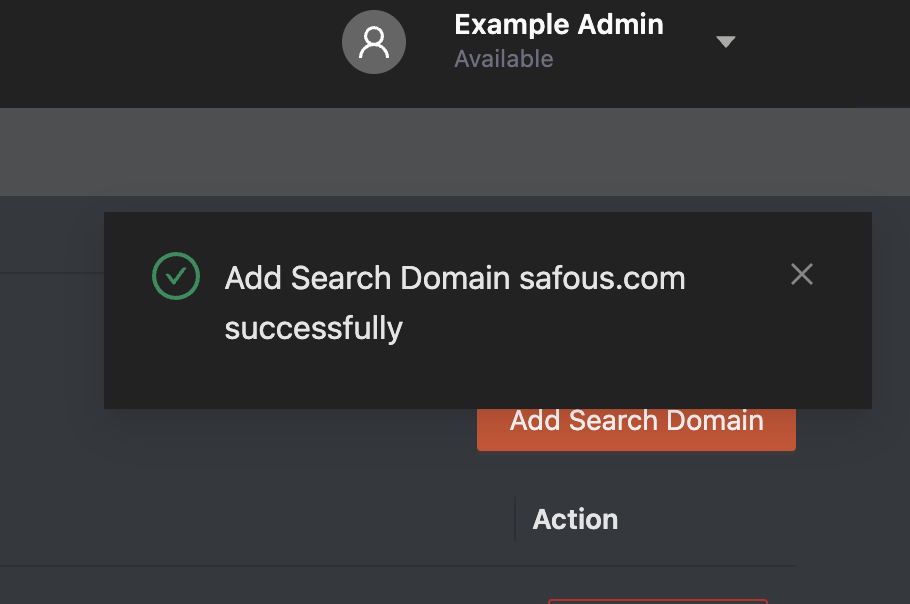
A notification confirming that the search domain was successfully added is displayed.
User or Client Experience
A configured DNS search domain is applied to users connected through the Safous Agent.
To verify that the DNS search domain has been applied successfully:
-
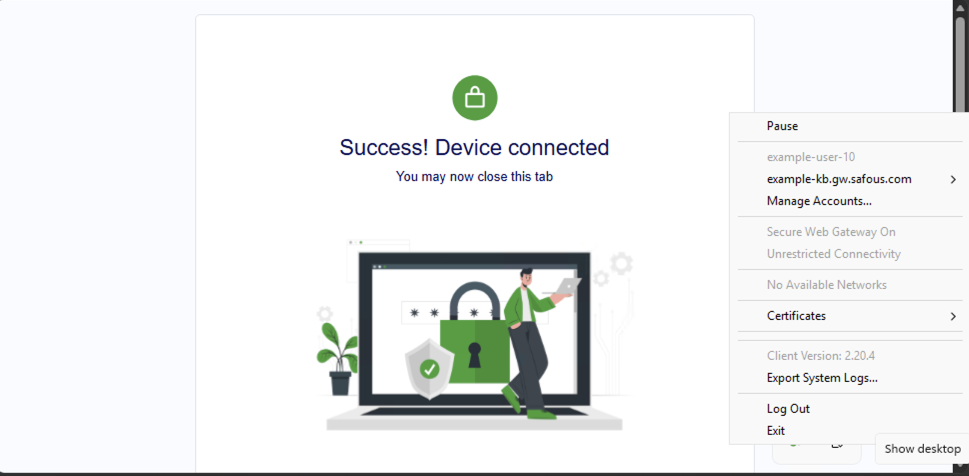
Connect and sign in through the Safous Agent.
-
Verify that the Safous Agent is connected.
-
Use
nslookupor access a resource using its short hostname without specifying the root domain.For example, if
safous.comis configured as the DNS search domain, queryingdocsautomatically resolves the hostname asdocs.safous.com.