Personal Secrets
Overview
You can configure the use of a single personal secret across multiple applications, simplifying user credential management.
Configuring Shared Personal Secrets
Under Vault
You can configure shared personal secrets via the Admin Console:
- Navigate to Vault > Personal Secrets.
- Create labels to group applications that should share a common personal secret.
- Assign applications to the desired label group.
For Each Application in the Personal Secret Group
-
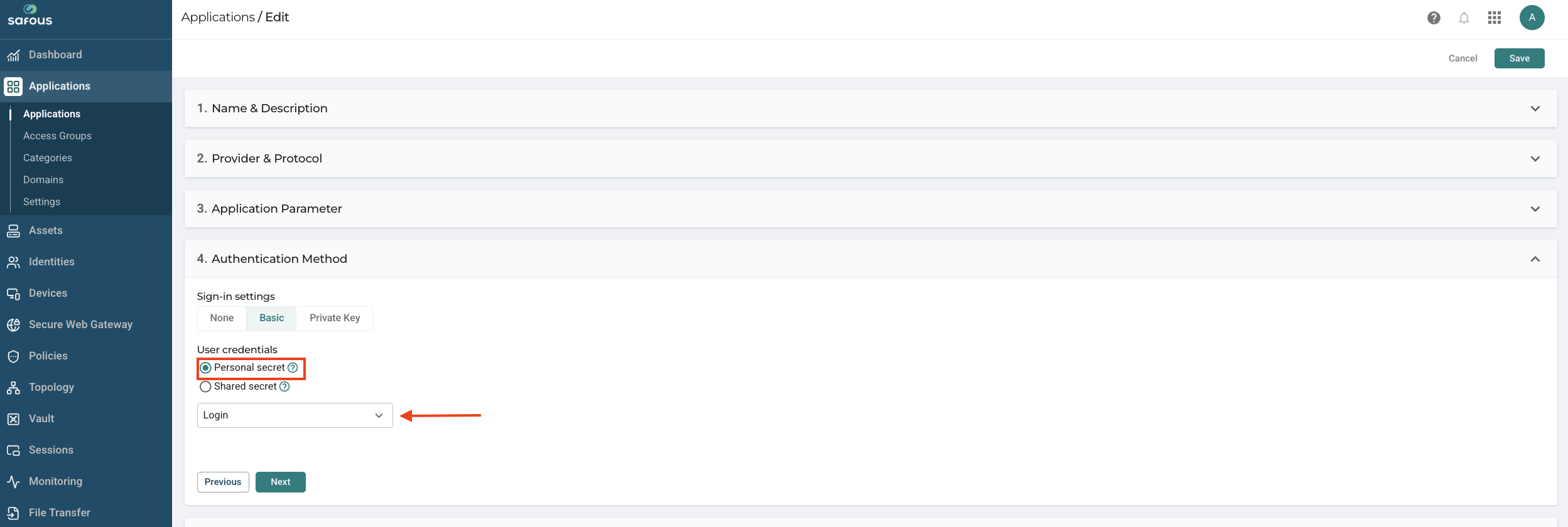
Under the application's SSO settings, select the Personal Secret option.
-
Choose an existing label or create a new one.
note
By default, the system already created a label named "Login". This label stores The credentials used to log in to the Applications Portal and can be used to access the application if the credential matches.
End User Experience
Ongoing Use
- When users first access any application grouped under a label, they will be prompted to enter their credentials.
- After initial entry, the secret is securely stored in the user's personal vault.
- Subsequent access to applications within the same label group will automatically use the stored secret.
Viewing and Managing Secrets
- End users can view which applications are associated with each shared secret on the User Secrets page.
- End users can delete a secret. Deleting a secret will remove it from all applications assigned under the corresponding label.